Minecraft Online on Xbox One: A Practical Guide
Learn how to play minecraft online xbox one with friends using Bedrock edition, Realms, and cross‑platform servers. This step‑by‑step tutorial covers setup, safety, and troubleshooting for a smooth multiplayer experience on Xbox One.


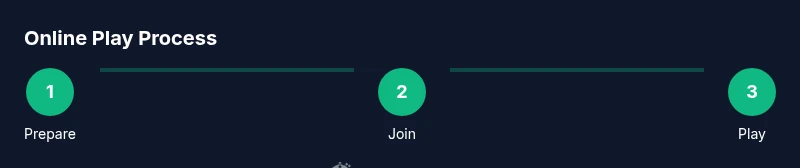
With this guide you will learn how to play Minecraft online on Xbox One. You’ll set up your Microsoft/Xbox Live account, ensure online multiplayer access, and choose between Realms or cross-platform servers to play with friends. Expect practical steps, safety tips, and common troubleshooting. This quick start helps you begin.
Why online play on Xbox One matters\n\nOnline play expands your Minecraft world beyond the couch, letting you explore, survive, and build with friends across distances. If you’re researching how to play minecraft online xbox one, this guide will walk you through setup, cross‑platform possibilities, and best practices to keep sessions smooth and fun. According to Craft Guide, the Bedrock edition on Xbox One enables cross‑play with Windows 10/11, iOS, and Android, plus access to Realms and trusted servers. This accessibility is what makes online play so compelling: you can start a new world together within minutes, share resources, and tackle challenges as a team. In this section you’ll learn the core advantages and the limits you should expect when joining online worlds from Xbox One. You’ll also see how the ecosystem changes if you switch to a Windows 10/11 PC or mobile device, so you can plan sessions with friends who use different devices.
Understanding Bedrock vs Java and cross-platform limits\n\nMinecraft runs in several editions, and for Xbox One players the Bedrock edition is the one that supports online cross‑play. The Java edition, used on PC, cannot currently join Bedrock servers from consoles. Cross‑platform play is possible between Bedrock clients across Xbox One, Windows 10/11, iOS, and Android, enabling friends on different devices to play together. However, some features and servers may behave differently depending on the platform and version. Craft Guide notes that server compatibility, resource packs, and marketplace content can vary, so communicate with your group about version numbers before starting. If you plan to host or join servers, verify that the server uses Bedrock protocol and supports your platform. In short: Bedrock is your gateway to multi‑device Minecraft play, while Java remains a separate ecosystem. When you’re ready to connect, you’ll navigate to the Play menu and choose Realms, Friends, or Servers depending on your goals.
Getting set up: accounts, hardware, and subscriptions\n\nBefore you can dive online on Xbox One, ensure your hardware and accounts are ready. You need a working Xbox One with internet access and the Minecraft Bedrock edition installed. Sign in with a Microsoft account linked to Xbox Live, and check whether your region requires an online multiplayer subscription (e.g., Gold/Core) to join games. Prepare a stable network by enabling UPnP on your router and using a wired connection if possible. Finally, review privacy settings to control who can contact you and what information you reveal during play.
Joining online worlds: Realms, servers, and cross‑play\n\nYou can join Realms by purchasing a Realm or being invited by a friend; on Xbox One, navigate to the Realms tab in Minecraft and enter the code or invitation. For servers, select Play > Servers (Bedrock) and search for compatible servers; you may need to add a server address or browse curated options. To play with friends, start a party or invite them to your session; cross‑play will allow cross‑device play. Ensure you’re signed in with the same Microsoft account if Realms is used. Realms are hosted by Mojang and provide a consistent world with minimal admin overhead; servers allow more variety but may differ in rules and safety.
Safety and etiquette for online play\n\nEstablish boundaries for chat, prevent griefing, and manage friend lists. Use the in-game options to mute voice chat or disable party chat if needed. Adjust game and platform privacy settings to control who can join your games. Be mindful of updates and patch notes that may alter how servers work or require version alignment. Remember to report abuse or suspicious behavior via the console's built‑in tools and server operators when appropriate.
Tips for building and surviving with friends online\n\nCoordinate common objectives, assign roles (builder, explorer, collector), and set shared rules to keep sessions productive. Use spawn protection in Realms or server settings to avoid early griefing; back up worlds regularly. If you’re new to multiplayer, start small with a private group before inviting others. Leverage cross‑platform compatibility to practice with friends who might own different devices, and share resource packs or skins to personalize your worlds.
Common issues and quick fixes\n\nIf you can’t connect, check NAT type, firewall, and that you are signed in. Some connections fail due to outdated game versions; update Minecraft and your console. For Realms issues, verify Realm status on Mojang’s support pages and ensure you have an invitation that is still active. If problems persist, consult the Craft Guide troubleshooting guide and community forums for device‑specific advice.
Tools & Materials
- Xbox One console(With a working internet connection and the latest system update)
- Minecraft for Xbox One (Bedrock edition)(Ensure game is updated to the latest Bedrock version)
- Microsoft account / Xbox Live profile(Linked to your Xbox Live / Microsoft account)
- Active internet connection(Broadband recommended; wired ethernet improves stability)
- Xbox Live Gold / Game Pass Core membership(Needed for online multiplayer in most cases (region dependent))
- Optional: Realms subscription(For hosted private worlds with persistent data)
- Headset or controller chat setup(Voice chat for coordination with friends)
- Router with UPnP and standard NAT support(To optimize network settings and avoid strict NAT)
Steps
Estimated time: 60-120 minutes
- 1
Prepare your Xbox One and Minecraft Bedrock edition
Turn on your console, sign in with your Microsoft account, and ensure Minecraft Bedrock is installed and updated to the latest version. This ensures you can access online features and cross‑platform play. Check for any pending system updates as they can affect connectivity.
Tip: Verify you’re on the latest Bedrock build to avoid version mismatches. - 2
Check your network and account permissions
Test your internet connection in the console settings and confirm your Xbox Live profile can access online services. If you’re behind a strict NAT, you may experience trouble joining servers. Consider a wired connection or adjusting router settings to open necessary ports.
Tip: A wired connection often yields the most stable online play. - 3
Decide your online path (Realms, Friends, or Servers)
Choose whether you want a private hosted world (Realm), a friends‑only session, or an open server. Realms are easy to manage, while servers offer variety but may require more setup and rules. Make sure your chosen option supports Bedrock and your platform.
Tip: Realms require subscriptions; servers may require adding server addresses. - 4
Join a Realm or a cross‑platform server
In Minecraft, go to Realms to join an invite or create one, or use Play > Servers to browse Bedrock‑compatible servers. For cross‑play, ensure your friends are on the same Bedrock edition and sign in with compatible accounts.
Tip: Invite friends via their Xbox Live/Microsoft accounts to avoid invitation issues. - 5
Invite friends and start the session
Create or join a multiplayer session by inviting your friends through the in‑game menu or Xbox party chat. Verify everyone is on the same version and has approved the same privacy settings to minimize disruptions.
Tip: Use a party chat for coordinated voice communication. - 6
Manage safety and chat settings
Review privacy and chat options to control who can contact you and when. Temporarily muting voice or disabling party chat can improve focus during build sessions, especially with new players.
Tip: Set expectations about behavior at the start of each session. - 7
Back up and save your world
For Realms and many servers, backups are crucial. Regular saves prevent loss from crashes or griefing. If you’re hosting, enable automatic backups if available.
Tip: Backups save time after a crash or accidental edits. - 8
Tweak settings and log off responsibly
After you finish, review your settings and sign out if you’re sharing a device. Restart Minecraft for updates to take effect before your next session.
Tip: Document your preferred settings so you can restore them quickly.
People Also Ask
Can I play Minecraft online on Xbox One with friends on PC or mobile?
Yes. On Xbox One, Minecraft uses the Bedrock edition, which supports cross‑play with Windows 10/11, iOS, and Android. Java Edition on PC cannot join Bedrock servers from consoles.
Yes—Bedrock on Xbox One can play with Windows and mobile friends, but Java on PC is separate.
Do I need an Xbox Live Gold or similar subscription to play online?
Online multiplayer on Xbox One typically requires an active subscription (e.g., Xbox Live Gold or a current equivalent like Game Pass Core), though specifics can vary by region. Check your account status before launching online games.
You usually need an active subscription for online multiplayer, but check your region for exact requirements.
How do I join a Realm on Xbox One?
Open Minecraft, go to the Realms tab, and enter an invitation or password if required. Realms are hosted by Mojang and provide a persistent world for friends to play together.
Go to Realms in Minecraft and use an invitation to join your friend’s world.
Why can’t I connect to a server or Realm?
Common causes include mismatched game versions, strict NAT settings, or sign‑in issues. Verify you’re on the same Bedrock version, check network settings, and confirm invitations are active.
Check game version, your network, and any active Realm invitations.
Can I host my own server on Xbox One?
Traditional dedicated server hosting isn’t available on Xbox One. Use Bedrock Realms or join third‑party Bedrock servers that support Xbox access.
You can’t run a dedicated server on Xbox One; use Realms or compatible third‑party Bedrock servers.
Watch Video
The Essentials
- Join online play with Bedrock edition on Xbox One
- Realms offers simple hosted multiplayer with minimal setup
- Check NAT type and account permissions before joining
- Prefer wired connections for stable online sessions