Minecraft Online: A Practical Multiplayer Guide
Learn how to play minecraft online with friends across Java and Bedrock editions. This step-by-step guide covers choosing platforms, joining servers or realms, safety tips, and troubleshooting for a smooth multiplayer experience in 2026.


Master how to play minecraft online with friends across Java and Bedrock editions. This quick guide shows you how to choose the right platform, join public or private servers and realms, and stay safe while collaborating on builds. You’ll learn essential setup steps and team etiquette in 2026 for beginners to experts.
What minecraft online means for players
Online play in Minecraft connects you with others over the internet to explore, build, and battle in shared worlds. For many players, minecraft online is the gateway to collaborative projects, redstone experiments, and community servers. Craft Guide notes that the two main editions, Java and Bedrock, both support multiplayer but differ in compatibility, performance, and server ecosystems. In 2026, understanding these differences helps you pick the right approach for friends on different platforms, whether you’re on PC, console, or mobile. The term minecraft online is broad—it can refer to joining a public server, renting a private realm, or hosting your own world for a group. In all cases, you’re connecting digital space to real-time collaboration, so planning, safety, and clear rules matter as much as your builds.
Understanding editions: Java vs Bedrock
Minecraft runs primarily in two editions, each with its own online ecosystem. Java Edition hosts the classic PC experience with robust mod support and a large server network, often featuring sandboxed mini-games and community events. Bedrock Edition, by contrast, emphasizes cross‑platform play across Windows 10, consoles, and mobile, with a unified store and built‑in cross‑play features. When you plan minecraft online sessions, pick the edition that matches your friends’ devices and preferred servers. Craft Guide notes that players who want to join large, international servers may benefit from Java’s modding culture, while groups seeking smooth cross‑play often start with Bedrock. Both editions support multiplayer, voice chat, and shared builds, but permission systems, world sizes, and performance can vary. In 2026, understanding these differences helps you align expectations and reduce friction when logging in with friends who might be on different platforms.
Online play options: servers, realms, and hosted worlds
Multiplayer in Minecraft can be hosted in several ways. Public servers offer ready‑made communities and game modes, from economy servers to parkour courses. Realms provide private, always‑on worlds managed by Mojang (for Bedrock) or cross‑platform environments; they’re convenient for smaller groups who want a stable, simple setup. Hosted worlds, sometimes run by friends on a shared computer or a rented server, give you full control over rules, invites, and resource packs. When you plan minecraft online activities, list each option’s pros and cons: servers have wide audience but variable latency, realms are private yet limited in customization, and hosted worlds require some technical know‑how but offer full control. Craft Guide’s guidance is to start with a small, trusted server or Realm trial to learn the basics before expanding to public communities. Always verify the edition compatibility and regional latency to keep the experience smooth.
Getting started: choosing a platform and account setup
Before you can dive into online play, decide where your group will converge. If you play Java Edition, everyone needs a Mojang account and a Java launcher; for Bedrock, a Microsoft account linked to the platform where you’ll play. Create or confirm accounts, update your profile, and prepare a preferred chat method for coordination. It’s helpful to standardize the version you’ll use and ensure everyone knows how to access server lists or realm codes. In 2026, many players begin by testing a small private server or Realm with a friend to learn the basics, then expanding to larger communities as confidence grows. Craft Guide suggests documenting the plan and sharing it in a central chat thread so all players stay aligned.
How to connect to a server: a practical workflow
Connecting to a minecraft online server starts with obtaining the correct address or invitation link. In your Minecraft client, select Multiplayer, then Add Server or Join Realm as appropriate. Enter the server name and address precisely; typos or whitespace will block access. If you’re using Bedrock, you may join via the server address or by scanning a code from an invitation. After connecting, review the server rules, welcome messages, and any required resource packs or mods. Communicate early with teammates about roles, tunnel goals, and building coordinates. A good server will have a starter area and clearly labeled limits to prevent griefing. In this section, the emphasis is on accuracy and patience, because a small error now can waste a lot of time later. Craft Guide notes that repeated checks on version alignment reduce the friction in future sessions.
Safety, etiquette, and common pitfalls
Online play is fun but requires courtesy and caution. Use in‑game chat and voice communications responsibly, avoid sharing personal information, and respect server rules to prevent being kicked or banned. Be mindful of phishing attempts and do not click suspicious links to join a server; always use official portals or invitations from trusted friends. If you’re switching teams, document the changes, roles, and building boundaries so no one gets confused. This is also a good moment to set ground rules for griefing, raiding, and resource sharing, and to agree on a backup plan if someone loses connection mid‑build. Craft Guide recommends keeping a log of every session—who joined, what was built, and any notable events—so you can track progress across multiple sessions.
Performance tips and troubleshooting for online play
Latency and hardware performance can affect the minecraft online experience. To reduce lag, ensure your device drivers are updated, close bandwidth‑heavy apps, and select servers with favorable ping times. If you encounter connection refusals, re‑enter the correct server address, confirm you’re on the right edition, and verify your firewall isn’t blocking the game. Some issues stem from router settings or NAT types; if you can, set up port forwarding for the game only or consult your internet provider for guidance. Keep backups of your builds, especially on longer campaigns, to avoid losing progress during outages. Craft Guide’s troubleshooting approach emphasizes calm, systematic checks rather than random fixes.
Tools & Materials
- Minecraft game launcher(Choose the edition (Java or Bedrock) that matches the servers you want to join)
- Compatible device with internet access(PC/Mac, console, or mobile device; ensure it meets edition requirements)
- Minecraft account(Java Edition requires Mojang account; Bedrock uses Microsoft account)
- Server addresses or realm codes(Obtain from invites or server listings)
- Voice chat headset or mic(Optional but helpful for coordination)
Steps
Estimated time: 60-120 minutes
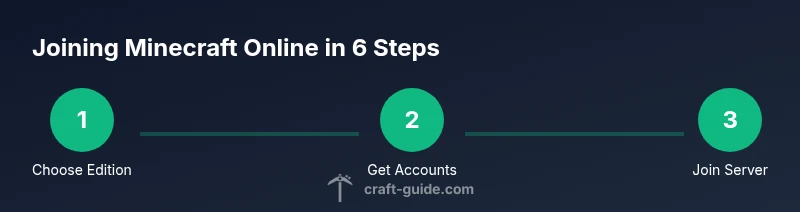
- 1
Choose edition and set up accounts
Decide whether your group uses Java or Bedrock, and create or verify the corresponding accounts. Ensure everyone uses compatible launchers and login credentials before proceeding.
Tip: Double-check that all players are using the same edition and version to prevent mismatches. - 2
Find a server or realm that fits your group
Look for servers with clear rules and a friendly community. Check reviews or forum posts to gauge longevity and latency for your region.
Tip: Prefer servers with recent activity and an active staff team to reduce griefing. - 3
Test connectivity and hardware readiness
Verify your device meets the edition requirements and test a quick login to ensure there are no login or network issues.
Tip: Run a speed test and close other apps that could eat bandwidth during the test. - 4
Launch Minecraft and sign in
Open the launcher, log into your account, and select the correct edition. Prepare to join the multiplayer area.
Tip: Keep your launcher updated to minimize compatibility errors. - 5
Add the server and connect
In Multiplayer, add the server address or select the Realm code, then click connect. Confirm you’re on the right version if prompted.
Tip: Copy addresses directly from the official server pages to avoid typos. - 6
Agree on rules and establish channels
Before building, agree on server rules, roles, and a basic plan for the first session. Set up a simple chat channel or voice method for coordination.
Tip: Draft a short build brief to prevent overlap and promote teamwork. - 7
Troubleshoot common issues
If you encounter issues, recheck edition compatibility, network settings, and firewalls. Reconnecting after a brief pause often resolves minor hiccups.
Tip: Document recurring problems to seek faster fixes in future sessions.
People Also Ask
What is minecraft online?
Minecraft online refers to multiplayer play over the internet, allowing players to explore, build, and battle in shared worlds via servers, realms, or hosted worlds. It involves linking devices to a common server and requires appropriate edition and account setup.
Minecraft online means multiplayer play over the internet using servers where friends can join and collaborate.
How do I join a server?
Find a server that fits your edition (Java or Bedrock), copy the address or use a realm code, then add the server in the multiplayer menu and connect. Always review server rules first.
To join, pick a server, copy its address, and connect from the multiplayer menu.
What is the difference between Java and Bedrock for online play?
Java and Bedrock are two editions with distinct ecosystems. Java emphasizes modding and large server networks, while Bedrock focuses on cross‑platform play and a unified online experience. Choose based on devices and desired server access.
Java is great for mods and servers, Bedrock is better for cross‑platform play.
Can I host my own server for minecraft online?
Yes, hosting your own server gives full control over rules, invites, and mods. It requires basic technical knowledge and reliable hardware or a hosting service. Be prepared to manage updates and backups.
You can host your own server with some technical setup and ongoing maintenance.
Is cross‑platform play supported for minecraft online?
Cross‑platform play is supported between Bedrock editions across Windows, consoles, and mobile. Java edition players generally cannot join Bedrock servers without using specific bridges or tools. Check edition compatibility before inviting friends.
Bedrock supports cross‑platform play; Java does not without special tools.
How can I stay safe while playing online?
Always join servers from trusted invites, avoid sharing personal information, and use strong account credentials. Enable privacy settings and report inappropriate behavior to server admins. Keep software updated to mitigate security risks.
Join trusted servers, protect personal info, and report issues promptly.
Watch Video
The Essentials
- Choose the right edition for your group.
- Join trusted servers and read rules before playing.
- Coordinate with teammates to maximize progress.
- Back up builds and document sessions for continuity.