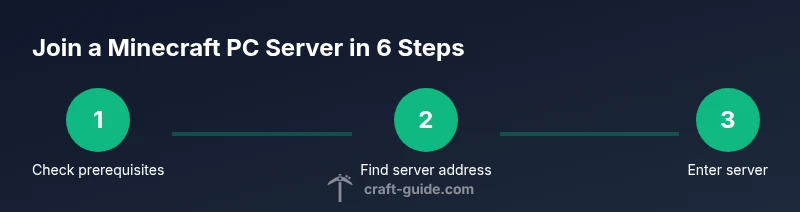
Minecraft PC Server Joining Guide
Learn how to join a Minecraft server on PC with a complete, beginner-friendly guide. From prerequisites to troubleshooting and best practices, Craft Guide walks you through each step for a smooth multiplayer experience.


Ready to join a Minecraft server on PC? This guide covers the exact steps to connect, including Java edition verification, server address entry, and in-game login checks. You’ll learn how to match the server version, handle whitelist or password prompts, and confirm your connection status. According to Craft Guide, starting with the right version and a valid account saves time and avoids errors.
Getting Ready: Prerequisites and Tips
Joining a Minecraft server on PC starts with proper preparation. Before attempting a connection, verify you have the right edition, an active account, a stable internet connection, and a known server address. According to Craft Guide, starting with correct prerequisites dramatically reduces common hiccups. The Craft Guide team found that most issues stem from version mismatches, missing Java, or incorrect server details. This section guides you through essential checks so your first try succeeds and your experience remains smooth and enjoyable.
- Ensure you are using the Java Edition on PC, as most servers require it.
- Confirm your Minecraft account is active and signed in.
- Have the server address ready (IP or domain) and note any port.
- Test your internet connection and disable VPNs or proxies that might interfere.
- Create a quick backup plan for your worlds in case of connection changes.
If you follow these prerequisites, you’ll spend less time troubleshooting and more time exploring the server world.
Understanding Java Edition vs Bedrock on PC
Most PC servers operate on Java Edition, which is the standard for cross-server play on classic Minecraft. Bedrock Edition on PC can access some servers, but many popular multiplayer communities run Java-only environments. Always verify edition compatibility with the server admins or on the server listing. If you’re unsure, start from a Java Edition server or ask for a Java compatibility note. This distinction matters because some commands, mods, and plugins behave differently between editions. By aligning your client with the server’s edition, you minimize handshake failures, chat formatting differences, and item ID mismatches that lead to confusing errors. Craft Guide’s guidance emphasizes edition alignment as a foundational step to avoid needless frustration.
- Java Edition is the go-to for most PC servers and modded experiences.
- Bedrock can connect to limited servers; check server rules first.
- Edition mismatch commonly triggers login or handshake errors.
- If you plan to use mods or plugins, Java Edition is typically required.
When in doubt, test a known Java server to confirm your client setup before attempting more complex multiplayer builds.
How to Find a Server and Get the Address
Finding a reliable server starts with reputable listings and recent activity. Look for servers with clear rules, recent uptime updates, and active community channels. Copy the server address exactly as shown (IP or domain) and note the port if it deviates from the default. If the server requires a whitelist, you’ll need to request access from an admin or apply via the server’s portal. Craft Guide recommends double-checking the address against the listing to avoid phishing pages or spoofed domains. Once you have the address, paste it into the launcher’s Add Server screen.
- Use official server directories or well-known gaming communities.
- Check for recent activity and a friendly moderation team.
- Ensure you have the correct port number (if not default 25565).
- Verify whitelist requirements and expected approval times.
Having a verified address and client-ready information will save time during setup and reduce the risk of misdirected connections.
Connecting to the Server in Minecraft Java Edition
Launch Minecraft and select the Java Edition profile, then click Play. From the main menu, choose Multiplayer, then Add Server. Enter a friendly server name and paste the server address (and port, if required) into the Server Address field. Click Done, then select the server from your list and click Join Server. If the server uses a non-default port, append it after the address with a colon, for example, 123.45.67.89:25565. Make sure your game version matches the server’s recommended version; otherwise you may see a version mismatch error. If you encounter a handshake error, re-check the address and port accuracy and ensure your launcher is fully up to date. Craft Guide highlights that precise addressing and version parity are essential to a successful connect.
- Verify Java Edition and version alignment before joining.
- Use Copy-Paste to avoid typos in the server address.
- If port is included, format as address:port.
- After connecting, observe any in-game prompts about version or mods.
Handling Whitelists, Passwords, and Permissions
Some servers require whitelist approval or password entry. If you are whitelisted, you’ll see the server listed and can join once loaded. If prompted for a password, enter it exactly as provided by an admin. Always follow the server’s rules and guidelines to avoid kicks or bans. If you lack permissions, contact the server admin and request access rather than attempting to bypass restrictions. Keeping your account secure helps prevent unauthorized access if the server uses account-linked permissions. Craft Guide recommends documenting any whitelist steps and keeping a record of accepted players for faster future connections.
- Confirm you’re whitelisted before trying to join.
- Enter passwords precisely; even a single character mismatch blocks access.
- Respect server rules and chat etiquette to avoid punishment.
- Maintain a clean admin contact record for quick access requests.
Troubleshooting Common Connection Problems
If you can’t connect, start with the basics: re-check the server address and port, ensure your Java Edition matches the server, and confirm your internet connection is stable. If you receive a specific error message, search the exact text in server forums or Craft Guide’s troubleshooting pages for targeted fixes. Sometimes, restarting Minecraft or rebooting your router resolves minor network hiccups. If problems persist, test another server to determine if the issue is client- or server-side. Craft Guide’s troubleshooting notes emphasize reproducible steps and keeping logs to identify the root cause.
- Double-check address accuracy and port number.
- Confirm edition compatibility and server version.
- Restart the game and, if needed, your router or network equipment.
- Try a different server to isolate the issue.
With methodical checks, you can usually identify whether the problem lies with your client, your network, or the server itself.
Best Practices for Safe and Smooth Play
Security and etiquette matter in every server. Keep your account credentials secure and avoid sharing server IPs publicly for private servers. Use strong passwords and enable two-factor authentication where available. Only join servers from trusted communities and always read the rules before playing. Regularly back up your worlds, especially before attempting new servers or mods, and keep your Minecraft client updated to the latest release to reduce compatibility issues. Craft Guide emphasizes responsible play and good digital hygiene to protect your data and enjoy multiplayer builds without interruptions.
- Protect your login details and use two-factor authentication if possible.
- Join reputable servers with clear moderation and rules.
- Back up worlds before heavy server-connected sessions.
- Keep Java and Minecraft up to date to minimize exploits and crashes.
Following these practices helps sustain a positive, long-term multiplayer experience.
Alternate Ways to Join: LAN, Realms, and Public Servers
Public servers aren’t the only way to multiplayer. You can play with friends over LAN by connecting to the same local network, or subscribe to Minecraft Realms for a hosted server managed by Mojang. Running your own server is another option if you want full control and customization. LAN play requires both players on the same network or VPN, while Realms offers convenience with a fixed IP and admin tools. Public servers vary in latency and uptime, so check status dashboards and community reviews before joining. Craft Guide suggests evaluating latency, population, and moderation quality to choose the best fit for your play style.
- LAN: local network multiplayer with friends.
- Realms: hosted, easy-to-manage server for small groups.
- Public servers: broader communities with varying rules and latency.
- Always review server rules and community standards before joining.
Final Checks Before You Click Connect
Before you click Connect, verify you’re on the correct Edition and that the server address is exact. Confirm you are signed into a valid Minecraft account and that your internet connection is stable. Check firewall or antivirus settings to ensure Java isn’t blocked, and close any bandwidth-heavy applications that might cause lag. If you still can’t connect after these checks, contact the server admin or consult Craft Guide’s troubleshooting resources for next steps. A thorough pre-connection check saves time and reduces frustration when you finally click Connect.
Tools & Materials
- Minecraft Java Edition (latest)(Java Edition is required for most servers; ensure you have the latest patch.)
- Java Runtime Environment (JRE) or JDK(Version 17+ is commonly recommended; verify compatibility with server.)
- A valid Minecraft account(You’ll need to be logged in to join a server.)
- Stable internet connection(Wired connections reduce latency and disconnections.)
- Server address (IP or domain) and port(Copy exactly; ports are sometimes non-default (e.g., 25565).)
- Backup plan for worlds(Important if you’re attempting new servers or mods.)
- Optional tools(Voice chat app (e.g., Discord) for coordination; not required to join.)
Steps
Estimated time: 20-30 minutes
- 1
Verify prerequisites
Check that you have the correct Java Edition installed, a valid account, and a stable network. Confirm the server address and port are ready before launching the game.
Tip: Having everything ready saves time during setup. - 2
Find a server and copy its address
Browse reputable server lists and pick a server with active players and clear rules. Copy the exact IP/domain and port if shown.
Tip: Use Copy-Paste to avoid typos in the address. - 3
Open Minecraft and prepare Java Edition
Launch the launcher, select Java Edition, and click Play to ensure your client is ready for multiplayer.
Tip: A clean launcher profile reduces startup issues. - 4
Add the server in the launcher
From the Multiplayer screen, click Add Server, name it, and paste the address. Save your entry.
Tip: Give the server a memorable name for quick access. - 5
Connect to the server
Select the server and click Join Server. If required, include the port after the address.
Tip: If you see a version mismatch, adjust your client to the server’s version. - 6
Handle whitelist or login prompts
If the server uses a whitelist, wait for approval. If a password is required, enter it exactly as provided.
Tip: Document any credentials securely for future use. - 7
Troubleshoot if you fail to join
Review the error message, recheck address and port, and confirm edition compatibility. Restart the game or device if needed.
Tip: Check server status pages or forums for known issues. - 8
Enjoy and maintain good practices
Respect server rules, back up worlds, and keep your client updated for a smoother experience.
Tip: Regular maintenance prevents many multiplayer issues.
People Also Ask
What Minecraft edition do I need to join servers?
Most servers on PC require Java Edition. Bedrock is supported on some servers, but not all. Check the server listing for edition compatibility before attempting to join.
Most PC servers use Java Edition; verify edition on the server page.
Do I need a whitelist to join a server?
Some servers use whitelists; you’ll need approval from an admin. If there’s a password, keep it secure and enter exactly as provided.
Whitelists depend on the server; request access if needed.
What if I get a version mismatch error?
Update or switch to the server’s recommended version. You can run multiple Minecraft launches to match different server versions.
Match your game version to the server’s version.
Can I join any server from anywhere in the world?
Yes, provided your network permits it and the server is online. Latency varies by distance and ISP routing.
You can join globally, but expect different ping times.
What’s the difference between Realms and public servers?
Realms are Mojang-hosted private servers with a simple setup and small group focus. Public servers offer broader communities but vary in rules and uptime.
Realms are private; public servers are larger and more varied.
Why am I kicked after joining?
This can be due to rule violations, lag, or failed authentication. Check server rules, rejoin if needed, and contact admins if the issue persists.
Kicks usually come from rules or server issues; check with admins.
Watch Video
The Essentials
- Verify edition and version match before joining
- Use exact server address and port
- Whitelist status affects access
- Follow server rules for a positive experience
- Keep your client and Java updated