Minecraft PC: A Practical How-To Guide
A practical, step-by-step guide to getting started with Minecraft PC, covering installation, world creation, survival basics, and performance optimization for players of all levels.


By the end, you will be able to start playing minecraft pc with confidence: install Java Edition, adjust core settings, create your first world, and begin your building adventures. This quick guide covers setup, controls, world basics, and safety tips, with beginner-friendly steps and practical examples. According to Craft Guide, the goal is practical, low-friction learning that scales from new players to more experienced builders.
What Minecraft PC Enables: Scope and Concepts
Minecraft PC is the original PC edition designed to run on personal computers. On PC, players typically use the Java Edition, which offers robust modding support, deep world customization, and a broader modding ecosystem. The freedom to craft complex machines with redstone, create massive builds, and run community-made texture packs makes minecraft pc a sandbox for creativity and experimentation. The Craft Guide team notes that this edition emphasizes customization, compatibility with a wide range of control setups, and ongoing updates from Mojang and the broader Java community.
For beginners, it helps to clarify the core modes: Survival, Creative, and Adventure. Survival challenges you to manage hunger, health, and resource gathering; Creative gives unlimited blocks for experimentation; Adventure focuses on custom maps with restricted tools. Bedrock Edition exists for consoles and Windows 10/11, but Java Edition remains the most flexible option for players who want full control over mods and options. As you grow, you’ll learn to switch between modes, experiment with command snippets, and adjust world settings to match your preferred playstyle. The path you choose influences how you learn, what you build, and which community resources you’ll rely on.
In short, minecraft pc is not just a game—it’s a platform. With the right setup and a curiosity for tinkering, your ideas can become real, from compact redstone mechanisms to sprawling architectural feats. The Craft Guide approach centers on practical steps, clear explanations, and hands-on practice to turn curiosity into skill.
System Requirements and Performance
Minecraft PC performance depends on having a balanced system and sensible in-game settings. On PC, the Java Edition runs through the Java Virtual Machine, so keeping Java up to date and allocating a reasonable portion of memory to the game helps stability. The Craft Guide analysis shows players who optimize graphics options, disable unneeded background apps, and adjust the render distance experience smoother gameplay and fewer stutter moments during large builds. For best results, update drivers, keep your disk clean, and choose a reasonable render distance that matches your hardware. If you’ll be modding, ensure you have extra disk space and a clean profile to prevent conflicts. A stable internet connection also helps when joining servers or downloading data packs. Start conservative, then tune settings as your world grows.
Getting Set Up: Installation, Accounts, and Launch
Begin at the official Minecraft site and download the Java Edition launcher. Create or sign in to your Microsoft account, then install the launcher and run it. In the launcher, select Java Edition, update to the latest version, and ensure Java is enabled on your system. Allocate a comfortable amount of memory for the game, then press Play to load the main menu. From here, adjust basic options like controls, brightness, and sound so your first session feels comfortable. According to Craft Guide, spending a few minutes setting up controls and keybinds will pay off in faster, more confident play. When you’re ready, create a new world in Survival or Creative mode and adjust the game rules to match your learning pace.
World Creation and Early Building: A Practical Start
When you create a new world, give it a descriptive name and choose a mode. For beginners, Survival provides structure: you’ll gather resources, manage health and hunger, and build a basic shelter. Creative mode removes survival concerns and lets you focus on design and scale. Seed selection influences terrain generation, biomes, and resources—experiment with different seeds to see how the world differs. On your first day, chop trees for wood, craft a crafting table, and create basic tools. Build a simple shelter that protects you from the night and hostile mobs. As you explore, you’ll learn to navigate terrain, locate resource clusters, and plan improvements to your base.
Core Gameplay: Survival, Crafting, and Exploration
Core gameplay centers on gathering resources, crafting essential items, and exploring the world safely. Start with basic tools—wooden or stone items—and upgrade to better materials as you unlock them. Crafting tables enable more complex recipes; a furnace allows smelting and cooking. Managing inventory, food sources, and lighting is crucial to survive longer sessions. Exploration reveals caves, temples, villages, and varied biomes, each offering unique opportunities and challenges. Practice efficient mining and stockpiling resources to support long-term projects. Remember to save frequently and back up your world to avoid loss from glitches or hardware issues.
To accelerate learning, break goals into small builds: a simple bridge, a nearby farm, or a compact house. Each completed project reinforces skills, from collection and crafting to layout and aesthetics. Craft Guide emphasizes consistent practice and hands-on experimentation to turn experimentation into mastery.
Customization and Optimization: Mods, Settings, and Tools
Minecraft PC thrives on customization. You can adjust graphics settings for performance, install resource packs to change visuals, and explore mods that expand gameplay. Mod loaders like Forge or Fabric enable a wide array of mods, from quality-of-life improvements to major feature changes. When modding, back up your worlds first and test in a separate profile to avoid corrupting your main save. Shaders can dramatically alter lighting and atmosphere, but they require stronger hardware. Resource packs and UI tweaks help tailor the experience to personal taste. For ongoing projects, set up regular backups and maintain a clean install profile to minimize conflicts. Craft Guide recommends starting with small, well-supported mods and gradually expanding your toolkit as you gain confidence.
Authority sources
This section provides trusted references for Minecraft PC. Use these to deepen your understanding and corroborate best practices.
- BBC—Minecraft coverage and features: https://www.bbc.com
- The New York Times—Gaming and technology discussions: https://www.nytimes.com
- The Verge—Tech and gaming news and tutorials: https://www.theverge.com
Tools & Materials
- Minecraft PC (Java Edition)(Officially obtained via the Minecraft website; Java Edition is the most flexible for mods.)
- Computer meeting baseline performance(Ensure your system can run Java Edition smoothly; keep OS and drivers updated.)
- Keyboard and mouse(Precise controls help with building and combat.)
- Stable internet connection(Needed for account login, server play, and data packs.)
- External backup storage (optional)(Great for creating world backups before major projects or mods.)
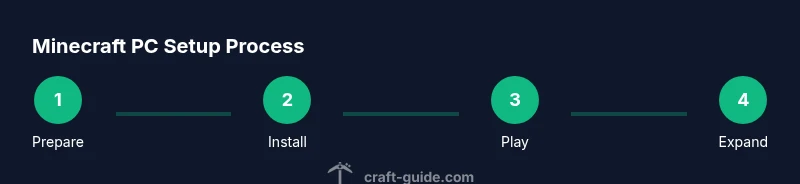
Steps
Estimated time: Total: 2-3 hours
- 1
Prepare your computer and download the launcher
Visit the official Minecraft site, download the Java Edition launcher, and run the installer. Ensure Java support is enabled and your system has a stable internet connection for updates. This first step sets a clean foundation for a smooth experience.
Tip: Close other heavy programs to allocate more memory to Minecraft during setup. - 2
Create or sign in to your Minecraft account
Use your Microsoft account to sign in within the launcher, then verify you have access to Java Edition. This step unlocks all game features and your ability to save worlds locally.
Tip: Enable two-factor authentication if available for account security. - 3
Launch and adjust basic settings
Open the launcher, select Java Edition, and click Play. In-game, adjust controls, brightness, sound, and a modest render distance to balance performance with visibility.
Tip: Save a custom profile with your preferred settings for quick access. - 4
Create your first world
Choose Survival or Creative mode, name the world, and set beginner-friendly preferences. Explore seeds or generate a random world to see varied terrain and resources.
Tip: Start with a simple shelter plan and a small resource goal for your first session. - 5
Gather basics and build a starter base
Punch trees for wood, craft a crafting table, and make basic tools. Build a safe shelter to protect against the first night’s mobs and establish a base for future projects.
Tip: Keep a small stack of torches to illuminate your early base and nearby paths. - 6
Expand safely and explore
Smelt ore, mine for essential resources, and document your exploration routes. Regularly back up your world and experiment with simple structural expansions as you learn.
Tip: Back up before trying a new mod or large build to prevent data loss.
People Also Ask
What is Minecraft PC and which edition should I start with?
Minecraft PC usually refers to the Java Edition on Windows, macOS, and Linux. It offers the most modding flexibility and a large community. If you want customization and a wide mod ecosystem, start with Java Edition.
Minecraft PC generally means the Java Edition on a computer. It’s ideal if you’re excited about mods and deep customization.
How do I install Minecraft PC safely?
Install from the official Minecraft site, sign in with a Microsoft account, and keep your launcher and Java updated. Use backups and test changes in a separate profile to protect your main world.
Install from the official site, sign in, update, and back up your world before making changes.
What is the difference between Java Edition and Bedrock Edition?
Java Edition is primarily for PC with strong modding support and extensive customization. Bedrock is cross-platform and optimized for performance on various devices, but has fewer mods available.
Java Edition on PC is best for mods; Bedrock runs on many devices with cross-play, but mods are more limited.
Can I play Minecraft PC with friends on a server?
Yes. You can join public servers or host a private server for friends. Ensure you configure port forwarding or use a server hosting service if you plan to run a private world.
You can join or host servers to play with friends; you’ll need a stable connection and some setup for private worlds.
How do I start modding Minecraft PC?
Begin by selecting a mod loader (Forge or Fabric), install compatible mods, and back up your world. Start with small, well-supported mods and learn how dependencies work before expanding.
Modding starts with a loader like Forge, then adding compatible mods and backing up your saves.
Is it safe to download mods and resource packs?
Only download from trusted sources and verify compatibility with your Minecraft version. Back up your worlds before installing new content.
Only use trusted sources, check version compatibility, and back up your worlds before adding new mods or packs.
Watch Video
The Essentials
- Understand Minecraft PC editions and choose Java Edition for modding flexibility
- Set up a stable baseline for performance before heavy building
- Create safe, sustainable starting goals to build confidence
- Back up your world regularly and test mods carefully
- Use authority sources to deepen knowledge and stay current