How to Tell If Minecraft Server Is Running
Learn reliable methods to confirm a Minecraft server is running, from process checks to client tests, with practical steps and safety tips for admins and players.


By the end of this guide you'll know exactly when a Minecraft server is running, how to verify it from both admin and client perspectives, and the quickest checks you can perform. You’ll learn to read console output, listen for the server port, and confirm your connectivity, with Craft Guide’s practical steps.
How to tell if Minecraft server is running
Determining whether a Minecraft server is running is essential for planning sessions, troubleshooting, and ensuring players can connect. This guide walks you through practical checks that work whether you host on a home PC, a dedicated machine, or a cloud instance. According to Craft Guide, starting with observable signs and progressing to low-level checks minimizes guesswork and speeds up resolution. We'll cover quick indicators you can verify from your desk, as well as deeper diagnostics if you have admin access. By demonstrating a structured approach, the Craft Guide team shows you how to distinguish between an active server and a stalled one. The keyword you’re looking for, how to tell if minecraft server is running, anchors the process and informs every subsequent test, so stay methodical and record results as you go.
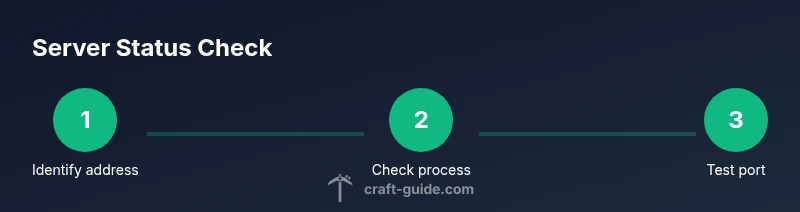
A running server implies a Java process is active on the host, the default port (25565 for vanilla Minecraft) is listening, and clients can establish a TCP connection. Real-world checks combine observable signs (console messages, GUI hints) with network checks (port status, ping results). Craft Guide emphasizes building a checklist rather than guessing. If you run a local test, keep your testing scope narrow: first confirm the process, then verify networking, then test client connectivity. This reduces false positives and helps you isolate where a problem originates.
In this section we’ll map out a clear path: know the indicators, choose the right tools, and follow safe practices. Expect to spend about 15–20 minutes on initial checks, then longer if you need to dive into logs or remote access. The approach described here is suitable for home-hosted servers, rented VPS instances, and cloud setups. With the right steps, you’ll confirm status confidently and communicate results to your players or teammates.
note
Tools & Materials
- Computer or device on same network as the server(Prefer wired connection for reliability; wireless acceptable but watch for interference.)
- Server address and port(Default Minecraft port is 25565 unless customized.)
- Terminal or Command Prompt(Access to run commands like netstat/ss or ps. Mac/Linux users can use Terminal.)
- Remote access method (SSH/RDP)(Needed for remote servers; use strong authentication.)
- Network diagnostic tools (optional)(netstat, ss, or nmap for port discovery.)
- Minecraft client(A client test is essential to verify actual connectivity.)
Steps
Estimated time: 30-45 minutes
- 1
Identify server address and port
Gather the server's hostname or IP address and the port number. If the port is nonstandard, note the exact value. This provides the foundation for all subsequent checks.
Tip: Double-check the port in your server.properties or hosting dashboard. - 2
Check for a running server process on the host
On Linux/macOS, use ps or pgrep to confirm Java/Minecraft Java processes; on Windows, check Task Manager or tasklist. A running process is a prerequisite for true server status.
Tip: Look for java or javaw processes; note PID for correlation with network activity. - 3
Verify the server port is listening
Check that the server port is in a listening state. Use netstat, ss, or a hosting panel to confirm port binding. If the port isn’t listening, clients won’t reach the server even if the process runs.
Tip: If you don’t see listening on 25565 (or your custom port), the server isn’t ready for connections. - 4
Test connectivity from the local machine
Attempt to connect via a Minecraft client or a simple TCP connect to the server IP and port. A successful handshake indicates the server is reachable.
Tip: If you can’t connect, check local firewall rules or NAT settings. - 5
Check server logs for startup and health messages
Review logs (latest.log for Spigot/Paper, server.log for others) for startup messages, errors, or warnings indicating readiness or problems.
Tip: Look for lines like “Done (X ms)” or “Listening on port.” - 6
Review firewall and security groups
Ensure that firewalls or cloud security groups permit inbound traffic on the server port. Misconfigured rules are common culprits when a running server appears unreachable.
Tip: Open only the necessary port; avoid broad open rules for security. - 7
Validate from an external client
From a different machine over the internet, attempt a client connection. External visibility confirms public accessibility beyond the local network.
Tip: If external access fails, check port forwarding or provider-side restrictions. - 8
Document results and next steps
Record the status findings, actions taken, and any follow-up you plan (remote access, config changes, or contacting hosting support).
Tip: Maintain a changelog to help future troubleshooting.
People Also Ask
What signs indicate a Minecraft server is running?
Signs include a Java process on the host, the server binding to its port, startup messages in logs, and successful client connections. If any of these are missing, status is unclear and further checks are needed.
Look for a Java process, listening port, startup messages, and a successful client connect to confirm the server is running.
How do I check if the server process is active on Windows?
Open Task Manager or run tasklist in Command Prompt, then filter for java or javaw processes. If you see a relevant process, the server is likely running.
Use Task Manager or tasklist and look for Java, then confirm it matches your server instance.
What should I do if the server isn’t responding despite being ‘running’?
Check firewall rules and port forwarding. Inspect startup logs for errors. Verify the server’s IP/port haven't changed if you’re on dynamic hosting. Restart if necessary and re-test.
If it’s not responding, re-check network access and logs, then restart the server if needed.
Can I tell server status from the Minecraft client alone?
Client connection success is a strong indicator of status, but it doesn’t prove the server is healthy. Use client tests in combination with process and port checks for reliability.
A successful login shows status, but combine with logs and port checks for certainty.
Which logs are most helpful for status?
Latest logs in the server directory (e.g., latest.log) usually reveal startup progress, errors, and shutdown events, giving clues about readiness or problems.
Check the latest.log for startup messages and errors to gauge status.
How can I test externally if the server is reachable?
From a different network, attempt a client connection or use a port scan to check if the port is open to the world. If blocked, adjust port forwarding or firewall settings.
Test from another network to confirm access; adjust network rules if needed.
Watch Video
The Essentials
- Verify the server process before testing connectivity
- Confirm the port is listening and accessible
- Test both local and external connectivity when possible
- Review startup logs to gauge health and readiness
- Document results for future troubleshooting