How to Check If Minecraft Server Is Port Forwarded
Learn how to verify port forwarding for your Minecraft server with clear tests, router checks, and practical troubleshooting to ensure friends can join from outside your network.


To confirm your Minecraft server is port-forwarded, you’ll test connectivity from outside your home network. The quick idea: use your public IP and the server port (default 25565) to attempt a join, or run an online port tester. If the connection succeeds, port forwarding works; if not, review router rules and firewall settings.
Why Port Forwarding Matters for Minecraft Servers
Port forwarding is the bridge that lets players outside your local network connect to your Minecraft server. Without a properly configured forward, attempts to join will fail or be unreliable, especially if you have guests in different locations. According to Craft Guide, a well-implemented port-forward setup not only enables access but also minimizes latency by directing traffic efficiently through your router. In this section we’ll cover the core concepts—external IP, internal IP, ports, and how NAT affects visibility—and why an accurate configuration is essential for smooth cross-network play.
- External vs. internal IP: Your router assigns a private IP to the server on your network, while the world outside uses your public IP to reach it.
- The role of NAT: Network Address Translation maps public requests to private addresses; misconfigurations can block traffic.
- Default port: Minecraft uses TCP port 25565 by default, but you may customize if you run multiple servers or use a non-standard setup.
- Security basics: Forwarding ports opens a path into your home network, so limit exposure to what’s necessary and keep firmware updated.
Understanding these foundations helps you troubleshoot more effectively and reduces trial-and-error during actual tests.
How NAT and Port Forwarding Interact with Minecraft
NAT is central to port-forwarding success. When a remote client tries to connect, the router must translate the public address and port to the server’s private IP and port. If this mapping is missing or incorrect, the connection drops. Craft Guide’s assessment emphasizes verifying both the public endpoint and the internal destination. You’ll want to ensure that the router is forwarding TCP traffic on port 25565 (or your chosen port) to the Minecraft server’s IP inside your network. Additionally, check for any intermediate devices that may re-NAT the traffic, such as double NAT configurations from ISP gateways or second routers.
A common pitfall is assuming a port-forward is active just because you set it. Real validation requires outside testing or a reliable internal test that simulates external access. We’ll cover practical tests in upcoming sections.
Finding Your Public IP and Server Port
To reach your server from outside, you must know two things: the public IP address assigned to your network and the port your Minecraft server listens on. Your public IP can be dynamic, changing over time unless you have a static IP or a dynamic DNS service. Craft Guide recommends recording a stable endpoint (static IP or dynamic DNS) for reliable access. Start by visiting a site like whatismyip.com to capture the current public IP. Then confirm the port your server uses—default is 25565 for Minecraft Java Edition; Bedrock may use a different value depending on your setup. If you’re running multiple servers, document each port mapping clearly to avoid conflicts.
Next, verify that the server itself is actually listening on the intended port on the local network, which ensures the router has something to forward.
Access Your Router’s Port-Forwarding Page
Accessing the router’s admin interface is a key step. Most routers require entering an internal IP (commonly 192.168.0.1 or 192.168.1.1) in a browser and logging in with admin credentials. If you’ve never changed these, you may still be on the default login. Craft Guide emphasizes not to expose this page publicly—access from inside your network only and ensure strong admin passwords. Once inside, locate the Port Forwarding/Applications/ Gaming section. Create a new rule that forwards your Minecraft port (e.g., 25565) to the internal IP address of your Minecraft host. Use TCP as the protocol unless you’ve configured UDP as well for a variant setup.
Document the rule name, external port, internal port, and target IP for future reference.
How to Verify the Minecraft Port Listens Locally
Before testing from outside, confirm your server actually listens on the intended port inside your network. On Windows, open Command Prompt and run netstat -an | findstr 25565 (replace 25565 with your port). On Linux, run sudo netstat -tulpen | grep 25565. Craft Guide notes that if you don’t see a listener, the server might not be running, or the Minecraft server jar might be bound to localhost. Start or restart the server and monitor for errors in the console. If you’ve changed the port, adjust commands accordingly.
If the port is listening, you’re ready to perform external connectivity tests.
Testing from Outside: Quick External Check
The most convincing test is to try connecting from a device that isn’t on your home network. Use your public IP followed by the port: publicIP:port. If you can join the server, port forwarding is functioning correctly. If you cannot connect, try a remote port checker like canyouseeme.org or a similar service to validate whether the port is open from the outside. Be mindful that some ISPs block incoming connections on residential connections, and some firewalls may drop unsolicited traffic. Craft Guide highlights that a failed test doesn’t always mean port-forwarding is wrong—it could be a firewall or ISP policy.
If the port tester shows closed, review router rules, confirm the correct public IP, and ensure no firewall blocks the port.
Common Obstacles: Double NAT, Firewalls, and ISP Blocks
Double NAT occurs when more than one device on the path performs NAT, typically a modem-router combo from the ISP plus a personal router. This setup can obscure port-forwarding rules and prevent external access. Check both devices for forwarding rules and ensure the wrong device isn’t handling the port. Firewalls on the server host or the router can block inbound connections, even if forwarding is configured. Ensure exceptions exist for the Minecraft port on both the host OS and any security software. Some ISPs block unsolicited inbound traffic on residential connections; if you suspect this, contact your provider for options such as a business plan or a static IP.
Another pitfall is using a non-default port and not updating the router rule or firewall accordingly. Always test with the actual port you're using.
Security Considerations: Best Practices for Exposed Ports
Opening a port to your home network increases exposure. To minimize risk, avoid exposing the server’s admin interface or any other unnecessary services. Use a strong server password and keep Java/Minecraft server software up to date. Consider enabling a firewall that only allows traffic from known IPs or ranges for admin tasks, and implement regular backups of your world data. If you’re using a dynamic IP with Dynamic DNS, ensure your DNS updates promptly when the IP changes to prevent broken connections. Craft Guide recommends keeping the attack surface small while preserving accessibility for players.
Step-by-Step Checklist for Port Forwarding Validation
- Confirm the Minecraft server port and host IP inside your network.
- Verify the port-forward rule exists and points to the correct internal IP.
- Check server listener status on the host machine.
- Test access from inside your LAN first, then from an external network.
- Use a port tester to validate public exposure.
- Review firewall and ISP constraints if problems persist.
- Document changes and create a maintenance plan for updates.
Craft Guide’s Final Verdict and Recommendations
In practice, port forwarding for a Minecraft server is a straightforward task when you document every step and verify each layer (host service, router, and firewall) independently. The Craft Guide Team recommends starting with a simple single-host setup, validating with local tests, and expanding to external tests only after success. If you encounter persistent issues, consider alternative hosting options or a dedicated server solution that provides built-in port handling and enhanced security.
Quick-Start Security and Maintenance Tips
- Keep your router firmware and server software up to date.
- Use strong passwords for router admin access and server admin accounts.
- Regularly back up Minecraft world data and log server activity.
- Consider using Dynamic DNS for stable external addressing when you don’t have a static IP.
- Periodically re-check forwarding rules after network changes or updates.
Tools & Materials
- Computer or laptop with internet access(Used to test connectivity, access router, and manage server)
- Router with port forwarding capability(Access the admin panel and create a port-forward rule)
- Minecraft server port (default 25565)(Document if you customized the port)
- Public IP address (or dynamic DNS service)(Needed to test external access)
- Online port tester (web-based)(Examples: canyouseeme.org, port-checker sites)
- Server host firewall configuration(Ensure inbound connections to the Minecraft port are allowed)
- Internal Minecraft host computer(Needs to run the Minecraft server software)
- Optional: a second device for external testing (mobile data, etc.)(Helps simulate outside network access)
Steps
Estimated time: 60-90 minutes
- 1
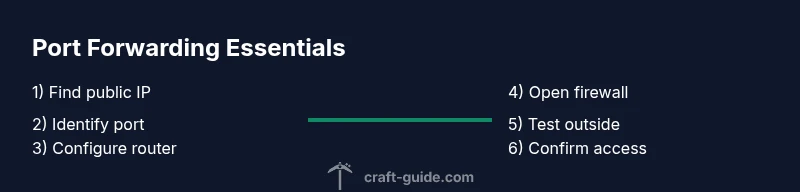
Find public IP
Open a browser and visit a site like whatismyip.com to capture your current public IP. This is the address outside your network that friends will use to connect. Remember that many residential connections use dynamic IPs, so you may need to recheck if testing today fails.
Tip: If your IP changes often, set up a Dynamic DNS service to keep a fixed hostname. - 2
Note your server port
Identify the port your Minecraft server listens on (default 25565). If you’ve customized it for multiple servers, write down the exact port mapping for each instance.
Tip: Document both internal and external port values to avoid confusion during tests. - 3
Check local host status
On the host machine, verify that Minecraft is listening on the intended port using netstat or an equivalent command. If no listener is found, start or restart the server and monitor for errors.
Tip: Make sure you’re checking the same port you plan to forward. - 4
Access the router admin page
Log into your router’s admin interface from a device on the same LAN. Locate Port Forwarding/Applications/Gaming (names vary by model) and prepare to add a new rule.
Tip: If you forget the login, try the default credentials from the user manual—then change them for security. - 5
Create a port-forward rule
Add a new rule that forwards external port 25565 (or your custom port) to the internal IP of the Minecraft host. Use TCP as the protocol unless you’ve configured UDP as well.
Tip: Double-check the internal IP address to avoid misrouting traffic. - 6
Apply and save changes
Apply the rule and reboot the router if required. Some devices apply changes instantly, while others need a reboot. Ensure the rule is enabled and saved.
Tip: Keep a note of the time when you applied changes for troubleshooting. - 7
Configure firewall rules
On the server host, allow inbound connections on the Minecraft port. If you’re using a firewall, add an explicit exception for that port.
Tip: Limit the scope of the rule to reduce exposure. - 8
Test from outside the network
From a device on a different network (mobile data, friend’s network), attempt to connect using publicIP:port. If you connect, the forward is working.
Tip: If it fails, try a port tester to confirm openness and re-check router rules. - 9
Troubleshoot common blocks
If you cannot connect, assess for double NAT, ISP port blocks, or incorrect internal IPs. Resolve by updating the gateway, adjusting NAT settings, or contacting the ISP for options.
Tip: Avoid exposing admin interfaces; forward only game ports and protect the host with strong credentials. - 10
Validate and document
Retest after any change, ensure your friends can join, and document the final rule set. Maintain a simple changelog for future maintenance.
Tip: Schedule periodic checks, especially after router or server updates.
People Also Ask
What is port forwarding in the context of a Minecraft server?
Port forwarding is a router feature that directs external traffic on a specific port to a chosen device inside your network. For Minecraft, this enables players outside your LAN to join your server using your public IP and the designated port. Properly configuring this path is essential for reliable cross-network play.
Port forwarding helps external players reach your Minecraft server by routing traffic from your router to the server inside your network.
Why can I connect locally but not from outside?
Local connectivity only proves the server is running. External access depends on correct port-forwarding, router rules, and firewall settings. A mismatch at any layer can block external connections even if it works on your LAN.
Local connections don’t guarantee external access; verify the entire path from router to server.
Do I need a static external IP or DNS?
A static external IP or a Dynamic DNS setup helps ensure your friends can consistently connect to the same address. Without it, the IP may change, breaking connections until you update the address.
A stable address, via static IP or Dynamic DNS, makes joining reliable.
Can I use UPnP instead of manual port forwarding?
UPnP can automate port forwarding, but it can also open holes in your network if not carefully managed. For security and reliability, manual port forwarding and explicit firewall rules are typically preferred.
UPnP automates the process but can introduce risks; manual setup is safer.
How do I test if the port is open from outside?
Use a device on a different network to try connecting to your public IP and port. You can also use an external port-check tool to verify the port is open. If both fail, recheck the router, server, and firewall settings.
Test from an outside network and use a port tester to verify openness.
Watch Video
The Essentials
- Verify external access using a test from outside your LAN
- Confirm both router rules and local server listening ports
- Minimize exposure with secure firewall rules and updated software
- Document port mappings for future maintenance
- Consider Dynamic DNS if you don’t have a static IP