How to Check If a Minecraft Server Is Online
Learn practical methods to verify Minecraft server availability, troubleshoot connectivity, and confirm online status using direct connections, ping tests, DNS checks, and logs.


To check if a Minecraft server is online, try connecting directly from your Minecraft client or a network tool. Confirm the address and port, then run a direct connect or ping test. If you see the server join screen or a loadable world, it is online. If not, check firewall rules, server status pages, and DNS/IP configuration.
Understanding What It Means for a Server to Be Online
In Minecraft, an online server is one that responds to a network connection and handshake, letting players join and load a world. Being online means the server software is running, listening on its port, and accepting connections. However, the ability to ping or connect can still be affected by firewalls, NAT issues, or rate-limiting. According to Craft Guide, assessing server availability involves both network reachability and application-layer responses. This means you should test both the network path (is the port reachable?) and the Minecraft protocol flow (does the server acknowledge a client greeting?). Understanding these two layers helps you diagnose whether the issue lies with your device, your network, or the server itself.
Quick checks you should perform before deep testing
Before diving into tests, verify the basics: you have the correct server address and port, you’re using a compatible Minecraft version, and there are no known outages posted by the server operator. Check if the domain resolves to an IP, confirm that the port matches the one the server is listening on (default is 25565 for Java Edition, though many servers use different ports), and ensure your device has a stable internet connection. If a VPN or proxy is in use, temporarily disable it to remove a potential source of disruption. These initial checks save time and focus you on meaningful results.
Testing from the Minecraft client: direct connect workflow
Launching the Minecraft client, go to Multiplayer and choose Direct Connect. Enter the server address and port in the format address:port. If the server responds with a greeting, a list of online players, or the login screen, you’ve confirmed the server is online. If you receive a timeout, connection refused, or an error message, the issue is likely on the server side, network path, or firewall. For Bedrock Edition, use the Add Server option and input the same address and port, noting any edition-specific fields. Persisting failures merit a structured troubleshooting approach rather than guessing.
Using basic network tests to verify reachability
Network tests like ping (ICMP) and traceroute help determine if the server’s host is reachable across the internet. A successful ping indicates basic connectivity to the host, while a failed ping does not always mean the server is offline (some servers block ping requests). Traceroute can reveal where the path breaks, whether in your ISP, at your router, or near the destination. If the host is reachable but the port is blocked, the server may be online but not accessible from your location due to firewall rules or port forwarding settings.
Interpreting common responses and messages
When testing, you may encounter various outcomes. A successful connection to the port followed by a login suggests the server is online. A “Connection Timed Out” message usually points to a network path issue or a firewall blocking the port. “Connection Refused” typically means the server is offline or not listening on that port. If you receive a “Login Failed” or “Incompatible Version” message, confirm you’re using a compatible client version and that the server has whitelisted or whitelisted players as configured. Interpreting these messages accurately narrows down the root cause.
Troubleshooting offline appearances: step-by-step actions
If the server seems offline, first confirm the server is running and its port is correct. Check server logs or the hosting dashboard for crash reports, restarts, or port changes. Validate DNS resolution and ensure there are no recent IP changes. If you’re hosting yourself, verify firewall rules, NAT settings, and port forwarding on your router. After making changes, re-test from multiple devices or networks to confirm the issue is resolved. Document results for future reference and communicate with the server admin if you’re not the owner.
Advanced checks: status queries and protocol nuances
Beyond basic pings, some servers support a status/query protocol that responds with information about online players, server version, and MOTD. This protocol differs from the standard login handshake and may require dedicated tools or libraries to query. Note that not all servers enable the query protocol, and some hosting providers block it to reduce load. Understanding the distinction helps you identify whether you’re troubleshooting a server-side setting or client-side connectivity. Craft Guide advises using multiple verification methods to confirm an online status.
Safety, privacy, and best practices when testing servers
Always test servers you are authorized to access. Do not probe third-party servers aggressively or attempt to bypass any security measures. Use non-intrusive checks (pings, port status, and login attempts from your own account) and respect rate limits. When sharing results, avoid exposing sensitive information such as internal IPs unless necessary. Keeping a test log with timestamps helps correlate events (outages, reboots, or config changes) and supports efficient troubleshooting for future issues.
Additional resources and next steps
If you want to deepen your understanding, refer to official Minecraft server status resources or hosting provider documentation. Keep a personal checklist for future verifications and subscribe to status pages or social channels for the server you manage or play on. By combining client tests, network diagnostics, and server logs, you’ll diagnose most online-status issues quickly and accurately.
Tools & Materials
- Minecraft client (Java or Bedrock)(Use the same edition as the server; ensure version compatibility when possible)
- Server address and port(Format: domain or IP and port, e.g., play.example.com:25565)
- Direct Connect access in-game(Navigate to Multiplayer > Direct Connect (Java) or Add Server (Bedrock))
- Terminal or Command Prompt(For ping, traceroute, or port-check commands)
- Network testing tools (optional but recommended)(Ping, traceroute, or Telnet/Netcat for port tests)
- Stable internet connection(Prefer wired Ethernet when possible; wireless can introduce variability)
Steps
Estimated time: 20-60 minutes
- 1
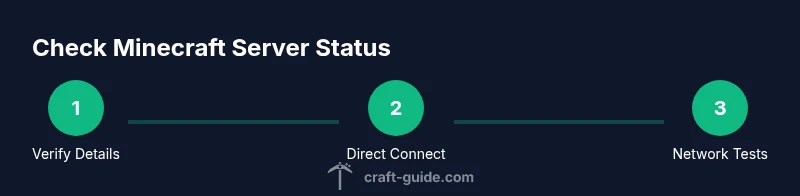
Verify server details
Double-check the server address and port. Confirm you’re targeting the correct edition and that the server is intended to be online at the time of testing. Mismatched ports or recent IP changes are common culprits.
Tip: Write down the exact address:port and copy-paste to avoid typos. - 2
Open Direct Connect in Minecraft
Launch Minecraft and navigate to Multiplayer > Direct Connect. Enter the address:port and attempt to join. If a prompt appears or the game loads the server list, you’re in the right direction.
Tip: If the page scrolls or errors, re-check the port and edition compatibility. - 3
Test network reachability
From your computer, run a ping to the server IP or hostname. Then run a traceroute to observe where the path might fail. These steps help identify network blocks or outages in transit.
Tip: If ping fails, don’t assume the server is offline—check for ICMP blocking at the host. - 4
Attempt a direct port check
Use a port-check tool or command to verify that port 25565 (or the server’s port) is open. This confirms the port is listening and reachable from your network.
Tip: Test from another device on the same network to rule out local firewall rules. - 5
Review server status and logs
If you have access, inspect the server console or hosting dashboard for uptime, restarts, or errors. Logs can reveal crashes, maintenance windows, or port changes.
Tip: Make note of any recent changes that could impact connectivity. - 6
Check firewall and NAT settings
Ensure your router and local device rules allow inbound/outbound connections on the server port. If hosting yourself, verify that NAT and port-forwarding point to the correct internal IP.
Tip: Disable VPNs temporarily to avoid double NAT issues during testing. - 7
Test from a different network
Try connecting from a different network (cell data, another Wi-Fi) to rule out ISP-specific blocks. If it works elsewhere, the issue likely lies in your primary network path.
Tip: Document the results to compare network paths over time. - 8
Document results and plan next steps
Record what you tested, the outcomes, and any steps you took. Use this as a reference for future outages or if you need to contact server admins.
Tip: Create a simple checklist you can reuse for every server you monitor.
People Also Ask
Why can't I connect even though the server shows as online to others?
There may be version mismatches, whitelist restrictions, or client-specific issues. Verify the server edition and version compatibility, and check server logs for access restrictions.
Usually this means a version mismatch or access restriction. Check the server version and logs for exact clues.
What should I do if the port appears closed in tests but the server is online?
Confirm you are testing the correct port, ensure port forwarding is configured if hosting yourself, and check firewall rules on both ends. If needed, contact the hosting provider for status updates.
If the port seems closed, verify the port, forwarding, and firewall settings, then retry.
Does a lack of ping response mean the server is offline?
Not necessarily. Some servers disable ICMP/ping to reduce traffic. Use direct connect and port tests to corroborate status.
No—servers often block ping; rely on direct connection tests and port checks for accuracy.
How can I check status on a Bedrock server?
Bedrock uses similar address:port testing, but ensure you're using the Bedrock edition client and any edition-specific ports. Check server documentation for Bedrock-specific steps.
Bedrock status checks are similar but may require different ports; consult server docs.
How long should a typical status check take?
A quick check should take 5-15 minutes; deeper diagnostics including logs can extend to 20-60 minutes depending on complexity.
Most checks finish in a few minutes, but logs and network tests can take a bit longer.
Watch Video
The Essentials
- Test with multiple methods to confirm online status
- Direct Connect is often the fastest verification path
- Firewall and NAT are common sources of false negatives
- Bedrock vs Java differences can affect testing
- Document results for ongoing troubleshooting