Host Free Minecraft Server: Step-by-Step Guide
Learn how to host a free Minecraft server with practical, step-by-step guidance. From hardware and networking basics to security, backups, and maintenance—crafted by Craft Guide for players of all levels.


You can host a free Minecraft server by using your own computer or a no-cost hosting option, though expect limits on slots and performance. To start, ensure you have a reliable PC, a stable internet connection, and basic port-forwarding knowledge. According to Craft Guide, this approach is solid for beginners and scales with add-ons and mods.
What hosting a free Minecraft server really means for you
Hosting a free Minecraft server means running the game's server software on either your own hardware or a no-cost hosting option instead of paying a monthly fee. For many players, this is a practical way to play with friends without a budget, but it comes with trade-offs in control, uptime, and performance. The Craft Guide team notes that the term "free" often involves compromises in resources and support. Understanding the core concepts—hardware, network readiness, and world management—will help you pick an approach that stays fun without breaking the bank. This guide keeps the focus on practical steps you can take today to get a solid, private or small public server up and running.
Why people choose free hosting (and where it falls short)
Choosing to host a free Minecraft server is about balancing curiosity, community, and cost. Free options remove the entry barrier for trying servers, plugins, or minigames with friends. They also mean you’ll rely more on your own hardware, or on a third-party host that offers a no-cost tier with strict limits. The trade-offs often include fewer guaranteed uptime hours, smaller player caps, and occasional performance dips during peak times. Craft Guide’s perspective emphasizes planning for these limits by keeping worlds compact, backups frequent, and expectations realistic.
How free hosting fits into longer-term Minecraft goals
If your goal is a long-term community with reliable uptime, free hosting can be a stepping-stone. Start with a small test world, measure performance, and gradually migrate to paid or self-hosted options as your player base grows or as you require more plugins and control. This approach minimizes wasted effort and gives you hands-on experience with server administration. Craft Guide notes that many players successfully scale from a free test server to a robust, well-managed system over time.
Core prerequisites you should verify before starting
Before you spin up anything, confirm you have the basics: a computer you can leave running, a reasonable internet connection, and a basic understanding of port forwarding and firewall rules. You’ll also need the Java runtime compatible with your chosen Minecraft server version and a plan for world backups. These prerequisites prevent common headaches and ensure you can keep playing without constant troubleshooting. Craft Guide’s practical guidance helps you align hardware, software, and network settings from day one.
Step-agnostic overview: what the setup involves at a high level
A typical free server setup involves downloading the server jar, configuring server properties (like game mode, difficulty, and max players), and launching the server to generate a world. You’ll then open ports on your router or hosting provider and test connectivity from a second device. This overview gives you a mental model of the workflow before you dive into the hands-on steps, which helps you anticipate potential bottlenecks and prepare backups in advance.
Security and safety basics that beginners often overlook
Security should be built in from day one. Use strong administrator passwords, avoid sharing credentials, and keep backups offline or in a separate storage location. Limit who can modify the world by restricting permissions and using role-based access for admins. Monitor logs for unusual activity and disable unnecessary services. A proactive security stance reduces the risk of griefing and data loss, which are common pitfalls for new server operators.
Performance and resource planning for free servers
Performance hinges on available RAM, CPU, and network bandwidth. Free hosting plans typically offer modest resources, so keep world size reasonable and adjust view distance to balance client experience with server load. Choose a streamlined server version or a well-supported build that emphasizes stability. Regularly review memory usage and plugin impact to avoid surprises during weekends or community events, when player activity spikes.
A practical maintenance rhythm that keeps things sane
Create a simple maintenance cadence: weekly backups, a monthly world audit, and quarterly server software updates. Document changes in a changelog so admins can track configurations and recover quickly if something breaks. This habit makes free servers feel dependable and lowers the stress of managing a growing world. Craft Guide’s approach highlights predictable routines as the backbone of any successful server, free or paid.
Tools & Materials
- Computer or Raspberry Pi for hosting(A device that can stay online reliably; consider dedicated power and cooling if hosting long-term)
- Stable internet connection(Prefer wired Ethernet; upload speed matters for player connections)
- Java Runtime Environment (JRE) 17+(Match to the Minecraft server version you plan to run)
- Minecraft server jar(Download from official sources and keep backups of the jar)
- Router with port-forwarding capability(UPnP can simplify, but static port forwarding is more reliable)
- Backup storage(Local external drive or cloud storage for world backups)
- Text editor(Edit server.properties and startup scripts)
Steps
Estimated time: 1-3 hours for initial setup; ongoing maintenance 1-2 hours per month depending on activity
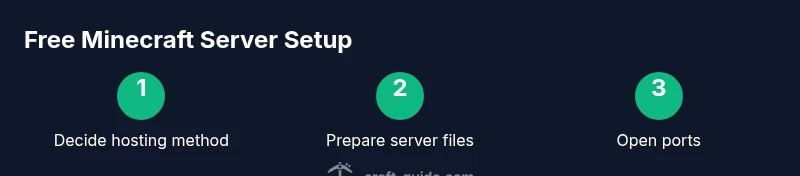
- 1
Decide hosting method
Choose between hosting on a home PC or using a free hosting option. Consider uptime, slots, and plugin support. This decision shapes your network setup and backup plan.
Tip: Starting on a home PC helps you learn, but plan a fallback in case your hardware or ISP has issues. - 2
Download and prepare server files
Download the Minecraft server jar compatible with your game version. Create a dedicated folder, place the jar there, and prepare a start script.
Tip: Keep a clean directory to simplify backups and version tracking. - 3
Create and configure server.properties
Edit server.properties to set game mode, difficulty, public visibility, and the maximum number of players. Save changes and keep a copy for versioning.
Tip: Set a conservative max-players value to avoid overloading limited resources. - 4
Open ports and adjust firewall
Forward the server port on your router and configure your firewall to allow traffic to the server. Test connectivity from another device on a different network.
Tip: Document the port you opened and note your external IP or dynamic DNS name. - 5
Launch and verify the server
Start the server, monitor console output for errors, and connect from a client to verify a successful join. Resolve any startup errors before inviting players.
Tip: Keep backups handy in case the first boot reveals world-generation issues. - 6
Establish backups and security basics
Set up automatic world backups and restrict admin access. Regularly test restores to ensure data integrity.
Tip: Rotate admin credentials and enable basic access controls for plugins. - 7
Test play, monitor performance
Invite a small group to test, watch RAM and CPU usage, and adjust settings like view distance and tick rate to optimize performance.
Tip: Use lightweight plugins or none initially to measure baseline performance. - 8
Plan for growth or migration
If activity grows, assess upgrading RAM or moving to a paid or self-hosted setup. Have a migration path documented.
Tip: Keep a versioned backup archive to ease future migrations.
People Also Ask
Is hosting a free Minecraft server safe for beginners?
Yes, with proper security practices: strong passwords, restricted admin access, and regular backups. Start small, test with trusted friends, and avoid exposing sensitive ports or admin consoles.
Yes, it can be safe for beginners as long as you use strong passwords, limit admin access, and keep backups. Start small and test with trusted players.
What are the main trade-offs of free hosting vs paid plans?
Free hosting typically offers lower uptime, smaller player caps, and fewer customization options. Paid plans or self-hosted options provide more reliability, plugins, and control.
Free hosting usually has lower uptime and limits; paid or self-hosted options give more reliability and control.
Can players from different devices join a free server?
Yes, as long as the server is reachable over the internet and configured correctly. Ensure firewall and port rules allow connections from various networks.
Yes, players on different devices can join if the server is reachable and properly configured.
How should I back up world data effectively?
Automate backups at regular intervals and store copies off-site or in the cloud. Verify restores periodically to ensure data integrity.
Set up automatic backups and regularly test restoring them to verify you can recover.
Do free hosts support mods or plugins?
Support varies by provider; some allow plugin-based servers (e.g., Spigot, Paper), while others restrict to vanilla or limited modifications. Check the terms before committing.
Mod and plugin support depends on the host; always check the provider's policy first.
Is a static IP required for hosting a free server?
A static IP is not strictly required but greatly simplifies port forwarding and access stability. If you have a dynamic IP, use dynamic DNS services.
Static IP helps, but dynamic DNS can work if you configure it properly.
Watch Video
The Essentials
- Host free minecraft server approaches work well for beginners.
- Know limits: slots, uptime, and plugin compatibility.
- Backups and security are non-negotiable for free setups.
- Start small, test often, and plan for growth or migration.
- Craft Guide's verdict: plan, document, and choose a path that fits your community.