Minecraft Hosting: A Practical How-To Guide
Learn how to host a Minecraft server—from choosing hosting options to setting up, securing, and maintaining your world. Practical steps, tips, and pitfalls for beginners and seasoned players alike.


Minecraft hosting refers to providing the hardware and network resources necessary to run a Minecraft server that players connect to over the internet. It can be done on a consumer PC (self-hosted), on a virtual private server (VPS) from a hosting provider, or through a managed hosting service that handles setup and maintenance. For many players, hosting a server means balancing uptime, performance, and cost while preserving a stable experience. According to Craft Guide, the best choice depends on expected player count, uptime requirements, and your willingness to manage software. The core idea is: you own the server you run, or you rent a service that runs it for you, but you must configure it correctly for your world.
What is Minecraft hosting?
Minecraft hosting refers to providing the hardware and network resources necessary to run a Minecraft server that players connect to over the internet. It can be done on a consumer PC (self-hosted), on a virtual private server (VPS) from a hosting provider, or through a managed hosting service that handles setup and maintenance. For many players, hosting a server means balancing uptime, performance, and cost while preserving a stable experience. According to Craft Guide, the best choice depends on expected player count, uptime requirements, and your willingness to manage software. The core idea is: you own the server you run, or you rent a service that runs it for you, but you must configure it correctly for your world. Craft Guide’s practical approach helps you decide between a home setup and a hosted solution based on your goals.
Why people host Minecraft servers
People host Minecraft servers to play together, create custom maps, or enforce persistent world rules. Hosting gives you control over permissions, world settings, and mod or plugin usage that public servers may not offer. For a small group, self-hosting on a home PC can be cost-effective and educational, while larger groups benefit from reliable uptime and support from a professional host. A hosted solution also reduces your day-to-day maintenance burden, leaving more time for building and collaboration. Craft Guide highlights that the decision should align with your goals, tech comfort, and desired uptime.
Self-hosting vs managed hosting: pros and cons
Self-hosting on a local machine can minimize ongoing costs and maximize control, but it requires hands-on maintenance, hardware capability, and a reliable internet connection. Managed hosting abstracts setup, updates, and security, offering consistent uptime and customer support, but at a higher ongoing cost and with less direct control. For beginners, a managed option can be a gentle entry point, while more experienced players may enjoy tinkering with server settings on a self-hosted rig. The key trade-off is control and cost vs. convenience and support.
Hardware and network requirements
Your server’s performance hinges on reasonable hardware headroom and a stable network. Prioritize a dedicated machine or VM with enough RAM for your player count, a modern CPU, and a wired internet connection to minimize latency. A static IP or dynamic DNS helps players reach your server reliably. Also consider backup storage, a firewall, and regular maintenance windows to keep software, plugins, and world data secure and up-to-date. Planning ahead prevents common issues like lag and crashes during peak play.
Choosing the right hosting option for your group
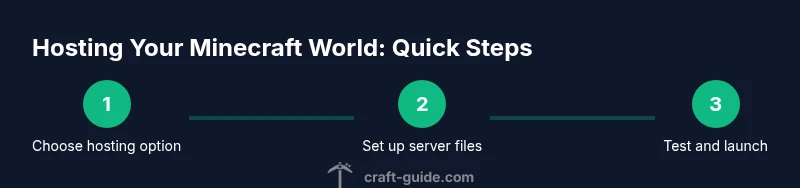
If you’re starting small, self-hosting on a home PC can be a learning experience and a low-cost testbed. For growing communities, a VPS or cloud server provides better uptime and scalability. Large or commercially run worlds benefit from dedicated hosting or a managed service with 24/7 support. Remember to factor in player count, mod/plugin needs, and your willingness to manage backups and updates when selecting a plan.
Security, backups, and maintenance
Security starts with basic hygiene: strong admin credentials, updated software, and minimal open ports. Regular backups are essential to protect builds, inventory, and world data from corruption or loss. Schedule automated backups, test restore procedures, and monitor server health. Keep your server software, plugins, and mods compatible with the Minecraft version you’re running, and implement a simple rollback plan for emergencies. Craft Guide emphasizes building a maintenance routine you can sustain.
Performance tuning and modding considerations
Performance improves with sensible tuning: adjust view distance, entity limits, and tick settings to balance visuals and responsiveness. If you’re using mods or plugins, verify compatibility with your Minecraft version and each other to avoid conflicts. Plugins can extend functionality but may introduce overhead; start with essentials and add gradually. Use profiling tools to identify bottlenecks and optimize world data, backups, and disk I/O for smoother gameplay.
Budgeting, pricing, and long-term planning
Budgeting involves weighing upfront hardware costs against ongoing hosting fees. Start with the minimum viable setup and scale as your player base grows. If you use a hosted service, compare plans by uptime guarantees, customer support, and included backups. Planning for long-term growth means considering future capacity, potential modding needs, and a maintenance schedule that evolves with your world.
Common pitfalls and quick fixes
Port forwarding issues are a frequent hurdle; ensure your router forwards the correct port (25565) and that your firewall isn’t blocking traffic. Latency and jitter often come from home network limits or peak-time congestion—offload to a more robust host if needed. Regularly update server software and backups, and test connections from external networks to catch problems early. With careful setup, you can avoid most headaches and keep your world accessible.
Tools & Materials
- Computer or dedicated server(A machine capable of running Java Minecraft server software; consider RAM and CPU headroom.)
- Stable internet connection(Prefer wired Ethernet with solid upload speed to support players.)
- Java Runtime Environment (JRE) / Java version(Install a compatible Java version for the Minecraft server you’ll run.)
- Minecraft server software (official server jar)(Download from the official Mojang site; keep it updated.)
- Router with port forwarding(Forward port 25565 (TCP/UDP) to the server's internal IP.)
- Hosting plan or local storage(Optional for remote/cloud hosting; essential if not self-hosting locally.)
- Backup solution(Automated backups (local or cloud) protect world data.)
Steps
Estimated time: 45-120 minutes
- 1
Prepare hardware and network
Evaluate your hardware headroom and confirm a stable, wired internet connection. Decide whether you’ll host on a home PC or migrate to a VPS. This step sets the baseline for performance and reliability.
Tip: Use a wired connection and check upload speed before starting; instability is the common cause of lag. - 2
Download the server JAR
Download the official Minecraft server JAR from the Mojang site and place it in a dedicated folder. This keeps files organized and avoids permission mixups. Ensure you’re pulling the version compatible with your client base.
Tip: Create a fresh folder for this server to simplify backups and updates. - 3
Run the server once to generate files
Execute the server JAR with java -jar server.jar to generate the default files. This initial run will fail until you accept the EULA. The directory will contain eula.txt and configuration files you’ll adjust next.
Tip: If you see an EULA prompt, edit eula.txt and set eula=true before re-running. - 4
Accept EULA and configure properties
Open server.properties and set game mode, difficulty, max players, and other world settings. Enabling online-mode, white-listing, or enabling some security options can reduce unauthorized access. Save changes before the next start.
Tip: Keep a backup copy of server.properties before making mass changes to restore quickly. - 5
Start the server and test locally
Launch the server again and connect from the same machine using localhost:25565 to verify it runs. Check console logs for errors and confirm the world loads correctly. This confirms the basic setup is functional.
Tip: If you can’t connect locally, double-check Java version and the jar path. - 6
Open port forwarding for remote access
Configure your router to forward port 25565 to your server’s internal IP. If your IP changes, set up a dynamic DNS service. This step lets friends outside your local network join.
Tip: Limit remote access using IP whitelisting or firewall rules where possible to reduce risk. - 7
Set up backups and ongoing maintenance
Establish a regular backup schedule for world data and server configs. Plan for updates to the server version and plugins, testing them in a staging area if available. Monitor performance and adjust settings as needed.
Tip: Test restores periodically to ensure you can recover quickly from data loss.
People Also Ask
What is Minecraft hosting?
Minecraft hosting is the service or setup used to run a Minecraft server that other players can join over the internet. It can be done on a home PC, a VPS, or a dedicated hosting plan. The goal is reliable uptime, appropriate performance, and secure access for players.
Minecraft hosting is the setup used to run a game server that others join online, whether on your PC or a hosting service. It aims for reliable uptime and good performance.
Do I need a dedicated server to host large groups?
Not always. For small to moderate groups, a VPS or cloud instance can handle the load with proper tuning. Large groups may require dedicated hosting or a managed service to guarantee uptime and support.
A dedicated server isn’t always required. Start with a scalable hosting option and upgrade as your group grows.
Can Bedrock and Java edition share a server?
Bedrock and Java editions run on different server software. You need separate servers or a specialized bridging solution; they cannot natively share a single server instance.
Bedrock and Java cannot share the same server without a specialized setup. Use separate servers for each edition.
Is self-hosting safe for a home network?
Self-hosting can be safe with proper security practices: strong passwords, updated software, and restricted access. The risk primarily comes from exposed ports and weak configurations, so follow best practices and monitor activity.
Self-hosting can be safe if you lock things down and keep software updated.
What does port forwarding involve and why is it needed?
Port forwarding allows external players to reach your Minecraft server through your router. It’s needed for remote connections and is a common source of setup problems if misconfigured. Ensure the port is opened and forwarded correctly.
Port forwarding opens your router to let friends connect to your server; configure it carefully.
Watch Video
The Essentials
- Choose self-hosted or hosted options based on player count and maintenance capacity.
- Securely configure network settings and regularly back up world data.
- Test locally before opening to friends to avoid surprises.
- Maintain mod/plugin compatibility with Minecraft version updates.
- Plan for growth with scalable hosting options and predictable costs.