What Minecraft to Download for Mods: A Practical Guide
Discover which Minecraft version and mod loader to download for mods. Compare Forge vs Fabric, then match mod versions to prevent crashes and optimize performance.


To mod efficiently, download Minecraft with a compatible mod loader and version. Most players start with Forge (or Fabric) for the widest mod support, then pick a Minecraft version that matches their favorite mods. Always verify mod-loader compatibility, back up saves, and test in a clean profile to avoid crashes.
Why the right Minecraft version matters for mods\n\nMods are built against specific game code. If you mismatch the Minecraft version with the mod you want to run you will see crashes, missing features or corrupted saves. The most reliable modding setups stick to a version that is well supported by the majority of mods you plan to use. In practice this means identifying the latest stable Minecraft release that has active modding activity and confirming it is compatible with Forge or Fabric before you start; doing so saves time and frustration in the long run. Craft Guide analysis notes that many players upgrade too quickly and find their favorite mods stop working. By aligning your version with the loader's supported range you create a stable baseline for modding and reduce the risk of conflicts.
Forge vs Fabric: Choosing your mod loader\n\nForge has long been the default for Minecraft modding, offering a vast ecosystem of mods, plugins, and compatible tools. Fabric, by contrast, is lighter-weight, faster to load, and often favored for performance-sensitive builds. Your choice affects which mods are usable and how they are installed. If you want broad compatibility and a huge library, Forge is usually the safer bet. If you value speed and newer mod developments, Fabric can be a better fit. Always check each mod's loader requirements and the version range supported by both Forge and Fabric.
Version compatibility: matching mods to Minecraft versions\n\nMods specify compatibility in their download pages, listing supported Minecraft versions and the required loader. A frequent pitfall is assuming a mod works on the latest release; some mods lag several versions behind. The recommended approach is to list your target mods first, then determine the common Minecraft version and loader that supports all of them. If you plan to run many mods, consider using a single, well-supported version (e.g., 1.20.x or 1.19.x) with a consistent loader to minimize incompatibilities.
How to verify mod loader and Minecraft version before downloading\n\nBefore downloading anything, confirm your planned profile will run with your chosen loader. Open the mod page and note the declared Minecraft version and loader. Use the loader installer to set up a fresh profile and avoid mixing with your vanilla installation. Store a clean backup of your world and config so you can revert if a mod causes issues.
Safe sourcing and managing mod files\n\nAlways download mods from trusted sources that curate files and check for malware. Popular sources include well-known modding platforms, but beware of unverified uploads. Save mods to a dedicated folder and keep a separate backup of the mod list. If a mod requires specific libraries, install those libraries first to prevent startup errors.
Performance considerations and troubleshooting\n\nMods can impact memory usage and frame rates. Start with a modest mod set and gradually add more to gauge performance. Increase allocated RAM if needed, but avoid over-provisioning. If you encounter crashes, read the crash log, disable suspect mods, and verify compatibility with the loader and Minecraft version. Consider updating to the latest mod loader version for fixes.
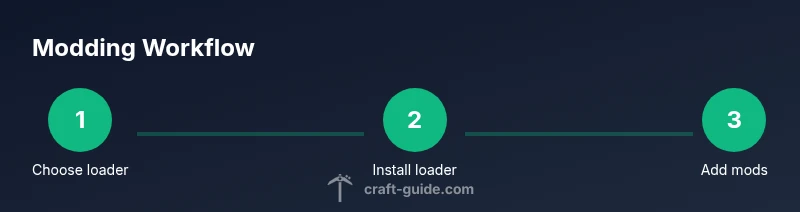
Quick-start workflow: pick, install, test\n\nOutline a simple, repeatable workflow: 1) pick a loader (Forge or Fabric) and a target version; 2) install the loader for that version; 3) download compatible mods; 4) launch with a fresh profile and test; 5) iterate if crashes occur. This repeatable loop helps you build a stable modding setup quickly.
Tools & Materials
- Minecraft Java Edition account(Needed to run Java Edition and mod loaders.)
- Reliable internet connection(For downloading loaders, mods, and updates.)
- Java Runtime Environment (JRE) 8+ or 17+(Some mod loaders require Java; check loader docs.)
- Forge mod loader installer(Pick the version that matches your target Minecraft version and mods.)
- Fabric mod loader installer.(Alternative to Forge; use if your mods specify Fabric.)
- Backup tool or manual backup method(Create a copy of worlds and configs before modding.)
Steps
Estimated time: 60-120 minutes
- 1
Identify compatible mod loader and target version
Decide between Forge and Fabric based on the mods you plan to use and confirm the supported Minecraft version. This upfront choice determines which mods will load correctly and minimizes later conflicts.
Tip: Check each mod's loader requirement and version range before deciding. - 2
Download the chosen mod loader installer
Visit the official mod loader site and download the installer that matches your target Minecraft version. Avoid third party or modified installers to reduce risk.
Tip: Verify the installer checksum when available. - 3
Install the loader for your target Minecraft version
Run the installer and select the Install client option for the precise Minecraft version you plan to mod. This creates a launcher profile tied to the loader and version.
Tip: Back up before major changes to avoid data loss. - 4
Find mods that match your loader and version
Browse trusted sources, confirm compatibility notes, and download mods that specify the same loader and Minecraft version.
Tip: Start with 1 2 mods to test stability. - 5
Launch Minecraft with the mod loader profile and test
Open your launcher, select the mod loader profile, and run a test world to verify that mods load without errors.
Tip: If crashes occur, inspect the crash log for conflicting mods. - 6
Triage issues and adjust mod set
If you encounter crashes, remove suspect mods, update the loader, or revert to a previous version; document changes for future builds.
Tip: Keep a changelog of mod versions and notes.
People Also Ask
Which Minecraft version should I download for mods?
Start with the latest version that is widely supported by mods. Check each mod's page for exact version and loader requirements, then align your Forge or Fabric choice accordingly.
Start with a version that has broad mod support and confirm the loader requirements on each mod page.
Do I need Forge or Fabric to run mods?
Most mods rely on a loader. Forge is the most common, with a large library, while Fabric is lighter and often faster. Pick based on the mods you plan to use.
Most mods need a loader, Forge is the go to, Fabric is a lighter alternative.
Can I mix mods from different loaders?
No. Mods are loader-specific. You must run all mods with the same loader and compatible version in a single profile.
No, mods must use a single loader per profile to work correctly.
What should I do if mods crash?
Check the crash log, identify conflicting mods, and remove or update them. Ensure the loader and Minecraft version match mod requirements.
If it crashes, read the log, isolate the culprit, and adjust your mod set.
Are mods safe to download?
Only download from trusted sources and scan for malware. Back up your worlds and configs, and avoid unknown authors or dubious executables.
Yes, if you download from trusted sources and back up your data.
Watch Video
The Essentials
- Identify the correct loader and MC version.
- Match mods to the loader and version.
- Test in a clean profile to prevent conflicts.
- Back up worlds and configs before modding.