Minecraft Forge Download: Step-by-Step Modding Guide for 2026
Learn how to safely download and install Minecraft Forge, set up a modding profile, and manage mods with confidence. This Craft Guide tutorial covers prerequisites, official sources, compatibility checks, and troubleshooting for 2026.


In Minecraft, Forge download refers to installing the Forge mod loader to run mods. This guide explains how to confirm compatibility, safely download Forge from official sources, prepare your profile, and install the required mods. According to Craft Guide, following the official installer and keeping backups reduces crashes and keeps your world safe while modding.
What is Minecraft Forge?
Minecraft Forge is a modding framework that acts as a loader and library for mods. It simplifies how mods are loaded by hooking into Minecraft’s core events and providing a consistent interface for developers. For players, Forge means a more stable and predictable modding experience, since mods written for Forge share common APIs and loading rules. According to Craft Guide, understanding Forge’s role helps you choose compatible mods and avoid conflicts that can crash a world or corrupt a save. Forge also includes a built-in installer that streamlines the setup, reducing the guesswork involved in manual installs. When you install Forge, you create a dedicated environment where mods can interact without directly altering the base game. This separation is essential for testing, troubleshooting, and keeping vanilla adventures intact while you experiment with new content.
Why use Forge?
Forge consolidates mod loading into a single, reliable system. By adopting Forge, mod developers target a shared API, which reduces compatibility issues and makes it easier for players to manage multiple mods. This standardization helps prevent crashes caused by conflicting mod code and makes updates smoother when Minecraft itself receives changes. Craft Guide emphasizes that Forge acts as a moderator between mods and Minecraft, offering a stable platform for experiments and long-term projects alike. For players, that stability translates to more consistent performance during world exploration, building challenges, and long-running servers where mods are common.
Compatibility and prerequisites
Before downloading Forge, confirm your Minecraft version and the corresponding Forge build. Minecraft Forge depends on a specific game version and compatible Java runtime. Always check the Forge website for the exact installer that matches your Minecraft edition and platform. Craft Guide recommends keeping Java up to date within supported ranges and using the official launcher to avoid misconfigurations. If you work with multiple Minecraft versions, maintain separate profiles for vanilla, Forge, and modded play to prevent cross-version conflicts and ensure a clean fallback path.
Safety first: backups and security
Modding can improve creativity, but it also introduces risk. Always back up your worlds and important saves before adding Forge or mods. Use a dedicated backups folder or cloud storage and verify the source of every mod you download. Forge official installers come from trusted sources; avoid third-party download sites that prompt you with unexpected executables or bundled software. Craft Guide underscores scanning downloaded files with a reputable antivirus tool and inspecting mod files for unusual payloads. These precautions protect your worlds from corruption and maintain a safe modding environment for future projects.
Official sources and download process
To begin, visit the official Minecraft Forge site and select the Forge version that matches your Minecraft edition. Use the installer oriented toward client installation, not the server version, unless you’re running a server that requires a Forge server. The installer provides a guided setup that creates a Forge profile in the Minecraft launcher. Always double-check the version number and the file size before downloading. Craft Guide notes that downloading from Forge’s official site minimizes the chance of tampered files and aligns with best practices for safe modding.
Running the installer and first launch
After downloading the Forge installer, run it and choose the Install Client option. The installer will create a Forge profile and integrate the necessary libraries. Launch Minecraft with the new Forge profile selected; this first run helps verify that Forge loads without errors. If Minecraft starts with Forge, mods can be added to the mods folder only after Forge is verified. Craft Guide highlights that this first launch is critical for confirming compatibility and preventing wasted time troubleshooting after adding mods.
Mods folder, load order, and mod management
Mods placed in the Forge mods folder load automatically during startup. The order typically matters less in Forge than in older loaders, but some mods rely on other mods or libraries to function properly. Keep a clean mods folder, remove incompatible entries, and document each mod’s version. Regularly update mods in tandem with Forge to reduce crashes caused by version drift. Craft Guide advises maintaining a changelog for mod updates to track compatibility progress over time.
Troubleshooting common Forge issues
Common problems include Forge not appearing in the launcher, mod crashes due to incompatible libraries, and memory errors during startup. Start by verifying you installed the correct Forge version for your Minecraft build and that the mods match that version. Check the crash report for dependency or classpath issues, then remove problematic mods one by one to identify culprits. Restart with a clean profile if needed. Craft Guide recommends keeping test worlds separate from your main worlds when debugging crashes.
Performance tips and optimization
Optimizing a Forge setup involves tuning memory allocation, reducing unnecessary mods, and selecting compatible libraries. Allocate sufficient RAM to Minecraft but avoid overprovisioning, which can cause your system to swap or slow down. Consider lightweight mods that improve performance without altering core gameplay balance. Keep Minecraft settings sensible for the mod suite you run, focusing on stable framerates and predictable behavior. Craft Guide emphasizes balancing visuals, performance, and stability for the best long-term experience.
Security and ethics of modding
Always respect the mod authors’ licenses and the Minecraft EULA. Use only mods from reputable sources and avoid distributing modified launchers or bundles that could compromise player security. Respect server rules when joining multiplayer environments and acknowledge the effort of mod developers by citing sources in your project notes. Craft Guide reminds readers that ethical modding builds a healthier community and a safer space for experimenting with new content.
What to do after Forge install
After installing Forge, test a few basic mods to confirm loading and compatibility. Create a new world or use a safe test seed to isolate issues. Document any changes you make to the mod list and keep backups of both pre- and post-install configurations. When you’re ready to expand, gradually introduce additional mods one at a time and re-test. Craft Guide recommends building a habit of routine backups and version control for mod collections.
Next steps and learning resources
Continue learning by exploring Forge’s official documentation, community wikis, and curated mod lists. Practice with small projects to build familiarity with mod interactions, and consider using versioned profiles to manage multiple mod sets. The Minecraft modding community offers tutorials, example mods, and discussion forums where beginners can ask questions and share insights. Craft Guide suggests assigning a dedicated modding day each week to steadily improve your setup.
Tools & Materials
- Minecraft Java Edition installed(Must match Forge version you plan to install.)
- Java Runtime Environment (JRE) or JDK(Check compatibility with your Forge build (often Java 8-17).)
- The Forge installer for your Minecraft version(Download from the official Forge site.)
- A reliable internet connection(Needed for downloading Forge and mods.)
- A dedicated backups folder or external storage(Crucial before adding mods or updating Forge.)
- Minecraft launcher(Used to run the Forge profile after installation.)
- Mods (optional, from trusted sources)(Only add mods compatible with your Forge version.)
- A test world or backup world(Best practice before modding in a live world.)
Steps
Estimated time: 45-75 minutes
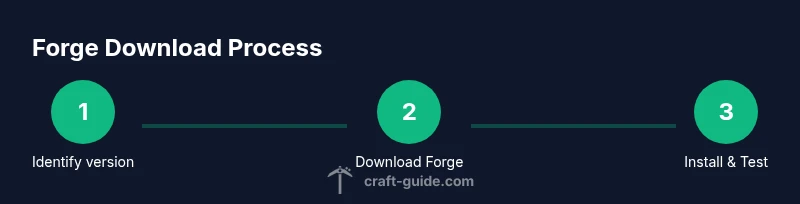
- 1
Identify your Minecraft version
Open the Minecraft launcher and confirm the installed version you intend to mod. This ensures you download the matching Forge build and avoid incompatibility issues.
Tip: Note the exact version number (e.g., 1.20.1) for later reference. - 2
Download the correct Forge installer
Go to the official Forge site and download the installer for your identified Minecraft version. Verify the file size and source before downloading.
Tip: Use a stable internet connection to prevent corrupted downloads. - 3
Run the Forge installer (Client)
Launch the installer and select Install Client. This creates a Forge profile in your launcher and prepares necessary libraries.
Tip: If prompted by security warnings, allow the installer to run. - 4
Launch Minecraft with Forge
Open the Minecraft launcher and choose the Forge profile. Start a test world to verify Forge loads without errors.
Tip: If Forge isn’t listed, re-run the installer and restart the launcher. - 5
Locate and prepare the mods folder
Navigate to the Minecraft mods folder. Create it if needed and ensure any mods you plan to use are compatible with your Forge version.
Tip: Avoid mixing mods from different game versions in the same folder. - 6
Add mods and test
Copy mods into the mods folder and start again with the Forge profile to test loading and stability.
Tip: Add one mod at a time to isolate issues quickly. - 7
Backup and maintain versions
Regularly back up your modded worlds and maintain a changelog for your mod set. Update Forge and mods in a controlled sequence.
Tip: Keep a separate profile for experimental mods.
People Also Ask
What is Minecraft Forge and why use it?
Forge is a modding framework that simplifies loading and compatibility for mods. It provides a common API for mod developers and a stable environment for players to run multiple mods together.
Forge helps mods work smoothly together and with Minecraft, making modded play more reliable.
Do I need Java to run Forge?
Yes. Forge relies on a compatible Java runtime. Check the Forge requirements for your version and ensure Java is installed and configured correctly.
Forge requires Java, so make sure you have a matching Java version installed.
Can Forge work with all mods?
Most mods designed for Forge will work in a compatible Forge version, but some mods may require specific versions or additional libraries.
Not every mod works with every Forge version; check compatibility notes before installing.
How do I update Forge safely?
Backup worlds, update Forge in a test profile, verify all mods are compatible with the new Forge version, and then migrate your primary mod set if testing passes.
Back up first, test the new Forge, then update mods if it’s stable.
Why do mods crash after a Forge update?
Crashes usually stem from version mismatches between Forge, mods, and Minecraft. Re-check compatibility, temporarily disable recent mods, and review crash logs.
Mismatched versions cause crashes; verify compatibility and remove recent mods to test.
Is Forge safe to install on servers?
Yes, but you should use the Forge server build designed for multiplayer, ensure all server mods match the Forge version, and back up worlds before starting.
Forge can work on servers with the right version; back up first and keep mods aligned.
Watch Video
The Essentials
- Back up your world before modding.
- Download Forge from official sources.
- Use a Forge-compatible mod set for stability.
- Test in a clean profile to isolate issues.
- Keep Forge and mods updated together to minimize crashes.