How to Install and Manage Minecraft Forge Mods
Learn how to install Forge mods in Minecraft, choose compatible mods, and troubleshoot for a stable modded world. A practical guide by Craft Guide today.


Learn how to minecraft forge mods by installing Forge, selecting compatible mods, and running a stable modded client. You’ll need a supported Minecraft version, the Forge installer for that version, a clean .minecraft folder, and mods from trusted sources. We’ll cover version checks, profile setup, and basic troubleshooting for a smooth start, plus tips to avoid common crashes.
What Forge mods are and why modding matters
Minecraft Forge is the most widely used mod loader for Minecraft Java Edition. It provides a stable framework that lets thousands of mods work together, sharing common APIs and hooks. This makes it easier for players to customize gameplay, add new biomes, items, and mechanics, and even optimize performance with libraries that many mods rely on. If you are exploring how to minecraft forge mods, Forge is the natural starting point because it standardizes loading and compatibility. According to Craft Guide, adopting Forge as your modding foundation reduces the risk of crashes and version conflicts compared to ad hoc loading. In practice, a Forge-based modded setup typically consists of a compatible Minecraft version, a matching Forge version, and one or more mods built for that Forge ecosystem. The result is a modular, expandable experience that can scale from simple tweaks to major overhauls. Craft Guide emphasizes careful version planning to keep new mods from breaking your world.
Prerequisites for modding safely
Before you dive into Forge modding, prepare your environment to avoid headaches later. Install a supported version of Minecraft Java Edition and ensure you have a compatible version of Java in your system path. Create a clean, dedicated .minecraft folder for testing, separate from your primary world saves. Back up your worlds and your Minecraft profile regularly—mods can sometimes corrupt worlds or save data if something goes wrong. If you're new to modding, consider using a launcher that supports separate profiles and easy backups. Also, familiarize yourself with basic troubleshooting steps, like checking crash logs and ensuring that your mods come from trusted sources. The Craft Guide team recommends starting with a vanilla base and testing one mod at a time to confirm stability before expanding your mod list.
Choosing the right Forge version and mods
Version alignment is critical. You must match the Minecraft version, Forge version, and each mod's compatibility. In practice, pick the Minecraft version you want to play, download the corresponding Forge installer, and verify that each mod supports that exact Forge and Minecraft combination. The Craft Guide analysis shows that sticking to a consistent version trio minimizes loading surprises and gameplay crashes. When selecting mods, prefer those with clear Forge compatibility notes and recent updates. Avoid beta or experimental builds for your first run, and keep a simple lineup initially. Organize mods by function (performance, gameplay, tech) to help you test incremental changes. Finally, review mod dependencies; some mods rely on libraries that must be installed alongside, which Forge is designed to manage. This careful curation helps prevent incompatibilities that derail sessions.
Step-by-step installation workflow (high level)
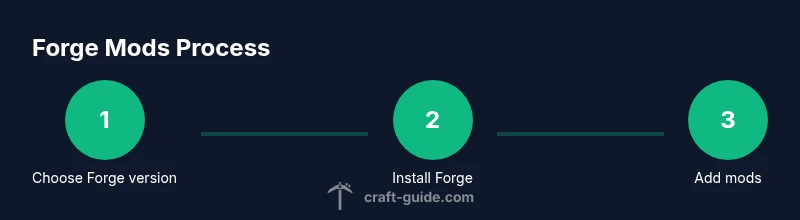
To put theory into practice, follow a straightforward workflow: plan your target version, download the Forge installer, create a Forge-enabled profile, run once to generate the mods folder, then add mods from trusted sources that match your Forge/Minecraft version. Install is straightforward but requires attention to dependencies and file placement. A systematic approach reduces errors during loading and game startup, and keeps your world changes predictable. Craft Guide recommends keeping notes on each mod you install to simplify future updates or removals.
Managing mod conflicts and compatibility tips
Mods can conflict in several ways, from shared resources to equivalent game hooks. Start by validating that every mod lists the same Minecraft and Forge versions. If you encounter crashes, disable all mods except one to identify the culprit, then re-enable gradually while monitoring crash logs. Reading logs is essential: look for ClassNotFoundException or NoClassDefFoundError messages and use that to locate the offending mod or incompatible dependency. Use mod managers or launchers that support clean profiles to isolate experiments. The goal is predictable behavior; if a mod causes instability, remove it or replace it with a compatible alternative. Craft Guide’s practical approach is to test in small, controlled steps and document outcomes for faster fixes in future sessions.
Performance considerations and troubleshooting
Modded Minecraft can demand more RAM and CPU. Start with a baseline of allocated memory in the launcher and adjust only if you see performance issues. Some mods improve FPS but others may introduce lags if they conflict or duplicate physics calculations. If you experience long load times, disable resource-intensive mods temporarily and enable them one by one. Keep graphics drivers up to date and consider performance-oriented mods that optimize chunk loading and rendering. If the game crashes, revert the last change, check crash reports, and consult mod pages for compatibility notes. A methodical approach helps you maintain a stable modded experience without sacrificing performance.
Keeping mods organized and backups
Organization is key to sustainable modding. Use a dedicated mods folder and maintain a separate launcher profile for mod testing. Name mods clearly and group them by purpose, then maintain a changelog of added or removed mods. Regular backups of your worlds and the entire Minecraft directory protect your progress against corrupt data. For long-term projects, consider exporting a minimal, working mod set as a baseline you can return to after trying new mods. Craft Guide’s recommended practice is to keep a clean, documented mod catalog so you can reproduce a working setup on future Minecraft versions.
Tools & Materials
- Minecraft Java Edition installed(Same version you plan to mod; backup before major changes)
- Java Runtime Environment / OpenJDK(Ensure the Java version recommended by Forge for your Minecraft version)
- Official Forge installer(Download from the official Forge site, matching your Minecraft version)
- Mods from trusted sources(Verify Forge compatibility; avoid untrusted download sites)
- Backup solution (external drive or cloud)(Back up worlds and mod profiles before testing new mods)
- Launcher with profile management (optional)(Useful for switching between vanilla and modded setups)
- Mod management tool (optional)(Examples include MultiMC or ATLauncher for advanced workflows)
Steps
Estimated time: 60-90 minutes
- 1
Select a compatible Forge version
Identify the Minecraft version you want to play and choose the corresponding Forge version that supports that Minecraft build. Review mod pages for exact Forge compatibility and make a note of any dependencies before proceeding.
Tip: Double-check that all mods you intend to use list the same Minecraft and Forge versions. - 2
Download the Forge installer
Visit the official Forge site, download the installer for your chosen version, and save it to a safe folder. Avoid third-party mirrors that may host corrupted files.
Tip: Verify the file size and source; use checksums if provided. - 3
Install Forge into a client profile
Run the Forge installer and select Install client. Open your Minecraft launcher and choose the new Forge profile to ensure the environment is ready for mods.
Tip: Create a separate profile for mod testing to keep vanilla gameplay intact. - 4
Create the mods folder and test launch
Launch Minecraft once with the Forge profile to generate the mods folder in your .minecraft directory, then exit. This confirms the folder exists and is ready for mods.
Tip: If the folder does not appear, check file permissions in your Minecraft directory. - 5
Download and install mods
Choose mods that match your Forge/Minecraft combination and copy their jar files into the mods folder. Do not unzip jar files unless the mod specifically instructs you to.
Tip: Limit the initial mod set to avoid conflicts during first launch. - 6
Launch and verify
Open Minecraft with the Forge profile and verify that the Mods menu lists all installed mods. Run a test world to check stability and performance.
Tip: If the game crashes, remove the most recently added mod and try again.
People Also Ask
Do I need to back up my worlds before modding?
Yes. Back up your worlds and mod profiles before adding new mods. Mod conflicts or corrupted saves can occur, and a clean backup lets you revert quickly.
Yes, always back up your worlds before modding so you can recover if something goes wrong.
How do I check mod compatibility with Forge version?
Read each mod page for exact Forge and Minecraft version requirements. Prefer mods with recent updates and clear dependency notes to minimize conflicts.
Check the mod page for exact Forge and Minecraft compatibility and choose actively maintained mods.
What should I do if Minecraft won't start after adding mods?
Disable mods one by one or remove the most recently added mod to identify the issue. Check crash logs for specific errors and verify dependencies before rejoining.
If Minecraft won't start, disable the last added mod and check the crash log for guidance.
Can Forge mods be used on multiplayer servers?
Yes, but both the client and server must run the same Forge version and have the same mods installed. Server mods must be added to the server as well.
Yes, but both client and server must run the same Forge version and mods.
Is Forge safe on Windows and Mac?
Forge itself is safe when downloaded from official sources. Always scan mods for malware and avoid tampered files from untrusted sites.
Forge is safe if you download it from the official site and use trusted mods.
Why could a world become corrupted after modding?
World corruption can happen if a mod changes world data or saves improperly. Backups and testing mods individually help prevent widespread damage.
World corruption happens if a mod interferes with world data; back up and test mods gradually.
Watch Video
The Essentials
- Plan your Forge version first.
- Back up worlds before modding.
- Test mods incrementally for stability.
- Match mod compatibility to Forge and Minecraft.