How to Use Minecraft Add-Ons: A Practical Guide
Learn how to use Minecraft add-ons in Bedrock Edition, including installing behavior and resource packs, sourcing safe add-ons, and best practices to keep worlds stable.


Using Minecraft add-ons lets you customize Bedrock Edition with separate behavior and resource packs, enabling new rules and visuals. To start, download trusted add-ons, ensure your game is up to date, and import or move the packs into the correct folders. Activate them in-game to tailor your world experience.
What are Minecraft add-ons?
Minecraft add-ons are a practical way to customize Bedrock Edition without heavy modding. Add-ons come as two main components: behavior packs, which adjust how mobs behave, how items are crafted, or how mechanics work; and resource packs, which alter textures, sounds, and the user interface. Add-ons can be used together for a cohesive experience or tested individually to understand the impact. According to Craft Guide, add-ons provide a gateway for players of all skill levels to tweak gameplay without needing complex coding. They enable everything from new creature behaviors to refreshed visuals, while keeping compatibility with the core game. To maximize safety, always start with small, well documented packs and verify compatibility with your game version. This helps avoid conflicts or world corruption. When exploring add-ons, remember that the Bedrock edition supports both local packs and public repositories, and some devices may require you to import through the Minecraft app instead of manually copying files. By understanding the basic structure you will be able to assemble a modular, stable experience that fits your play style.
wordCountApproximate: 205
Tools & Materials
- Minecraft Bedrock Edition installed(Available on Windows 10/11, Android, iOS, or consoles with Bedrock support)
- Device capable of running Bedrock(PC, console, or mobile device with stable performance)
- Stable internet connection(For downloading add-ons from reputable sources)
- Backup storage(External drive or cloud backup before modding)
- Trusted add-on sources list(CurseForge, MCPEDL, official add-on pages)
- File management tool(File explorer or extractor to handle .mcpack/.mcaddon files)
Steps
Estimated time: 40-60 minutes
- 1
Prepare your device and game
Update Bedrock Edition to the latest version and ensure you have enough storage. Back up your worlds before introducing any add-ons to prevent data loss. Confirm your device can handle the added visuals and mechanics of the packs you plan to use.
Tip: Backups save time and reduce stress if something goes wrong. - 2
Define your add-on goals
Decide what you want to achieve: new textures, altered behaviors, or both. Start with one clear objective to keep testing focused and reduce conflicts.
Tip: A small scope helps you learn the process quickly. - 3
Find trusted add-ons
Look for add-ons on reputable sources. Check the version compatibility with your Bedrock edition and read user reviews to gauge stability and safety.
Tip: Prioritize add-ons with clear documentation and recent updates. - 4
Download and organize
Download the add-ons to a dedicated folder. Keep behavior packs and resource packs separate so you can troubleshoot more easily if issues arise.
Tip: Avoid rushing; verify the file types (.mcpack or .mcaddon) before import. - 5
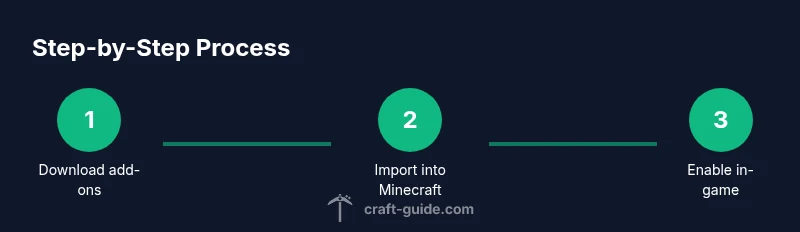
Import into Minecraft
On mobile, tap the .mcpack/.mcaddon file to import. On PC, place files in the proper folders or use the Minecraft import feature when available.
Tip: If import fails, restart Minecraft and try again. - 6
Enable resource packs
In Minecraft, activate the global resource pack in Settings if the add-on includes textures or sounds. Order can matter for layered packs.
Tip: Keep a clean list of active packs to avoid visual clashes. - 7
Apply to a world
Edit the world and attach the behavior pack. If the world requires experimental gameplay, enable it in the world settings. Save changes before launching.
Tip: Test changes in a separate test world first. - 8
Test and evaluate
Launch the world and verify that intended features work. Look for crashes, lag, or texture glitches and take notes for adjustments.
Tip: If something malfunctions, disable the add-on and reload the world. - 9
Optimize performance
If visuals or sounds cause lag, try lower resolution textures or fewer packs. Keep a balance between aesthetics and frame rate.
Tip: Test performance after each change to locate the bottleneck. - 10
Document your setup
Keep a simple log of which add-ons are active in each world and their versions. This makes future updates easier.
Tip: Label packs clearly to avoid mixing versions. - 11
Update or remove as needed
Update add-ons when compatible; remove ones that cause issues. Always back up before major changes.
Tip: Maintain a rollback plan in case updates break gameplay. - 12
Seek help when stuck
If issues persist, consult official docs or community guides. Craft Guide resources can help with common problems.
Tip: Share your experience in forums to learn from others.
People Also Ask
What is the difference between a behavior pack and a resource pack?
Behavior packs change gameplay rules and entity logic, while resource packs alter textures, sounds, and UI visuals. Both types can be used together for a richer experience, but compatibility between packs is important to avoid conflicts.
Behavior packs change how things behave, resource packs change how things look. They can work together, just check compatibility before enabling.
Which versions of Minecraft support add-ons?
Add-ons are supported in Bedrock Edition across supported devices. Java Edition uses a modding framework rather than add-ons. Always confirm your edition and version before downloading.
Add-ons work in Bedrock Edition on supported devices. Java Edition uses mods, not add-ons.
Can add-ons affect multiplayer worlds?
Yes, add-ons can affect multiplayer worlds if the server or client supports the packs. Some servers restrict add-ons due to compatibility or cheating concerns. Always check server rules first.
Add-ons can affect multiplayer worlds if supported by the server and client. Some servers disallow them, so check rules first.
Are add-ons safe to download?
Only download from trusted sources and read user reviews. Avoid files from unknown sites and scan downloads for malware when possible.
Stick to trusted sources and read reviews. Be cautious with files from unknown sites.
How do I revert changes if an add-on breaks my world?
If issues occur, disable the add-on, reload the world, and restore from a recent backup. If needed, remove the affected packs and re-test with a known-good configuration.
Disable the add-on, reload, and restore from backup if things go wrong.
Can I create my own add-ons?
Yes, but it ranges from simple texture changes to complex behavior modifications. Start with documentation and basic JSON edits, then explore tooling for more advanced features.
You can create your own add-ons, starting with simple textures and behavior, then expanding as you learn.
Watch Video
The Essentials
- Choose well-documented add-ons to reduce crashes.
- Separate behavior and resource packs for easier management.
- Back up worlds before installing or updating add-ons.
- Test add-ons in isolation before combining them.
- Always verify compatibility with your Minecraft version.