How to Install Minecraft Texture Packs: A Step-by-Step Guide
Learn how to install Minecraft texture packs on Java and Bedrock editions with safe sources, step-by-step instructions, troubleshooting tips, and optimization advice.


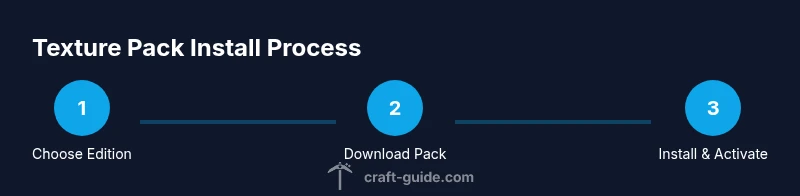
By following this guide, you will learn how to install Minecraft texture packs on both Java and Bedrock editions, letting you customize your game's visuals quickly and safely. You'll need a compatible Minecraft version, a texture pack file (zip or folder), and access to the game’s resource packs folder. The steps cover download, placement, activation, and basic troubleshooting.
What texture packs are and why they matter
Texture packs, also known as resource packs, change the visual appearance of Minecraft without altering gameplay mechanics. They can refresh blocks, items, mobs, and the user interface to match a particular style—from high-resolution realism to whimsical, cartoonish textures. Texture packs operate by replacing the game’s default textures with assets included in the pack. This process is reversible and safe when you download packs from reputable sources. According to Craft Guide, texture packs are a safe, reversible way to customize visuals without mods. When you install one, Minecraft reads the pack's assets and overlays its textures on top of the default models during rendering. If a pack doesn’t load, you can disable it and try another. The goal is to enhance aesthetics while maintaining performance and compatibility with your world and edition.
Edition compatibility: Java vs Bedrock
Minecraft runs on multiple editions, primarily Java Edition on PC and Bedrock Edition on Windows 10, consoles, and mobile. Texture packs are edition-specific because the underlying file formats, folder structures, and rendering engines differ between Java and Bedrock. Java packs usually come as a .zip file placed in the .minecraft/resourcepacks folder, while Bedrock packs are installed via the game’s Resource Packs menu or the dedicated resource_packs folder, depending on your device. Always verify the pack version matches your edition and game version. Craft Guide emphasizes double-checking edition compatibility to avoid a pack that won’t load or displays corrupted textures.
Safe sources and selecting packs
Always download texture packs from trusted sources with recent updates and clear documentation. Look for packs that list their edition compatibility, resolution (e.g., 16x, 32x, 64x, 128x), and any required other software like OptiFine. Avoid packs from unknown sites that offer executable files or require extra software. Check reviews and user screenshots to gauge compatibility and quality. For best results, start with mid-range resolutions that balance aesthetics and performance. Craft Guide recommends staging a small, safe download first and backing up your worlds before applying new textures.
Java Edition installation steps
- Confirm you are running Java Edition and that your Minecraft is up to date. Download a texture pack labeled for Java Edition.
- Locate the Java resource packs folder: .minecraft/resourcepacks. If the folder doesn’t exist, create it.
- Place the downloaded .zip file (do not extract) into the resourcepacks folder. If the pack is provided as a folder, place that folder directly inside resourcepacks.
- Start Minecraft, go to Options > Resource Packs, and move the desired pack from “Available” to “Selected.” Click Done and re-launch if prompted. The textures should now render in-game.
- If textures don’t appear, ensure there are no conflicting packs and that the pack version matches your game version. Renaming files is discouraged as it can break references.
Bedrock Edition installation steps
- Ensure Bedrock Edition is updated to a version compatible with the texture pack you downloaded.
- Put the texture pack into the appropriate folder on your device: for Windows, it’s usually under the Minecraft folder created by the launcher; on mobile, use a file manager to copy the pack to the correct internal storage path.
- Open Minecraft Bedrock and navigate to Settings > Storage (or Settings > Global Resources) and enable the new texture pack in the Resource Packs menu.
- If the pack doesn’t show, confirm you downloaded a Bedrock-compatible pack and that you placed it in the correct folder. Restart the game if necessary.
- Some Bedrock packs may require additional steps or updates; always read the pack’s README for edition-specific instructions.
Troubleshooting common issues
- Pack not showing up: verify edition compatibility and the correct folder path. Ensure you downloaded the correct file type (zip vs folder) for your edition, and restart the game.
- Textures look missing or garbled: try a smaller resolution pack or another pack to determine if the issue is the texture file itself or your GPU memory. Disable other resource packs to isolate the problem.
- Performance problems: high-resolution packs demand more GPU memory. If you experience lag, switch to lower resolution textures or reduce shader usage if you’re using shaders. OptiFine can help improve performance with higher-resolution packs.
- Incompatibility with existing worlds: some packs alter UI elements or block models. Test in a fresh world to confirm visuals behave as expected before applying to all builds.
Performance and optimization tips
Texture packs aren’t free from performance considerations. Higher-res textures average 32x, 64x, 128x, or more; the higher the resolution, the more GPU memory is required. If you notice stuttering or long load times, consider using a medium (32x-64x) texture pack or enabling OptiFine to optimize rendering. You can also allocate more RAM to Minecraft, but be cautious not to allocate excessive memory that could destabilize your system. Keep an eye on your device’s temperatures and adjust settings accordingly.
Verification and testing: the final check
After installation, verify the textures in multiple biomes and lighting conditions to ensure consistency. Check both basic blocks and complex textures (like mobs and items) for texture seams or color anomalies. If you see any issues, re-download the pack from a trusted source or try a different pack with similar style. Once you’ve confirmed everything looks correct, consider saving a dedicated texture-pack-themed world so you don’t lose the configuration.
Tools & Materials
- Minecraft installed (Java or Bedrock)(Ensure you are using the correct edition.)
- Texture pack file (.zip or folder)(Download from trusted sources; check edition compatibility.)
- Access to game folders (resourcepacks or resource_packs)(Paths vary by edition and platform.)
- Stable internet connection(Needed to download texture packs.)
- Backup storage(Optional but recommended to preserve worlds.)
Steps
Estimated time: 30-60 minutes
- 1
Decide edition and locate folders
Identify whether you’re using Java or Bedrock, then locate the correct resource packs folder for that edition. This ensures you place the pack in the right location.
Tip: Double-check edition before downloading to avoid compatibility issues. - 2
Download a texture pack from a safe source
Choose a pack that lists clear edition compatibility and resolution. Save the file in a known downloads folder.
Tip: Verify the source and read user reviews for reliability. - 3
Prepare the pack file for your edition
If the pack is a .zip, keep it zipped for Java; if Bedrock requires extraction, prepare accordingly per the pack’s README.
Tip: Do not rename the file after download to avoid path issues. - 4
Place the pack in the correct folder
Move the file to the resourcepacks (Java) or resource_packs (Bedrock) folder and ensure the file name is simple and recognizable.
Tip: Keep a clean folder structure to prevent misplacement. - 5
Activate the texture pack in-game
Launch Minecraft, open the Resource Packs menu, and enable the new pack. Restart if the pack doesn’t appear immediately.
Tip: Disable conflicting packs if textures don’t update. - 6
Test and verify the visuals
Load a world and inspect textures in several biomes to confirm uniform rendering.
Tip: If textures look off, try a lower-resolution pack first. - 7
Troubleshoot common issues
If the pack is incompatible, re-download the correct version or try a different pack. Some packs require additional software.
Tip: Check the pack documentation for specific requirements. - 8
Optimize for performance (optional)
Consider lowering texture resolution or using performance-oriented packs; higher resolutions require more GPU memory.
Tip: Use OptiFine or similar tools to improve rendering efficiency.
People Also Ask
Will texture packs work on both Java and Bedrock editions?
Texture packs are edition-specific. Always download packs labeled for your edition and game version to ensure proper loading and visuals.
Texture packs work for their specific edition; pick the right one for Java or Bedrock.
How can I tell if a texture pack is safe to download?
Download only from reputable sources and read user reviews. Avoid packs that require executables or ask for extra permissions.
Only download from trusted sources and read reviews before installing.
Why isn’t the texture pack showing up in-game after installation?
Check edition compatibility, confirm the correct folder path, and ensure the pack is enabled in-game. Restart the game if needed.
Make sure you used the right edition and folder, then enable the pack in-game.
Can texture packs affect performance?
Yes. High-resolution packs require more GPU memory. If you experience lag, switch to a lower resolution pack or reduce shader usage.
Higher textures can slow things down; try a smaller pack if performance suffers.
Do texture packs require OptiFine or shaders?
Some packs work without OptiFine, but many benefit from it. Check the pack’s requirements and your shader setup if using shaders.
Some packs need OptiFine or shaders for best results; check the pack details.
How do I revert to the default textures after testing?
Disable the texture pack in the in-game Resource Packs menu and remove the pack file from the folder if desired.
Turn off the pack in-game and remove it if you want defaults back.
Watch Video
The Essentials
- Choose the correct edition pack
- Place packs in the right folder
- Activate and test in-game
- Keep backups and verify compatibility