Editor Minecraft Skins: The Complete How-To Guide
Learn how to create and edit Minecraft skins with a dedicated editor. This guide covers choosing tools, building textures, exporting, applying in-game, and best practices for safe sharing.


By the end of this guide, you will be able to create, edit, and apply custom editor minecraft skins for your Minecraft character using a skin editor. You'll understand the difference between web-based and desktop tools, choose a suitable workflow, export your PNG, and load the skin in Java and Bedrock editions. Craft Guide's approach emphasizes practical steps, safe file handling, and testing results.
What is a Minecraft skin editor?
A Minecraft skin editor is a specialized tool that lets you modify the texture map used by your character. Instead of drawing on a plastic toy, you’re painting directly onto a 2D skin template that wraps around your in-game avatar. The result can be a playful cosplay, a faction emblem, or a personal symbol you want to carry into every build or survival session. For players asking how to express their creativity, editor minecraft skins are a practical bridge between art and gameplay. According to Craft Guide, a good editor provides live preview, safe export, and version control so you can experiment without risking your original skin. Whether you prefer browser-based editors or desktop applications, the core idea is the same: you edit textures, save them as PNG files, and load them into Minecraft to see how they look on your character. This article will walk you through what to look for, how to create compelling skins, and best practices that keep your files organized and easy to share.
Why use a dedicated editor for editor minecraft skins
Using a purpose-built skin editor saves time and reduces guesswork compared with drawing skins directly in-game or using generic image editors. A true skin editor offers layers, which let you separate base colors from shading and accessories. You can experiment with different palettes, test how light hits the top of your head, and preview your changes on a 3D model without leaving the tool. For players new to skin art, editors explain proportions and anatomy, guiding you to place each pixel on the correct body segment (head, arms, torso, legs). Craft Guide’s analysis shows that editors with non-destructive editing, keyboard shortcuts, and a straightforward export workflow dramatically shorten iteration cycles. They also emphasize safe handling of your files: keep a backup, avoid overwriting the original skin, and verify export settings before sharing publicly. In short, an editor minecraft skins tool helps you prototype, refine, and share distinctive looks with friends and communities, while keeping your textures organized and easy to revert if a change goes wrong. This keeps the creative process fun rather than frustrating.
Choosing the right editor: web-based vs desktop
Editors come in two broad flavors: web-based, which run in your browser, and desktop applications, which install on your computer. Web-based editors are convenient, quick to start, and ideal for casual experimentation, sharing skins via links, and collaborating with friends. Desktop editors often offer deeper toolsets, higher performance for large textures, and offline access—useful when you’re traveling or studying in places with unreliable internet. When selecting an editor, look for: an intuitive brush with size control, layer support, symmetry tools, and live preview on a 3D model; safe export options that preserve transparency; and clear guidance on working with the standard skin template. Software stability, regular updates, and an approachable community for tips also matter. If you’re new to editor minecraft skins, start with a browser-based option to learn the basics, then move to a desktop editor for more advanced shading and layering. Craft Guide recommends trying at least two editors to understand which interface fits your workflow and to avoid platform lock-in.
Tools & Materials
- Computer with internet access(For web-based editors and saving files)
- Base skin PNG(Your starting texture to edit (existing skin) or a neutral template)
- Editor software (web-based or desktop)(Choose one; ensure it supports layers and export to PNG)
- Export PNG tool / image editor(Preserve transparency; use descriptive file names)
- Backup copy(Save an unedited copy before editing)
Steps
Estimated time: 60-120 minutes
- 1
Load the base skin into the editor
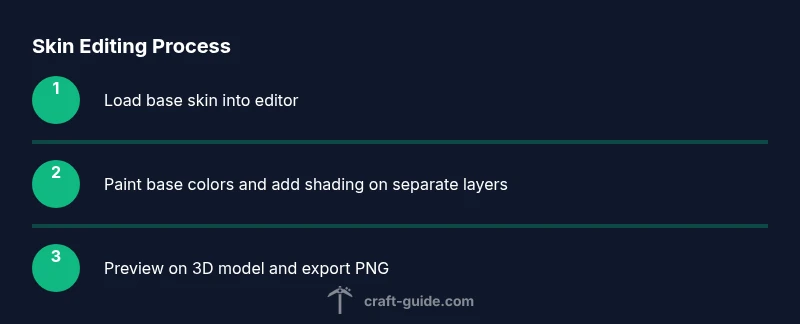
Open your chosen editor and import or drag your base skin PNG into the workspace. Verify that the base layer is editable and that you can switch to a separate layer for shading and details. This step ensures you start from a clean, correct template.
Tip: Keep a backup of the original skin before editing to quickly revert if needed. - 2
Familiarize yourself with the UI and tools
Take a moment to explore brushes, erasers, and the layer panel. Practice painting a simple color block on the head to confirm that your edits appear on the 3D preview. Learn the shortcuts for undo and redo to speed up iterations.
Tip: Enable grid and snap-to-grid to keep lines straight on small pixel art. - 3
Define your color palette
Choose a limited palette that matches your character’s style. Apply base colors on the main layers, then create a separate shading layer to add depth using darker tones. Consistency across head, torso, and limbs improves readability in-game.
Tip: Label layers clearly (Base, Shading, Details) to avoid confusion later. - 4
Add shading and highlights
Apply shading on the dedicated layer, focusing on light sources and silhouette clarity. Use slightly lighter highlights on the top surfaces (like the crown of the head) and subtle shadows on edges to simulate depth without overcomplicating the texture.
Tip: Avoid heavy gradients; pixel art benefits from controlled, minimal shading. - 5
Incorporate details and accessories
If you want patterns, logos, or clothing features, place them on separate detail layers to keep the base colors intact. Check that the accessories do not distort the silhouette when viewed from different angles.
Tip: Toggle visibility of detail layers to compare impact with and without additional patterns. - 6
Preview on the 3D model
Use the editor’s live preview to rotate the model and inspect from multiple angles. Ensure the skin reads clearly at small in-game scales and that important features stay recognizable at distance.
Tip: Pay attention to front-facing visibility; some details disappear when viewed from the side. - 7
Export and save your skin
Export the final PNG with transparency preserved. Save a labeled version (e.g., name_skin_v1) and create a backup copy before testing in Minecraft. This ensures you can reference earlier iterations if needed.
Tip: Keep a changelog for version history. - 8
Test in Minecraft
Upload the PNG to Minecraft (Java or Bedrock) according to your launcher’s steps. Open the game and assess how the skin appears in different lighting and environments. If adjustments are required, re-edit and re-export a new version.
Tip: Test on both daylight and night lighting to ensure readability.
People Also Ask
What is a Minecraft skin editor?
A Minecraft skin editor is a tool that lets you modify the texture map used by your character. It provides a workspace to paint on the skin template, preview the result on a 3D model, and export a PNG file you can apply in-game.
A Minecraft skin editor lets you paint your character’s texture, preview it on a 3D model, and export a PNG to use in-game.
Do I need Photoshop to edit skins?
No. You can use free or built-in editors, including browser-based tools or standalone apps, which offer layers and pixel-level control specifically for skins. Photoshop is optional if you already own it and are comfortable with its tools.
No, you don’t need Photoshop; many free editors work well for Minecraft skins.
How do I apply the edited skin in Minecraft?
After exporting the PNG, log into Minecraft and go to your profile or skin settings. Upload the PNG in the skin section for Java Edition, or use the launcher options for Bedrock Edition. Then reload the game to see your new skin in action.
Upload the PNG in your Minecraft profile, then restart or reload the game to see the new skin.
Are skin editors safe to use?
Most editors are safe if downloaded from reputable sources or used directly in your web browser. Avoid combined tools that request excessive permissions or force installs. Always back up your files before editing.
Editors you trust are generally safe, just back up your files before editing.
Can I edit skins for Bedrock and Java editions?
Yes, you can edit skins for both editions, but the upload process may differ slightly between Java and Bedrock. Check the specific launcher settings for each edition and ensure the PNG format and resolution are compatible.
You can edit skins for both editions; just follow the respective upload steps for each version.
Why isn’t my skin applying in-game after editing?
Common reasons include uploading the wrong file, using an incompatible resolution, or caching issues in the launcher. Re-export with correct dimensions, re-upload, and restart Minecraft to refresh textures.
If the skin won’t appear, recheck the file, restart Minecraft, and clear launcher caches.
Watch Video
The Essentials
- Choose the right editor (web-based for quick tests, desktop for advanced shading)
- Use layers to separate base colors, shading, and details
- Preview often in a 3D model to verify silhouette and readability
- Export PNGs with transparent backgrounds and keep backups
- Test skins in-game across lighting conditions and both Minecraft editions