Skin Editor in Minecraft: Create and Apply Custom Skins
Learn to use a skin editor in Minecraft to design, save, and apply custom skins across devices. This step-by-step guide covers tools, safety, testing, and sharing tips to help you personalize your avatar.


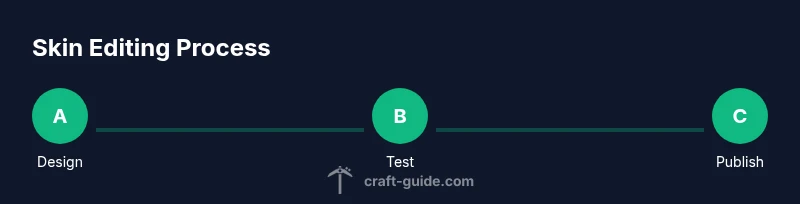
A skin editor in Minecraft lets you design, save, and apply custom character textures across devices. You’ll learn tool selection, practical editing steps, safe exporting, and how to test skins in-game. Follow this guide to build distinctive avatars and share your creations with friends.
Why a Skin Editor Matters in Minecraft
In Minecraft, your skin is your avatar’s first impression. A skin editor lets you design, tweak, and preview textures without diving into raw image files or external tools. For players who want to tailor armor, clothing, or character features, editors streamline the process with pixel-perfect control and real-time feedback. According to Craft Guide, a well-chosen editor reduces editing time and enables safer sharing because you work with clean PNG exports rather than risky downloads. The main benefits are consistency across platforms, easy sharing with friends, and the ability to experiment with color palettes and shading without modifying game code. Beginners can learn fundamental texture rules by editing small sections, then scale to more complex outfits as confidence grows. Modern editors offer layers, symmetry tools, and grid overlays that help you maintain a cohesive look across body parts. By staying within the standard 64x64 (Java Edition) or 64x32 (older variants) skin dimensions, you avoid common upload errors. In short, a skin editor is not just a cosmetics tool; it’s a creative studio that expands how you tell stories in your Minecraft world.
Types of Skin Editors You Might Use
Skin editors come in several flavors, and the right choice depends on how you like to work. Web-based editors require no installation and are great for quick tweaks, color picking, and sharing links with friends. Desktop editors offer more precise pixel manipulation, larger canvases, and often advanced features like layers and grid snapping. In-game editors (via mod packs or launcher plugins) can integrate directly into your Minecraft launch, letting you test skins in real time. Some editors specialize in texture packs or resource packs, while others focus on portrait-like face details. When choosing, consider export compatibility: PNG is standard, with transparent areas to preserve shading. Safety matters too—stick to reputable sites and verified downloads to avoid malware or hidden plugins. For collaboration, look for editors that export clean files and provide undo history so you can experiment without fear. Regardless of the tool, plan your design in small steps: base color, major wardrobe pieces, accessories, and finally fine-tuning of shading highlights. This approach helps you keep a consistent aesthetic across different outfits and characters.
Tools & Materials
- Skin editor (web-based or desktop)(Ensure it exports PNGs in the standard 64x64 (Java) or 64x32 sizes as applicable.)
- Minecraft account(Needed to upload and apply skins to your profile.)
- Backup storage(Keep a copy of the original skin in a safe location.)
- Image editor (optional)(For advanced edits (e.g., GIMP, Paint.NET) before importing into the skin editor.)
- Stable internet connection(Important for online editors and syncing changes.)
Steps
Estimated time: 60-90 minutes
- 1
Open your skin editor and load a base model
Launch the editor, select your base model, and verify canvas size (64x64 for Java Edition). Load a blank or existing skin as starting point to know where features sit. This gives you a reliable canvas for subsequent steps.
Tip: Use the grid and symmetry tools to speed alignment. - 2
Choose a base color palette and outline main shapes
Pick a limited color set and block out major areas—head, torso, limbs—before adding details. This helps maintain color harmony and reduces editing time. Keep shading direction consistent across parts.
Tip: Lock the palette to prevent color drift across sections. - 3
Add clothing and accessories with layers
Create separate layers for armor, belts, or patterns. Layers let you toggle parts on/off and adjust without affecting other textures. Organize by body region for quick edits later.
Tip: Name layers clearly (e.g., 'torso_shade', 'cape'). - 4
Apply shading and highlights for depth
Add soft shadows along edges and midtones where light would naturally fall. Test under different lighting to ensure readability. Avoid heavy contrasts that blur at small scales.
Tip: Avoid extremes that become muddy on small skins. - 5
Export PNG with correct dimensions
Export a clean PNG at 64x64 (or 64x32 for older setups) and verify transparency in non-visible areas. Keep a separate backup before uploading.
Tip: Check for accidental transparent seams. - 6
Upload and preview in Minecraft profile
Upload the skin to your profile and view the character in the editor’s in-game preview or in-game world. Adjust if seams or shading appear off.
Tip: Preview under daylight and shadow to catch issues. - 7
Iterate based on in-game testing
If you spot issues, return to the editor, tweak colors or shading, and re-export. Small refinements can dramatically improve clarity.
Tip: Save iteratively with versioned names like skin_v1, skin_v2. - 8
Save versions and manage assets
Maintain a library of exported skins with descriptive names and notes. This makes it easier to reuse elements in future designs and share with friends.
Tip: Keep an organized folder structure for palettes and textures.
People Also Ask
What is a Minecraft skin editor?
A Minecraft skin editor is a tool that lets you modify the texture map that covers your character model, enabling custom appearances without altering game code.
A skin editor lets you customize your Minecraft character's texture by editing a picture.
Do I need to download software to edit skins?
You can use web-based editors or desktop apps; many work in your browser, while others install on your computer. Choose a trusted option and export PNGs.
You can edit skins online or with a desktop app; pick a trusted editor and export PNGs.
Can I edit skins on all devices?
Skin files are PNG images that can be used across Java and Bedrock editions. Upload through your profile to apply across devices.
Skins are PNGs that transfer across platforms; upload to your profile to use them on all devices.
Are there safety risks with skin editors?
Yes—use reputable editors, avoid downloads from unknown sources, and scan files for malware before using them.
Only use trusted editors to avoid malware.
How do I upload a skin to Minecraft?
In your Minecraft profile, choose Upload Skin, then select your PNG and apply. Some editions may require re-logging.
Go to your profile and upload the PNG skin to apply it.
Where can I share skins with friends?
You can share the PNG file or link to a skin gallery on community sites. Always credit creators when required.
Share the PNG or a link to a community gallery, with proper credit.
Watch Video
The Essentials
- Plan your design with a simple silhouette first.
- Export PNGs with correct dimensions and transparency.
- Test across lighting to ensure readability.
- Back up originals and version your edits.
- Share skins responsibly and respect licenses.