Download Minecraft Skin: A Practical How-To Guide
Learn how to download Minecraft skins safely, pick trusted sources, and apply skins to Java and Bedrock editions with a clear, practical guide.


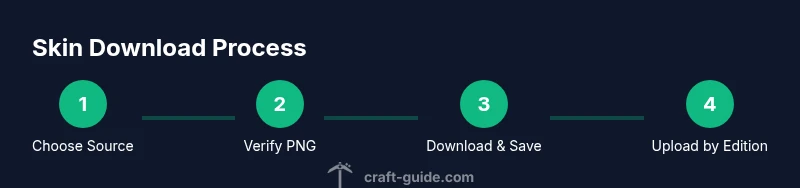
Goal: download Minecraft skin safely by choosing trusted sources, verifying PNG format, and applying the skin to both Java and Bedrock editions. This quick answer highlights the essential steps and safety tips so you can start customizing your character confidently. From choosing reputable skin sites to importing the PNG file into the launcher or game settings, these steps reduce risk and ensure a smooth appearance.
What is a Minecraft skin and why download
A Minecraft skin is a texture file that paints the in-game model to change how your character looks. When you hear the phrase download minecraft skin, you’re usually looking at a PNG image that maps to the game's 3D model. Skins can be simple color swaps or elaborate outfits, and they let players express personality, creativity, or team identity. For many players, skins are a first step toward a more immersive experience. According to Craft Guide, understanding the basics helps you pick safe sources and avoid compatibility issues between Java and Bedrock editions. This guide keeps the focus on practical steps you can take today to obtain and apply skins with confidence.
text
format
Tools & Materials
- Computer, smartphone, or tablet with internet access(Needed to browse skin sites and upload/download files.)
- Minecraft account (Java or Bedrock)(Required to apply skins through official portals or in-game menus.)
- PNG skin file(Most skins are 64x64 PNG files; keep a backup of the original.)
- Web browser or skin editor(Use a reputable site or an editor to customize skins before download.)
- Antivirus software(Scan downloaded files to guard against malware.)
Steps
Estimated time: 25-45 minutes
- 1
Decide between downloading or creating
Determine whether you want to import a skin from a trusted source or design your own. Creating a skin gives maximum customization, while downloading saves time. If you choose to download, proceed to step 2.
Tip: Starting with a clear idea of your theme helps you evaluate skins faster. - 2
Find a reputable source
Search for well-known skin sites and community hubs that host user-submitted skins. Look for recent updates, community ratings, and clear licensing notes. Favor sites with HTTPS and a straightforward download process.
Tip: Avoid sites that prompt extra downloads or require suspicious permissions. - 3
Check the skin file details
Verify the file is a PNG, typically 64x64 or compatible with the edition you use. Confirm the image is not embedded in an installer or executable. Read comments or guides on the site to confirm compatibility with Java or Bedrock.
Tip: If a site shows multiple sizes, choose the standard 64x64 PNG unless you’re targeting legacy support. - 4
Download and save the file safely
Click the download button and save the file to a known location, preferably with a descriptive name like skin-hero.png. Do not execute or run the file. Use your antivirus to scan the download if possible.
Tip: Organize skins in a dedicated folder to avoid mixing with other images. - 5
Prepare the file for upload
Ensure the file name ends with .png and that the dimensions meet the standard skin requirements. If editing, keep a backup copy of the original PNG before making changes.
Tip: Never modify the color values in ways that could affect transparency layers unless you know what you’re doing. - 6
Upload to Java Edition
Open the Minecraft launcher, log in, and go to the profile or skin settings. Click the option to upload a custom skin, select your PNG, and confirm. The launcher will apply the skin to your account for Java Edition play.
Tip: If the skin doesn’t appear immediately, restart the launcher or refresh the profile page. - 7
Upload to Bedrock Edition
In Bedrock, open the game’s settings, navigate to the profile/skin area, and choose Import or Browse for skin. Select the PNG file and apply. Bedrock often caches the skin, so a reload of the game helps.
Tip: Bedrock skin imports may differ by platform (Windows, mobile, console); follow on-screen prompts precisely. - 8
Preview and test
Enter a world or a local test realm and inspect your skin from different angles. Look for gaps or misaligned textures that may indicate an incorrect mapping. Adjust in the editor or re-download a corrected PNG if needed.
Tip: Ask a friend to verify the look from their screen as well; some textures appear differently on various devices. - 9
Troubleshoot and finalize
If the skin won’t load, clear local cache, re-upload, or try a different PNG with the same dimensions. Confirm you’re editing the correct edition (Java vs Bedrock) since skins are not interchangeable between them.
Tip: Keep at least one backup skin handy in case you want to revert.
People Also Ask
What is a Minecraft skin, and why would I download one?
A Minecraft skin is a texture file that changes your character's appearance. Downloading skins lets you customize your in-game look and show personal style, team identity, or themed outfits. Skins for Java and Bedrock editions are handled through separate processes, so follow edition-specific steps when applying.
A Minecraft skin changes how your character looks. You download skins to customize your character, and you’ll use different steps for Java and Bedrock editions.
Can I use skins on both Java and Bedrock editions?
Skins are edition-specific. A PNG file uploaded for Java Edition won’t automatically apply to Bedrock. You’ll need to upload the same PNG separately in each edition's skin settings to see the change across platforms.
Skins don’t cross between Java and Bedrock automatically. Upload the PNG in each edition’s settings if you want a consistent look.
Are downloaded skins safe to use?
Stick to reputable sites and scan downloads for malware. Do not run or execute downloaded files. Sticking to trusted hosts reduces risk and ensures a clean PNG file that maps correctly to the game model.
Yes, if you download from trusted sites and scan the file, skins are safe to use. Avoid suspicious downloads.
How do I import a skin in Bedrock on mobile?
Open Minecraft, go to Settings > Profile, and choose Import or Browse to select your PNG. Apply the skin and restart the game if changes don’t appear immediately.
On mobile Bedrock, go to Settings, pick your profile, import the PNG, and apply. Restart if needed.
What if my skin doesn’t show after uploading?
First, confirm you used a standard PNG at 64x64. Clear your game cache or restart the launcher. If it still fails, re-upload the file or try a different skin file.
If it doesn’t show, check the file size and dimensions, then restart the game; re-upload if needed.
Can I customize a downloaded skin?
Yes. Use a skin editor to tweak colors, layers, or accessories. Always keep an original backup in case you want to revert changes.
Absolutely, you can customize a downloaded skin with an editor, and keep backups in case you want to revert.
Watch Video
The Essentials
- Choose trusted sources to avoid malware.
- Ensure PNG format and correct dimensions before uploading.
- Java and Bedrock skins are managed separately.
- Test in-game and clear cache if needed.