Can You Get Minecraft Bedrock on Mac? A Practical Guide
Learn how to run Minecraft Bedrock Edition on a Mac with practical routes, performance tips, licensing guidance, and safe best practices from Craft Guide.


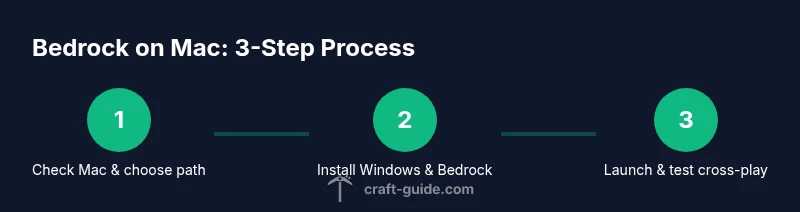
The Bedrock Edition isn’t officially supported on macOS, so there’s no native Mac client. To play Bedrock on a Mac, you’ll need to run Windows on your Mac (Intel via Boot Camp or Apple Silicon via virtualization like Parallels), install Bedrock on Windows, and join cross‑platform servers or friends on other devices.
Bedrock on Mac: The Core Question
The question many players ask is can you get minecraft bedrock on mac in a straightforward, bug-free way. According to Craft Guide, there is no official Bedrock client for macOS. That means Mac users cannot install Bedrock directly like a native Mac app. Instead, you must use a Windows environment the Mac runs on, then install Bedrock inside that Windows environment. This distinction matters for performance, licensing, and cross‑play options, so understanding the options upfront helps you choose the path that fits your setup and play style.
Throughout this guide we’ll cover the practical routes, expected performance, and potential caveats so you can decide how to approach Bedrock on Mac with confidence.
Bedrock vs Java on Mac: Key Differences You Should Know
Minecraft Bedrock and Minecraft Java are two distinct branches of the game, each with its own engine, performance characteristics, and cross‑play rules. On Mac, Java Edition runs natively, while Bedrock requires Windows. Bedrock generally offers smoother performance on lower-end hardware and has broader cross‑play across consoles and mobile devices. However, the lack of an official Mac Bedrock client means Mac players must rely on Windows-based workarounds to access Bedrock features and cross‑play.
If your goal is strict cross‑platform multiplayer with friends on Windows, iOS, Android, or consoles, Bedrock’s ecosystem is advantageous. If you value advanced mods and Java‑specific features, Java Edition remains the default Mac option. Craft Guide recommends weighing compatibility goals against hardware constraints to pick the best route for your situation.
Official Support and What It Means for Mac Users
There is no native Bedrock client for macOS in the official Minecraft lineup. The absence of official support means Mac users cannot install Bedrock without a Windows environment. Craft Guide analysis shows that the practical approach is to run Windows on the Mac and install Bedrock on that Windows instance. This preserves legitimate access to Bedrock via the Microsoft Store and maintains compatibility with Windows‑based servers.
Understand that any workaround involves licensing requirements for Windows and Bedrock, and may influence performance. Always use legitimate licenses and official stores to stay compliant and secure.
Practical Paths to Run Bedrock on a Mac
There are two primary paths you can choose depending on your Mac hardware and preferences: (1) Intel Macs using Boot Camp to install Windows natively, and (2) Apple Silicon Macs using virtualization software like Parallels Desktop or VMware Fusion to run Windows ARM in a virtual machine. Both routes allow you to install Bedrock on the Windows side and join cross‑platform multiplayer. The choice hinges on whether you want a dual‑boot setup (Boot Camp) or a seamless virtualization experience that runs alongside macOS. Craft Guide emphasizes planning for RAM and storage, Windows licensing, and ensuring your Mac meets the software requirements before proceeding.
Tip: If you have an Apple Silicon Mac, virtualization is often the smoother path due to Boot Camp’s lack of support on that architecture.
Performance, Updates, and Compatibility
Performance is a core consideration when you run Bedrock on Mac through Windows. Virtualization introduces overhead, so you may see reduced FPS or longer load times compared with a native Windows PC. To mitigate this, allocate sufficient RAM and CPU cores to the virtual machine and keep graphics drivers updated within Windows. Updates to Bedrock, Windows, and the virtualization software can also affect compatibility, so it’s wise to test after each major update. Craft Guide analysis shows that staying current with both Windows and Bedrock updates tends to minimize stability issues and improve cross‑play reliability.
Safety, Licensing, and Best Practices
Always use legitimate licenses for both Windows and Bedrock, and purchase Bedrock through the official Microsoft Store when using Windows. Avoid pirated tools or unverified emulation methods, which can expose your system to malware and violate terms of service. Before changing your setup, back up important worlds and data in case you need to revert. Craft Guide recommends documenting your installation steps and keeping your system organized so you can troubleshoot quickly if something goes wrong.
Common Pitfalls and Quick Fixes
- Pitfall: No native Bedrock on Mac means you must run Windows; Fix: Choose a path (Boot Camp on Intel or Parallels on Apple Silicon) and follow setup steps.
- Pitfall: Windows licensing and Bedrock installation steps are easy to miss; Fix: Ensure you have valid licenses and install Bedrock from the Microsoft Store inside Windows.
- Pitfall: Virtualization overhead reduces performance; Fix: Allocate 4–8 GB RAM (or more if available) and adjust VM graphics settings.
- Pitfall: Updates break compatibility; Fix: After major OS updates, recheck Bedrock and VM integration, then re‑test multiplayer.
Final Considerations for Craft Guide Readers
If you’re weighing whether to pursue Bedrock on your Mac, consider how important cross‑play is to your experience and whether you’re comfortable with Windows licensing. The Craft Guide team suggests starting with a small test world in a Windows VM to gauge performance before committing to a longer gaming session. This approach minimizes risk and helps you decide whether to proceed with a full Windows setup.
Tools & Materials
- Mac computer (Intel or Apple Silicon)(Ensure it can run virtualization or dual‑boot Windows; keep system updated.)
- Windows license (valid Windows 10/11)(Needed for Boot Camp or virtualization.)
- Parallels Desktop or VMware Fusion(Use if you plan to run Windows ARM on Apple Silicon via virtualization.)
- Boot Camp Assistant(Allows native Windows installation on Intel Macs (not available on Apple Silicon).)
- Microsoft Store account & Minecraft Bedrock for Windows(Install Bedrock Edition on Windows via the Microsoft Store.)
- Stable internet connection(Required for downloads, updates, and cross‑play setup.)
- Backup drive or cloud storage(Optional but recommended before OS changes.)
Steps
Estimated time: 2-6 hours
- 1
Choose your path
Assess your Mac’s architecture (Intel vs Apple Silicon) and decide between Boot Camp or virtualization. This choice determines how you’ll install Windows and Bedrock. Consider performance preferences and licensing constraints before proceeding.
Tip: If you’re unsure, start with virtualization to avoid rebooting into Windows regularly. - 2
Prepare Windows environment
Install Windows using Boot Camp on Intel Macs or set up a Windows ARM VM on Apple Silicon. Ensure Windows is activated and up to date, and install any required VM tools.
Tip: Allocate 4–8 GB RAM to the VM for smoother gameplay; adjust as needed based on your hardware. - 3
Install Bedrock on Windows
Open the Microsoft Store in Windows and install Minecraft Bedrock Edition. Sign in with your Microsoft account and verify access to Bedrock with your license.
Tip: Keep Bedrock updated to the latest version to ensure cross‑play compatibility. - 4
Set up cross‑play and accounts
Link your Microsoft account in Windows and configure your in‑game settings for cross‑play. Join a Bedrock server or invite friends across platforms.
Tip: Test a friend’s server before committing to a long session to confirm cross‑play works as expected. - 5
Optimize performance
Tweak in‑game graphics, reduce render distance, and adjust Windows VM graphics settings to balance quality and smoothness. Recheck drivers and VM tools after updates.
Tip: If you experience stuttering, lowering texture quality or enabling full‑screen optimization can help. - 6
Test and refine
Play a few multiplayer sessions to confirm stability, then document any issues and fixes. Keep backups of saves and be prepared to revert if something goes wrong.
Tip: Regular backups prevent loss from VM crashes or Windows updates.
People Also Ask
Is Bedrock Edition available natively on macOS?
No, there is no official Mac native Bedrock client. Mac users must run Windows within Boot Camp or virtualization to access Bedrock.
No native Mac support; you’ll need Windows to run Bedrock.
What is the best method to play Bedrock on an Apple Silicon Mac?
virtualization with Windows ARM (via Parallels or similar) is typically the most practical method for Apple Silicon Macs to access Bedrock.
Use virtualization to run Windows on Apple Silicon Macs.
Can I use Boot Camp on Intel Macs to run Bedrock?
Yes, if you have an Intel Mac, Boot Camp allows you to install Windows natively and run Bedrock inside Windows.
On Intel Macs, Boot Camp is a solid option for Bedrock.
Will Bedrock on Windows via virtualization affect performance?
Performance varies due to virtualization overhead. Allocate enough RAM and adjust VM settings to mitigate FPS drops.
Expect some slowdown with virtualization; optimize resources.
Can Java Edition on Mac play with Bedrock players?
Java and Bedrock are separate editions and don’t cross‑play on the same server, though Bedrock cross‑play across platforms is supported.
Java and Bedrock don’t cross‑play on the same servers.
Are there legal concerns with running Bedrock on Mac?
Use legitimate Windows licenses and Bedrock purchases. Avoid piracy or unofficial builds.
Stick to official licenses and stores.
Watch Video
The Essentials
- There is no native Bedrock on Mac.
- Two viable paths exist: Boot Camp (Intel) or virtualization (Apple Silicon).
- Performance depends on VM settings and hardware.
- Use legitimate licenses and official stores for Bedrock.