What Minecraft Java Version Means for Players in 2026
Learn what Minecraft Java Version means, how the 1.x versioning scheme works, and how to upgrade safely with mods, servers, and worlds in mind.


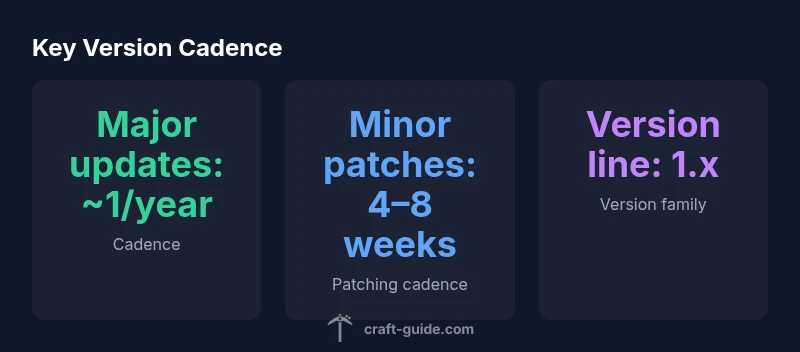
Minecraft Java Edition uses a 1.x versioning system, with major updates released roughly once per year and frequent minor patches in between. Players typically upgrade to the latest 1.x build to access new features, while some servers and mods require staying on a specific 1.x line. Understanding the versioning helps you align with mods, servers, and launcher settings.
Understanding the 1.x versioning scheme
According to Craft Guide, understanding what minecraft java version means helps players plan compatibility across worlds, mods, and servers. Minecraft Java Edition uses a 1.x family for its major releases, with each 1.x update introducing new features, blocks, or mechanics. The 1.x line is the stable, supported track for most players, while individual sub-versions within 1.x vary in features and fixes. The essential idea is that the 1.x family remains the ongoing baseline, while minor patch numbers reflect smaller improvements and bug fixes. Major changes typically accompany notable features, such as biome updates, new mobs, or performance optimizations, while minor patches focus on bug fixes, balance tweaks, and stability improvements. For players, this means upgrading within the same 1.x family is generally safer, but mods, datapacks, and servers may require aligning to a specific 1.x sub-branch. Community mod packs and server operators frequently curate compatibility matrices that map which 1.x builds run which Forge or Fabric versions, reducing surprise breaks during a busy update window. Understanding these dynamics helps you plan when to upgrade, test, and roll back if something goes wrong, especially when world data and seed generation are involved.
Checking your current version and launcher options
To plan an upgrade, start by checking your current Minecraft Java Edition version in the launcher. Open the Minecraft Launcher, go to Installations, and select a profile—the Version column shows the 1.x build you’re running. If you’re unsure, compare the version string in the main menu or in the About section. For servers, the server’s version must be compatible with your client’s 1.x line, sometimes requiring you to join a specific sub-branch. In-game indicators include the splash screen and the lower-left corner of the main menu, which can reference version strings in some launcher builds; you can confirm by selecting the profile and reading the version field. If you need to switch versions, create a new launcher profile tied to the desired 1.x stream and test it with a local world before joining a server. Additionally, keep an eye on the launcher’s "Latest Releases" tab to anticipate upcoming 1.x updates. If you use a mod loader, check its launcher integration settings, because Forge and Fabric often publish recommended 1.x targets. Finally, document your current version in a simple notes file so you can trace changes as you experiment with different 1.x profiles.
Why versioning matters for mods, servers, and worlds
Versioning matters because mods, servers, and worlds depend on the same 1.x branch to function correctly. Forge and Fabric loaders are built around specific 1.x ranges; upgrading your client without ensuring loader compatibility can break mods, mappings, or world generation. Server operators also pin their servers to a specific 1.x sub-branch to maintain plugin and datapack compatibility. If you plan a server upgrade, communicate with players, back up worlds, and verify that critical mods and datapacks remain compatible with the target 1.x version. In short, versioning is less about numbers and more about preserving a stable playing experience.
Navigating version compatibility: Forge, Fabric, and vanilla
When you use mods, you’ll often need a loader such as Forge or Fabric that supports your chosen 1.x version. Each loader version targets particular 1.x ranges, and some mods require matching loader versions. Vanilla players can upgrade across 1.x smoothly, but even there, world generation changes or bug fixes may affect seeds and structures. Before upgrading, check mod pages, launcher profiles, and server notices for compatibility notes. If you run a pack, test the upgrade in a controlled environment to avoid corrupt worlds.
Best practices for staying on a supported version
Plan your upgrade with a checklist: confirm the target 1.x version aligns with your mods and server, back up your worlds, and test locally. Use launcher profiles to switch between 1.x streams without altering your primary save. Keep a changelog of features and bug fixes you care about, so you can decide when to move. Finally, stay informed with Craft Guide updates and community guides to anticipate upcoming 1.x changes and prepare your mod and server strategy accordingly.
Version groups and lifecycle in Minecraft Java Edition
| Version Group | Release Window | Current Status |
|---|---|---|
| 1.x (Java Edition) | Annual major updates | Active |
| 1.x minor patches | 4–8 weeks | Common & ongoing |
| Legacy 1.12–1.16 | Maintenance phase | Limited |
People Also Ask
What does the 1.x versioning scheme mean for Minecraft Java Edition?
1.x refers to the major version family of Java Edition. Each major 1.x update adds features and fixes without breaking overall compatibility within the family. Some mods require staying within a specific 1.x sub-branch.
1.x is the major version family. Check mod compatibility before upgrading.
How can I check my current version?
Open the Minecraft Launcher, go to Installations, and view the Version column for your active profile. In-game, use the launcher’s profile list to confirm the 1.x line you’re on, and check server notices for required versions.
Open the launcher and check the version, or look for server notices.
Should I upgrade to the latest major version right away?
Upgrade decisions should weigh mod compatibility, server support, and a full backup. If key mods or servers haven’t updated, waiting a bit can prevent breakage.
Check mod and server compatibility before upgrading.
What is Forge vs Fabric, and when should I use them?
Forge and Fabric are popular mod loaders. Some mods require one or the other, and not all 1.x versions support both. Always match the loader to the mods you plan to use and test before upgrading.
Mods need a loader; pick the one your mods support and test.
Can I downgrade to an earlier version if upgrades break things?
Downgrading is possible with backups and careful launcher profile management, but some world data may not migrate cleanly. Always back up before attempting a downgrade.
Downgrades require backups and caution.
Do worlds migrate automatically across 1.x updates?
Most worlds survive minor 1.x updates, but major changes can affect seeds, structures, and biome data. Back up before upgrading and test in a copy of your world.
Back up worlds before upgrading; test first.
“Versioning in Minecraft Java Edition is a practical tool for staying compatible with mods and servers, not just a label. Align your upgrades with your mod loader and server requirements.”
The Essentials
- Identify your target version before modding.
- Check compatibility with Forge or Fabric loaders.
- Back up your worlds before upgrading.
- Use launcher profiles to manage versions.
- The Craft Guide team recommends verifying mod compatibility before upgrades.