Realistic Minecraft: A Practical Guide to Immersive Builds
Learn how to create immersive, realistic Minecraft worlds using shaders, texture packs, biome-aware design, and sensible optimization. This step-by-step guide covers setup, visuals, and practical build ideas for players of all levels.


By following this guide, you’ll learn to craft a realistic Minecraft experience using shaders, texture packs, biome realism, and careful world-building. You’ll balance aesthetics with performance, pick a solid baseline pack, and apply lighting, shadows, and material tweaks to create immersive builds that run smoothly on typical hardware for many players.
What Realistic Minecraft Means in Practice
Realistic Minecraft is not about photographing every block; it’s about a cohesive look that respects the game’s blocks and lighting while conveying a real world sense of material. When players describe realism, they often mean believable textures, natural lighting, accurate shadows, and biome-specific color palettes that make a valley feel like a real place rather than a rigid grid. According to Craft Guide, realism in Minecraft emerges from deliberate choices in lighting, materials, and terrain that balance aesthetics with gameplay. In practice, realism rests on three pillars: textures and materials, lighting and atmosphere, and world design. Texture packs with higher fidelity give surfaces a physical feel; lighting techniques with shadow maps and ambient occlusion add depth; and thoughtful biome layout with varied terrain, weather, and water behavior makes environments believable. The goal is believability, not perfection: rivers ripple with subtle motion, stone surfaces pick up soft shading, and forests exhibit daylight variance. As you adopt these elements, your builds gain depth and authenticity without sacrificing the game’s charm.
Core Elements to Achieve Realism
Realism hinges on four core elements that interact with one another: texture fidelity, lighting and shadows, water and bio-inspired coloration, and world generation that respects natural forms. Texture packs should align with the material properties you want to convey, using gradients and microtextures that simulate wear, weathering, and mineral differences. Lighting must provide believable directionality and contrast, with shadows that soften under overcast skies and sharpen at sunset. Water should ripple and refract subtly, while weather patterns provide seasonal or diurnal mood shifts without obscuring terrain. World generation realism comes from varied biomes, believable cliff lines, river networks, and proper seed selection to create natural transitions between landscapes. Together, these elements form a coherent aesthetic where a cobblestone path looks aged, a forest floor feels dense, and distant mountains loom with convincing scale.
Baseline Setup: Choose a Realism-Friendly Start
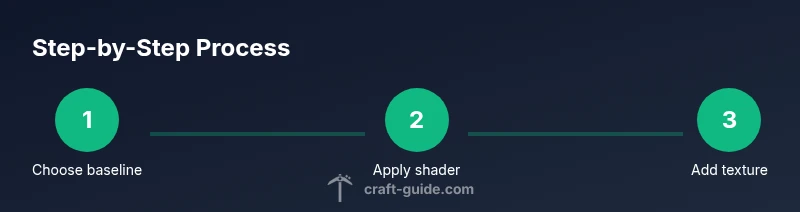
Getting started with realism requires a stable baseline that supports high-quality visuals without crippling performance. Start with a current version of Minecraft and install OptiFine or an equivalent shader-friendly mod loader. Next, select a shader pack that emphasizes natural lighting, color balance, and subtle bloom rather than flashy effects. Pair the shader with a texture pack designed for realism, prioritizing Stone, wood, terracotta, and metal textures that convey material honesty. It’s crucial to test on a smaller world first to gauge how textures interpolate with lighting and to verify that shadows align with surface geometry. Finally, adjust in-game graphics settings to balance frame rate with visual fidelity, using low to mid render distance to prevent excessive culling in expansive landscapes.
Shader and Texture Pack Combinations
Shaders and texture packs must complement each other. For realism, choose a shader that supports ambient occlusion, soft shadows, and realistic water without oversaturation. A corresponding texture pack should feature natural color palettes, realistic wear, and proper scaling of textures to avoid blocky edges at distance. When pairing packs, ensure version compatibility with your mod loader and Java edition. If you notice color banding or texture stretching, reduce texture resolution or tweak gamma correction and color grading within your shader. Testing different combinations in a controlled test world helps identify the best balance between detail and performance.
Lighting, Shadows, and Global Illumination
Realism thrives on lighting that behaves like the real world. Use shaders that implement global illumination or halo lighting to emulate indirect light bouncing in caves and under tree canopies. Enable ambient occlusion to emphasize crevices and edge transitions, but avoid overbearing contrast that obscures textures. Water lighting should reflect the sky and nearby blocks, not look flat. Adjust bloom and exposure to mimic a natural camera exposure curve, avoiding the artificial glow that some packs produce. Finally, calibrate artificial light sources so torches and lanterns illuminate surfaces at believable intensities and angles.
Biomes, Weather, and World-Generation Realism
Biomes should transition smoothly with terrain variation—hills taper into valleys, rivers meander, and forests display canopy density changes with altitude. Weather effects, such as rain and snow, should alter the scene’s mood without compromising readability of terrain. World generation realism involves seed selection and biome distribution that reflect geographic plausibility. Consider seed tests to observe how mountains, deserts, and plains cohere across several kilometers. The outcome is an ecosystem that feels plausible, not a random scatter of blocks. By harmonizing biomes, weather, and terrain, you create immersive environments that invite exploration and storytelling.
Common Mistakes and How to Avoid Them
A frequent pitfall is overusing high-resolution textures without validating hardware capacity, which leads to lag and stutter. Another misstep is leaning too heavily on post-processing effects that wash out detail and reduce color fidelity. Inconsistent lighting between nearby blocks can break immersion, so align textures, normals, and shading across the scene. Finally, neglecting world generation realism—such as abrupt biome boundaries or flat plains—reduces believability. Always test changes in a controlled area, note performance changes, and adjust accordingly to maintain a stable experience.
AUTHORITY SOURCES
For readers who want to explore the science behind realism in computer graphics and simulation, consider these credible sources:
- https://www.nasa.gov
- https://graphics.stanford.edu
- https://www.nature.com
Tools & Materials
- OptiFine (mod) for Minecraft(Version compatible with your Minecraft build; enables advanced rendering and shader support)
- Shader pack (e.g., Sildur’s Shaders or Complementary Shaders)(Choose one that emphasizes natural lighting and color balance)
- Texture pack (high realism texture pack)(Should align with your material goals (stone, wood, metal textures))
- Fabric Loader or Minecraft Forge (mod loader)(Pick the loader compatible with your chosen shader and texture pack)
- World backup tool(Always back up your worlds before modding or shader changes)
- Baseline hardware check(Verify GPU/CPU memory headroom to handle higher texture/shader loads)
Steps
Estimated time: 2-4 hours
- 1
Install baseline mod loader
Install a compatible mod loader (Fabric or Forge) for your Minecraft version and ensure it runs without errors. This provides a foundation for shaders and texture packs and helps prevent crashes during later steps.
Tip: Back up your world before installing mods to avoid data loss. - 2
Install OptiFine and enable shader support
Add OptiFine or an equivalent shader-friendly mod and verify that basic lighting looks correct in a flat test world. Confirm shader options are accessible and that performance remains acceptable.
Tip: Test a simple shader profile before moving to more demanding packs. - 3
Choose and apply a realism-focused shader
Select a shader with natural lighting, soft shadows, and water reflections; apply it and compare visuals against a baseline texture pack.
Tip: Take screenshots at dawn and dusk to judge color grading. - 4
Add a texture pack that supports realism
Install a texture pack designed for realistic surfaces; ensure textures line up with biomes and materials to avoid visual mismatch.
Tip: If textures appear blurry at distance, adjust mipmap and texture resolution settings. - 5
Tune lighting and gamma for natural look
Adjust brightness, gamma, and exposure within the shader to achieve a believable balance between visibility and mood. Observe how shadows shift with the sun.
Tip: Avoid overexposure; aim for Gradual shadow transitions. - 6
Test in a dedicated realism world
Create a small, representative world to test biome transitions, weather, and water behavior under your chosen settings. Iterate based on performance and aesthetic results.
Tip: Document changes to track what works across sessions.
People Also Ask
What is realistic minecraft and how do I start?
Realistic minecraft blends shaders, careful lighting, and high-quality textures to create believable environments. Start by choosing a baseline texture pack and shader, then test in a small world to balance visuals and performance.
Realistic Minecraft blends shaders and textures to create believable environments. Start small and test to balance visuals with performance.
Do I need shaders to achieve realism?
Shaders dramatically improve lighting and mood, but you can approach realism with texture packs alone. For the strongest effect, pair shaders with a realism-focused texture pack and adjust lighting carefully.
Shaders improve lighting and mood, but you can start with textures alone and add shaders later for the best effect.
Will shaders impact performance on my setup?
Yes, shaders increase GPU load. If you notice lag, lower texture resolution, trim render distance, or choose a lighter shader profile while preserving the look.
Shaders can slow down performance; reduce texture size or distance to keep it smooth.
Which Minecraft version and loader work best for realism builds?
Use a current Minecraft Java Edition version with a compatible mod loader (Fabric or Forge) and a shader that supports your chosen texture pack. Compatibility ensures stability during experimentation.
Use a recent Java edition with a compatible loader for stability.
How do I back up a world before modding?
Copy your world folder to a separate location or use a dedicated backup tool. Keeping multiple restore points lets you revert if a mod causes issues.
Copy your world to a safe location before making changes.
Are there real-world references that help with realism?
Study real-world lighting, textures, and biome transitions to guide your design choices. Look to credible graphics resources and tutorials for best practices.
Refer to credible graphics resources for realism guidance.
What are quick wins for starting realism quickly?
Pair a natural shader with a compatible texture pack and use moderate lighting to achieve an immediate sense of depth. Avoid overdoing post-processing early on.
Start with a natural shader and texture pack for an instant realism boost.
Watch Video
The Essentials
- Define realism goals before modding.
- Balance texture detail with performance.
- Test changes in a controlled world first.
- Match shader style to texture pack for cohesion.
- Biomes and weather greatly influence mood and believability.