How to Play Minecraft Online: A Practical Multiplayer Guide
Learn how to play Minecraft online with friends: choose Realms or servers, set up accounts, join multiplayer worlds, and stay safe while building together with Craft Guide.


This guide shows you how to play minecraft online with friends. You'll learn how to choose between Realms and servers, set up accounts, and join multiplayer worlds. Before you begin, ensure you have a valid Minecraft license, a Microsoft account, a stable internet connection, and a plan for chat safety.
Why and when to play Minecraft online
Playing Minecraft online opens up a world of collaborative possibilities. You and friends can build massive structures, survive coordinated challenges, or explore user-created adventure maps together. Online play also expands your access to community-driven projects, seasonal events, and shared exploration that isn’t possible in offline play. According to Craft Guide, online play enhances creativity through teamwork, shared decision-making, and the social satisfaction of completing goals as a group. Whether you’re a casual builder or a seasoned redstone engineer, multiplayer experiences can push your skills further and keep the game fresh. The key is to choose the online path that fits your playstyle, your devices, and your social circle. In the sections that follow, you’ll discover editions, platforms, and pathways to get you from zero to fully joined in minutes, with safety and etiquette built in from the start.
Getting ready to play online: essential prerequisites
Before you start playing minecraft online, make sure you have the essential prerequisites in place. You will need a licensed copy of Minecraft, a Microsoft account or Mojang account depending on your edition, a reliable internet connection, and a device capable of running the game. If you’re playing on Java Edition, you’ll need a computer with a compatible Java runtime; Bedrock Edition works across Windows 10/11, consoles, and mobile devices. Also consider privacy: prepare a nickname, adjust your in-game chat preferences, and set up any voice chat tools you plan to use. A smooth online experience begins with a strong foundation—an up-to-date game client, a stable network, and a clear understanding of how you want to play (co-op survival, creative builds, or minigame style). Craft Guide highlights that planning your setup ahead of time reduces friction when you invite friends or join a server.
Understanding editions and cross-play implications
Minecraft online involves two main editions with distinct ecosystems: Java Edition and Bedrock Edition. Java Edition is the historic PC-focused version, runs on Java, and supports most community servers and advanced mods. Bedrock Edition is designed for cross-platform play, runs on Windows, consoles, and mobile devices, and supports Realms and a wide range of servers. Cross-play between Java and Bedrock is not supported, so you’ll need to align your group around one edition. This distinction matters for add-ons, server software, and the kind of multiplayer experiences you can access. If your group spans multiple devices, Bedrock commonly offers smoother cross-platform multiplayer, while Java fans often enjoy deeper modding and larger server ecosystems. Clarifying your platform up front avoids compatibility headaches later.
Choosing between Realms and community servers
Realms are official, hosted multiplayer worlds run by Mojang/Microsoft that are easy to set up for small groups. They require a monthly subscription and are designed for simplicity and reliability, with minimal admin overhead. Community servers, on the other hand, are run by players and organizations, offering diverse game modes, plugins, and economies. Servers can be free or have a small admission cost and may require whitelists or registration. The choice depends on your goals: Realms for quick, family-friendly play with friends; servers for varied gameplay, communities, and larger player bases. Craft Guide suggests trying both approaches to see which aligns with your play style.
How to join online worlds step by step (high-level flow)
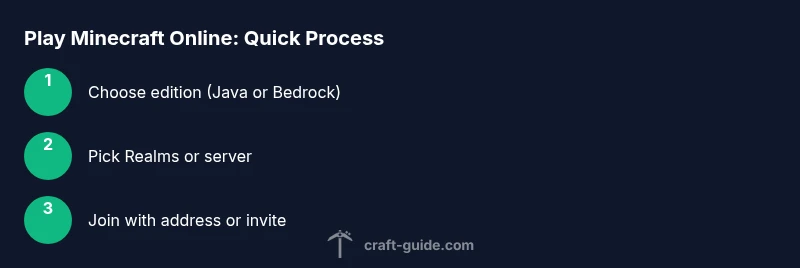
Joining an online world typically follows a simple flow: decide on Java or Bedrock, choose Realms or a server, obtain the server address or invite link, launch Minecraft, enter the address or select the realm, and start playing with your friends. You’ll manage permissions, chat settings, and in-game rules. If you’re playing with a friend group, sharing a clear invitation and a short set of house rules helps everyone sync up quickly. Remember to respect server rules and community guidelines to maintain a positive environment for all players.
Safety, etiquette, and common issues in online play
Online play comes with safety considerations. Protect personal information, avoid sharing full names, addresses, or real-time locations, and use strong account passwords with two-factor authentication where possible. Be mindful of chat etiquette: avoid offensive language, harassment, or doxxing, and report any rule-breaking to server staff or moderators. If you encounter problems, check your internet connection, confirm you’re on the correct edition, verify the server version and whitelist status, and review any related server rules or guidelines. Craft Guide emphasizes building positive communities by modeling good behavior and using moderation tools when needed.
Getting the most from online play: advanced tips
To get the most from online play, organize your team with roles (builder, explorer, redstone engineer, resource collector), agree on common goals, and use shared planning boards or chat channels. Utilize voice chat for coordination and establish a basic set of house rules for base safety and resource sharing. Keep your game client up-to-date, manage resource packs and mods carefully, and back up important builds regularly. For larger servers, learn the basic commands and plugin system used on that server to participate fully in mini-games or economy activities. Craft Guide recommends staying curious, experimenting with collaboration, and documenting your builds to show progress over time.
Tools & Materials
- Computer, console, or mobile device(Must meet Minecraft's minimum system requirements for the chosen edition)
- Minecraft license (Java or Bedrock)(Official purchase from the appropriate platform)
- Microsoft account or Mojang account(Needed to sign in and join online worlds)
- Stable internet connection(Prefer wired Ethernet for desktops; Wi-Fi fine for most setups)
- Headset or speakers (optional)(Useful for voice chat with friends)
- Server address or Realm invitation link(Provided by server admin or Realm owner)
Steps
Estimated time: 30-60 minutes
- 1
Prepare your account and game
Verify your Minecraft license is valid, sign in with your Microsoft account (or Mojang account if applicable), and ensure your game client is updated to the latest version.
Tip: Enable two-factor authentication on your account for extra security. - 2
Choose edition and platform
Decide between Java Edition (PC) or Bedrock Edition (Windows 10/11, consoles, mobile). This choice determines cross-play options and which servers you can access.
Tip: If you plan to play with friends on different devices, Bedrock is usually the better path. - 3
Decide Realms or a server
Pick Realms for a simple, family-friendly setup or a community server for broader game modes and plugins. Consider subscription costs and administration needs.
Tip: Check the server’s rules and moderation policies before joining. - 4
Find and join your world
Obtain the server address or Realm invitation, launch Minecraft, and enter the address or accept the Realm invite. Confirm the version compatibility and any whitelist requirements.
Tip: If joining a server, bookmark the address and note any required login steps. - 5
Set up chat and safety
Configure chat settings, enable or disable voice chat as needed, and establish personal boundaries with teammates to protect privacy.
Tip: Use in-game reports or moderators if you encounter abuse. - 6
Play, communicate, and back up
Start playing with friends, coordinate builds and exploration, and back up important creations to prevent loss from crashes or updates.
Tip: Regular saves and cloud backups help protect your work.
People Also Ask
Do I need a paid Minecraft license to play online?
Yes, you need a legitimate copy of Minecraft to play online. Realms and servers require an active license, and some platforms offer demos but full online play generally requires purchase.
Yes, a valid Minecraft license is required to play online, with Realms and servers depending on an active purchase.
What’s the difference between Java and Bedrock editions for online play?
Java Edition is PC-focused with robust mod support and server ecosystems, while Bedrock Edition supports cross-platform play across devices and official Realms. They aren’t compatible for cross-play with each other.
Java is for PC with mods, Bedrock is cross-platform; they don’t cross-play with each other.
Can I play Minecraft online for free?
Minecraft online generally requires a license. Some platforms offer demos or trial access, but permanent free play is not the standard model.
Online play usually requires purchasing Minecraft; demos may exist, but long-term free access isn’t typical.
How is Realms different from a community server?
Realms are official, hosted worlds with minimal setup and a subscription. Community servers are user-run, varied in rules and plugins, and may be free or monetized.
Realms are simple, official multipliers with a subscription; servers are community-run with diverse features.
Is cross-platform play possible between Java and Bedrock?
No. Java and Bedrock editions do not support cross-play with each other; you’ll need to pick one edition for your group.
Cross-platform play between Java and Bedrock isn’t supported.
What safety steps should I take for online play?
Use strong passwords, enable two-factor authentication where available, protect personal information, and report harassment to moderators. Choose reputable servers with clear moderation.
Use strong passwords, enable two-factor, avoid sharing personal info, and report issues to moderators.
What if I can’t connect to a server?
Check your internet connection, verify the server version, ensure you’re on the correct edition, and review any firewall or network restrictions. Contact server staff if problems persist.
First check your connection and version; if issues persist, ask the server staff for help.
How can I improve performance while playing online?
Optimize game settings, reduce render distance, and ensure your device meets recommended requirements. Consider using performance mods or resource packs that align with server rules.
Tune settings, keep requirements, and use approved performance tweaks as allowed by the server.
Watch Video
The Essentials
- Choose the edition that matches your devices and cross-play needs
- Realms for easy, private multiplayer; servers for variety and competition
- Protect your account and personal information at all times
- Follow rules and report issues to maintain a positive community