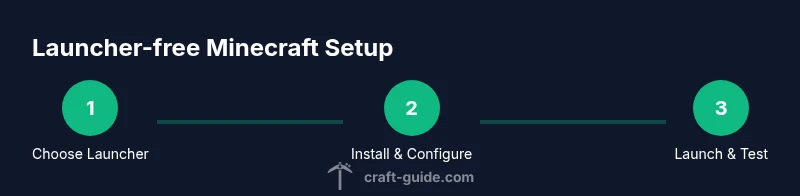
Minecraft Without Launcher: A Practical Guide to Third-Party Launchers
Learn how to legally run Minecraft Java Edition without the official launcher using trusted third-party launchers, how to install, configure, and safely mod your game for a smooth, launcher-free experience.


According to Craft Guide, you can run Minecraft Java Edition without the official launcher by using trusted third-party launchers that authenticate your account and load the necessary game files. This approach can offer faster startup and simpler mod management when done safely and with a valid license.
Why play Minecraft without the official launcher
There are legitimate reasons players seek a launcher-free workflow. Third-party launchers often provide faster start times, simplified mod management, and more flexible instance handling across multiple Minecraft versions. They can also offer cleaner user interfaces for players who want a focused, distraction-free experience. However, this approach requires a valid Minecraft license and careful steps to avoid security risks. According to Craft Guide, choosing reputable tools and keeping software up to date reduces the chance of crashes and account problems.
If you’re new to third-party launchers, start by understanding that they don’t bypass licensing. They simply provide an alternative way to manage game files, profiles, and mod sets while still validating your account with Mojang/Microsoft. This distinction is essential for staying on the right side of Minecraft’s end-user license and terms of service.
- Pros: faster launches, modular mod management, flexible version control
- Cons: potential security risks if you choose shady tools, possible compatibility issues with some mods
- Best practice: use well-known, actively maintained launchers and back up your worlds before big mod changes.
Choosing a third-party launcher
Selecting a reputable third-party launcher is the most important decision in a launcher-free workflow. Look for active development, clear documentation, and a strong community with a history of stable releases. Features to prioritize include version management, built-in mod loaders (Forge, Fabric), separate profiles for vanilla and modded play, and straightforward backup options. Craft Guide’s analysis emphasizes evaluating both the launcher’s update cadence and community reputation when comparing options.
Before committing, verify that the launcher can authenticate with your Mojang/Microsoft account without forcing you into the official launcher. Some launchers provide direct login flows for Minecraft accounts, while others require you to export an authenticated profile. Safety notes: avoid download sites with pirated copies, and stick to official project repositories or widely trusted distributions.
Setting up Java and your account
Java compatibility is a constant factor in launcher-free play. Install Java 17 or newer, and ensure the launcher you choose can point to the Java runtime or bundle a compatible JRE. Most modern third-party launchers bundle or prompt for the correct JRE automatically. You still need a valid Minecraft license; without it, you won’t be able to authenticate or access the official game files.
For accounts, keep your credentials secure and enable two-factor authentication where possible. Don’t reuse passwords across sites, and consider a password manager. Craft Guide notes that account security is as important as software safety when using any launcher.
Installing the launcher and loading Minecraft versions
After selecting a launcher, download the installer from the official project page. Install and launch the program, then create a new profile dedicated to Minecraft Java Edition. Add the version(s) you want to play, including legacy builds if you’re testing nostalgia modes. Configure memory allocation to balance performance with available RAM—start with 2–4 GB for baseline play and increase if you have extra headroom.
Import or download the appropriate Minecraft version, then verify the game files are intact. Some launchers offer a one-click repair option—use it if you encounter crashes. Craft Guide suggests documenting each version you install so you can easily revert to a clean baseline if modding causes instability.
Modding and resource packs safely
Modding is a key motivation for many players using launcher alternatives. Use Forge or Fabric-compatible mod loaders integrated into your launcher to ensure mod compatibility. Always download mods and resource packs from trusted sources and verify compatibility with the target Minecraft version. Create a dedicated backup copy of your world before adding new mods.
Organize mods into a separate folder per profile to minimize conflicts. Keep a changelog for mods you add or remove, and periodically update to prevent version drift. Craft Guide cautions that third-party mod ecosystems can be volatile; plan a staged mod introduction—test one major mod at a time and confirm stability before adding more.
Troubleshooting common issues
Crashes, failed launches, or login problems are common when working outside the official launcher. Start with the basics: ensure Java is up to date, verify your account credentials, and confirm you’re launching the correct Minecraft version with the matching mod loader (Forge or Fabric). Check launcher logs for error messages and search the launcher’s official forums or issue trackers for similar reports.
If you encounter world corruption, restore from the most recent backup you created before mod changes. In some cases, reinstalling the launcher and re-downloading the target version can resolve stubborn issues. Craft Guide recommends keeping a separate backup of your worlds, including any mod configurations, to avoid data loss during troubleshooting.
Risk, legality, and best practices
Running Minecraft without the official launcher is legal as long as you maintain a valid license and use legitimate launchers. Avoid pirated copies or attempts to bypass authentication, as these violate Minecraft’s terms of service and can expose you to security risks. Always use trusted launchers with active maintenance, verify checksums of downloaded files, and keep backups of your worlds and mod configs. Craft Guide’s final guidance is to choose reputable tools and adhere to licensing terms to maintain a safe, enjoyable launcher-free Minecraft experience.
Tools & Materials
- Computer with internet access(Preferred 8GB+ RAM when modding; wired connection recommended for downloads.)
- Java Runtime Environment (JRE) or JDK(Java 17+ is ideal for most modern mod loaders.)
- Minecraft Java Edition license (Mojang/Microsoft account)(Essential for authentication, even with third-party launchers.)
- Third-party launcher (e.g., MultiMC, ATLauncher, PrismLauncher)(Choose a reputable, actively maintained option.)
- Backup storage (external drive or cloud storage)(Back up worlds and mod configs before major changes.)
- Mod loaders (Forge or Fabric)(Only if you plan to use mods; not required for vanilla play.)
Steps
Estimated time: 60-90 minutes
- 1
Choose a reputable launcher
Compare features, community support, and update cadence. Select a launcher that clearly documents login flows, version management, and mod support to ensure a safe launcher-free workflow.
Tip: Stick to projects with open source components or a well-documented release history. - 2
Install the launcher
Download the installer from the official project page and run it. Follow the installer prompts to set up a dedicated Minecraft profile.
Tip: Verify checksums if provided to confirm file integrity. - 3
Log in and verify your license
Open the launcher and sign in with your Mojang/Microsoft account. Confirm that the launcher can authenticate your account without forcing the official Mojang launcher.
Tip: Enable two-factor authentication for additional security. - 4
Create a new instance for your version
In the launcher, create a new instance for the Minecraft version you want. Name it clearly (e.g., 1.20 Vanilla) and choose the correct Java version.
Tip: Keep a clean naming convention for easy switching between configs. - 5
Allocate memory and set Java path
Adjust memory settings to balance performance and stability. Point the launcher to the installed Java runtime if needed.
Tip: Avoid allocating more than half of your system RAM to Minecraft to prevent OS slowdowns. - 6
Launch and test vanilla first
Start with a vanilla instance to confirm the setup works before adding mods or resource packs.
Tip: If the game won’t start, check logs for missing libraries or misconfigured Java paths. - 7
Add mods or resource packs (optional)
If you plan to mod, install Forge or Fabric and then add compatible mods. Test each mod batch to catch conflicts early.
Tip: Back up before adding a large mod suite and document each change.
People Also Ask
Can I run Minecraft Java Edition without the official launcher?
Yes. You can run Minecraft Java Edition through trusted third-party launchers that authenticate your account and load the game files. This keeps you compliant with licensing while offering different UI and mod management options.
Yes. You can run Minecraft Java Edition with trusted third-party launchers that still authenticate your account and load the game files.
Will I still need a license to play?
Absolutely. A valid Mojang/Microsoft account is required for authentication, regardless of the launcher you use. This ensures you’re playing a legitimate copy of the game.
Yes, you still need a valid Mojang or Microsoft account for authentication.
Are third-party launchers safe to use?
Use well-known, actively maintained launchers with good community reviews. Avoid download sites that bundle extra software, and regularly back up your worlds.
Only use reputable launchers and back up your worlds to stay safe.
Do mods work without the official launcher?
Mods can work with third-party launchers that support Forge or Fabric. Ensure mods match the Minecraft version and loader, and install via the launcher’s mod manager when possible.
Yes, mods can work with launcher alternatives that support Forge or Fabric.
Is it legal to bypass the official launcher?
As long as you have a valid license and do not pirate the game, using a legitimate third-party launcher is legal. Avoid piracy and be mindful of the terms of service.
It’s legal if you’re using a legitimate copy and not pirating the game.
Watch Video
The Essentials
- Use a reputable launcher to run Minecraft without the official launcher
- Authenticate with a valid Mojang/Microsoft account through the chosen launcher
- Back up worlds and configs before modding or major changes
- Test vanilla first, then progressively add mods to avoid conflicts
- Keep Java and launcher software up to date