How to Launch Minecraft Without Launcher
Learn safe, legal methods to run Minecraft without the official launcher using legitimate game files and simple scripts. This step-by-step guide from Craft Guide covers the Java Edition, legacy jar options, and common pitfalls.


You can launch Minecraft without the official launcher by using legitimate game files and a simple Java launcher script. This guide covers safe, legal methods for the Java Edition, including legacy jar launches and memory-tuning wrappers. Always use a valid copy and respect Mojang's terms. This quick answer previews the approach; the full steps follow in the body.
What launching Minecraft without the launcher enables you to do
Launching Minecraft without the official launcher can offer faster startup times on some systems, greater control over memory allocation, and a workaround in environments where the launcher is blocked or unreliable. However, this approach only works with legitimate copies and access to the game files. According to Craft Guide, players who experiment with direct-launch methods report quicker access to their worlds when the setup is correct, but the process requires careful handling of Java and version-specific files. The goal of this section is to help you understand when this method is appropriate and how to prepare safely before attempting any direct-launch attempts.
Safety, legality, and prerequisites
Before you proceed, confirm you own a legitimate Minecraft copy and store your game files in a known location. Craft Guide analysis shows that legitimacy matters because launching without the launcher relies on authorized assets and libraries. You should also have a compatible Java Runtime Environment (JRE) installed, and be prepared to craft small scripts to start the game with memory flags. Avoid any unofficial sources for game files to protect your device and your account.
Methods overview: three potential paths to run without the launcher
There are multiple paths, each with different requirements:
- Legacy jar method (older Java Edition releases) that uses minecraft.jar directly.
- Wrapper script method for Windows/macOS/Linux to launch the game via Java with custom memory options.
- Minimal launcher replacement tactics that still rely on official game files but use a local script to invoke the launcher’s assets. Craft Guide emphasizes sticking to legitimate copies and staying within the game’s terms of use.
Path A: Running a legacy Minecraft.jar (older Java Edition)
If you’re using a version that still ships as a minecraft.jar, you can launch directly with Java. Begin by locating your game’s jar in the versions folder, then run a command like java -jar path/to/minecraft.jar with memory flags such as -Xmx2G. You’ll need to ensure any required libraries are present and that your Java version is compatible with that edition. This method is mostly relevant to older installations and requires careful file management to avoid missing dependencies. Craft Guide notes that this approach is feasible but less supported on modern builds, so proceed only if you’re working with legacy files.
Path B: Creating a launcher wrapper script (Windows/macOS/Linux)
A wrapper script is a small, standalone way to start Minecraft without the full launcher. In Windows, you can create a .bat file that runs a Java command referencing your game jar and includes memory settings. On macOS or Linux, a simple shell script can perform the same task. The script should include explicit paths to java executable, the game jar, and any required libraries. Include -Xmx and -Xms memory values tuned to your system, and consider a separate script for each version you want to run. Craft Guide emphasizes using absolute paths to avoid environment-related issues and testing the script in terminal before relying on it.
Path C: Minimal launcher replacement tactics (safely using official files)
Some setups create a lightweight launcher wrapper that points to the official game files rather than a separate jar. This method keeps you within Mojang’s distribution while letting you bypass the standard launcher UI. It’s crucial to use only legitimate assets and avoid any redistribution of the game files. This approach can simplify updates, but it’s still essential to verify compatibility with the current Java edition and ensure the wrapper aligns with the game’s licensing terms.
Troubleshooting common issues and pitfalls
Starting Minecraft without the launcher can fail for several reasons: missing libraries, incorrect Java version, or outdated file paths. If you encounter a “Could not find or load main class” error, verify the path to the jar and the classpath in your script. If you see memory errors, adjust -Xmx gradually (for example, 1G to 2G) and ensure your system has enough RAM. Always test after each change to isolate the cause. Craft Guide’s field notes show that most problems stem from path mistakes or mismatched Java versions, so double-check those elements first.
Performance considerations and best practices
Direct-launch approaches can deliver faster startup on some machines, but performance hinges on JVM settings, available RAM, and disk speed. Keep your memory allocation reasonable to avoid system instability, and consider using a lightweight bootstrap script that checks prerequisites before launching. If you plan to use resource packs or mods, ensure they’re compatible with your chosen version and keep backups of your worlds. The overarching takeaway is to stay organized: document your paths, keep copies of your scripts, and test each change in a controlled way.
toolTipBoxText던?
tipPlaceholder
Tools & Materials
- Java Runtime Environment (JRE) 8+(Install from Oracle or OpenJDK; ensure compatibility with your OS and Minecraft version.)
- Minecraft game files (legitimate copy)(Location varies by OS; include the versions folder if using the legacy jar method.)
- Batch/Shell script editor(Notepad++ on Windows, TextEdit with plain text mode on macOS, or any code editor.)
- Text editor for script customization(Useful for modifying or adding memory flags and paths.)
- Command line access(You’ll need to run and test your script from a terminal or command prompt.)
Steps
Estimated time: 60-120 minutes
- 1
Confirm you own a legitimate Minecraft copy
Begin by verifying your account ownership and retrieving the installation files from official sources. This ensures you’re using authorized assets and reduces the risk of malware or licensing issues. Keep receipts or account details handy in case you need to prove ownership.
Tip: Always download or access game files from Mojang/Microsoft sources, not third-party sites. - 2
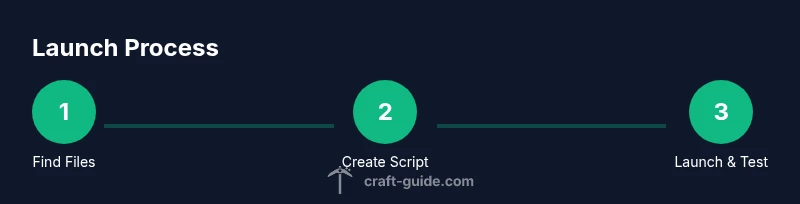
Locate the game files on your operating system
Open your file browser and navigate to the standard Minecraft data directories: Windows: %appdata%\.minecraft, macOS: ~/Library/Application Support/minecraft, Linux: ~/.minecraft. If you’re using a legacy jar, locate the versions folder and identify the target version folder.
Tip: Use absolute paths in scripts to avoid environment path resolution errors. - 3
Determine which path fits your version (jar vs. packaged launcher)
If your version ships as a jar (legacy), you’ll point to a .jar file. Modern versions usually rely on the launcher and may need wrappers that invoke the launcher assets. Decide which method aligns with your version before creating scripts.
Tip: Check version notes or the Minecraft version folder to confirm file structure. - 4
Create a Windows batch or macOS/Linux shell script
Write a simple script that calls the Java executable with the correct classpath or jar path and memory flags (for example, -Xmx2G -Xms1G). Use absolute paths and include a fallback to print a friendly error if files are missing.
Tip: Test the script in a terminal before using it regularly. - 5
Run the script and verify the game starts
Execute the script and watch the console for startup messages. If the game doesn’t start, recheck paths and Java version compatibility. Ensure no security software blocks the Java process.
Tip: If nothing happens, run java -version in your terminal to confirm you’re using a compatible JVM. - 6
Tune memory and Java settings as needed
If you encounter OutOfMemoryError or lag, gradually increase the -Xmx value while keeping an eye on system RAM. Don’t allocate more RAM than your device can spare without impacting other tasks.
Tip: Adjust by 500MB increments to find a stable balance. - 7
Safely handle mods and resource packs
If you use mods, ensure compatibility with the specific version you’re running and with any wrapper that launches the game. Avoid unvetted mods that could introduce instability or malware.
Tip: Test mods in a controlled save and back up worlds first. - 8
Back up saves and create a recovery plan
Before making any changes, back up your save data and important config files. This ensures you can restore your world if something goes wrong during direct-launch attempts.
Tip: Store backups in a separate folder or cloud storage.
People Also Ask
Is it legal to run Minecraft without the launcher?
Yes, as long as you are using legitimate game files from a valid Minecraft copy and you adhere to Mojang’s terms of use. This approach relies on authorized assets rather than redistributed binaries.
Yes—legal use depends on owning a valid copy and following the terms.
Will this method work for all Minecraft versions?
No. Direct jar launches are generally only feasible for legacy Java Edition versions or wrapped setups around official assets. Modern editions typically require the launcher for updates and authentication.
Not all versions support direct launch; check your version specifics.
Do I still need Java when launching without the launcher?
Yes. Java is required to run Minecraft when you’re directly launching a jar or wrapper. Ensure you have a compatible Java Runtime Environment installed and configured in your script.
Yes, Java is essential for direct launches.
Can I use mods with this method?
Mods can be used, but you must ensure compatibility with your version and launcher wrapper. Incompatible mods can crash the game or cause world corruption.
Mods require careful compatibility checks.
What about updates and security?
Updates may not be delivered automatically when bypassing the launcher. Regularly check for official updates and verify the integrity of your game files to avoid security risks.
Regular updates need manual handling; stay vigilant about security.
Watch Video
The Essentials
- Verify ownership and use official game files.
- Choose the method that matches your version (jar or wrapper).
- Create and test scripts in a controlled environment.
- Back up saves before experimenting and monitor memory usage.