Minecraft Name Change Guide: Step-by-Step for Java & Bedrock
Learn how to change your Minecraft name across Java and Bedrock editions with this clear, step-by-step guide. Includes platform specifics and safety tips.


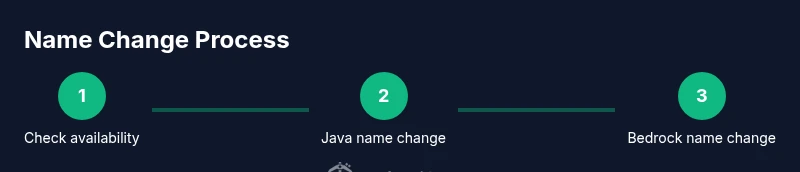
Goal: learn how to change your Minecraft name across Java and Bedrock. You’ll update your Mojang account for Java Edition and your Microsoft account for Bedrock, choose a unique new name, and understand how name changes affect friends, servers, and cross‑platform play. Before you start, confirm availability, review platform restrictions, and be aware that some servers may display the old name until updates sync.
Why changing your Minecraft name might matter
Changing your Minecraft name can refresh your in-game identity, help with privacy, or align with your branding. Whether you're starting a new server character, rebranding after a long-term project, or simply trying a catchier handle, a well-chosen name can improve recognition and reduce confusion on realms, servers, and social spaces. According to Craft Guide, many players consider a name change at the start of a new season or after a major build to reflect updated goals. The Craft Guide team found that consistency across Java and Bedrock editions helps friends and admins track your presence across servers and Realms. Before you rename, think about how the name will read on invites, friend lists, and chat prefixes, and whether it aligns with your long-term goals.
- Identity and branding: A name that's easy to remember helps teammates recognize you quickly.
- Privacy and safety: A less-identifiable handle can reduce personal data exposure.
- Server compatibility: Some servers enforce name rules or filters; check them before changing.
- Availability and policy: Names must be available and comply with platform terms.
If you’re unsure, start with a reversible approach (test name in private servers) and gather feedback from friends. This reduces the risk of a name you’ll regret during a big build or tournament.
Understanding edition differences: Java vs Bedrock
In Minecraft, Java Edition uses a Mojang account as the identity anchor, while Bedrock Edition relies on a Microsoft account. Because of this split, a name change may propagate differently on each platform. Craft Guide analysis shows that the Java side tends to update immediately after you confirm, but Bedrock ecosystems—especially on consoles and Realms—may experience longer propagation due to account syncing across services. Additionally, some servers or realms may cache player names for a short period, causing temporary display of the old name even after you’ve changed it. Plan to test on both editions when possible, and be mindful of cross‑play implications if you participate in cross‑platform servers.
Practical tips:
- Keep your old name handy for a short grace period in case you need to communicate with servers.
- If you use Realms, inform fellow players that your display name may take a moment to sync.
Preparing before you change: checks and safeguards
Before you press rename, do a quick prep to avoid regrets.
- Decide on the new name forward; ensure it’s easy to type and spell. 2) Check availability on the relevant platform. 3) Verify policy: some servers ban certain words or require admins to approve names. 4) Backup important account details and enable 2FA if you’re not already. 5) Notify a close group of friends you’ll be changing your name so they don’t lose track.
This forethought can save time and prevent confusion across servers and realms. Also, consider updating your profile banner or skin to reflect the new name, reinforcing your identity across your Minecraft presence.
Step-by-step: Java Edition name change
If you play Java Edition, you’ll manage it through your Mojang account. The steps below outline a typical flow; some screens may look different by region or over time, but the core actions stay the same.
- Open the Mojang account page and sign in with your Mojang credentials. 2) Navigate to Profile or Name Change option. 3) Enter your desired new name and run the availability check. 4) If available, confirm the change and sign out or re-authenticate to apply. 5) Log back in to verify that the new name appears on the launcher, the backend services, and in-game menus. 6) Rejoin a test server to ensure the name shows up correctly and that chat prefixes display as intended.
Pro tip: If you encounter a temporary server cache showing the old name, wait a short while or restart your client. The propagation time can vary by server, so test on a private server first.
And a warning: Never reuse an old or banned name, as it may be blocked by Mojang or server filters. See the next step for Bedrock changes.
Step-by-step: Bedrock Edition name change
Bedrock uses a Microsoft account for identity; the flow is similar, but the surface tools differ.
- Sign in to your Microsoft account on account.microsoft.com and navigate to Your info or Edit profile. 2) Look for the display name field and input your desired new Minecraft name, then save changes. 3) Sign out of all devices and sign back in to apply the new display name to Bedrock services. 4) Launch Minecraft Bedrock on your device to confirm the name update in your worlds, servers, and Realms. 5) On consoles or Windows 10, you may need to re-link your Minecraft profile if prompted.
Pro tip: Since Bedrock spans multiple devices, perform the change on a primary device first, then verify on others. If you see no change after 24 hours, sign out/in again or contact Microsoft support.
Warnings: Some servers may cache player names for a short period; if changes don’t appear, check server settings and admin policies.
Managing identity: how to handle name changes in servers, realms, and friends lists
After you’ve changed your name, you’ll want to cleanly manage the transition. Update your friend lists or server whitelist names, inform server admins, and update any chat prefixes or scoreboard tags. If you share realms with friends, re-invite players using your new name and confirm that skins, opt-ins, or cross-platform settings remain consistent. On public servers, announce your name change to avoid confusion and ensure you keep your reputation intact. Craft Guide emphasizes consistent branding across all touchpoints so teammates recognize you quickly.
Common pitfalls and troubleshooting
Common problems include name unavailability, slow propagation, or discrepancies between Java and Bedrock displays. If your new name is rejected, try alternatives and ensure it adheres to platform terms. If the old name still appears, clear your cache and restart the game or re-login. For cross-play servers, verify that the server’s server.properties or community guidelines allow the change, and reach out to admins if needed. Always double-check that you’re logged into the correct account before attempting a rename again.
Post-change tips: branding your new name in-game
Make the name part of your in-game branding by updating your skin, banner, and chat behavior to match the new handle. Consider updating your server ratelists and nicknames to reflect the change so friends can find you easily. If you’re creating content or streaming, update your channel name and thumbnails to reflect the new Minecraft name for consistency.
When to avoid changing your name and alternatives
Not every player needs a new identity. If your current name is well-known, reliable, and easy to spell, you may skip the change. If you’re worried about privacy, use privacy-focused settings rather than a name change. For experimentation or branding refresh, consider a temporary rename on a test profile or a limited-scope change on servers where you control the admin. The Craft Guide team recommends planning ahead and weighing the branding and cross-platform implications before you switch.
Tools & Materials
- Mojang account login (Java Edition)(Used to access name changes for Java Edition.)
- Microsoft account login (Bedrock Edition)(Bedrock uses Microsoft accounts for identity.)
- Stable internet connection(Needed to update accounts and verify availability.)
- Name availability checker(Built into the account page to confirm new name is free.)
- Two-factor authentication (2FA) enabled(Adds account security during changes.)
Steps
Estimated time: Estimated total time: 25-40 minutes
- 1
Open the account page and sign in
Navigate to the Mojang (Java) or Microsoft (Bedrock) account page and sign in with your credentials. This is the first step to access the name-change controls. Have your password ready and ensure you’re on a trusted device.
Tip: If you’re on a shared device, sign out after finishing. - 2
Access the name-change area
Find the Profile or Your info section where the name change option is located. The exact label may vary by region or platform. Open it to prepare for input.
Tip: Use the built-in help or support links if the option isn’t visible. - 3
Enter your desired new name and check availability
Type the new name you want and run the availability check. If the name is taken, try close alternatives that still fit your branding. Remember, case sensitivity can affect availability.
Tip: Keep a short list of 3–5 backup names in case your first choice is unavailable. - 4
Confirm the Java name change
If you’re changing Java, confirm the change and re-authenticate if prompted. This step updates your Mojang profile and begins the propagation process.
Tip: Some servers may require you to re-login after the change. - 5
Confirm the Bedrock name change
For Bedrock, ensure you’ve updated the Microsoft display name and sign out/in everywhere to apply the change across devices.
Tip: On consoles, you may need to re-link your profile after this change. - 6
Test name on a few worlds/servers
Launch Minecraft and join a private or test server to verify the new name appears correctly. Check chat, lists, and any prefixes.
Tip: If you see the old name, wait a bit and refresh or restart the client. - 7
Update branding and notify friends
Update your banner/skin and inform friends and admins about the change to avoid confusion. Consistency helps others recognize you quickly.
Tip: Update your profiles on social channels if you use them to share your Minecraft identity. - 8
Troubleshoot propagation issues
If the new name doesn’t appear after 24–48 hours, log out/in again, clear cache, or contact support for platform-specific guidance.
Tip: Document the steps you took so you can reference them in support chats.
People Also Ask
Can I change my Minecraft name multiple times?
Yes, name changes are possible, but availability can vary by platform and server. If the new name is taken, you may need to pick an alternate. Always verify on both Java and Bedrock where applicable.
You can change it again later if you want, but availability varies and you should check both Java and Bedrock to confirm.
Will changing my name affect all my games and servers?
Name changes are tied to the account you use for each edition. Java changes affect Mojang-linked services, while Bedrock changes affect Microsoft-linked services. Some servers may require you to relink or rejoin after the change.
Changes apply to the respective edition. Some servers may need you to rejoin after updating.
Can I revert to my old name after changing it?
If the old name is available again, you can switch back. Availability can fluctuate, so you may need to pick another close alternative if it’s taken.
If the old name is free again, you can switch back, but it isn’t guaranteed.
Will my friends see the old name immediately?
Most clients refresh names on login, but caches on servers may show the old name for a short period. Log out and back in to confirm across friends lists.
Usually not immediately; you may need to re-login to see the new name everywhere.
Is there a fee to change my Minecraft name?
Official policies don’t publish a separate change fee for most name changes. Always check current terms on Mojang/Microsoft for the latest guidance and any platform-specific costs.
There isn’t a widely published fee for changing names, but verify current terms for your edition.
How do I handle name changes on servers or Realms?
Notify admins, rejoin with the new name, and update any role tags or prefixes. Realms and servers may cache names, so give others time to see the update and test on different devices.
Tell admins, rejoin with your new name, and test across devices to ensure visibility.
Watch Video
The Essentials
- Plan your new name before you change.
- Java and Bedrock handle identity differently; test on both.
- Propagations may take time—verify on multiple servers.
- Brand your new name consistently across skins, banners, and chats.