Sign in for Minecraft: A Step-by-Step Guide for 2026
Learn how to sign in for Minecraft across Windows, consoles, and mobile in 2026. This guide covers Microsoft account linking, cross‑platform access, and troubleshooting with security tips.


By the end of this guide you will be able to sign in for minecraft across Windows, consoles, and mobile. You’ll link a Microsoft account, choose the correct edition (Java or Bedrock), and complete two-factor authentication if enabled. This quick answer covers prerequisites and the essential steps to access your worlds quickly.
Why sign in for minecraft matters
The sign in for minecraft process is your key to saving progress, cross‑play, and server access across devices. With the move to Microsoft accounts, a single identity unlocks the Java and Bedrock editions on Windows, consoles, and mobile. According to Craft Guide, sign in for minecraft is the gateway to official updates, item trades, and your personalized settings across platforms. Without signing in, you’re limited to offline worlds and local data, and you miss invitations to friends’ servers. A proper sign-in also enables password recovery, two‑factor protection, and account recovery options if you ever lose access. In short, the sign-in step is not optional—it unlocks the full Minecraft experience in 2026 and beyond.
Prerequisites: Microsoft account and game license
Before you sign in for minecraft, make sure you have a Microsoft account linked to your Mojang/Microsoft profile. You’ll need the credentials (email and password) you use for that account, plus a valid copy of Minecraft (Bedrock, Java, or both) on your device. Keep access to your recovery options, like alternate email or phone, up to date. If you don’t yet have an account, you can create one on account.microsoft.com and then link it to your Minecraft purchase. This section helps you gather everything you need so sign-in is smooth rather than frustrating.
Step-by-step overview for sign-in across devices
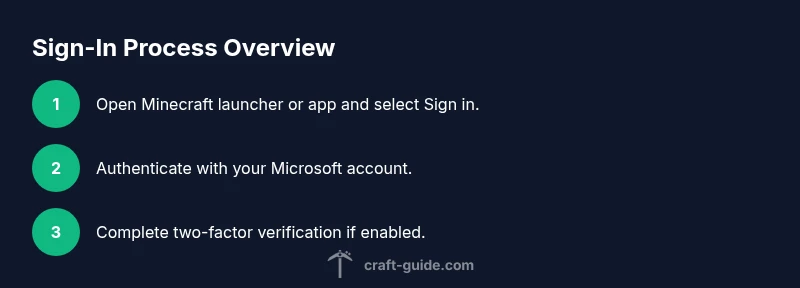
The sign-in process is similar whether you’re on Windows PC, a console, or a mobile device. Start by opening the Minecraft launcher or app and selecting Sign in. You’ll be redirected to Microsoft authentication, where you enter your Microsoft account credentials. If you have two-factor authentication enabled, you’ll complete the secondary verification. After authentication, return to the game; your profile loads and your worlds become accessible. This overview gives you the general flow before you dive into device-specific steps.
Sign in on consoles and mobile
On consoles such as PlayStation, Xbox, or Nintendo Switch, launch Minecraft and choose Sign in. A system dialog will prompt you to sign in with your Microsoft account; follow the on-screen steps to enter the account email and password, then approve any verification prompts. On mobile devices (iOS/Android), open the Minecraft app, tap Sign in, and complete the Microsoft authentication in the browser or the in‑app flow. If you manage multiple profiles, select the one you want to play with and confirm.
Troubleshooting sign-in issues
If sign-in fails, check your internet connection and ensure the correct account is being used. Clear cached credentials or switch to a different device to test the flow. Verify that the Microsoft account is active and that you have access to the associated email; if password recovery is needed, use the official Microsoft account recovery process. For Bedrock players, ensure you’re signing into the correct edition; for Java players, ensure you are using the Java launcher. If problems persist, contact official support channels through Craft Guide's recommended routes.
Security best practices for Minecraft sign-in
Protect your Minecraft sign-in by enabling two‑factor authentication on your Microsoft account and keeping recovery options updated. Use a trusted device, avoid sharing passwords, and sign out on shared or public devices. Regularly review active sessions and revoke access for any unknown devices. Consider using a password manager to generate and store strong credentials, and keep your Minecraft launcher up to date to reduce security risks.
Tools & Materials
- Microsoft account(You’ll use this to sign in; ensure you can access the associated email.)
- Minecraft launcher or app(Use the latest version for your platform.)
- Device with internet connection(Windows PC, console, or mobile device; stable network recommended.)
- Authenticator app or backup codes(Optional for two-factor authentication.)
Steps
Estimated time: 15-25 minutes
- 1
Prepare your Microsoft account
Verify you have a Microsoft account and that you can sign in to Microsoft services. If you don’t have one, create it on account.microsoft.com. This ensures you can complete the Minecraft sign-in flow without interruptions.
Tip: Have your recovery email or phone ready in case you need to recover access. - 2
Open the Minecraft launcher or app
Launch the launcher or Minecraft app and select Sign in. The system will redirect you to the Microsoft authentication page. Confirm you want to proceed with sign-in to access your profile and worlds.
Tip: Do not save credentials on a shared device to protect your account. - 3
Sign in with Microsoft credentials
Enter your Microsoft account email and password when prompted. If you use two-factor authentication, complete the verification step using your preferred method.
Tip: If you don’t see the prompt, restart the launcher and try again. - 4
Complete two-factor authentication (if enabled)
Approve the sign-in via your authenticator app or enter the code from your backup method. This adds a second layer of security to your Minecraft account.
Tip: Keep your authenticator app accessible and up to date. - 5
Choose your profile and confirm sign-in
Return to the Minecraft launcher or app, select your preferred profile, and confirm. You should see your worlds and settings load after sign-in.
Tip: If you manage multiple profiles, ensure you select the one you intend to use. - 6
Sign out or manage devices
On shared devices, sign out after playing. Review active sessions in your Microsoft account settings and revoke access for unknown devices if needed.
Tip: Regularly audit connected devices to keep your account secure.
People Also Ask
Do I need a Microsoft account to sign in Minecraft?
Yes. Minecraft now uses a Microsoft account for sign-in, and your launcher will redirect you to the Microsoft authentication flow to access both Java and Bedrock editions.
Yes, you need a Microsoft account to sign in to Minecraft.
What should I do if I forgot my Microsoft password?
Visit account.microsoft.com and use the password recovery options. Follow the prompts to reset your password and regain access to your Microsoft account, then retry sign-in.
Reset your Microsoft password on the official site, then try signing in again.
Can I sign in with multiple accounts on the same device?
Yes. You can switch between profiles in the launcher or app. Sign out from one account before signing in with another to avoid confusion.
You can switch accounts, but sign out before switching.
Is sign-in the same for Java and Bedrock?
The sign-in flow uses a Microsoft account for both editions, but the launcher prompts and options can differ slightly by edition and platform.
The sign-in uses Microsoft accounts for both editions; prompts vary by platform.
How do I sign out of Minecraft on a device?
Open your profile or account settings in the launcher, choose sign out, and confirm. On shared devices, always sign out when finished.
Go to settings and sign out; sign out on shared devices.
What if I have no internet access?
Without internet you cannot complete the sign-in flow. Some offline play may be possible, but online features, updates, and cross‑play require connectivity.
You need internet to sign in and access online features.
Watch Video
The Essentials
- Sign in using a Microsoft account to access cross-platform Minecraft.
- Follow device-specific prompts to complete sign-in.
- Enable 2FA to improve security.
- Keep recovery options current to prevent lockouts.
- Sign out on shared devices to protect your account.