Can You Change Your Minecraft Skin While in Game? A Practical Guide
Discover whether you can change your Minecraft skin while in game, with edition-specific steps for Java and Bedrock, plus troubleshooting, tips, and examples. This Craft Guide tutorial helps players switch skins smoothly in 2026.


Yes—whether you can change your Minecraft skin while in game depends on edition. Bedrock players can switch skins from the in-game Profile, while Java Edition requires logging out and updating the skin on your Mojang/Microsoft account or launcher. Some servers may override skins, and changes may take effect only after you rejoin. This guide covers edition-specific steps and common pitfalls.
Can you change your Minecraft skin while in game? According to Craft Guide, many players ask can you change your minecraft skin while in game, and the answer hinges on edition. In Bedrock, you can switch skins from the in-game Profile screen even while connected to a world. In Java Edition, the skin is linked to your account, and the client uses the file you’ve uploaded when you log in; you can’t swap skins mid-session without exiting. The Craft Guide team notes that this distinction is the main source of confusion for new players, and following edition-specific steps helps avoid texture glitches and disconnections. Remember: the exact steps differ between Bedrock and Java, and server rules may introduce additional constraints.
In education and practice, recognizing edition-specific rules saves time and avoids frustration. This article uses practical, beginner-friendly language to explain how to change skins, what to prepare beforehand, and what to expect after you apply a new look. The phrase can you change your minecraft skin while in game often appears in community forums, and the guidance here clarifies the proper procedures for each edition. Craft Guide's approach emphasizes tested, reliable workflows that minimize login hiccups and texture mismatches.
Finally, the real-world takeaway for players is simple: if you’re playing Bedrock, try changing your skin in-game; if you’re on Java, plan a quick logout and re-login to apply the new skin. In both cases, you’ll see the new skin in future sessions, not necessarily in the middle of an ongoing world. This distinction is crucial to avoid confusion during multiplayer sessions and on servers with strict skin rules.
Tools & Materials
- Minecraft account with launcher access(You must be logged into the launcher or website to change skins.)
- Stable internet connection(A reliable connection prevents interrupted login or upload failures.)
- Skin image file (PNG, 64x64 or compatible size)(Prepare the image you plan to upload; some platforms require specific dimensions.)
- Web browser or Minecraft Launcher(Used to upload or change skins for Java Edition; Bedrock changes can be done in-game.)
- Clipboard or notes with login steps(Optional for quick reference if you’re new to the process.)
Steps
Estimated time: 10-15 minutes
- 1
Verify edition and prepare your skin
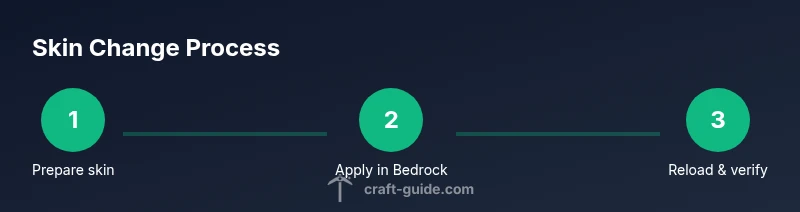
Identify whether you are playing Java or Bedrock, then prepare the skin file you intend to use. If you’re on Java, ensure you have access to the Minecraft Launcher or the official website to upload the skin. For Bedrock, you can start the process in-game, but having the file ready will speed things up.
Tip: Have a backup copy of your current skin in case you want to revert. - 2
Bedrock: open Profile and choose a skin
In Bedrock Edition, open the in-game Profile or Settings menu and navigate to Skin. Select the skin you want from your library or upload a new PNG. Apply it, then exit the menu to see the change in your profile.
Tip: Changes can apply immediately or on the next login depending on platform. - 3
Java: log out to apply a new skin
Java Edition requires you to log out of the game and update the skin on Mojang/Microsoft accounts or via the launcher. After uploading the new skin, log back in to load the updated skin for future sessions.
Tip: Ensure you’re logged into the correct account that’s attached to your Minecraft license. - 4
Reopen and verify
Launch Minecraft again and join a world to verify that the new skin appears. If you don’t see it, restart the launcher or clear cache if your platform offers that option.
Tip: If playing on a server with skin overrides, your skin may be replaced by server policy. - 5
Test in a safe environment
Load a new single-player world or a private server to confirm the skin across different worlds. This helps ensure the change is loaded consistently rather than appearing only in one session.
Tip: Always test in multiple scenarios to confirm the skin is consistently applied. - 6
Troubleshoot common issues
If the skin doesn’t appear, check edition-specific steps, ensure the image meets requirements, and confirm server rules. Sometimes changes take a moment to propagate or require a client restart.
Tip: Check for server skin overrides or cached profile data that might revert your skin.
People Also Ask
Can you change your Minecraft skin while in game?
Bedrock Edition allows in-game changes via Profile, but Java Edition requires logging out and re-uploading the skin on Mojang/Microsoft accounts or the launcher. Always consider server rules that might override skins.
Bedrock users can switch skins in-game; Java users need to log out to apply changes.
How do I change my skin in Java Edition?
For Java Edition, go to the official Minecraft website or launcher, upload your new PNG skin to your profile, and then re-login to load the change in future sessions.
Upload the skin on the Minecraft profile and re-login to apply.
Can Bedrock players change skins while in a world?
Yes, Bedrock players can access Profile from within the game and change skins without leaving the session on most platforms.
Bedrock usually allows in-game skin changes via Profile.
Do servers ever override skins?
Some servers apply skin override policies, which can replace your client skin with a server-defined appearance for consistency or branding.
Some servers override skins to enforce a look.
How long do skin changes take to appear?
Changes typically appear after re-login or rejoin. If you don’t see them immediately, restart the game or re-launch the launcher.
Usually after re-login, but sometimes a restart is needed.
Can I change skins for other players?
No—skin changes affect only your account. Other players’ skins depend on their own account updates and server policies.
You can’t change someone else’s skin; they must update themselves.
Watch Video
The Essentials
- Know edition differences before changing skins
- Bedrock supports in-game skin changes
- Java requires logout and re-login to apply
- Server policies can override skins
- Test skin changes across worlds to confirm