Minecraft Java Edition Download: A Complete How-To
Learn how to download Minecraft Java Edition from the official site, install the launcher, and start playing on Windows, macOS, or Linux. Includes system checks and quick troubleshooting tips.


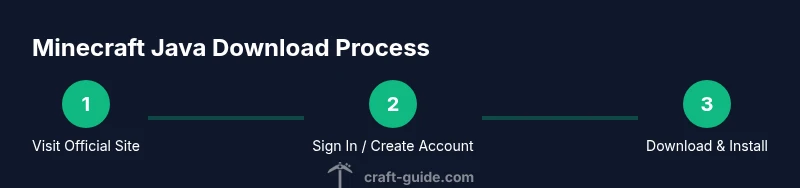
To complete a minecraft for java download, visit the official Minecraft site, sign in with a Microsoft/Xbox account, and download the Java Edition installer. Make sure your computer meets the minimum requirements and you have a supported Java Runtime. This guide walks you through the steps to get playing quickly.
What is Minecraft Java Edition?
Minecraft Java Edition is the original PC version of the game, built on the Java platform and maintained by Mojang/Microsoft. It runs on Windows, macOS, and Linux, and it is distinct from the Bedrock edition in terms of modding support, performance options, and launcher-based version control. This edition has the strongest modding scene, a long history of community servers, and frequent snapshots for testing new features. For many players, a minecraft for java download from the official site is the first step to joining those communities, customizing gameplay, and hosting multiplayer worlds. According to Craft Guide, Java Edition remains the most flexible option for players who want to customize and mod. This overview helps newcomers understand why Java Edition is a first-choice for many builders and survival players alike.
Why download from the official site?
Downloading from the official site minimizes the risk of malware and ensures you get the latest, verified installer and launcher. The official page provides the correct system requirements, clear licensing terms, and ongoing updates. Craft Guide emphasizes that sticking to the official download page reduces problems with corrupted files or fake installers, and helps ensure you receive legitimate security updates. Always verify you are on the authentic site using a secure URL (https) and avoid third-party mirrors.
System requirements and compatibility
Before downloading, check that your computer meets the minimum and recommended specs for Minecraft Java Edition. The launcher will help you tailor the experience, but hardware like RAM, CPU, and graphics drivers influence performance, especially when using mods or higher view distances. Most modern PCs handle the game, but Linux users may need to install OpenJDK or a compatible runtime. The official site lists requirements and guides for various operating systems, and Craft Guide notes that ensuring you have a supported Java Runtime Environment (JRE) is essential for a smooth install and launcher operation.
How the launcher manages profiles and updates
The Minecraft Launcher centralizes install profiles, version choices, and updates. You can run vanilla Java Edition, opt into snapshots for early access, or create a modded profile with separate Java arguments. The launcher automatically checks for updates to the game and launcher components, and it stores per-profile settings like allocated RAM and Java version. This approach helps players experiment with different builds without affecting their main world progress, while keeping backward compatibility in mind for older worlds and mods.
Common pitfalls and security best practices
Security should guide every minecraft for java download. Always download from the official site, verify the domain, and keep your Microsoft account credentials secure with two-factor authentication. Avoid cracking tools or unofficial launchers, which can introduce malware or exfiltrate data. If you encounter download interruptions, pause and resume the download, or try a wired connection to stabilize speeds. Craft Guide recommends maintaining a clean system with up-to-date antivirus and only installing Java from trusted sources.
Optional: mods, snapshots, and future-proofing
Modding expands Minecraft Java Edition, but it adds complexity. If you plan to mod, start with a clean profile, install a reputable mod loader like Forge or Fabric, and ensure all mods are compatible with your chosen game version. Snapshots are useful for testing upcoming features, but they can be unstable—prefer dedicated profiles if you want to keep your main world stable. Regular backups are essential when experimenting with mods or new Minecraft releases.
Tools & Materials
- Official Minecraft launcher(Download from minecraft.net and run the installer)
- Microsoft/Xbox account(Needed to sign in and verify ownership)
- Computer with internet access(Windows/macOS/Linux; ensure 64-bit support if available)
- Web browser(Any modern browser (Chrome, Edge, Firefox, etc.))
- Java Runtime Environment (JRE) or OpenJDK(Use official sources and keep updated)
- Backup storage for saves(Optional but recommended for long-term play)
Steps
Estimated time: 15-30 minutes
- 1
Open the official download page
Launch your web browser and navigate to the official Minecraft download page. This ensures you access the legitimate installer and launcher. Using the official site reduces the risk of malware and scams.
Tip: Verify the URL begins with https and check the site certificate before downloading. - 2
Sign in or create a Microsoft/Xbox account
If you already own Minecraft, sign in with the linked Microsoft/Xbox account. If not, create a new account through the official channel to verify ownership and access the download.
Tip: Use a strong password and enable two-factor authentication for security. - 3
Download the Java Edition installer
From the Java Edition section, click download and save the installer to your computer. Avoid third-party mirrors and verify that you’re downloading from the official site.
Tip: Prefer a stable network connection to prevent corrupted files during download. - 4
Run the installer
Double-click the downloaded file and follow the on-screen prompts to install the Minecraft Launcher and Java components. Choose a simple install path and allow the installer to set up necessary associations.
Tip: If prompted, allow the installer to modify your system settings and firewall rules. - 5
Launch the Minecraft Launcher and log in
Open the launcher, sign in with your Microsoft/Xbox credentials, and select the Java Edition profile. You can enable snapshots or modded profiles later in the settings.
Tip: Ensure the launcher uses the correct Java version and allocated RAM for your hardware. - 6
Start a game and create a profile
Click Play to start a new world, or create a profile to test different settings. Adjust video and performance settings to optimize for your hardware and preferred playstyle.
Tip: For mods, keep a dedicated profile to avoid conflicts with vanilla gameplay.
People Also Ask
Do I need a Microsoft account to download Minecraft Java Edition?
Yes. You need a Microsoft/Xbox account to sign in on the official website and download the Java Edition installer. If you already own Minecraft, sign in with that account.
You’ll need a Microsoft account to sign in on the official site before you can download.
Can I play Minecraft Java Edition on Linux?
Yes, Minecraft Java Edition runs on Linux. You download the official launcher and run it with a compatible Java runtime; some distros may require OpenJDK installation or dependency tweaks.
Minecraft Java runs on Linux with the official launcher; you might need to install Java and dependencies.
Is Java required for Minecraft Bedrock Edition?
Bedrock Edition uses its own launcher and does not require a separate Java installation, while Java Edition relies on Java.
Bedrock doesn’t need Java, but Java Edition does.
How do I switch between versions or enable snapshots?
In the Minecraft Launcher, use the Installations tab to enable snapshots or create separate profiles for different versions. This lets you test new builds without affecting your primary world.
The launcher lets you manage versions and snapshots via Installations.
What are the minimum system requirements for Minecraft Java Edition?
The official site lists minimum and recommended specs. Ensure your OS, RAM, and GPU meet them for smooth play, especially when using mods.
Check the official specs; you may need more RAM for mods.
Watch Video
The Essentials
- Download only from the official site.
- Sign in with a Microsoft/Xbox account.
- Verify Java compatibility before playing.
- Back up saves and profiles regularly.
- Consider separate profiles for modded play.