Minecraft on Chromebook: Complete Setup Guide
Learn how to play Minecraft on a Chromebook by choosing the right edition, enabling Linux, and optimizing performance. This Craft Guide tutorial covers Android and Linux paths, setup, troubleshooting, and multiplayer basics for Chrome OS.


You will learn how to play Minecraft on a Chromebook by choosing the right edition, enabling Linux (Crostini) if necessary, and installing the launcher or Android app. Essential requirements include a Chromebook with updated Chrome OS, reliable internet, and enough storage for game files and updates. This Craft Guide tutorial guides you from setup to safe, smooth gameplay.
Why Minecraft on Chromebook matters\n\nAccording to Craft Guide, Chrome OS devices offer a lightweight, affordable path to enjoy Minecraft by leveraging either the Android Bedrock edition or Linux-based Java editions. For many players, a Chromebook provides a quick entry point to multiplayer servers, creative builds, and mod-inspired backpacks without the heft of a gaming laptop. The goal here is not to force a single setup but to present practical routes that maximize performance while keeping the experience stable and approachable for beginners. You’ll discover how to balance battery life, input comfort, and screen real estate so you can focus on building, exploring, and surviving in your worlds.\n
Choosing the Right Edition for Chromebook\n\nThe most straightforward way to play on most Chromebooks is the Android Bedrock edition downloaded from the Google Play Store. Bedrock tends to run efficiently on Chrome OS hardware, supports cross‑play with Windows and consoles, and uses less RAM than the Java edition. If you own a Chromebook with strong Linux support and want access to mods, you can opt for the Java Edition by running Minecraft via Linux (Beta) and installing a launcher compatible with Linux.\n
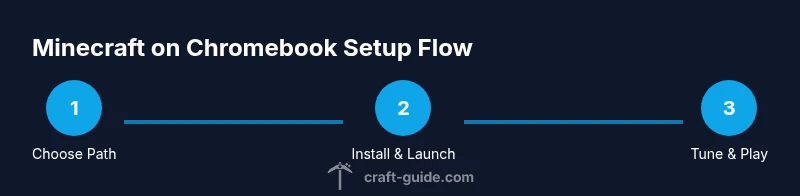
Setting Up: Android App vs Linux (Crostini)\n\nIf you choose Android Bedrock, install the Minecraft app from Google Play, sign in with your Microsoft account, and launch a test world to confirm performance. If you prefer Java Edition, enable Linux (Beta) in Settings, install a Linux distribution, download the Java edition launcher, and follow on‑screen prompts to install. Each path has distinct performance profiles and modding possibilities; the Android route is simpler, while Linux unlocks deeper customization.\n
Initial Setup and Sign-In Steps\n\nAfter choosing your path, sign in with the account associated with your Minecraft color world and marketplace purchases. On Android, you’ll use the Microsoft account linked to your game purchases; on Linux, you’ll still log into Microsoft or Minecraft accounts as required. Ensure your internet connection is stable for initial authentication and server lists. The first launch may take longer as assets and worlds are downloaded.\n
In-Game Settings for Chromebook Performance\n\nTweaking in‑game settings can make a big difference on modest hardware. Lower the render distance, reduce graphics from fancy to smooth, and turn off resource-heavy features like dynamic lighting if your Chromebook strains under load. You can also customize controls—using a mouse and keyboard can improve navigation in survival mode and when building complex redstone creations. Remember to save your profile once you reach comfortable performance.\n
Controls and Accessibility on Chrome OS Devices\n\nChromebooks excel with a precise touchpad and optional external mouse. If you’re using the Android app, you’ll primarily use touch controls, with on‑screen buttons for movement and actions. For the Linux Java Edition, you can pair a traditional mouse and keyboard, enabling full keyboard shortcuts, inventory management, and smoother camera movement. Experiment with key bindings to match your favorite playstyle.\n
Troubleshooting Common Chromebook Setup Issues\n\nIf Minecraft won’t install from the Play Store or Linux path, verify your device meets minimum OS requirements and that you have enough storage. For Android builds, check Google Play permissions and Microsoft account sign‑in; for Linux builds, confirm Crostini is enabled and the distro is up to date. If you encounter crashes, consult the in‑game crash report and consider updating graphics drivers via the Linux environment when possible.\n
Networking: Joining Servers and Realms on Chromebook\n\nMultiplayer on Chromebook works through Realms, public servers, or local LAN if you’re on the same network. Bedrock supports cross‑play with other platforms when servers permit it. Java Edition requires server software compatible with Linux environments. Always verify network permissions, port accessibility, and server whitelist status before attempting to join.\n
Mods, Resource Packs, and Chromebook Compatibility\n\nMods are more commonly associated with the Java Edition, which requires Linux compatibility on Chromebooks. If you run Java on Crostini, you can install mod loaders and resource packs, but be mindful of performance and compatibility. Android Bedrock does not support the same mods as Java Edition; instead, explore marketplace content and official add‑ons that are safe and compatible with Bedrock.\n
Safety, Privacy, and Parental Controls\n\nAs with any online game, practice safe behavior and respect server rules. Use strong account passwords, enable two‑factor authentication where available, and configure parental controls if games are shared on family devices. Regularly review downloaded content and marketplace purchases to avoid unexpected charges or inappropriate content.\n
Next Steps and Maintenance\n\nKeep your Chromebook’s Chrome OS up to date to maintain compatibility with new Minecraft updates. Periodically clear cache files for the Minecraft launcher, manage storage to prevent performance dips, and back up worlds to external storage or cloud services. If you experience persistent glitches, revert to a stable version of the launcher and re‑apply updates in small increments.\n
Final Tips for Ongoing Chromebook Minecraft Play\n\nPlan build projects around your battery life, save progress frequently, and use community resources for seeds and tutorials. With patience and proper setup, Chromebook users can enjoy a robust Minecraft experience across editions and playstyles.\n
Tools & Materials
- Chromebook with updated Chrome OS(Ensure Play Store is enabled for Android path, or enable Linux (Beta) for Java path)
- Internet connection(Stable broadband recommended for downloads and multiplayer)
- Minecraft app or launcher(Android Bedrock from Google Play; or Linux Java launcher via Crostini)
- Microsoft account(Required for Minecraft purchases and sign-in)
- External input devices (optional)(Mouse/keyboard or Bluetooth controller can improve control)
- Storage space(Minecraft assets and worlds can be large; allocate enough room)
Steps
Estimated time: 45-60 minutes
- 1
Decide edition and method
Identify whether you’ll use Android Bedrock or Java Edition via Linux depending on your Chromebook’s capabilities. This choice drives launcher, controls, and modding options. If unsure, start with Android Bedrock for simplicity and performance.
Tip: Start with Bedrock on Android to gauge performance before enabling Linux. - 2
Enable Linux (Beta) if you choose Java Edition
Open Settings > Linux (Beta) and turn it on. This creates a Debian container you can use to install the Java version of Minecraft. This step is optional if you’re sticking with Android Bedrock.
Tip: Allocate enough disk space and follow on-screen prompts for setup. - 3
Install Minecraft through Google Play
Open the Play Store, search for Minecraft, and install the Bedrock edition. Sign in with your Microsoft account after installation is complete. Launch to verify the download and initial world creation.
Tip: Ensure you have enough storage for the initial world and textures. - 4
Install Minecraft Java Edition via Linux
In the Linux terminal, download the official launcher package compatible with Debian, set executable permissions, and run the installer. Follow prompts to finish installation. You can then run Java Edition from the Linux app shelf.
Tip: Use the latest Java runtime provided by your Linux distro in Crostini. - 5
Sign in and load a test world
Launch Minecraft from the chosen path, sign in with the Microsoft/Mojang account, and load a small test world to confirm everything works. Check controls and ensure you can move, build, and interact with the world.
Tip: Test both creative and survival modes for full control assessment. - 6
Adjust performance settings
In the options menu, lower render distance, reduce graphics quality, and disable resource packs that might tax the GPU. Save changes and run a short world to test consistency.
Tip: If you notice stuttering, reduce settings one by one to isolate the bottleneck. - 7
Join multiplayer or realms
From the main menu, select Realms or multiplayer and enter the server address or Realm invite. Verify account status, and ensure your network allows required ports for smooth play.
Tip: Use wired or high‑quality wireless connections for better stability.
People Also Ask
Can I play Minecraft for free on a Chromebook?
Minecraft is not a free game; you must purchase the edition you want from the Google Play Store or official Minecraft site. Availability varies by platform and edition, so check current store listings.
Minecraft isn’t free; purchase the edition you want from the app store or official site. Availability varies by platform.
Will Minecraft run well on low-end Chromebooks?
Performance depends on the edition and settings. Bedrock on Android generally runs smoother on modest Chromebooks, while Java Edition via Linux may require more RAM and careful tuning.
Bedrock runs smoother on modest Chromebooks; Java via Linux needs careful tuning and more RAM.
Do I need Linux to play Minecraft on Chromebook?
No. For most Chromebooks, the Android Bedrock edition provides a straightforward experience. Linux is only necessary if you want Java Edition or more modding options.
You usually don’t need Linux; Android Bedrock works well. Linux is for Java and mods.
Can I play with friends on Chromebook?
Yes. You can join Realms or community servers, and Bedrock supports cross‑play with other platforms when servers permit it. Ensure network permissions are set and accounts are signed in.
Yes—join Realms or servers. Check cross‑play settings and network access.
What are the main limitations I should expect?
Storage, RAM, and input controls can limit performance and modding options. Chromebooks may struggle with large worlds or heavily modded Java setups; plan accordingly.
Storage and RAM can limit performance, especially with mods; plan accordingly.
Watch Video
The Essentials
- Choose the edition that fits your Chromebook's capabilities.
- Android Bedrock offers a quick, stable path to play.
- Linux (Crostini) unlocks Java Edition and deeper modding.
- Tune graphics and render distance for smoother gameplay.
- Test multiplayer options and back up worlds regularly.