Can Minecraft Run on a Chromebook: Complete Guide
Explore how to run Minecraft on a Chromebook, including Bedrock on Android, Java via Linux, performance tips, and setup steps. Learn what works best on your device and how to optimize graphics, storage, and RAM for smooth gameplay.


Yes—Minecraft can run on a Chromebook, though performance and method depend on edition and hardware. On supported Chromebooks, Bedrock Edition is available from the Google Play Store, while Java Edition can run via Linux (Beta) or other workarounds. Expect best results on newer models with ample RAM and fast storage, and plan to adjust settings for smooth play.
Chromebook Essentials for Minecraft
Many players ask can minecraft run on a chromebook, and the answer depends on edition and hardware. According to Craft Guide, Chromebooks with modern CPUs, sufficient RAM, and fast storage can support Minecraft in more than one configuration. The simplest route is Bedrock Edition from the Google Play Store on supported devices, which is optimized for touch and multi-core performance. For some models, Java Edition via Linux (Beta) is possible, but it introduces overhead; you may need to allocate more RAM and tune graphics. This section lays out practical thresholds your device should meet and how to optimize settings for smooth play. We’ll also compare the two main editions and set expectations for different use cases, from casual building to survival challenges.
Edition Options: Bedrock vs Java on Chrome OS
Bedrock Edition excels on Chromebooks because it is designed for cross‑platform play and runs through the Google Play Store on supported devices. It tends to be more stable, uses fewer system resources, and responds well to touch controls. Java Edition, when enabled via Linux (Beta), offers deep modding potential and classic PC controls, but it demands more RAM and CPU headroom. In practice, Chrome OS users often start with Bedrock for ease, then explore Java if they want mods or a closer PC Minecraft experience. Craft Guide notes that the best choice depends on your goals: quick builds and family play versus customization and experimental worlds.
Hardware and Performance Considerations
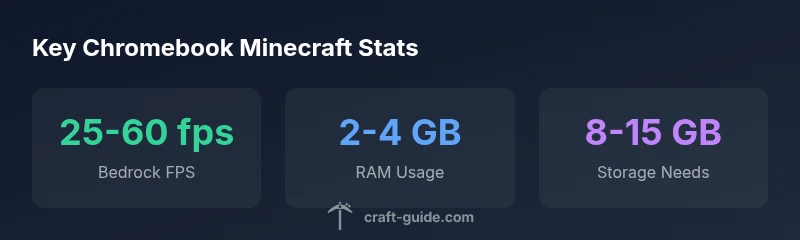
Chromebook capabilities vary widely. CPU cores, RAM, and storage speed are the biggest factors influencing Minecraft performance. A practical baseline is Chromebooks with 4 GB of RAM for Bedrock, and 8 GB RAM for smoother Java Edition play when running Linux. Storage speed matters too; SSDs provide faster loading and fewer stutters than eMMC storage. You’ll also want ample free space for world data, saved games, and updates. If you’re planning long survival sessions or heavy resource packs, consider a device with higher RAM and a fast SSD to minimize texture loading and chunk rendering delays.
Setup Bedrock Edition on Chromebook (Google Play)
To start with Bedrock on Chromebook, open the Google Play Store and install Minecraft for Android. Sign in with your Microsoft account, then launch the game and adjust settings for performance: lower render distance, turn off fancy graphics, and disable resource-heavy features like shaders. If your device supports touch input, Bedrock’s optimized controls can feel more natural on a Chromebook. Regularly update both Chrome OS and the Minecraft app to ensure compatibility and performance improvements. Craft Guide recommends starting with cloud saves or Realm testing to confirm cross‑play stability.
Install Java Edition via Linux (Beta) and Tuning Tips
If you prefer the Java Edition, enable Linux (Beta) in Chromebook Settings, then install the Java Runtime and the Minecraft Java Launcher. You may need to allocate more RAM to the Linux container (for example, via the settings in the launcher or by adjusting JVM arguments). Keep expectations reasonable: Java Edition on Chromebook can be slower than Bedrock and may require tweaking graphics, allocating RAM, and using lightweight texture packs. For smoother performance, use a clean world with minimal mods and ensure your system has updated graphics drivers and a current Linux environment.
Troubleshooting Common Issues and Fixes
Issues are common when running Minecraft on Chromebooks. If Minecraft won’t install, check Google Play permissions or Linux compatibility flags. Lag can often be reduced by closing background apps, freeing disk space, and lowering render distance. Black screens or crashes may point to outdated graphics drivers or OS conflicts—update Chrome OS, recheck Linux setup, and test with a fresh world. Keyboard and mouse input issues are typically resolved by confirming the correct input device is selected in-game and ensuring peripheral latency is minimized by turning off power‑savvy features.
Modding, Realms, and Cross-Platform Play
Bedrock Realms support cross‑play with Windows, iOS, Android, and consoles, making Chromebook players part of the wider ecosystem. Java Edition offers classic modding potential, but mods can be less straightforward on Chromebooks due to Linux constraints and file permissions. Craft Guide recommends starting with Bedrock Realms for reliable, cross‑platform multiplayer and experimenting with Java Edition in a controlled Linux setup if you’re comfortable with command-line tweaks and potential troubleshooting.
Quick Start Checklist and Next Steps
- Confirm Chromebook model and RAM (4 GB minimum for Bedrock; 8 GB recommended for Java).
- Decide edition: Bedrock for simplicity and cross‑play, Java for mods and PC parity.
- Install Bedrock from Google Play or enable Linux (Beta) for Java.
- Optimize graphics: lower render distance, disable heavy shaders, close unused apps.
- Back up worlds and test cross‑play with a friend to confirm compatibility.
- Keep Chrome OS and Minecraft app updated for best results.
Minecraft on Chromebook: Bedrock vs Java options
| Edition | Platform/Method | Notes |
|---|---|---|
| Bedrock Edition | Android (Google Play) on Chromebook | Typically smooth, optimized for touch and modern Chromebooks |
| Java Edition | Linux (Beta) on Chromebook | Requires RAM, may vary by device, higher overhead |
People Also Ask
Can I play Minecraft Bedrock on my Chromebook without Linux?
Yes. If your Chromebook is on the supported list and has Google Play, you can install Minecraft Bedrock from the Play Store and play with other Bedrock players. This route avoids Linux and typically provides smoother performance on compatible devices.
Yes—Bedrock can run directly from Google Play on many Chromebooks if the device supports the Play Store.
Is Java Edition feasible on a Chromebook, and how do I enable it?
Java Edition is feasible on some Chromebooks by enabling Linux (Beta) and installing the Java Launcher. It requires more RAM and careful resource management, and performance varies by model. Follow guides to allocate RAM and avoid heavy mods on weaker devices.
Java can run via Linux, but you’ll need to enable Linux first and tune RAM.
What are the minimum specs recommended for playing Minecraft on Chromebook?
A practical baseline is 4 GB of RAM for Bedrock and 8 GB for Java Edition with Linux. Storage should comfortably accommodate the game, updates, and several worlds. Performance also depends on the Chromebook’s CPU speed and storage speed.
Aim for at least 4 GB of RAM for Bedrock, and 8 GB for Java with Linux.
Will mods work on Chromebook Minecraft?
Mods are straightforward on Java Edition but depend on Linux setup and permissions. Bedrock does not support traditional PC mods. If modding is essential, Java Edition in Linux is the path, with attention to compatibility and updates.
Mods work on Java Edition with Linux, but Bedrock mods aren’t the same.
Can I play with friends using Realms on Chromebook?
Yes, Bedrock Realms supports cross‑play between Chromebook and other Bedrock platforms. This makes it easy to play with friends on Windows, iOS, Android, and consoles.
Bedrock Realms allows cross‑platform multiplayer on Chromebooks.
What should I do if Minecraft crashes on my Chromebook?
Update Chrome OS and the Minecraft app, free some storage, and reduce in-game settings. If problems persist, try a clean world and verify Linux settings for Java Edition. Contact support if the issue continues.
Update software, free space, lower settings, and try a new world.
“Chromebook players can access Minecraft in multiple, well-supported ways, but the best experience comes from using Bedrock on supported devices. If you venture into Java Edition, be prepared for extra setup and tuning.”
The Essentials
- Start with Bedrock on supported Chromebooks for best stability
- Java Edition on Chromebook is possible but requires Linux and careful tuning
- Allocate adequate RAM and storage; 4 GB is a practical floor, 8 GB is better for Java
- Use Bedrock Realms for easy cross‑play and shared worlds
- Keep OS and apps updated to maximize compatibility