Minecraft on Chromebook: A Practical How-To Guide
Learn how to play Minecraft on a Chromebook with Bedrock via Android, or Java via Linux, including setup steps, performance tips, and troubleshooting for a smooth gaming experience.


You can play Minecraft on a Chromebook by using Minecraft Bedrock via the Google Play Android app or, where supported, the Linux (Beta) method for Java Edition. Start with a Chromebook that meets Chrome OS requirements, has Android apps enabled, and at least 4 GB RAM; ensure storage and internet are stable.
Why Minecraft on Chromebook is a smart fit for many players
Minecraft on Chromebook blends portability with accessible hardware footprints, making it an appealing option for students, commuters, and casual players. The core path most players use on Chromebooks is Bedrock Edition through the Google Play Android app, which tends to be smoother on most models than running Java through emulation. Craft Guide analysis shows that Chromebooks with Play Store access can deliver a surprisingly solid Bedrock experience when you fine-tune settings and choose hardware with enough RAM and storage. The key is understanding the typical Chromebook constraint: RAM, storage, and CPU performance, which vary widely between models. In practice, a mid-range Chromebook with 4 GB RAM or more, fast storage, and a reliable Wi-Fi connection can support cozy multiplayer sessions, exploration, and resource gathering. For modding or large-scale builds, Linux (Beta) offers Java Edition options, but they require more steps and may introduce latency. Reducing open browser tabs and disabling unnecessary apps frees RAM and improves frame rates. This guide walks you through practical steps, model considerations, and proven configurations so you can enjoy Minecraft chromebook setups without frustration.
Chromebook hardware and Chrome OS requirements
Choosing the right Chromebook for Minecraft is about balancing price, RAM, and storage with the intended playstyle. Chrome OS devices vary from ultra-portable 2-in-1s to compact gaming-friendly models, but most perform well with Bedrock on Android if you keep expectations realistic. At minimum, look for a model with 4 GB of RAM and solid-state storage, which helps with world loading and smooth transitions between biomes. Ensure Play Store support is enabled on the device; this is essential for Bedrock Edition. If you plan to experiment with Java Edition or mods, you’ll need to enable Linux (Beta) and allocate enough disk space for Linux apps and files. You should also have reliable internet and a USB-C or wireless controller for better control. The Craft Guide team recommends verifying your device’s Chrome OS version and the availability of Android app support before purchase to guarantee compatibility with Minecraft Bedrock.
Bedrock Edition vs Java Edition on Chromebook
Bedrock Edition remains the most practical path for most Chromebook players thanks to its Android app availability and smoother performance on a wider range of hardware. It supports cross-play and can handle basic multiplayer through Realms or direct servers, making it ideal for quick sessions and school-friendly play. Java Edition, by contrast, is more demanding and traditionally runs in Linux (Beta) or via specialized containers on Chromebooks. This route is best for players who want classic mods or Java-specific worlds, but it requires confident setup and troubleshooting. If you’re unsure, start with Bedrock to establish a baseline experience, then explore Java Edition via Linux (Beta) if your device meets higher RAM and storage thresholds. Craft Guide notes that performance depends heavily on CPU/GPU support and the Linux container’s resource allocation, so expect some variability across models.
Step-by-step overview for Bedrock on Chromebook (high level)
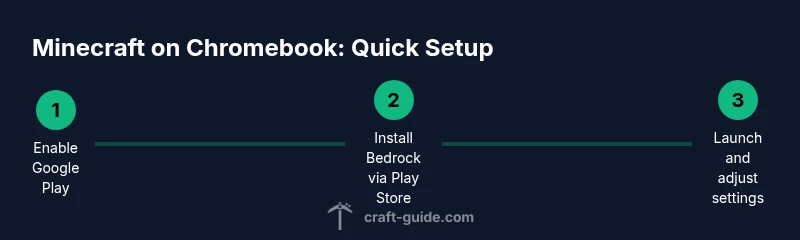
Getting Minecraft chromebook running generally involves three core actions: enabling Android apps, installing Bedrock from the Play Store, and launching the game with the right settings. If you want Java Edition later, you’ll need to add Linux (Beta) and Java, then configure resource limits to preserve performance. This section provides a concise map of the path most users will take, along with what to expect at each stage. Remember that every Chromebook is different; some models will deliver excellent Bedrock performance right away, while others may need careful adjustments to graphics and memory usage. In short, the Bedrock route on Chromebook is the most reliable starting point for most players focused on practical gameplay and creative builds.
Step-by-step setup (overview of the actual steps below)
The following steps outline how to set up Bedrock on a Chromebook and prepare your device for Minecraft play. You’ll learn how to enable the Google Play Store, install the Bedrock app, adjust in-game settings for the Chromebook’s screen and input, and troubleshoot common performance hiccups. If you’re aiming to run Java Edition, we cover Linux (Beta) enabling and a basic workflow to install Java, but this is optional and should be attempted only if you’re comfortable with Linux commands.
Tips for improving performance and controls
To maximize your Minecraft chromebook experience, adjust settings to lower strain on the GPU and CPU, use stable network connections, and optimize input methods. A wired mouse or controller typically offers better precision than a touchpad, especially during combat or building. Reducing render distance, disabling fancy lighting, and using a simple texture pack can significantly improve framerates on entry-level Chromebooks. Keep in mind that background processes may steal memory; closing nonessential apps and pausing cloud syncing can help. If you encounter stuttering or long load times, give the system a moment to garbage collect and reload assets.
This section’s content is structured to provide a practical, repeatable approach for players, ensuring a smooth Minecraft chromebook session without needing advanced technical knowledge.
Common issues and quick fixes for Chromebooks
If Minecraft runs slowly on your Chromebook, first check RAM usage and close extraneous apps. Ensure you’re using the Bedrock edition from the Google Play Store and that the device has sufficient storage; lack of free space is a common cause of lag. If you encounter crashes, verify you’re on a supported Chrome OS version and that the Google Play services are up to date. For Linux (Beta) users attempting Java Edition, confirm that the Linux container has enough allocated memory and that compatibility flags are properly set. Finally, if online play is unstable, test with a wired network connection or move closer to your router. Craft Guide emphasizes that each Chromebook can vary, so adjust settings incrementally and test as you go.
Authority sources
This guide references reputable sources for Chromebook hardware and Minecraft availability to provide reliable, up-to-date guidance. For further reading, see major technology outlets and official Chromebook resources from trusted publishers.
Authority sources
• https://www.zdnet.com
• https://www.theverge.com
• https://www.pcmag.com
Tools & Materials
- Chromebook with Google Play access(Ensure Play Store is enabled in Settings)
- Minecraft Bedrock Edition(Purchased license from Google Play or bundled with device)
- Stable internet connection(Prefer 5 GHz Wi-Fi for lower latency)
- At least 5 GB free storage(Space for game data, worlds, and updates)
- Optional: USB-C controller or external keyboard/mouse(Improves control in combat and building)
- Optional: Linux (Beta) enabled on Chromebook(For Java Edition or modding experiments)
Steps
Estimated time: Estimated total time: 60-120 minutes
- 1
Enable Google Play on Chromebook
Open the Chromebook Settings, navigate to Apps or Google Play, and switch on the Google Play Store. This step is essential to access the Bedrock Edition APK through Android, which provides the most stable experience on most Chromebooks. After enabling, restart the device to ensure the Play Store initializes correctly.
Tip: Why: Bedrock through Android is typically smoother and easier to set up than any Linux-based alternative on a Chromebook. - 2
Install Minecraft Bedrock from Google Play
Launch the Play Store, search for Minecraft, and install Bedrock Edition. Sign in with your Microsoft account if prompted. Ensure you’re downloading the official Bedrock edition and check for updates after installation to grab the latest performance patches.
Tip: Pro tip: Keep the device on a stable charger during initial setup to avoid unexpected interruptions. - 3
Launch Minecraft Bedrock and adjust settings
Open the Bedrock app, sign in, and navigate to Settings. Start with a safe resolution (720p or 1080p if your screen supports it) and set render distance to a lower value to improve FPS. Disable resource-intensive features like fancy graphics if you experience lag.
Tip: Pro tip: Reducing render distance by 1-2 chunks can dramatically improve performance on lower-end Chromebooks. - 4
Connect to a server or Realms for multiplayer
From the Bedrock main menu, choose a server or Realms option and enter the required details to join friends or public servers. A stable Wi-Fi connection is crucial for a smooth multiplayer experience, especially on Chromebooks with limited CPU power.
Tip: Pro tip: Use wired Ethernet adapters if your Chromebook supports USB-C networking for a more stable connection. - 5
Optional: Enable Linux (Beta) for Java Edition
If you plan to explore Java Edition or mods, enable Linux (Beta) in Settings. Install a Java runtime and the Java Edition launcher from a trusted source, then allocate memory to the container. This path is more advanced and may require troubleshooting.
Tip: Warning: Linux (Beta) uses system resources differently; start with a small RAM allocation and adjust based on performance. - 6
Test, save, and troubleshoot
Play a test world, save progress frequently, and monitor performance. If you encounter crashes or stuttering, revert to Bedrock settings, free up memory, or close background tasks. Keep your system and apps updated to minimize compatibility issues.
Tip: Pro tip: Keep a backup of your worlds in case of unexpected crashes when using Linux (Beta) or external mods.
People Also Ask
Can I play Minecraft on a Chromebook for free?
Minecraft Bedrock Edition requires a license purchase; Chromebook access is possible through the Android app, but the game itself is not free. Be sure to obtain the game from legitimate sources and verify your account status.
Minecraft Bedrock isn’t free; you’ll need to purchase a license. You can install the Android version on a Chromebook if you have Play Store access.
What Chromebook specs are best for Minecraft?
Aim for at least 4 GB of RAM, solid-state storage, and a dependable Wi‑Fi connection. More RAM (8 GB) improves performance during larger builds or servers, and an updated Chrome OS helps with Android app stability.
4 gigabytes of RAM is a good baseline, with more RAM improving performance during heavy builds or multiplayer sessions.
Is Java Edition supported on Chromebook?
Java Edition can run on Chromebook via Linux (Beta), but this path is more technical and may require additional configuration and troubleshooting. Bedrock via Android remains the simpler, more reliable option.
Java Edition is possible with Linux on Chromebooks, but it’s more technical and not as straightforward as Bedrock.
Can I play multiplayer on Chromebook?
Yes, Bedrock supports multiplayer through Realms and various servers. A stable internet connection helps maintain a smooth experience during online play.
Yes. You can play multiplayer on Chromebook using Bedrock Realms or servers; a solid internet connection helps a lot.
What should I do if Minecraft runs slowly?
First, lower render distance and graphics, close background apps, and ensure Play Services are up to date. If using Linux, adjust RAM allocation; consider a wired network for stability.
If it runs slowly, reduce graphics, close other apps, and use a stable connection. If you’re using Linux, tweak RAM.
Are there safety considerations when using Linux (Beta)?
Linux (Beta) uses a separate subsystem; only run trusted software and keep backups. Follow official guides for enabling it and avoid installing unknown mods or scripts.
Linux on Chromebook is powerful but requires caution; install trusted software and backup data.
Watch Video
The Essentials
- Choose Bedrock on Chromebook for best reliability.
- Enable Play Store access first, then install Bedrock.
- Adjust in-game settings to fit your hardware.
- Linux (Beta) opens Java Edition options, but adds complexity.