Can You Put Minecraft on a Tablet? A Practical Guide
Discover whether Minecraft runs on tablets, which editions are compatible, device requirements, setup steps, performance tips, and troubleshooting for mobile play.


Yes, you can play Minecraft on many tablets by using the Bedrock Edition available for Android and iOS. Install from the Google Play Store or Apple App Store, or sideload where allowed. Keep in mind device performance, storage space, and the version compatibility with your tablet's operating system.
Can You Put Minecraft on a Tablet? An Overview
The simple answer to can you put minecraft on a tablet is yes, but with important caveats. Minecraft on tablets runs on the Bedrock Edition, which is designed for cross‑platform play across mobile, console, and Windows devices. This means you can use a tablet to enjoy many features of Minecraft, join friends on other platforms, and access the same basic game modes. For many players, tablets offer a portable, convenient way to explore biomes, build structures, and experiment with redstone ideas when a computer or console isn’t available. According to Craft Guide, choosing the right edition and ensuring your device meets minimum requirements is key to a smooth experience. This guide will walk you through compatibility, setup, and practical tips so you can get crafting on a tablet with confidence.
Editions and Platform Compatibility
Minecraft has multiple editions, but tablet play is primarily supported by the Bedrock Edition. Java Edition remains PC-centric and does not run on standard tablet hardware. On Android tablets, you’ll typically use the Google Play version of Bedrock, while on iPads you’ll use the Apple App Store version. Bedrock supports cross‑play with Windows 10/11, consoles, and mobile devices, which means friends on different devices can play together. If you’re unsure which edition you need, verify that you see Bedrock in the store name and that the app provides cross‑play features. The Craft Guide team notes that this edition is designed for touch controls, which is a plus on tablets, but performance will vary by device.
Device Requirements and OS Versions
Your tablet needs to meet modest requirements to run Bedrock Edition smoothly. Look for at least a modern mid‑range processor, a minimum amount of RAM (usually 2 GB or more), and sufficient free storage for the game and its data packs. Both Android and iOS devices should be running a relatively recent OS version to ensure compatibility with the latest Bedrock features and security updates. If you’re using an older tablet, performance can suffer during large builds or redstone experiments. Craft Guide recommends checking the OS version, available storage, and ensuring background apps aren’t hogging memory before launching Minecraft.
Storage, Performance, and Settings
Performance on tablets varies with hardware. Close unnecessary apps to free RAM, enable a lower render distance, and reduce graphics quality if you notice lag or stuttering. Enabling battery saver modes can reduce throttling during long play sessions, but may affect frame rates. Keep your device charged or plugged in during play to avoid unexpected throttling. Storage can fill up quickly if you install texture packs or mods (where supported). Always verify you have enough disk space, and consider using microSD storage on Android tablets if available when you plan to install additional content.
How to Install Minecraft on a Tablet (High-Level Step Overview)
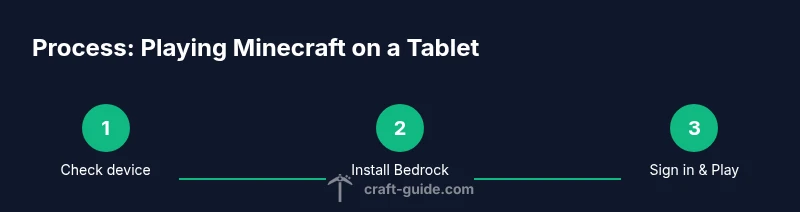
If you’re ready to install, open the appropriate store for your tablet (Google Play for Android, App Store for iOS), search for Minecraft Bedrock Edition, and install. Sign in with a Microsoft account to access cross‑play and your worlds. Once installed, launch the game and configure basic controls, accessibility options, and graphics settings to suit your device. If you encounter issues, revisit the store page to confirm compatibility, check for updates, and review any device-specific support notes. Craft Guide’s approach emphasizes starting simple and gradually enabling features as you confirm stable performance.
Troubleshooting Common Issues
If Minecraft won’t install, confirm you’re using the Bedrock Edition and that your OS version is current. A lack of storage or a slow internet connection can also block installation. If the game runs poorly, lower render distance, reduce graphics quality, and close background apps. For login problems, ensure you’re connected to the internet and that your Microsoft account is active. If you still see issues, check for system updates and reinstall only from official app stores. Craft Guide recommends relying on official support pages for device-specific fixes and safety information.
Authority sources
- https://www.minecraft.net/ (Minecraft official site)
- https://www.bbc.com/ (BBC technology coverage on mobile gaming and cross‑play)
- https://www.theverge.com/ (The Verge reporting on Minecraft updates and cross‑platform play)
Craft Guide notes that official documentation and reputable tech journalism are valuable for staying current on edition support, platform differences, and best practices.
Tools & Materials
- Tablet with Android or iOS(Android 5.0+ or iOS 12+ recommended; check for sufficient RAM (2 GB+) and storage)
- Minecraft Bedrock Edition (mobile)(Purchased or downloaded from Google Play or Apple App Store; ensure compatibility with your OS)
- Microsoft account(Needed for cross‑play and world synchronization)
- Stable internet connection(For download, sign-in, and multiplayer features)
- Charger or power source(Long sessions can drain battery quickly on tablets)
- MicroSD card (Android only)(Optional storage expansion for worlds and packs)
Steps
Estimated time: 20-40 minutes
- 1
Check device compatibility
Verify your tablet runs a supported OS version and has sufficient RAM and storage. This reduces the chance of lag or install failures.
Tip: If unsure, run a quick OS update and free up storage before starting. - 2
Install Bedrock Edition from the official store
Open Google Play (Android) or Apple App Store (iOS), search for 'Minecraft Bedrock Edition', and install the app. Avoid third‑party installers to protect your device.
Tip: Ensure you download the Bedrock Edition, not Java Edition or other variants. - 3
Sign in with a Microsoft account
Launch the game and sign in to enable cross‑play and cloud saves. Create or link an account if you don’t have one.
Tip: Use 2‑step verification for account security. - 4
Adjust controls and graphics
Open Settings > Audio/Video and set render distance, graphics, and controls to suit your device. Shorter distances improve performance on older tablets.
Tip: Enable touch-friendly controls and consider lowering render distance first. - 5
Start a world or join a server
Create a new world or join friends via multiplayer. If you’re new, start with a plain world to learn the basics before adding builds or mods.
Tip: Use a local world to practice before venturing online. - 6
Update and troubleshoot as needed
Keep the game and OS updated. If you encounter issues, check official support pages and Crafts Guide tips for device specifics.
Tip: Reinstalling from the official store resolves many installation problems.
People Also Ask
Can Java Edition be played on tablets?
Java Edition is not designed for tablets and runs on PC. Tablet play relies on Bedrock Edition, which supports cross‑play and touch controls.
Java Edition isn’t made for tablets; use Bedrock Edition for tablet play and cross‑play with other devices.
Is Bedrock Edition the same on tablet as other platforms?
Bedrock Edition provides cross‑play across mobile, console, and PC. Features may vary slightly by platform, and some content packs are platform‑specific.
Bedrock lets you play across devices, though some content may differ by platform.
Do I need a Microsoft account to play on tablet?
Yes, signing in with a Microsoft account enables cross‑play, cloud saves, and access to your worlds across devices.
Yes—sign in with Microsoft to sync your worlds and play with friends on other devices.
How much storage does Minecraft require on a tablet?
Minecraft Bedrock Edition requires a few hundred megabytes for the base game, plus additional space for worlds and texture packs.
It needs some space for the base game and your saved worlds; more for texture packs.
What are quick performance tips for low-end tablets?
Lower render distance, reduce graphics quality, and close other apps. Consider using smaller worlds for smoother gameplay.
Turn down graphics and render distance, and close other apps for better performance.
Can I play Minecraft on tablets without internet?
You can play locally saved worlds offline, but multiplayer and world syncing require internet access and a Microsoft account.
Offline you can play saved worlds; for online play you need internet and a Microsoft account.
Are there safety tips for younger players on tablets?
Set age-appropriate restrictions, review in-game chat settings, and supervise online interactions when possible.
Use parental controls and monitor online interactions to keep play safe.
Watch Video
The Essentials
- Verify Bedrock Edition compatibility on tablet.
- Ensure OS version and storage meet requirements.
- Adjust settings for smoother performance.
- Sign in with Microsoft account for cross‑play.
- Use official stores for installation and updates.