Make Minecraft Skin: A Complete Step-by-Step Guide
Learn how to make a Minecraft skin from scratch with a practical, beginner-friendly approach. Design, shade, test, and refine your own 64x64 skin using templates, pixel editors, and in-game testing tips.


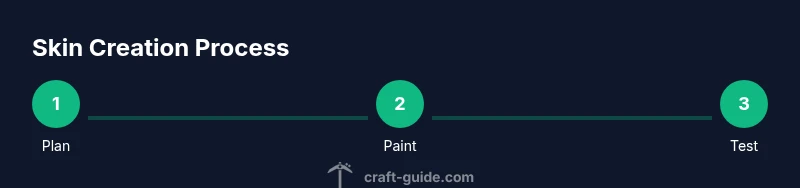
By the end of this guide, you will know how to make a Minecraft skin from scratch, covering canvas size, templates, coloring, shading, and testing in-game. Gather a pixel editor, a 64x64 PNG skin template, a color palette, and reference images before you begin. Follow the step-by-step workflow to craft a unique, shareable character that fits your style. According to Craft Guide, mastering a skin starts with a clear plan and reliable templates, then iterates through testing and tweaks.
What is a Minecraft skin and why customize it?
A Minecraft skin is a 2D image (typically a PNG) that maps to your player model, giving your in-game avatar its visual identity. Skins determine how your character looks from every side, including the head, torso, arms, and legs. Custom skins are a popular way to express personality, role-play, or fandom within Minecraft. According to Craft Guide, players often start with a familiar silhouette and then personalize colors, accessories, and shading to reflect their preferences. This guide walks you through a practical workflow that works for beginners and seasoned builders alike, making it easy to move from concept to in-game reveal. The goal is clarity: you should finish with a polished skin you’re excited to wear on servers, realms, or single-player worlds.
Canvas sizes, templates, and file formats
Most modern Minecraft skins use a 64x64 pixel canvas, with the torso, arms, legs, and head laid out in a standard template. Some older setups still support a 64x32 layout, but most players stick to 64x64 to access full features like sleeves and leggings. Before you start, pick a template that matches your Minecraft version and platform. Save a backup of the original template, then create an editable copy in your pixel editor. A 64x64 PNG with transparent background is the typical requirement for upload. Keep the canvas grid on to help symmetry, and enable a color palette that balances skin tones, hair, clothing, and highlights. Craft Guide analysis shows players who begin with a clean template and a defined color plan tend to iterate faster and produce cleaner silhouettes.
Concept and color planning: palettes, shading, and reference art
Before you touch any pixels, sketch a concept for your character. Decide on a primary color palette (2–4 base colors plus shading tones) and a secondary palette for accents like eyes, belts, or armor. Plan how light will hit each surface to create believable shading: lighter tones on exposed areas, darker tones in creases or folds. Collect reference images from in-game skins you admire or characters you want to emulate, and note where shading or color choices could translate well to Minecraft’s blocky aesthetic. This pre-planning shortcut saves time during pixel work and reduces the need for constant back-and-forth edits. Craft Guide emphasizes the value of a well-thought-out palette when you start painting, so your final result looks intentional rather than random.
Pixel-by-pixel workflow: a practical design approach
Start by laying down the base colors for each body section (head, torso, arms, legs) as simple blocks. Then block in major features (eyes, clothing seams, accessories) using flat colors. Add shading in small steps: apply a lighter highlight to raised planes and a darker shade to recessed areas. Check the silhouette from multiple angles to ensure consistency. Use layers if your editor supports them to keep shading separate from base colors, which makes tweaks easier. This approach reduces mistakes and helps you preserve clean lines as you refine the skin. Craft Guide recommends saving incremental versions so you can compare progress without losing earlier attempts.
Exporting, uploading, and testing your skin
When your skin looks right on the editor, export or save it as a PNG file with a transparent background if your editor supports it. Test the skin by uploading it to a Minecraft profile or a local test server to see how it appears in-game. Make note of any misaligned seams, color bleeding, or shading that looks off under game lighting. If something feels off, return to the editor to adjust pixels and re-upload. Always test on multiple client environments (Java Edition, Bedrock if applicable) to ensure cross-platform compatibility. Craft Guide stresses testing as a core step to catch issues players miss during on-screen previews.
Common mistakes and how to avoid them
Avoid heavy reliance on a single color—contrast and shading keep skins readable at a distance. Don’t neglect seams where blocks meet—misaligned sleeves or leg seams stand out. Keep a simple silhouette and avoid tiny details that won’t read well in-game. Check lighting: what looks good in the editor may appear flat under Minecraft’s lighting engine. Regularly compare your skin to a reference image to ensure features stay in proportion as you rotate the model. Craft Guide notes that many players overlook edge cases when wearing armor or capes; always preview those areas.
Advanced techniques: shading tricks and color management
For more polished skins, experiment with subtle dithering on transitions between colors to simulate texture without overloading pixels. Use a consistent shading model across all body parts so the skin reads as a unified design rather than a patchwork of separate edits. If you’re comfortable with layers, create alternative color variants (e.g., a blue shirt, red hoodie) by reusing base geometry and swapping palettes. Always document your color codes so you can reproduce or tweak later. These small refinements can elevate a simple skin to a professional-looking character.
Quick reference: specs, file management, and testing tips
- Canvas: 64x64 pixels; save as PNG with transparency for skills that support it.
- Palette: 2–4 base colors plus 2–3 shading tones per surface.
- Backups: Save at least three versions (base, mid-progress, final) to compare changes.
- Testing: Upload to Minecraft profile and verify on different skins in daylight and shade, then adjust as needed.
Final touches: distributing and maintaining your skin
Once satisfied, keep a clean, organized folder with the final PNG and any variant skins. Create a simple naming scheme (e.g., skin-base-v1, skin-wolfpack-v2) for easy retrieval. If you share your skin, provide a brief description of inspiration and the color palette used. Periodically revisit older skins to refresh shading or adjust to new game lighting updates. Craft Guide encourages a habit of iterative improvement to keep skins looking fresh across updates.
Tools & Materials
- 64x64 PNG skin template(Start with the standard Minecraft skin canvas; ensure it matches your version.)
- Pixel art editor(Examples: Piskel, Aseprite, Photoshop; supports layers and PNG export.)
- Color palette swatches(Prepare 2–4 base colors plus 2–3 shading tones; keep a palette reference.)
- Reference images(Collect skins you like for style cues.)
- Backup copies(Save base and versioned files to prevent data loss.)
- Minecraft profile or test server(Needed to test the skin in-game before public use.)
- Documentation of color codes(Record hex codes for reproducibility across variants.)
Steps
Estimated time: 60-120 minutes
- 1
Choose the canvas and template
Select the 64x64 PNG template that matches your Minecraft version. Confirm the template orientation and save a copy to begin painting. This ensures a clean starting point and prevents accidental edits to the original files.
Tip: Double-check the bottom row and sleeve areas for correct seam alignment. - 2
Plan the concept and color scheme
Decide on a character concept and sketch a rough palette on paper or in your editor. Limit your palette to a few colors to keep shading readable at small scales. This planning reduces backtracking later.
Tip: Label colors (e.g., skin, hair, cloth) to stay organized. - 3
Block in base colors for major regions
Fill large blocks of color for the head, torso, arms, and legs. Focus on silhouette and essential features first before adding details. Keeping it simple at this stage makes later edits easier.
Tip: Ask yourself if the shape reads well from a distance. - 4
Add features and lines with shading
Paint eyes, clothing seams, accessories, and any distinctive marks. Apply light shading on exposed surfaces and darker tones in folds or creases for depth. Separate shading layers if possible to adjust quickly.
Tip: Keep shading consistent across limbs for a cohesive look. - 5
Refine edges and test alignment
Check pixel alignment along seams where parts meet. Adjust any jagged edges and ensure symmetry, especially on the head and torso. Use a zoomed view to spot tiny misalignments.
Tip: Toggle between zoom levels to catch edge issues you might miss at normal scale. - 6
Export as PNG and back up
Save the final skin as a PNG with the correct transparency. Create a backup copy before uploading to Minecraft to guard against accidental overwrites. Rename files clearly to indicate version and variant.
Tip: Keep a separate folder for variants (e.g., base, alt-color). - 7
Upload and test in-game
Upload the PNG to your Minecraft profile or test server. Verify how the skin renders in daylight and under artificial light. Note any color shifts or seams and adjust accordingly.
Tip: Test on both server and single-player worlds if possible. - 8
Iterate with variations
Create alternate color schemes or minor changes to suit different outfits or moods. Keep a changelog and reuse successful color decisions for future skins.
Tip: Revisit earlier skins after game updates to refresh shading.
People Also Ask
What is a Minecraft skin and how does it work?
A Minecraft skin is a 2D PNG that maps to your player model, giving your avatar its appearance. It defines color blocks on the head, torso, arms, and legs, and reads differently depending on lighting and perspective.
A Minecraft skin is a 2D image that wraps around your 3D character to create its look. It’s a PNG that changes how your avatar appears in-game.
What size should I start with for modern versions?
For modern Minecraft versions, use a 64x64 pixel canvas. Older templates may be 64x32, but 64x64 supports sleeves and more detailed shading.
Use a 64 by 64 pixel canvas for modern skins, which lets you include sleeves and more shading.
Do I need advanced art skills to make a skin?
No. You can start with a template and simple edits. As you gain confidence, you can add shading and small details. Practice improves results, but you can begin with basic shapes.
You don’t need top-level art skills—start with a template and simple edits, then practice to improve.
How do I test my skin before sharing it?
Upload the PNG to a Minecraft profile or server to preview how it looks in-game. Check different lighting and screen angles to catch issues you can’t see in the editor.
Upload your PNG to Minecraft to test how it looks in-game and from different angles.
Can I use skins on Bedrock and Java editions?
Skins generally work across editions if the platform uses the standard PNG format, but some versions or marketplaces have specific requirements. Verify compatibility with your version before uploading.
Most skins work across editions that use PNGs, but check your version’s requirements.
Watch Video
The Essentials
- Plan first, paint second to save time
- Use a limited palette to preserve legibility
- Test frequently in-game for accurate results
- Back up frequently and organize variants
- Iterate on feedback to refine shading and seams