How to Teleport to Coordinates in Minecraft
Learn how to teleport in Minecraft to exact coordinates using commands. This guide covers Java and Bedrock syntax, relative inputs, facing directions, safety checks, and practical examples for seamless navigation.


In Minecraft you can teleport to any X, Y, Z coordinate using /tp or /teleport. You can target yourself or another player and even specify a facing direction. The basic requirements are cheats enabled in your world and access to the chat or command console. This guide covers exact coordinates, relative inputs with ~, and how to navigate across editions and dimensions.
Understanding Teleportation in Minecraft
Teleportation is a core gameplay tool that lets you instantly move yourself or other players to a new location. In Java Edition, the primary commands are /tp or /teleport, and in Bedrock Edition the same commands work with slightly different syntax. Teleporting can target a specific set of coordinates (X, Y, Z) or another player, and you can optionally set a facing direction so you land looking where you want. Craft Guide emphasizes practice in a safe test world before using teleports in survival, as this helps avoid accidental landings in lava, void, or hostile terrain. Teleporting is invaluable for exploration, admin tasks, map testing, and cooperative play, especially on large worlds or servers where travel time is a major hurdle.
Choosing the Right Coordinate Format (X, Y, Z)
Coordinates are the building blocks of teleportation. X and Z determine horizontal position (east/west and north/south), while Y represents vertical height (ground to sky). Absolute coordinates use concrete numbers, such as 100, 65, -200, while relative coordinates use tildes (~) to move from your current position. For example, /tp @p ~10 ~ ~-5 moves you 10 blocks east and 5 blocks north from your current spot, staying at the same height. When targeting exact spots, ensure the Y value corresponds to free space (not inside a block) for a safe landing. If you’re unsure about current coordinates, press F3 on PC to reveal the location readout, or use your server’s chat commands to display them in real time.
Relative Coordinates and Facing Direction
Using the tilde (~) allows you to teleport relative to your present position. You can also specify yaw (rotation around the vertical axis) and pitch (vertical tilt) to control where you look after teleporting. The Java edition command pattern often looks like /tp <targets> <x> <y> <z> <yaw> <pitch>, while Bedrock supports a similar form with slight order differences. Specifying yaw and pitch is handy when you want to land facing a doorway, a landmark, or toward a directional beacon. Remember that improper yaw/pitch won’t prevent landing; the destination position still governs your placement.
Permissions and Versions: Java vs Bedrock
Cheats or operator permissions are required to use teleport commands. In single-player, enable cheats in the world settings. On servers, ensure your account has the proper operator level or that command blocks are enabled. Java Edition and Bedrock Edition share the core /tp syntax but there are small differences in how coordinates and facing are applied, so consult the version-specific rules when planning complex teleports. Craft Guide recommends testing teleports in a controlled environment before applying them to a live world.
Step-by-Step Practical Example 1: Teleport to a Fixed Set of Coordinates
To move to a fixed location, decide the target coordinates and run the command. Example for Java Edition: /tp @p 100 65 200. This sends the nearest player to X=100, Y=65, Z=200. Always verify that the destination is safe (solid ground, not inside a block, and free of hazards). If you land in a dangerous area, you can teleport again to a safer nearby coordinate. Use tab-completion to help type long player names.
Step-by-Step Practical Example 2: Teleport with Relative Coordinates
Relative coordinates let you shift your position without knowing the exact numbers. For instance, /tp @p ~10 ~ ~-5 moves you 10 blocks east and 5 blocks north from your current position, keeping your Y level the same. Relative input is especially useful when you’re mapping paths or following a moving target. Always recalculate if you’re near boundaries or cliffs to avoid accidental drops.
Step-by-Step Practical Example 3: Teleport to Another Player
Teleporting to another player is common in multiplayer worlds. Use the target’s name or selector, for example: /tp Notch or /tp @p Notch. Transporting to an active player can help you join a group quickly or rendezvous across biomes. If the target is offline or on a different dimension, you’ll need to coordinate timing or use coordinates instead of a name.
Step-by-Step Practical Example 4: Teleport with Facing Orientation
To land facing a particular direction, include yaw and pitch values after the coordinates: /tp @p 100 70 200 90 0. Here yaw=90 points east, and pitch=0 keeps the view level. This is useful when teleporting to a doorway, a crafting corner, or a vista to start building. If you omit yaw/pitch, you’ll land with whatever your current viewing angle was prior to teleport.
Safety Checks and Common Mistakes
Always check that the destination coordinates place you on solid ground with enough headroom. Landing on top of a hostile mob block or inside a water column can be dangerous. If you’re teleporting into a multi-block height, verify you have enough vertical space to avoid suffocation or falling damage. Avoid teleporting into protected areas on servers where plugins or regions may disallow sudden location changes. Finally, confirm you have cheats enabled or server permissions before attempting a teleport to prevent command errors.
Troubleshooting Teleport Errors
If a teleport fails, common causes include cheats being disabled, using an incorrect command format for your edition, or targeting a non-existent player. Double-check the syntax, ensure you’re in the correct game mode, and verify that the destination coordinates are valid. On servers, an anti-cheat plugin might block certain teleports or require whitelisting your player. If you still have trouble, test with simple coordinates near your current location to confirm basic functionality.
Quick Tips for Advanced Teleport Tricks
For power users, chaining multiple teleports in sequence via command blocks or scripts can automate rapid traversal and testing. You can combine teleport with dimension changes, such as moving from Overworld to Nethe r or End by specifying the correct coordinates in the target dimension context. When building adventure maps or training arenas, predefine safe landing pads and orientation to guide players to the intended hotspots. Craft Guide's tips-tricks coverage shows how to extend /tp into larger automation workflows.
Tools & Materials
- Minecraft game with cheats enabled(Enable cheats in world settings or have operator permissions on a server)
- Coordinate plan(Write down target X, Y, Z or plan relative moves using ~)
- Chat/console access(Open chat (T) or use the command console when on a server)
- Safe test area(Clear landing zone with solid blocks and no hazards)
- Reference guide(Keep a quick cheat sheet of syntax for Java vs Bedrock)
Steps
Estimated time: 5-8 minutes
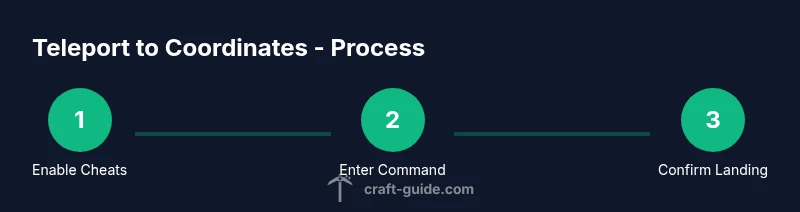
- 1
Enable cheats and prepare
Open your world with cheats enabled or be an operator on a server. This ensures you can run /tp commands. Confirm you’re in a safe test area to avoid accidental harm from teleporting.
Tip: Use a test world to learn the syntax before using teleports in a survival run. - 2
Open the chat or command interface
Press the chat key (usually T) or the slash command entry to begin typing. Command input flexibility varies slightly between Java and Bedrock editions.
Tip: Use Tab to auto-complete names and coordinates to reduce typos. - 3
Decide your target coordinates
Choose three values for X, Y, and Z. Absolute values place you at lock steps; relative inputs use ~ to shift from your current position.
Tip: Double-check Y to avoid landing inside blocks; typical safe Y is near ground level. - 4
Teleport to fixed coordinates
Enter a fixed set of coordinates (e.g., /tp @p 100 65 200). This instantly relocates you to the exact spot.
Tip: Verify space ahead before landing; stairs, water, or lava nearby can cause issues. - 5
Teleport with relative coordinates
Use ~ to move relative to your current location (e.g., /tp @p ~10 ~ ~-5). This is handy for pathing and quick detours.
Tip: Combine with yaw/pitch to align your view after moving. - 6
Teleport to another player
Target a player by name or selector (e.g., /tp Notch or /tp @p Notch). This is common in multiplayer coordination.
Tip: Ensure the other player’s position is safe to avoid teleporting into hazards. - 7
Teleport with facing direction
Add yaw and pitch to control your facing after teleport (e.g., /tp @p 100 70 200 90 0).
Tip: Yaw 0 faces south; yaw increments rotate clockwise around the vertical axis. - 8
Verify and adjust
Move a few blocks away and verify your orientation and surroundings. If needed, teleport again with corrected coordinates or facing.
Tip: Always have a safe exit plan in case the destination is unsafe.
People Also Ask
How do I teleport to exact coordinates using a command?
Use /tp <targets> <x> <y> <z> [<yaw> <pitch>] in Java, or /tp <target> <x> <y> <z> [<yaw> <pitch>] in Bedrock. Replace with your coordinates or relative values using ~.
To teleport to exact coordinates, enter the /tp command with the coordinates you want, including optional facing values.
What version of Minecraft supports teleport commands?
Teleport commands exist in both Java and Bedrock editions, with minor syntax differences. Always check current edition documentation if you’re using a newer update.
Teleport commands exist in both major editions; verify syntax for your version.
Can I teleport to coordinates without enabling cheats?
Teleport requires cheats or operator permissions. If cheats are disabled, you won’t be able to run /tp commands.
No—cheats or admin permissions are needed to teleport.
How do I teleport to another player’s location?
Use the player’s name or selector, for example /tp Notch or /tp @p Notch. This moves your target to their current position.
Teleporting to another player uses their name in the command.
What should I do if I land in a wall or water?
If you land in a wall or water, teleport again to a nearby safe coordinate and check the area for obstructions.
If you land in a hazard, move to a safe spot and re-teleport.
Can I teleport across dimensions (Overworld to Nether/End)?
Yes, with coordinates appropriate to the target dimension. You must know where the destination is in that world and ensure it’s loaded.
Cross-dimension teleports are possible when you know the target location.
Watch Video
The Essentials
- Teleport commands move you instantly to coordinates.
- Absolute vs relative coordinates offer flexible navigation.
- Verify landing space before teleporting to avoid hazards.
- Java and Bedrock editions share core syntax with minor differences.
- Facing orientation after teleport helps you land facing the right direction.