How to See the Coordinates in Minecraft
Learn how to view XYZ coordinates in Minecraft across Java and Bedrock editions. This step-by-step guide explains what coordinates mean, how to enable on-screen displays, and practical tips to navigate, mine, and build with precision.


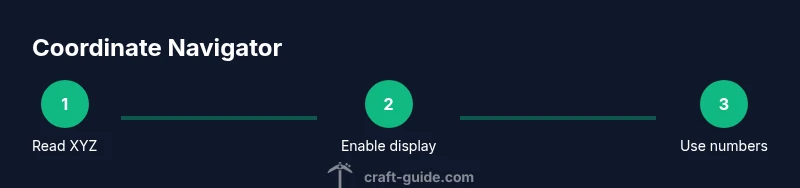
Goal: Learn how to see coordinates in Minecraft across Java and Bedrock editions. According to Craft Guide, coordinates are the X, Y, Z values that mark your position. Java Edition users: press F3 to open the debug screen where XYZ coordinates appear. Bedrock Edition: enable Show Coordinates in settings to display X, Y, and Z on screen. This quick guide covers both platforms.
What coordinates are and why they matter
According to Craft Guide, coordinates are the X, Y, Z numbers that pin your location in the world. In practical terms, they act like a map inside your game. The X value indicates east-west position, the Z value points north-south, and the Y value shows vertical height. Together, XYZ coordinates let you place yourself accurately, navigate to distant landmarks, or retrace a path to a base. Builders use coordinates to align structures, explorers use them to log cave systems, and redstone engineers rely on precise locations when wiring farms. Understanding coordinates reduces guesswork and makes large projects more efficient. This knowledge isn’t just useful for single-player worlds; on servers and realms, coordinates help you coordinate builds with teammates without sharing exact base locations verbally.
If you’re teaching younger players or sharing tips with friends, think of coordinates as a universal language inside Minecraft. They translate the three-dimensional landscape into three easy numbers you can write down, memorize, or plot on a map. Mastery comes from practice—move in measured steps, read the XYZ values, and compare where you started to where you’re going. Craft Guide emphasizes that familiarity with these numbers accelerates both navigation and resource gathering by eliminating blind wandering.
note: null},
Java Edition: viewing coordinates with the debug screen
In Java Edition, coordinates are exposed through the in-game debug screen. Press F3 to open the screen, and look for the XYZ values displayed prominently near the top. X and Z show horizontal position, while Y indicates vertical height. On some systems you may need to press F3 with the Fn key or adjust your keyboard settings if the function keys are mapped differently. The debug screen also reveals the player's current facing direction, which can help you orient yourself in unfamiliar terrain. Keep in mind that the debug screen contains a lot of data; focus on the XYZ trio when you need precise navigation. Craft Guide analysis shows that most players rely on these three numbers for efficient travel and base planning.
Tip: If the screen is cluttered, you can still note the XYZ values from the top area and close the full screen to continue playing. You can also press F3 to toggle other overlays on/off to reduce distraction while tracking paths.
noteType: null}
Bedrock Edition: showing coordinates
Bedrock Edition handles coordinate visibility slightly differently. To turn on a persistent on-screen display, go to Settings > Game and toggle Show Coordinates. Once enabled, X, Y, and Z will appear in the top-left corner (or wherever your device layout places overlays). This setting applies across worlds and dimensions, so you don’t have to re-enable it every time you load a new map. If you’re playing on consoles or mobile, the steps are the same, but the menu navigation may vary slightly by platform. Craft Guide analysis shows Bedrock players often rely on this toggle for consistent navigation, especially when exploring large caves or building above ground level.
If coordinates don’t update as you move, ensure you’re actively in the world (not paused in a menu) and that you’ve saved the setting. In some servers or realms, administrators may enforce display options; check server rules if coordinates seem restricted.
note: null}
Understanding the XYZ values and directions
XYZ coordinates are not just numbers; they map real-world directions inside your Minecraft world. X increases toward the east, while Z increases toward the south. Y tracks height, with 0 typically at bedrock level and higher numbers rising toward the surface. When you plan builds at a particular altitude or navigate to a distant biome, you’ll rely on the XYZ set to confirm you’re where you intended to be. If you’re coming from real-world cartography or navigation systems, you’ll notice similar logic—three axes define three dimensions, and your point in space is defined by three numbers.
Remember that while the values stay constant in a static seed, the terrain around you changes as you move. Use coordinates to log your favorite mining heights (for example, a sustainable mining layer) and to mark routes between landmarks. Craft Guide notes that consistency in recording XYZ data pays off during long expeditions and base-building projects.
note: null}
Practical uses: navigation, mining, and building with precision
Coordinates unlock precise navigation. When you’re seeking a specific biome, temple, village, or buried treasure, the XYZ values let you head straight there instead of wandering until something looks familiar. Builders use coordinates to align sections of a large build, ensuring each quadrant lines up perfectly. Miners target specific vertical levels to maximize ore yield, and you can plan mining routes at fixed Y-levels to optimize safety and efficiency. In multiplayer, coordinates help teammates coordinate base locations, raid paths, or resource-sharing routes without extensive chat or markers. Craft Guide’s practical approach emphasizes turning numbers into actionable in-game actions, so you can move confidently regardless of where you spawn.
To practice, start with a simple goal: reach a point at X=100, Z=-50 while staying near Y=64. Track your path by noting how each step changes the coordinates. After you reach the target, return to your base by following the inverse route you took. This kind of exercise strengthens spatial reasoning and makes future expeditions smoother.
note: null}
Troubleshooting common issues with coordinates
Sometimes coordinates don’t show up, or the values seem off. Common culprits include: coordinates hidden in Bedrock or on servers with restricted displays; being in a different dimension (nether or end) where coordinates still apply, but the surface floor may mislead traditional highway planning; outdated game versions or mods that alter UI elements; or simply not actively moving in the world, causing the display to pause. Start by checking the correct edition settings, then confirm you’re in a world where coordinates are allowed to display. If you’re on a server, verify with admins that coordinate display isn’t disabled by server rules. Craft Guide emphasizes a systematic approach: verify edition, verify settings, then test movement to confirm the display updates correctly.
note: null}
Practice scenarios to master coordinates
- Scenario 1: Find the coordinates of your current position; log X, Y, Z in a notebook and use them to navigate back to spawn.
- Scenario 2: Move to X=150, Z=200 and note the vertical changes (Y) you experience along the way; observe how elevation affects path length.
- Scenario 3: Build a grid-based base with checkpoints every 50 blocks on both axes; record each checkpoint’s coordinates and align modules of your build.
- Scenario 4: Locate a distant landmark by calculating a direct path using coordinates rather than circling the map.
Each scenario reinforces the habit of checking coordinates while moving and builds confidence for more complex builds and explorations.
note: null}
Tools & Materials
- Minecraft game (Java or Bedrock edition)(Install and access a world you want to explore.)
- Display device (PC, console, or mobile)(Ensure it can run Minecraft smoothly and show overlays.)
- Keyboard or controller(Used to press F3 (Java) or navigate menus.)
- Settings access (Game Settings for Bedrock)(Enable Show Coordinates to display coordinates on screen.)
- Optional: Map or minimap mod(Can help visualize coordinates on the fly.)
Steps
Estimated time: 15-20 minutes
- 1
Open Minecraft and load a world
Launch the game and load the world you want to explore. Make sure you’re in-game and actively moving, not in the pause menu. This sets the stage for coordinates to matter and ensures you can observe changes as you move.
Tip: Stay in a single session to keep XYZ values consistent while you practice. - 2
For Java Edition: open the debug screen
Press F3 to open the debug screen. Focus on the XYZ values at the top of the screen to read your current coordinates. The Y value shows altitude, important for mining at specific depths and planning builds.
Tip: If the screen is too crowded, take a quick screenshot or note the XYZ values with a mobile device. - 3
For Bedrock Edition: enable Show Coordinates
Navigate to Settings > Game and toggle Show Coordinates on. The X, Y, and Z values will appear on screen, typically in the top-left corner. This setting persists across worlds and dimensions.
Tip: On mobile, you may need to adjust the overlay position in accessibility settings if it covers the view. - 4
Understand what X, Y, Z mean on screen
X is east-west, Z is north-south, and Y is vertical height. Use these values to locate bases, caves, or structures at precise elevations. Compare changes as you move to quantify distance and direction.
Tip: Practice by moving along a straight line and watching how coordinates change. - 5
Record coordinates after reaching a target
Once you arrive at a target, write down the XYZ values. Use them to create a personal waypoint or mark a map. This helps you return later without retracing steps.
Tip: Keep a simple log in a notebook or a text file for quick reference. - 6
Test a round trip using coordinates
Return to your starting point or to a known landmark by following the opposite path of values you recorded. This confirms your understanding of how coordinates translate to movement.
Tip: Double-check altitude (Y) if you’re navigating through different elevations.
People Also Ask
What are coordinates in Minecraft and why should I learn them?
Coordinates are three numbers (X, Y, Z) that pinpoint your position in the Minecraft world. They help you navigate, locate resources, and plan builds with precision. Learning them makes exploration faster and reduces wasted time.
Coordinates are the three numbers that show where you are in the world, so you can navigate and build more accurately.
Do coordinates work the same in Java and Bedrock editions?
The concept is the same, but the display and steps to enable coordinates differ. Java uses the debug screen (F3) and Bedrock uses a Show Coordinates toggle in Settings. Both provide XYZ values to guide your movements.
Yes, both editions show X, Y, and Z, but the method to activate them differs.
Can I copy coordinates directly?
In Java Edition, you can read and copy the XYZ values from the debug screen. On Bedrock, you typically copy them manually or use a device tool to record the values.
You can copy them from the on-screen display or jot them down, depending on your edition.
What does the Y coordinate represent?
Y is the vertical height: it tells you how high or low you are in the world. It’s crucial for mining depth, building levels, and avoiding lava or water at certain elevations.
Y tells you how high you are, which is important for mining and building at the right level.
What should I do if coordinates aren’t showing?
Check edition settings, ensure you’re in a real world (not spectator mode), and verify there’s no server rule hiding coordinates. Restart the game if needed and re-enable Show Coordinates.
If coordinates aren’t visible, recheck the settings and try a quick restart.
Watch Video
The Essentials
- Grasp XYZ coordinates: X (east-west), Y (height), Z (north-south)
- Java and Bedrock show coordinates differently—master both methods
- Use coordinates to navigate, mine at specific levels, and align builds
- Craft Guide's takeaway: practice with real tasks to build spatial intuition