How to Check Minecraft Coordinates
Learn how to check coordinates in Minecraft across Java and Bedrock editions, read XYZ on the HUD, and use commands to navigate precisely. This Craft Guide tutorial covers practical tips, common pitfalls, and a workflow you can reuse in builds and explorations.


According to Craft Guide, you will learn how to check Minecraft coordinates across Java and Bedrock editions, using in-game overlays (F3 or settings), and to interpret X, Y, and Z values. This guide also covers teleport commands and practical tips for recording coordinates and testing accuracy in safe areas for builders.
Understanding Minecraft coordinates
In Minecraft, coordinates are a precise way to describe a location in the vast blocky world. Each position is defined by three values: X, Y, and Z. X measures east-west distance, positive toward the east, while Z measures north-south distance, positive toward the south. Y indicates vertical height, starting at bedrock and increasing as you ascend, with practical limits set by your edition and world height. Together, XYZ coordinates form a 3D grid that lets you locate a specific block, a landmark, or a far-off biome. The origin (0, 0, 0) serves as a reference point in many tutorials, but you’ll rarely stay there as you explore and build. As you move, your coordinates update in real time on the screen, and these numbers become essential for navigation, collaboration, and precise construction. Mastery of coordinates supports exact builds, efficient routing, and better coordination with teammates on large projects. This knowledge becomes the mental map you carry into every adventure.
Reading coordinates in Java Edition (F3 HUD)
Java Edition exposes coordinates via the in-game debug screen, usually accessed by pressing F3. On the right-hand side of the screen you’ll see the Position line with X, Y, and Z values that update as you move. X indicates east–west position, Z indicates north–south position, and Y shows vertical height. You can copy these values to notes or clipboard for planning. When you’re testing builds, the F3 HUD also reveals your current facing direction and chunk coordinates, which helps you align doors, torches, and pathways with a grid system. For builders, it’s common to note the X and Z of key anchors and then use relative movements or /tp commands to reach exact offsets from those anchors. If you’re troubleshooting, re-open the HUD when you encounter odd offsets or lag in the display, since the values refresh with movement and chunk loading.
Reading coordinates in Bedrock Edition (Show Coordinates)
Bedrock Edition keeps coordinates accessible through the Settings menu, typically under Show Coordinates. Enable this and return to your world; the overlay displays X, Y, and Z in real time. The layout may differ slightly from Java, but the three-values system remains the same. Bedrock’s coordinates work across platforms, including Windows 10, consoles, and mobile devices, which makes it convenient for cross‑play projects. Remember that the coordinate readout reflects your current dimension and position, so you’ll often see separate values when you travel to the Nether or the End. Use the numbers to map bases, caves, sea routes, and resource farms with the same precision you’d apply on Java. The skill comes from switching between view modes and ensuring the overlay stays visible as you move.
How coordinates relate to builds, maps, and waypoints
Coordinates are the actual GPS-like markers you place on a grid-based world. When planning large builds, record anchor points and map their coordinates to a grid so you can reproduce patterns precisely. Maps and minimaps provide a visual reference, but the on-screen coordinates guarantee accuracy. If you’re using a map, gridlines help translate X and Z values into a location on the map, while Y indicates vertical placement (height) for floors and roofs. In multiplayer builds, agreeing on a shared coordinate system prevents misaligned structures and makes it easier to guide teammates to the correct spots. Keep a simple reference sheet with landmark coordinates (spawn, chest caches, portals) for quick navigation during sessions.
Using commands to move and verify positions
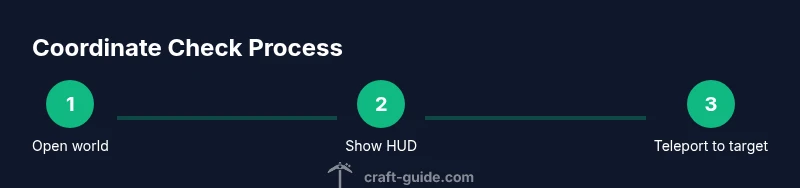
Commands offer reliable, repeatable navigation to specific coordinates. In Java Edition, the standard teleport command is /tp @p X Y Z. Bedrock Edition supports a similar syntax. You can also use relative coordinates to move from your current position, for example /tp @p ~10 ~ ~-5 would move you ten blocks east and five blocks south. When testing a new location, first verify its coordinates on-screen, then perform a teleport to the target and verify again. For safety, practice in a controlled area or with a sheltered platform while you learn the commands. If you’re on a server with strict anti-teleport rules, consult the admin before attempting large teleports.
Practical workflow: check coordinates during a build
A practical approach is to set a central anchor (0, 64, 0, for example) and map all surrounding features from that point. Start by noting the anchor’s coordinates and dimensions. As you extend pathways, fences, or rooms, pause to read the current coordinates and compare them to your plan. For multi-floor builds, you’ll often keep a running list of coordinates for each level, then refer back during construction to maintain alignment. In creative mode, you can place markers or blocks at target coordinates to visualize complex layouts before committing to the build.
Common mistakes and how to fix them
Common mistakes include reading the wrong axis, confusing X with Z, or misinterpreting Y as height above sea level rather than height above bedrock in some contexts. Always confirm which dimension you’re in when moving between worlds, and be aware that the Nether and Overworld coordinates differ in translation across dimensions. If coordinates lag or shift during fast travel, give the game a moment to load the new chunks and re-check the HUD. When using /tp, ensure target coordinates are safe and not behind solid blocks to avoid suffocation or falls.
Quick troubleshooting for coordinate issues
If coordinates look off, start by re-opening the overlay to refresh the numbers. Ensure you’re in the correct edition and that you haven’t inadvertently hidden the coordinates. In Bedrock, verify that Show Coordinates remains enabled after you switch screens or modes. If you’ve applied resource packs or mods that alter the HUD, revert to a clean state to test whether the overlay is affected. Finally, test teleport commands in a secluded area to confirm they function as expected and don’t place you inside blocks.
Building confidence: practice drills for coordinates
The fastest way to gain fluency with coordinates is deliberate practice. Create a small grid in a flat area and assign coordinates to each cell. Move between cells using the HUD to confirm your understanding of the X and Z values, then try a few teleports to nearby cells to build intuition about stepping through the grid. Repeat the exercise in both Java and Bedrock, noting any interface differences. Over time, you’ll instinctively know where to look on the overlay and how to translate those numbers into real-world placements in your builds, farms, and adventures.
Tools & Materials
- Minecraft game (Java or Bedrock edition)(Choose edition you will work with in this guide)
- Display device (PC, console, or mobile)(Capable of running Minecraft and showing the overlay)
- F3 key (Java) or Show Coordinates setting (Bedrock)(For viewing coordinates inline)
- Notepad or notes app(Record coordinates during builds)
- Screenshot tool(Capture coordinates for sharing)
Steps
Estimated time: 20-30 minutes
- 1
Launch Minecraft and load your world
Open the game, select the correct world, and ensure you’re in the edition you’re studying. This prepares the HUD to display real-time coordinates as you move.
Tip: Have a safe area ready before testing large position changes. - 2
Open the debugging overlay to reveal coordinates
In Java edition, press F3 to bring up the debug screen with the Position line (X, Y, Z). In Bedrock, enable Show Coordinates in Settings to show the same three values.
Tip: If the HUD hides, toggle the overlay off and on again to refresh. - 3
Read the X, Y, Z values accurately
Note X for east-west, Z for north-south, and Y for height. The numbers update as you move, so re-check after any significant step.
Tip: Record anchors (like spawn or a doorway) for quick reference. - 4
Record coordinates for your objective
Copy or write down the coordinates of the target location so you can return precisely, or use them as a waypoint in your plan.
Tip: Use a grid system to map plan points to coordinates. - 5
Enable coordinates on Bedrock if needed
If you don’t see coordinates, go to Settings > Show Coordinates and toggle it on, then return to your world.
Tip: Keep the overlay visible during exploration for consistent logging. - 6
Teleport to a target coordinate to verify
Use the command /tp @p X Y Z to move to the coordinate and confirm you’ve arrived by re-reading the HUD.
Tip: Test in a safe area first to avoid falling into hazards. - 7
Practice with relative coordinates
Try commands like /tp @p ~10 ~ ~-5 to move relative distances and verify your new position.
Tip: Relative moves help when mapping a new area without noting every absolute coordinate. - 8
Integrate coordinates into builds
Use anchors and a grid to ensure consistency between levels, rooms, and features, especially in multi-player builds.
Tip: Document coordinate plans for teammates to follow. - 9
Review and refine your workflow
After a session, re-check a few key coordinates to confirm your memory and notes are accurate, then adjust your plan if needed.
Tip: Regular practice reduces misplacements over time.
People Also Ask
What do the XYZ axes represent in Minecraft coordinates?
X is east-west position, Y is vertical height, and Z is north-south position. They update as you move and form the 3D grid you navigate.
X is east-west, Y is up and down, Z is north-south. They update as you move.
How do I show coordinates in Java and Bedrock?
In Java, press F3 to display the debug HUD with coordinates. In Bedrock, enable Show Coordinates in Settings to reveal X, Y, and Z.
In Java use F3; in Bedrock enable Show Coordinates.
How can I teleport to coordinates safely?
Use the teleport command, like /tp @p X Y Z, and always test in a safe area to avoid hazards or getting stuck in blocks.
Use /tp to go to coordinates and test in a safe area first.
Do Nether coordinates translate to Overworld coordinates?
Nether coordinates don’t translate one-to-one with the Overworld; you typically translate distances by a 1:8 ratio when mapping routes.
Nether and Overworld distances don’t map 1:1; translations are needed.
Can I copy coordinates from the HUD?
Yes, you can copy X, Y, Z values from the HUD or manually note them for your build plan and sharing.
You can copy coordinates from the HUD for later use.
What if coordinates don’t update as I move?
Check that the coordinates overlay is visible, ensure you’re in the intended edition, and refresh the HUD if needed.
Make sure the overlay is visible and refresh if needed.
Watch Video
The Essentials
- Know what X, Y, Z mean and how to read them.
- Use F3 (Java) or Show Coordinates (Bedrock) to view positions.
- Test moves with /tp to verify accuracy.
- Record coordinates for quick navigation and collaboration.