Minecraft TP Command Guide: Practical Teleport Tips
Learn how to use the tp command in Minecraft to teleport players and entities safely. This guide covers syntax, cross-dimension teleports, practical examples, and best practices for builders and explorers.


Teleporting with the tp command in Minecraft lets you move yourself or other players to exact coordinates, to other entities, or across dimensions using precise syntax. It’s ideal for builders and explorers, but requires permissions and careful coordinates to avoid unsafe spawns. According to Craft Guide, this overview covers practical uses and safety basics.
Understanding the tp command in Minecraft
The tp command is one of the most versatile tools in Minecraft, enabling you to move yourself or other entities. It reduces travel time, helps with building and debugging, and supports both same-dimension and cross-dimension teleports. According to Craft Guide, mastering teleportation simplifies large builds and survival exploration alike. When you enter a tp command, Minecraft resolves the destination as a position in the world or as an entity, and the source becomes the thing you want to move. The core idea is straightforward: specify what you want to move and where you want to move it. This command works in both single-player and multiplayer environments, provided you have permission to run commands. Safety matters: teleporting into water or into walls can be dangerous; always verify that the destination is safe before hitting Enter.
Syntax and basic usage
Minecraft provides several forms of the tp command, depending on what you want to achieve. The most common patterns are:
- /tp <dest> <x> <y> <z> – Teleports the destination (usually a player or entity) to the specified coordinates.
- /tp <target> <x> <y> <z> – Moves a specific target to coordinates. If your target is a player, you move that player to the indicated location.
- /tp <target> <other> – Teleports a target to the position of another entity. For example, /tp Alex Steve sends Alex to Steve’s position.
- /tp <target> ~ <y> ~ – Uses relative coordinates, offsetting the current position by the tilde values.
- /tp <target> <x> <y> <z> <Yaw> <Pitch> – Optional rotation values set the facing direction after teleporting.
Cross-dimension teleports require an extra step: use /execute in <dimension> run tp <target> <x> <y> <z>, which runs the teleport command inside a specific dimension. These forms are supported in Java and Bedrock Editions, though exact syntax may vary slightly by version. Practice on a test world to understand edge cases.
Teleporting within the same dimension vs across dimensions
Teleporting within the same dimension is straightforward: /tp @p 100 65 200 moves the nearest player to those coordinates, provided the target exists and the destination is in bounds. When you need to teleport across dimensions (for example, from the Overworld to the Nether), you cannot simply specify a fixed destination in another dimension. The recommended approach is to use /execute in <dimension> run tp <target> <x> <y> <z>. This form executes the teleport in the chosen dimension, ensuring the target appears in the correct world. For accuracy, use absolute coordinates or explicit referencing to an entity’s position. You can also pair this with ~ offsets to fine-tune placement, or include yaw/pitch to orient the player on arrival. Always verify the destination’s safety—look for solid ground, adequate air space, and avoid landing inside blocks or liquids.
Common pitfalls and safety checks
Before teleporting, check permissions and ensure you’re in a world where commands are allowed. Always confirm the destination coordinates or the target entity exist; attempting to tp a non-existent target will produce an error. Avoid landing inside blocks, water, or lava—test routes in a safe area first. Use relative coordinates (the ~ syntax) to test small offsets, then switch to absolute coordinates for precision. If you’re unsure, practice in a test world or dedicated testing server. After a successful teleport, consider setting a safe spawn point with /spawnpoint or a bed to reduce risk if you need to retry.
Advanced tips: rotation, facing, and chaining commands with selectors
You can control where you land by adding yaw (rotation around the vertical axis) and pitch (tilt) after the coordinates: /tp <target> <x> <y> <z> <Yaw> <Pitch>. This makes arrivals co-located with your build view or facing a specific direction. You can also teleport to another entity’s exact location using /tp <target> <other>, which is useful for guiding players to a partner or guide. For complex setups, combine tp with /execute to run teleports in a chosen dimension or context, enabling multi-step teleports for groups or events. Remember that selectors like @p, @a, @r can simplify commands in large builds.
Real-world example walkthroughs
Example 1: Teleport yourself to coordinates. In a safe test world, enter: /tp @p 120 65 200. You should arrive at the specified location with default orientation. Example 2: Move another player to someone else’s location. If you want Alex to appear where Steve is, use: /tp Alex Steve. Example 3: Cross-dimension teleport. To send Alex from the Overworld to the Nether, use: /execute in the_nether run tp Alex 50 70 -20. Always test in a controlled environment before using teleports in survival worlds.
Tools & Materials
- Minecraft (Java or Bedrock edition)(Ensure version compatibility for tp syntax (e.g., Java vs Bedrock differences).)
- Command permissions (OP or cheats enabled)(You must be allowed to run commands.)
- World testing area (safe space)(Create a dedicated testing world to practice.)
- Access to in-game chat/console(Enter commands accurately; avoid typos.)
- Coordinate planning tools (notebook or map)(Optional for pre-planned coordinates.)
Steps
Estimated time: 15-25 minutes
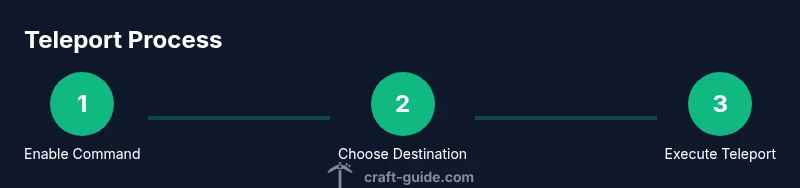
- 1
Enable commands and choose a target
Open your world with cheats enabled and decide which player or entity to teleport. This ensures you can test and verify results without affecting others.
Tip: If you’re testing, use a dedicated test world to avoid disruptions. - 2
Choose destination (coordinates or entity)
Decide whether you’ll use exact coordinates or relocate to another entity. If you use coordinates, plan the exact X, Y, and Z values and consider the ground safety.
Tip: Start with nearby coordinates to verify setup before using far-away locations. - 3
Enter the tp command
Type the command into chat or console with correct syntax. Double-check target and destination to avoid mistakes.
Tip: Copy-paste from a saved snippet to minimize typos. - 4
Verify arrival and adjust if needed
Observe arrival location for safety and alignment. If you land in a block or unsafe space, retry with adjusted coordinates or a different destination.
Tip: Use small offsets first before committing to larger changes. - 5
Cross-dimension teleport
For inter-dimensional moves, use the execute-in pattern to teleport within the target dimension. This prevents cross-dimensional errors.
Tip: Test cross-dimension teleports in a separate testing world before applying in production worlds.
People Also Ask
What does tp stand for in Minecraft?
TP stands for teleport. The command moves entities to coordinates or to the position of another entity, in same or different dimensions depending on the syntax.
Teleport moves a player or entity to a new location, either by coordinates or by following another entity.
How do you teleport to specific coordinates?
Use /tp <target> <x> <y> <z> or /tp <destination> <x> <y> <z> depending on what you’re moving. For yourself, /tp @p 100 64 -20 teleports you to those coordinates.
Type the command with the target and coordinates, then press Enter to teleport.
Can you teleport one player to another player's location?
Yes. Use /tp <target> <other> to move the first player to the second’s location, for example /tp Alex Steve.
Use the command to send one player to where another is standing.
How do you teleport across dimensions?
Cross-dimension teleport requires /execute in <dimension> run tp <target> <x> <y> <z>, which runs the teleport in a chosen dimension.
Use execute in to perform the teleport inside the target dimension.
What permissions are needed to use tp?
You need operator rights or cheats enabled in the world, or appropriate permissions on a server to run tp.
You need operator status or cheats enabled to run teleport commands.
What are relative coordinates and how do you use them?
Relative coordinates use the tilde symbol (~). For example, /tp @p ~1 ~ ~-2 moves you one block in the X direction and two blocks in the Z direction from your current position.
Use tilde offsets to move relative to your current position.
Watch Video
The Essentials
- Learn the tp syntax variants for different destinations
- Always validate safety before teleporting
- Use cross-dimension techniques with execute-in when needed
- Practice in a dedicated test world to minimize risk