How to Put Minecraft in Steam: A Step-by-Step Guide
Learn how to add Minecraft to Steam as a non-Steam game so you can launch it from your Steam library, use the Steam overlay, and customize controls. This guide covers Java and Bedrock editions, limitations, and troubleshooting.


Yes—you can’t officially install Minecraft through Steam, but you can add the Minecraft launcher as a non-Steam game to your Steam library. This lets you launch Minecraft from Steam, use the overlay, and customize controls. The setup involves locating the Minecraft launcher executable, adding it via Add a Non-Steam Game, and using Steam launch options if needed.
Why add Minecraft to Steam
For many players, adding Minecraft to Steam is about convenience. It creates a single access point for your PC gaming, letting you launch Minecraft from your Steam library, rather than navigating to multiple folders or launchers. Steam’s overlay can enhance chat, screenshots, and in-game sharing, which some players value for a smoother experience. According to Craft Guide Analysis, 2026 this approach is a popular workaround for players who want a unified launcher, especially on shared machines or when streaming Minecraft from a PC. It does not modify the official game files or license terms; it simply creates a Steam entry that launches Minecraft through its normal launcher. If you’re juggling multiple games or you use Steam Deck or SteamOS, this method can simplify access and keep your desktop tidy. Bear in mind that Steam achievements, cloud saves, and in-game progression aren’t tied to Minecraft unless the game itself is integrated into Steam. The rest of this guide breaks down how to set this up and what to expect in terms of performance and compatibility.
What you can and can't expect when using non-Steam game integration
Adding Minecraft to Steam as a non-Steam game is mostly about access and convenience, not about converting Minecraft into a Steam title. You’ll still launch Minecraft through its official launcher, and you’ll use Steam’s overlay features for chats, screenshots, and friends lists. Steam achievements will not track Minecraft progress because the game isn’t a Steam-published title. However, you retain the benefits of a familiar library, quick access, and the ability to assign a controller or keyboard profile through Steam settings. If you’re on a limited network, consider signing in with your Microsoft account securely, and remember that any account security concerns should be addressed in the Minecraft launcher settings rather than within Steam. This section highlights what works reliably and what doesn’t so you can plan accordingly.
Edition differences: Java vs Bedrock and launcher considerations
Minecraft comes in multiple editions, and the way you launch them from Steam differs. Java Edition uses the official Java-based launcher, while Bedrock Edition uses a separate Windows 10/11 Bedrock launcher or the Bedrock app from the Microsoft Store, depending on your setup. When you add the launcher to Steam, you’re effectively pointing Steam at whichever launcher you normally use. If you play Java Edition, the Steam entry will start the Java-based launcher; if you play Bedrock, you’ll launch the Bedrock launcher from Steam. Each edition has its own launcher updates, login flow, and performance characteristics, so expect occasional tweaks after updates. The key is to keep both the Minecraft launcher and Steam client up to date to minimize launcher conflicts and ensure smooth authentication.
Step-by-step guide to add Minecraft as a Non-Steam Game (at a glance)
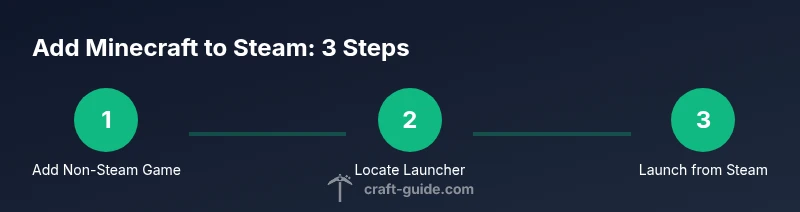
The following steps outline the process at a high level, so you know what to expect before you begin. You’ll use Steam’s Add a Non-Steam Game feature to create a shortcut that launches the Minecraft launcher, then adjust settings to optimize the experience. This section is designed to complement the detailed Step-by-Step block that follows and gives you a mental checklist before you start.
Troubleshooting common issues
If Minecraft doesn’t start from Steam, double-check the launcher path and ensure you selected the correct executable (e.g., MinecraftLauncher.exe for Windows or the appropriate macOS path). Some users encounter issues after updates; try re-adding the launcher or refreshing Steam’s library cache. If overlay features aren’t working, verify that Steam Overlay is enabled for non-Steam games in Steam > Settings > In-Game. For Linux users with Proton, remember that performance and compatibility can vary by distro and driver version, so you may need to adjust Proton versions or use a compatibility layer with care.
Performance and optimization tips
Performance and stability depend on your hardware, the edition you play, and how you tune the launcher. Ensure you have adequate RAM allocated to Minecraft through the launcher settings, disable dynamic resolution if applicable, and update graphics drivers regularly. If you experience input lag or stuttering when launching from Steam, try launching the launcher directly first, then launching from Steam to confirm the path is correct. You can also map Steam controller profiles to the Minecraft launcher to improve control schemes and reduce friction during play.
Tools & Materials
- Steam client(Install and keep up to date)
- Minecraft launcher (Java Edition or Bedrock Edition)(Official launcher from Mojang/Microsoft)
- PC capable of running Minecraft(Windows 10/11 or macOS; ensure minimum RAM is available)
- Internet connection(For downloads, login, and updates)
- Administrative access(Needed for certain launcher changes or path adjustments)
Steps
Estimated time: 15-25 minutes
- 1
Open Steam and add a non-Steam game
In Steam, go to Games > Add a Non-Steam Game. This creates an entry in your library that launches another program instead of a Steam-published game.
Tip: Choose a clear name like 'Minecraft Launcher' to avoid confusion later. - 2
Browse to the Minecraft launcher executable
Click Browse and navigate to the Minecraft Launcher executable on your PC (e.g., MinecraftLauncher.exe on Windows). The exact path depends on where you installed Minecraft.
Tip: If you use the Bedrock launcher, point Steam to its executable instead. - 3
Add the launcher to Steam
Select Add Selected Programs. The Minecraft launcher now appears in your Steam library as a non-Steam title.
Tip: If the program isn’t listed, verify the file extension and location; you may need to re-run the browse dialog. - 4
Rename and organize
Right-click the new entry and choose Properties to rename it and adjust launch options if needed for a smoother start.
Tip: Use a consistent naming scheme across your library for easy identification. - 5
Launch and sign in to Minecraft
From Steam, launch the Minecraft launcher, then sign in with your Microsoft account and start your game as usual.
Tip: Ensure you’re online for authentication and verify the correct edition is selected. - 6
Fine-tune Steam settings
In Steam, adjust overlay, controller configurations, and screenshot options for a smoother experience.
Tip: If you encounter input issues, try disabling the Steam overlay for this non-Steam entry.
People Also Ask
Can I earn Steam achievements for Minecraft when added as a non-Steam game?
No. Steam achievements apply to titles that are integrated with Steam; non-Steam entries won’t trigger them.
Steam achievements won’t apply to Minecraft when it’s added as a non-Steam game.
Will this work for Minecraft Java Edition and Bedrock Edition?
The method works by launching the respective launcher from Steam. Java Edition uses the Java launcher; Bedrock uses its own launcher on Windows or the Bedrock app, depending on your setup.
It works by launching the Minecraft launcher; Java and Bedrock have different launchers.
Will Steam Overlay and screenshots work with Minecraft?
Overlay features typically work for non-Steam games, but results can vary. Screenshots and chat may be available depending on your system.
You can usually use Steam overlay features, but outcomes may vary.
Can I use this on a Steam Deck or Linux with Proton?
Yes, you can attempt to add the Windows launcher as a non-Steam game, but performance depends on Proton compatibility and driver support.
It can work on Steam Deck if Proton handles the launcher, but results vary.
Will updating Minecraft affect the Steam entry?
Minecraft updates are managed by the official launcher; Steam’s entry remains a launcher shortcut. Updates won’t uninstall or replace Minecraft through Steam.
Steam won’t manage Minecraft updates; the launcher handles updates.
How do I remove Minecraft from Steam later?
In your Steam Library, right-click Minecraft entry and choose Remove from account or Delete. This only removes the shortcut, not Minecraft itself.
You can remove the entry from Steam’s library if needed.
Watch Video
The Essentials
- Add Minecraft as a non-Steam game for centralized access.
- Launch through Steam to use overlay and controller mappings.
- Know Java vs Bedrock differences when configuring the entry.