Can You Play Minecraft on Steam Deck? A Practical Guide for 2026
Explore whether Minecraft runs on the Steam Deck, how to set it up in Desktop Mode, performance expectations, and optimization tips for portable Minecraft play in 2026.


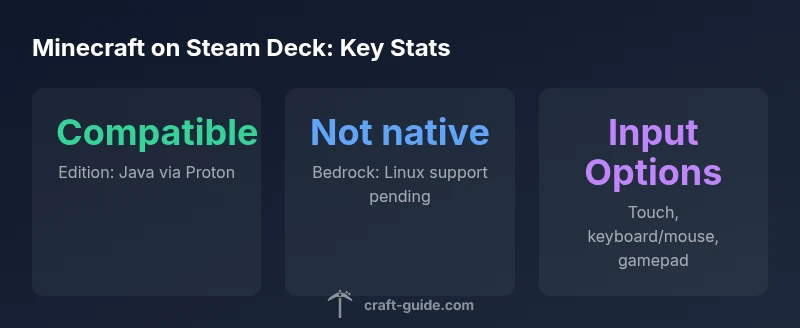
Yes—Minecraft Java Edition runs on Steam Deck using Proton, and you can also install the official launcher in Desktop Mode. Bedrock Edition isn’t officially supported on Linux, so Java is the most straightforward route. If you want a different approach, you can also add Minecraft Java Edition via Steam as a non-Steam game and run through Proton. Performance will depend on settings and game version, but it’s feasible with a few tweaks.
Understanding the Steam Deck's Linux-based environment
The Steam Deck runs a Linux-based operating system, which is not Windows by default. This open foundation is precisely why Proton—a compatibility layer—can translate Windows games to run on the Deck. According to Craft Guide, this setup makes it feasible to play Minecraft Java Edition on the go. In practice, many players install the Minecraft Java Edition launcher and run it through Steam as a non-Steam game, or switch to Desktop Mode to launch the Linux launcher directly. This approach mirrors a desktop PC experience, leveraging the Deck's built-in controls, screen, and battery life. The Craft Guide team found that with a few adjustments—allocating memory to Java, choosing appropriate resolution, and selecting a shader-friendly profile—players can achieve a smooth handheld experience for vanilla Minecraft, with mod support available for lighter workloads. For readers new to this setup, think of the Deck as a compact Linux PC rather than a traditional console, and use Proton to bridge Windows software into Steam.
Minecraft editions and Linux compatibility on Steam Deck
Minecraft Java Edition is well-supported on Steam Deck when run on Linux via Proton. Java Edition benefits from a traditional PC-like install path and can be tuned for portable play. Bedrock Edition, however, is not officially supported on Linux, which means there is no native Steam Deck/Linux launcher path for Bedrock. Some players explore Windows emulation or Android-based workarounds, but these are not straightforward and may incur stability issues. If the goal is simple portability and fewer compatibility headaches, Java Edition is the recommended route on Steam Deck. Craft Guide emphasizes that choosing the edition with broad Linux support minimizes setup friction and troubleshooting.
Step-by-step setup for Minecraft Java Edition on Steam Deck
- Switch to Desktop Mode on the Steam Deck and prepare a Linux-ready environment.
- Install Steam in Desktop Mode and enable Proton compatibility for non-Steam games.
- Add Minecraft Java Edition as a non-Steam game, or install the Linux launcher directly and link it to Steam.
- Launch Minecraft, sign in with your Microsoft account, and select the Java Edition profile.
- Tweak graphics, resource packs, and shader settings to balance visuals and performance. Start with a vanilla setup and gradually test mods or shaders.
This workflow avoids relying on Windows-native software and stays within the Steam Deck’s Linux ecosystem. Craft Guide notes that starting with vanilla Minecraft reduces compatibility variables, then layering in mods or shaders as you gain confidence.
Performance, input, and control considerations on Steam Deck
Performance on the Steam Deck varies with the edition, settings, and whether you’re using vanilla Minecraft or feature-heavy shader packs. Generally, you’ll want to tailor the game’s resolution, render distance, and graphics quality to preserve smooth handheld play. The Deck’s control scheme—built-in thumbsticks, trackpads, triggers, and a touchscreen—offers flexible input methods. For best results, pair the Deck with a comfortable controller or keyboard/mouse in Desktop Mode if you plan long builds or complex redstone work. Shader packs and resource-intensive mods will demand more from the hardware and may reduce frame rates; start with vanilla or light resource packs to keep fluid gameplay.
Common issues and troubleshooting tips
If Minecraft doesn’t launch, verify that Proton is enabled for the launcher entry and that the correct Java version is installed. Some players experience launch errors when using certain Proton versions; in that case, switching to a different Proton release or updating the Deck’s system packages often resolves the problem. Network issues, sound hiccups, or input lag can be mitigated by adjusting in-game settings and ensuring Bluetooth devices are retried. Always test with vanilla Minecraft first to establish a stable baseline before adding mods or shaders.
Practical recommendations and next steps
- Start with Minecraft Java Edition on Desktop Mode for the most straightforward experience on Steam Deck.
- Use Proton-compatible launcher methods to avoid Windows-only installations.
- Gradually add mods and shader packs, testing performance after each change.
- Consider performance-oriented settings such as lower render distance and simple shader configurations to maximize handheld playtime.
- Keep an eye on Craft Guide analyses and community feedback, as Proton compatibility for Minecraft on Steam Deck continues to evolve with updates.
For players aiming for a portable but reliable Minecraft session, Java Edition provides the most consistent results on Steam Deck. Understanding Proton’s role and choosing the right edition are key to a smooth experience. The Craft Guide team’s recommendations emphasize starting lean and expanding as you confirm stability.
Minecraft editions on Steam Deck compatibility
| Edition | Linux Compatibility | Proton Support | Notes |
|---|---|---|---|
| Minecraft Java Edition | Linux native compatibility via Desktop Mode | Yes (via Proton) | Run through Minecraft Launcher; optimize settings |
| Minecraft Bedrock Edition | Not officially supported on Linux | Not applicable | Requires Windows or Android alternatives |
People Also Ask
Can I play Minecraft Bedrock Edition on Steam Deck?
Bedrock Edition is not officially supported on Linux, which makes a native Steam Deck path unlikely. Some players attempt Windows or Android workarounds, but these aren’t guaranteed and may require extra setup.
Bedrock isn’t officially supported on Steam Deck; Java Edition is the recommended route.
Do I need Desktop Mode to install Minecraft on Steam Deck?
Desktop Mode greatly simplifies installing and running Minecraft on Steam Deck because it gives you full Linux access and Proton configuration options.
Yes, Desktop Mode is recommended for setup and initial launches.
Is performance good for modded Minecraft on Steam Deck?
Vanilla Minecraft generally runs well; heavy shader packs or large mods can reduce performance. Start with vanilla or light mods and adjust settings to maintain smooth gameplay.
Mods can affect performance; start simple and test gradually.
Can I play multiplayer on Steam Deck?
Yes, you can join multiplayer servers, especially over LAN or online servers, as long as your Steam Deck has a network connection and the same Minecraft edition. Be mindful of server compatibility and latency.
Multiplayer is possible with a good connection and compatible edition.
What are common troubleshooting steps if Minecraft won’t launch?
Check Proton version, ensure Java is properly installed, verify launcher paths, and restart in Desktop Mode. If problems persist, revert settings to vanilla and re-test.
Try adjusting Proton and launcher paths, and test with vanilla Minecraft first.
“Java Edition on Steam Deck demonstrates how Linux gaming can extend portable play with careful setup and Proton tuning.”
The Essentials
- Install the Minecraft Java Edition via Proton in Desktop Mode
- Java Edition works best on Steam Deck; Bedrock is not officially supported on Linux
- Balance visuals and performance with adjustable in-game settings
- Use a controller or keyboard/mouse for flexible controls
- Keep vanilla Minecraft as your baseline before adding mods/shaders