How to Minecraft on Mobile: The Complete Guide 2026
Learn how to Minecraft on mobile with a clear, beginner-friendly approach. This guide covers setup, controls, world creation, survival basics, and tips for smooth play on Android and iOS.


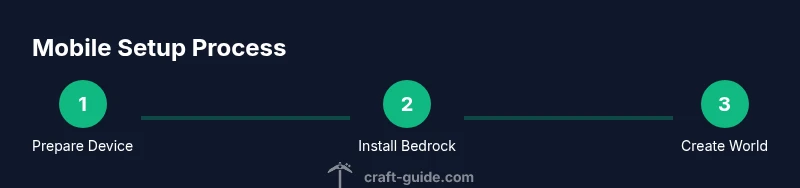
Goal: Learn how to Minecraft on mobile by setting up your device, installing the Bedrock Edition, signing in with a Microsoft account, and starting your first world. You’ll prepare a compatible smartphone, ensure a stable internet connection, and configure basic settings. This quick-start gets you playing in minutes and lays the groundwork for deeper builds.
Understanding Mobile Minecraft: What Changes When You Play on a Phone
Playing Minecraft on a mobile device brings portability, touch-based controls, and simplified interfaces. The core experience—exploration, resource gathering, crafting, and building—remains the same, but performance and input methods require adjustments. This guide helps you learn how to minecraft in mobile with practical steps, so you can start building and exploring wherever you are. Craft Guide’s research shows that mobile play is widely accessible, but optimizing controls and settings is essential for a smooth session. If you’re coming from PC or console, expect smaller screen real estate and touch inputs that reward patience and practice.
In short, mobile Minecraft emphasizes accessibility and quick-start play, with a workflow designed for short sessions and on-the-go creativity. You’ll learn how to adapt your approach to touch controls, battery limits, and storage considerations while preserving the core gameplay loop that makes Minecraft so compelling.
Edition, Edition, Edition: What You Can Play on Mobile
The mobile Minecraft experience is based on the Bedrock Edition, which supports cross-platform play with Windows 10/11, consoles, and mobile devices. Java Edition is not officially available on phones, so new players should install Bedrock for the best mobile experience. This distinction matters for world sharing, marketplace content, and multiplayer compatibility. As Craft Guide analysis shows, choosing Bedrock ensures access to marketplace assets and consistent updates across devices.
When you’re ready to play with friends, you can join those using Bedrock on their devices. You’ll benefit from cross-play features, faster load times, and a more streamlined interface designed for touch input. If you already own Minecraft on another platform, Bedrock enables you to bring your progress with cloud saves and compatible worlds, depending on your platform accounts.
What You’ll Need Before You Start
To begin how to minecraft in mobile, gather a few essentials: a compatible smartphone (Android or iOS), the Minecraft Bedrock Edition app, a Microsoft account, and a reliable internet connection. Ensure your device is updated to the latest OS version and has adequate storage for game data, worlds, and add-ons. A stable charger or power bank helps during longer builds, and a comfortable grip or controller can improve precision on certain tasks. Having these prerequisites ready will minimize interruptions and keep your session focused on building and exploration.
Mobile Controls: Navigating with Touch
Mobile controls differ from keyboard and mouse, so taking time to customize your layout improves accuracy. Learn to tap, swipe, and pinch to move, look, and zoom. Most players start with a centered HUD and a simple movement scheme; you can rearrange the hotbar, enable item pickup, and practice two-finger drag to look around. Spend a few minutes configuring sensitivity and control positions to fit your hand size and play style. This foundation makes farming, mining, and combat more intuitive on mobile.
Creating Your First Mobile World: Start Fresh or Port an Existing World
To begin how to minecraft in mobile, decide between starting a new world or loading an existing one. New worlds let you customize game mode, difficulty, and world type (default, superflat, or creative). For beginners, starting in Survival with default settings helps you learn resource gathering, crafting, and shelter-building. If you have friends sharing a world, coordinate your seed and mode to ensure everyone can spawn nearby. As you gain confidence, experiment with Creative mode for rapid builds and testing designs.
Performance Tuning for Smooth Gameplay
Mobile devices vary in performance, so adjust settings to balance visuals and frame rate. Reduce render distance, lower fancy graphics, and disable resource-intensive features like fancy shadows when needed. Clearing background apps, keeping the device cool, and charging while playing can improve stability during longer sessions. If you notice lag during multiplayer or resource-heavy builds, switching to a lighter texture pack or Marketplace add-ons can help maintain a steady frame rate.
Survival Strategies for Mobile Play
In Survival mode, prioritize gathering basic resources: wood, stone, and food. Build a simple shelter before nightfall, craft essential tools, and establish a safe mining route. Mobile players benefit from keeping a steady collection of torches, a weapon for defense, and a reliable food source. Practice farming, hunting, and mining to sustain your character through early-game hazards. Always save frequently to protect your progress.
Creative Builds on Mobile: Quick Starts for Inspiration
Creative mode on mobile unlocks vast building potential without resource limits. Start with a foundational base such as a small starter house, then experiment with lighting, color blocks, and decorative elements. Use snap-to-grid and block rotation features to refine your design quickly. Plot your ideas in a notebook or digital document and translate them into a mobile build plan, then execute with patience and practice.
Common Issues and Quick Fixes for Mobile Players
If you encounter crashes, freezes, or login prompts, check for app updates, ensure sufficient storage, and restart the device. Clearing the game cache in settings can resolve many minor glitches. If multiplayer fails to connect, verify network stability, firewall settings, and that your account is signed in correctly. Regular backups prevent loss of progress during unexpected interruptions.
Expanding with Add-ons, Marketplace, and Community Servers
On mobile Bedrock, explore Marketplace content and add-ons to customize your world, creatures, and gameplay mechanics. While traditional mods are less common on mobile, addons offer safe, officially supported customization. You can also join community servers and realms for shared builds, but ensure you follow server rules and privacy settings. This section helps you plan for future expansions and collaborative play.
Safety, Privacy, and Account Security on Mobile
Protect your Microsoft account by using a strong password, enabling two-factor authentication, and avoiding public Wi-Fi for login. Be mindful of app permissions and data sharing, especially when connecting to third-party servers or accounts in multiplayer. Regularly review privacy settings and consider enabling device security features like screen lock and app-level restrictions to safeguard your Minecraft experience.
Tools & Materials
- Smartphone (Android or iOS)(Latest OS version recommended for compatibility and performance)
- Minecraft Bedrock Edition(Purchased or downloaded via official store)
- Stable internet connection(Wi-Fi preferred; mobile data acceptable with reasonable limits)
- Power source(Charger or power bank for longer sessions)
- Controller or comfortable touchscreen setup(Optional for precise building or combat)
Steps
Estimated time: 45-60 minutes
- 1
Prepare your device
Update your OS to the latest version and free up storage so the game can install and run smoothly. Open the Microsoft or device app store, locate Minecraft Bedrock Edition, and install it. Sign in with a Microsoft account to enable cross-device progress.
Tip: Ensure at least 2-3 GB of free space for updates and patches. - 2
Install and sign in
Launch Minecraft Bedrock Edition, follow on-screen prompts, and sign in with a Microsoft account. If you don’t have one, create a new account and verify it. This step unlocks access to the Marketplace, servers, and cloud saves.
Tip: Keep your login credentials secure and enable two-factor authentication. - 3
Create your first world
From the main menu, select Create New, choose Survival, set a comfortable difficulty, and pick a seed or let the game generate one. Name your world and confirm settings to start playing immediately.
Tip: Consider a short seed with beginner-friendly terrain for faster learning. - 4
Adjust controls and graphics
Open Settings > Controls to customize touch layout, swap action buttons, and adjust sensitivity. In Settings > Graphics, balance render distance and performance to suit your device's capabilities.
Tip: Test different layouts until you find a comfortable fit. - 5
Gather basic resources
Begin by punching trees to collect wood, then craft basic tools and a crafting table. Upgrade to stone tools before advancing to more complex tasks like mining and farming.
Tip: Always carry a few torches to light your initial shelter. - 6
Build a starter shelter
Construct a simple shelter to protect yourself from nighttime mobs. Use a door, a roof, and walls with adequate lighting. This establishes a safe base for gathering resources in subsequent sessions.
Tip: Place a door on your preferred facing for easy nighttime exits. - 7
Explore and expand your world
Venture out gradually to collect resources, locate water, and find a suitable area for farming. Expand your shelter into a larger base as you learn more about mobs, biomes, and ore locations.
Tip: Mark your path with distinct blocks or torches to avoid getting lost. - 8
Save and back up progress
Regularly save your world and consider backing up your progress to the cloud or device storage. Quitting properly helps prevent corruption and lost builds.
Tip: Create a secondary save slot for experimentation. - 9
Experiment with creative modes
Switch to Creative mode for rapid prototyping and large builds. Use unlimited resources to test designs before committing them to Survival mode.
Tip: Use creative to plan complex builds before executing in Survival.
People Also Ask
Do I need Minecraft Java Edition to play on mobile?
No. Mobile devices use Minecraft Bedrock Edition, which supports cross-platform play and in-app purchases via the Marketplace. Java Edition is not available on mobile devices.
No, mobile players use Bedrock Edition, not Java.
Can I play offline on mobile?
Yes. You can play a single-player world offline, but features like cross-platform saves and Marketplace content require an internet connection.
Yes, you can play offline, but some features need the internet.
Is cross-platform play possible on mobile?
Yes. Bedrock Edition supports cross-platform play with compatible devices, including Windows, consoles, and other mobile devices, depending on account status.
Yes, you can play with friends on other devices if they’re on Bedrock.
Are mods available on mobile?
Mods are less common on mobile. You can use addons and Marketplace content to customize your experience, but traditional mods aren’t widely supported on mobile builds.
Mods aren’t common on mobile, but addons can customize your game.
Is it safe to join community servers on mobile?
Join reputable servers with clear rules and privacy settings. Be mindful of sharing personal data and use in-game moderation tools to report issues.
Join trusted servers and stay aware of privacy and safety rules.
Watch Video
The Essentials
- Learn Bedrock Edition is the mobile standard
- Customize touch controls for better accuracy
- Start with a safe starter shelter in Survival
- Leverage Marketplace content for quick customization
- Regularly save and backup your progress