How to Get Started on Minecraft Nintendo Switch
Learn how to get started on Minecraft Nintendo Switch with a practical, step-by-step guide. From prerequisites to your first world, Craft Guide helps beginners set up quickly and start building.


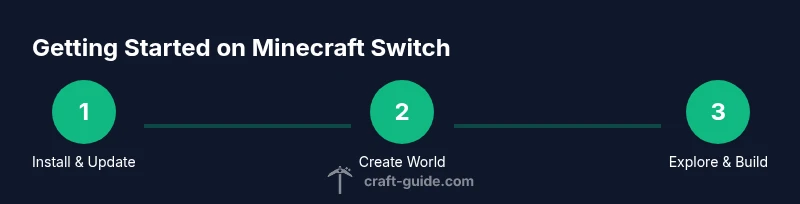
How to get started on Minecraft Nintendo Switch means setting up your account, installing the game, and learning the basics: creating a world, adjusting controls, and understanding online options. Before you dive in, make sure your Switch is updated, you have a linked Microsoft account for cross-play, and your copy of Minecraft is installed and up to date. This guide provides a clear, step-by-step path from power-on to your first world.
How to get started on minecraft nintendo switch: Prerequisites
Getting started on Minecraft Nintendo Switch is approachable and beginner-friendly when you prepare the right basics. Start with a functioning Nintendo Switch and a copy of Minecraft (physical cartridge or digital). Have a TV or monitor with an HDMI input, a comfortable controller (Joy-Cons or Pro Controller), and a stable internet connection for updates and cross‑play features. Ensure your Nintendo Switch firmware is current to avoid compatibility hiccups, and keep the game itself up to date. If your goal is online multiplayer, you’ll want a Nintendo account linked to a Microsoft account, plus a plan for online play if you intend to use multiplayer modes. By tidying these prerequisites first, you establish a solid foundation for a smooth, frustration-free start on how to get started on minecraft nintendo switch.
Setting Up Your Microsoft Account for Cross-Play
Linking a Microsoft account to Minecraft on Switch unlocks cross‑play, cloud saves, and access to the broader Minecraft ecosystem. If you don’t have one, you can create a Microsoft account for free and tie it to your Switch profile inside the game. The Craft Guide team notes that a linked account streamlines access to skins, servers, and Realms, making future multiplayer more reliable. Once connected, verify that your account shows as active in the Minecraft launcher on Switch and that you can sign in without errors. Having the account ready reduces friction when you jump into worlds, realms, or community servers.
Installing Minecraft on Nintendo Switch and First Launch
If you’re starting from scratch, locate Minecraft in the Nintendo eShop or insert your cartridge and install the game. After installation, launch Minecraft and follow the on-screen prompts to sign in with your Microsoft account. Expect a short initial update check; allow it to complete to ensure you have the latest fixes and features. On first launch, you’ll be prompted to adjust privacy and online settings—set these to your comfort level, then proceed to the main menu. This moment marks your entry into the Minecraft Switch universe and sets the stage for ongoing exploration.
Navigating the Switch Interface and Controls
The Switch UI is designed for couch play but also supports handheld use. Take a few minutes to map your controls in the Settings menu and practice basic actions: moving, jumping, punching, placing blocks, and opening the inventory. If you’re new to Minecraft, try the default control scheme first, then customize bindings for comfort. Remember that some actions differ slightly from the PC version, such as aiming sensitivity and block-breaking speed; adjusting these in Settings can dramatically improve your early experience and reduce frustration.
Creating Your First World and Basic Settings
Start by selecting Create New World from the main menu. Choose a world name, then set your game mode (Survival or Creative) and difficulty. For beginners, Survival offers a guided experience with resource gathering, combat, and shelter-building, while Creative provides unlimited resources to experiment. Decide on a seed if you want a particular biome layout, or let the game generate a random world. After creation, spawn in a safe starting area, gather essential resources (wood, stone, food), and set basic rules such as the day-night cycle to match your pace.
Survival vs Creative: Choosing Your Path
Survival challenges players to manage health and hunger, while Creative unlocks unlimited building potential. If you’re learning, start in Survival to learn resource management, crafting, and exploration under pressure. Switch to Creative later to design elaborate structures without danger. Craft Guide’s guidance emphasizes trying both modes in different sessions to understand core mechanics and to discover which playstyle you enjoy most.
Seeds, Biomes, and Early Exploration
Understanding seeds helps you predict world layout and biome distribution. In your first world, explore nearby plains, forests, and water to gather diverse resources and practice navigation. Build a simple shelter before nightfall, then expand your base with farms, storage, and crafting stations. Early exploration teaches you which biomes you prefer and how to optimize routes for resource collection. The Switch version supports the same core biomes as other editions, so your learning translates across platforms.
Online Play, Realms, and Cross-Platform Tips
Online play is a core feature of Minecraft on Switch. If you want to play with friends on other platforms, make sure your Microsoft account is linked and your privacy settings allow online interactions. Realms provide a private, always-on world for you and invited players, with straightforward setup from the main menu. For cross‑play, ensure all players are on compatible versions and that each user has accepted invites or joined through a shared Realm. Regularly update the game to stay compatible with partner devices and servers.
Common Pitfalls and Troubleshooting
Starting out can include hiccups like not being able to sign in, online features not loading, or a world not saving properly. If you encounter issues, first verify your internet connection and account linkage. Restart the game or console if needed, and check for available updates. If problems persist, re-link your Microsoft account or reconnect to the Nintendo network. Craft Guide recommends keeping a minimal, clean save structure and avoiding overly large worlds early on to prevent performance slowdowns on the Switch.
Tools & Materials
- Nintendo Switch console(Ensure it is updated to the latest firmware for best compatibility.)
- Minecraft Nintendo Switch cartridge or digital download(Purchase or download from the Nintendo eShop or use your cartridge.)
- HDMI cable(Connect to a TV for a larger display and easier building.)
- TV or monitor with HDMI input(Prefer 1080p for clearer visuals while building.)
- Joy‑Con or Pro Controller(Comfortable grip helps during long crafting sessions.)
- Microsoft account(Needed for cross‑play, cloud saves, and rewards access.)
- Internet connection(Needed for updates, online features, and signing in.)
- Nintendo Switch Online membership(Optional for online multiplayer and voice chat features.)
Steps
Estimated time: 45-60 minutes
- 1
Power on and update
Turn on your Switch, launch the eShop or check system settings for any firmware updates. Let the device complete all updates before attempting to install Minecraft for the smoothest experience. This step reduces crashes and compatibility issues as you begin.
Tip: Check for updates at least once a week during active play seasons to stay current. - 2
Sign in with Microsoft account
Open Minecraft and sign in with your linked Microsoft account to enable cross‑play, skins, and cloud saves. If you don’t have one, follow the on‑screen prompts to create a free account and link it to your Switch profile.
Tip: Keep your login credentials secure and enable two‑factor authentication where available. - 3
Install and launch the game
Install Minecraft from your cartridge or digital download and launch the game. Accept any privacy and online settings prompts, then proceed to the main menu. A quick update check should run automatically.
Tip: Allow the update to finish completely before starting a new world. - 4
Create your first world
From the main menu, choose Create New World, pick a world name, and select Survival or Creative. Decide on a seed if you want a specific biome layout, or select Random Seed to explore as you go.
Tip: Start with a small, simple map to learn the basics before expanding. - 5
Learn the basic controls
Move with the left stick, look with the right stick, and interact with the touchscreen (if handheld). Practice breaking and placing blocks, crafting, and managing your inventory. Tweak controls in Settings if needed.
Tip: Practice quick access to essential items in the hotbar for faster building. - 6
Explore and establish a base
Scout nearby terrain, gather wood, stone, and food, and construct a simple shelter before the first night. Gradually expand your base with storage, crafting tables, and farming plots.
Tip: Balance resource gathering with safety by lighting your base to deter hostile mobs. - 7
Enable online play (optional)
If you want multiplayer, enable online features and invite friends. Consider Realms for private, persistent worlds or join compatible servers with the same game version.
Tip: Coordinate with friends on versions and updates to avoid compatibility issues. - 8
Save and back up progress
Regularly save your world and, if possible, back up saves to cloud storage or a local backup. This protects you from data loss and makes it easy to revisit early builds.
Tip: Create a separate backup before major builds or upgrades.
People Also Ask
Do I need a Microsoft account to play Minecraft on Switch?
No, you can play offline in single‑player mode without a Microsoft account. However, linking a Microsoft account unlocks cross‑play, cloud saves, and additional features. It’s recommended for a fuller Minecraft experience on Switch.
You can play offline, but linking a Microsoft account unlocks cross‑play and more features.
Can I play with friends on other platforms from the Switch?
Yes, if everyone is on a compatible version and you’re using a linked Microsoft account, you can play together across devices. Realms or servers enable convenient cross‑platform sessions with invited players.
Cross‑platform play is possible with a linked Microsoft account and the same game version.
What’s the easiest way to learn controls on Switch?
Start with the default control scheme in Settings, then adjust sensitivity and button bindings to your comfort. Practice basic actions—move, mine, craft—until they feel natural.
Begin with default controls and customize for comfort.
Are Realms or servers required for multiplayer?
Realms provide a private, always‑on world you can invite friends to. Servers offer public or community worlds. Both are optional if you just want a private experience with friends.
Realms or servers are optional; you can play multiplayer privately or join public communities.
What should I do if Minecraft won’t load on startup?
Check for updates, confirm your Microsoft account is linked, and restart the game or console. If problems persist, try re‑signing in or reinstalling the game.
If it won’t load, update, re‑sign in, or reinstall the game.
Is there a recommended seed for new players?
Seeds can change every update; start with Random Seed to discover what the world has to offer and adjust based on your biome preferences. This helps you tailor your first base location.
Seed choices vary; use Random Seed to explore and pick a personal favorite later.
Watch Video
The Essentials
- Prepare your Switch and account before playing
- Choose a world type that fits your goals
- Practice core controls and basic building early
- Explore online options if you want multiplayer