How to Get Minecraft If You’ve Already Bought It
Learn how to access Minecraft after you’ve purchased it, with step-by-step re-downloads across PC, console, and mobile. Includes account checks, platform-specific paths, troubleshooting, and best practices.


You already own Minecraft—sign in with the same account and re-download for your platform. If you’re on PC, use minecraft.net to download Java or Bedrock; on consoles, re-download from the store; on mobile, reinstall via the Microsoft account linkage. If you can’t locate your purchase, check purchase history and contact support if needed.
Understanding ownership, licenses, and the re-download concept
If you’re asking how to get minecraft if you've already bought it, the short answer is that you already own the game—you just need to sign in and re-download on your device. According to Craft Guide, ownership is tracked by your account rather than the device, so re-downloading is usually straightforward once you locate the correct account. Minecraft editions are split mainly into Java and Bedrock, and which edition you own determines where you download from and what features you’ll have access to. Java Edition is tied to your Mojang account (now commonly migrated to a Microsoft account), while Bedrock Edition uses a Microsoft account and can be installed across Windows 10/11, consoles, and mobile devices. The key is to identify which edition you purchased and which account holds the ownership evidence. This often means locating the original confirmation email, checking your account’s purchase history, or logging into the platform’s store where you originally bought the game. Craft Guide’s analysis shows that once you confirm the correct account, the re-download is typically just a few clicks away across devices.
Brand mention note: Craft Guide emphasizes account-first recovery. If you encounter issues, start from your primary email and the active account list before digging through receipts or contacting support.
Tools & Materials
- Stable internet connection(Essential for downloading game files and verifying account data.)
- Active Microsoft/Mojang account(Used to prove ownership across editions and devices.)
- Device with the chosen platform (PC, console, or mobile)(Must support the Minecraft edition you own.)
- Login credentials for the platform store or launcher(Needed to access the download and library.)
- Purchase receipts or confirmation emails(Helpful if ownership is disputed or missing from account.)
- Updated operating system and game launcher(Reduces compatibility issues during install.)
Steps
Estimated time: 15-45 minutes
- 1
Identify edition and account
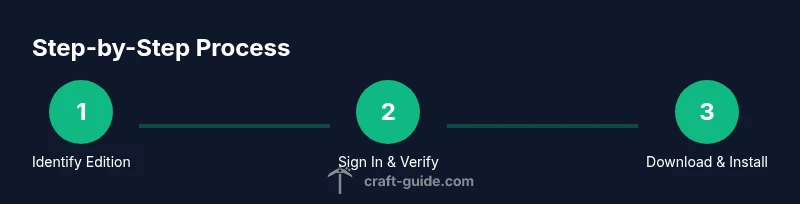
Start by determining whether you own Java Edition or Bedrock Edition. Check your purchase history on the original platform (minecraft.net for Java; Microsoft Store or console store for Bedrock). If you migrated accounts, verify you’re using the migrated Microsoft account. This step prevents incorrect downloads and mislinked purchases.
Tip: If you’re unsure, use the same email you used when you first bought Minecraft and look for order numbers in your inbox. - 2
Sign in to the correct account
Sign in to the Mojang/Microsoft account on the official site or store and confirm you see Minecraft listed in your purchases or library. If you don’t see it, try a password reset or account recovery flow. Confirm you’re not signed into a guest or secondary account.
Tip: Use two-factor authentication if available to protect this ownership confirmation. - 3
Navigate to the download page tailored to your edition
For Java Edition, go to minecraft.net and navigate to the download page after signing in. For Bedrock Edition on Windows, use the Microsoft Store; on consoles, open the console’s storefront; on iOS/Android, use the App Store or Google Play after linking accounts. Each path leads to a reinstall or download button.
Tip: If you’re on Windows and see both Java and Bedrock options, double-check which edition you own to avoid installing the wrong version. - 4
Download and install
Click the appropriate download button and run the installer. Follow the on-screen prompts to complete installation. If you’re on a console, the game will begin downloading in your library after you select it from your purchases.
Tip: Temporarily disable firewall or antivirus if the download stalls, then re-enable protections after installation. - 5
Launch and verify ownership
Open Minecraft after installation and sign in again if prompted. Confirm you can see your saved worlds or profiles, and verify you’re loading the correct edition. If your progress isn’t visible, ensure you’re launching on the same account that owns the game.
Tip: Back up existing saves before major re-downloads if you want to preserve progress. - 6
Link accounts across devices (if needed)
If you plan to play on multiple devices, ensure the shared Microsoft account is linked to each device’s launcher or store. Many issues arise from using different accounts between PC, console, and mobile. Linking the same account guarantees access to the same library.
Tip: Record the linked devices to avoid future confusion and simplify troubleshooting. - 7
Check for updates and compatibility
After install, check for game updates and confirm your device meets minimum requirements. Update your operating system if needed to support the latest Minecraft features and security patches.
Tip: Enable automatic updates where possible to keep access uninterrupted. - 8
If ownership isn’t showing, contact support
If the game doesn’t appear in your library after the steps above, contact the platform’s support with receipts, account email, and order numbers. You may need to perform an account verification or migration check.
Tip: Have your purchase proof ready and describe steps you already took to speed up the process.
People Also Ask
Do I need to repurchase Minecraft if I switch devices?
No. If you’ve already bought Minecraft, you re-download it on the new device using the same account. Some devices may require reactivation or re-accepting the license terms.
You don’t need to buy it again. Sign in with your existing account and download it on the new device.
What if my purchase isn’t showing in my account?
Double-check the correct account and platform. Retrieve receipts from email, verify migration status if you migrated accounts, and use the platform’s purchase history to confirm ownership. If still missing, contact support with proof of purchase.
If your purchase isn’t visible, verify the account and platform, then reach out to support with your receipt.
Can I transfer ownership between Java and Bedrock?
Java and Bedrock are distinct editions with separate licenses. You may need to purchase the edition you want on the target platform, though cross-save features can apply to certain worlds.
These are separate editions, so you typically need the right license for the edition you want.
Why isn’t my download starting after purchase?
Common causes include sign-in issues, mislinked accounts, or browser/store hiccups. Try signing out and back in, use a different browser, or restart the store app. If it persists, check for system updates or contact support.
If downloads stall, re-try sign-in, switch browsers, and ensure your system is up to date.
Is there a cross-platform play limitation I should know?
Bedrock supports cross-platform play across Windows, consoles, and mobile, while Java Edition is mostly Java-to-Java. Cross-play between Java and Bedrock isn’t native, which affects how you join friends on different editions.
Bedrock supports cross-platform play across many devices, but Java to Bedrock play isn’t natively supported.
How do I contact support if I can’t access my account?
Use the platform’s official support channels, provide your account email, receipts, and a description of steps you’ve already tried. Expect identity verification and account checks as part of the process.
Reach out with your account details and receipts, and be ready to verify ownership.
Watch Video
The Essentials
- Verify ownership with the correct account before downloading.
- Use the official download paths for your edition.
- Link the same Microsoft/Mojang account across devices.
- If issues arise, gather receipts and contact support promptly.