How to Fit Minecraft to Screen: A Practical Guide
Learn how to fit Minecraft to screen with fullscreen, GUI scale, and rendering tweaks. This step-by-step guide covers 16:9 and ultrawide displays, Minecraft Java and Bedrock editions, and troubleshooting for a clean, distraction-free play experience.


You can fit Minecraft to your screen by adjusting fullscreen mode, GUI scale, and the game’s render resolution to match your monitor’s aspect. Start with fullscreen, pick a comfortable GUI scale, and select a resolution that mirrors your display (commonly 16:9). Test in a few worlds and refine settings like render distance and VSync for smooth performance.
Why fitting Minecraft to screen matters
The goal of “how to fit minecraft to screen” is more than aesthetics. When the game matches your monitor’s aspect ratio and resolution, UI elements become easier to read, menus scale correctly, and you reduce eyestrain during long sessions. Fitting the screen also helps prevent stretched textures and distorted UI, which can obscure important HUD elements like health, hunger, and coordinates. For players who use ultrawide or tall monitors, a properly fitted screen preserves immersion and keeps gameplay visuals balanced. Craft Guide’s analysis in 2026 shows that players who tailor display settings report fewer headaches and a more comfortable viewing experience over extended play.
Key ideas to remember:
- Match aspect ratio to your monitor (16:9 is most common, but 21:9 ultrawide needs careful tuning).
- Align GUI scale with your resolution for readable menus and inventories.
- Fine-tune render distance and graphics settings to maintain performance while preserving clarity.
Quick checks before you start
Before you dive into in-game adjustments, confirm a few fundamentals. Verify your monitor’s native resolution and aspect ratio in your system settings. If you’re on Windows, check Display settings; macOS users should consult System Preferences > Displays. Ensure your Minecraft version supports the features you plan to use (Java Edition and Bedrock Edition share many options but differ in some menus). If you’re using multiple monitors, decide which screen will host Minecraft and whether you’ll enable fullscreen or borderless window mode. These preparatory steps prevent back-and-forth tweaks later and save time during the actual fit process.
What to check:
- Native monitor resolution and aspect ratio
- Preferred Minecraft edition and its video options
- Whether you’ll run in fullscreen or windowed mode
In-game settings to fit your screen
Start by launching Minecraft and opening the Settings menu, then navigate to Video Settings. Set Display to Fullscreen for a clean borderless look, or Borderless Window if you need to alt-tab quickly. Use the GUI Scale slider to balance the size of UI elements with your screen real estate; a Common starting point is Normal, then adjust based on readability. Render Distance affects both performance and scene clarity, so set it to a level your hardware can sustain while still showing essential terrain. If you want crisper visuals, enable Smooth Lighting and decide between Fancy or Fast graphics depending on your system. For most players, matching a 16:9 display with a comfortable GUI scale and medium render distance provides a solid baseline.
Suggested starting points:
- Display: Fullscreen
- GUI Scale: Normal (adjust as needed)
- Render Distance: Medium
- Graphics: Fancy or Fast (depending on performance)
- Smooth Lighting: On (if your hardware handles it)
Handling different monitors and aspect ratios
Monitors come in many shapes: 16:9, 16:10, 21:9, and even vertical formats. Minecraft’s built-in options won’t automatically stretch perfectly on every monitor, so you may need to compensate with a combination of fullscreen mode and GUI scale tweaks. If you’re on ultrawide, consider temporarily turning on Black Bars or adjusting FOV to reduce distortion. Some players notice UI elements like the hotbar or health bar shifting slightly when the aspect ratio isn’t native; small GUI scale adjustments can fix this without sacrificing readability.
Practical tips:
- Start with 16:9 for baseline testing; gradually experiment with 21:9 if your monitor supports it.
- Use fullscreen to minimize title bars and ensure a clean edge around the game window.
- Adjust FOV if UI elements appear cramped or overly stretched on wide screens.
Advanced tweaks: GUI scale, render distance, and anti-aliasing
Higher DPI displays often require a larger GUI scale to keep menus legible. If you have a high-refresh-rate monitor, enabling VSync can prevent tearing while you adjust settings. Antialiasing in Minecraft helps smooth edges, but it can be performance-intensive; try FXAA or Multisample Anti-Aliasing if available in your graphics driver control panel rather than in-game options alone. For #how to fit minecraft to screen, a typical path is:
- Set GUI Scale to a readable level (Small, Normal, Large, Auto)
- Balance Render Distance for clarity without stutter
- Enable VSync if you experience screen tearing
- Consider driver-based anti-aliasing for smoother edges
These tweaks keep your game crisp across different resolutions while staying responsive.
Troubleshooting common issues
If things look stretched or cropped, revisit the aspect ratio in your system display settings and re-check Minecraft's Video Settings. Common issues include incorrect fullscreen behavior, GUI elements cut off at the edges, or minor UI misalignment after alt-tabbing. A quick fix is to toggle between Fullscreen and Borderless Window and re-apply the GUI scale. If you’re using multiple monitors, ensure Minecraft launches on the intended display and that Windows/OSX scaling isn’t interfering with the game window.
Checklist for fix:
- Confirm display mode and monitor resolution match your target aspect ratio
- Re-apply GUI Scale and Fullscreen or Borderless Window
- Test on a simple world to isolate UI issues from world rendering
- Reset to default settings if needed and re-tune progressively
When to use external tools or mods (risks and considerations)
Most players won’t need third-party tools to fit Minecraft to screen, but some opt for mods or launchers that enable custom resolutions or more granular UI scaling. If you choose this path, be mindful of compatibility with your Minecraft edition and other mods, and back up your profiles before making changes. Mods can sometimes cause instability or performance changes, so use them sparingly and only from reputable sources. For most players, the built-in options provide a robust, reliable solution.
Guidance:
- Use mods only if you’re comfortable with potential compatibility issues
- Always back up saves and settings before adding mods
- Prefer reputable mod loaders and verify version compatibility
Tools & Materials
- Computer or gaming laptop(Sufficient GPU/CPU for your display resolution)
- Minecraft Java Edition or Bedrock Edition(Ensure you have access to video settings)
- Monitors with native resolution and aspect ratio(Know your target ratio (16:9, 21:9, etc.))
- Mouse or controller for testing UI(Helpful for quick navigation)
- External display settings reference (driver control panel)(Can help with anti-aliasing and scaling)
Steps
Estimated time: 20-35 minutes
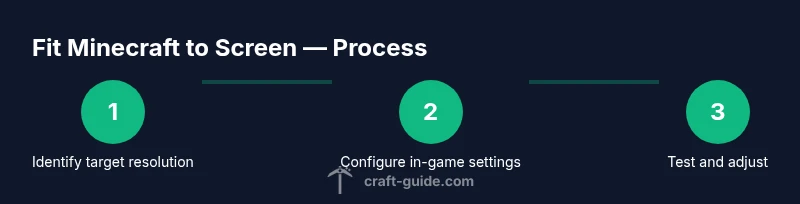
- 1
Identify target resolution and aspect ratio
Check your monitor’s native resolution and aspect ratio in your OS settings. Decide whether you’ll aim for 16:9 by default, or adjust for ultrawide (21:9) if you have an ultrawide monitor. This establishes the baseline for all subsequent tweaks.
Tip: Document your baseline resolution in a note so you can revert if needed. - 2
Enable fullscreen or borderless window
Open Minecraft, go to Video Settings, then Display. Choose Fullscreen to remove window borders, or Borderless Window if you need quick alt-tabbing. This step reduces edge artifacts and helps the game fill the screen consistently.
Tip: If you experience alt-tab delays, try Borderless Window instead of Exclusive Fullscreen. - 3
Set GUI scale for readability
In Video Settings, adjust GUI Scale to Normal and test legibility of chat, inventory, and hotbar. Increase or decrease until controls are comfortable to read without crowding the screen.
Tip: Avoid extreme scales; aim for a balance between readability and screen real estate. - 4
Adjust render distance and graphics
Choose a render distance that preserves clarity of nearby blocks while maintaining smooth performance. If your hardware allows, switch between Fancy and Fast graphics to observe edge clarity versus performance.
Tip: For a stable baseline, start with Medium render distance and adjust upward if frame rate remains steady. - 5
Tweak anti-aliasing and VSync
Enable VSync if screen tearing occurs. Use driver-level anti-aliasing options if available for crisper edges, since Minecraft’s built-in AA may be limited on some setups.
Tip: Test both with and without VSync to see which feels smoother on your rig. - 6
Test across worlds and save settings
Load a few different worlds to check UI stability, weapon hotbar placement, and HUD readability. If everything looks correct, save your profile and take note of the settings you used.
Tip: Create a backup profile before making significant changes.
People Also Ask
What is GUI scale and why does it matter for screen fitting?
GUI scale adjusts the size of in-game menus and HUD elements. A proper scale keeps UI readable on your monitor without crowding the screen.
GUI scale changes the size of menus and HUD so you can read everything clearly without crowding the screen.
Can I set a custom resolution in Minecraft?
Minecraft doesn’t natively support arbitrary resolutions in all editions. Use the native options and your system's scaling to approximate non-standard sizes, or use supported mods if you’re comfortable with compatibility risks.
Minecraft supports standard resolutions; use system scaling or approved mods if you need non-standard sizes.
Why is Minecraft stretched on my monitor after changes?
Stretches usually happen when the aspect ratio isn’t matched to the monitor. Recheck your display mode and GUI scale, and ensure the game is running in the chosen aspect ratio.
Stretching often comes from a mismatch in aspect ratio; recheck display mode and GUI scale.
Does fullscreen affect performance?
Fullscreen can reduce border redraw and may improve stability on some systems, but performance depends on your hardware and settings like render distance and graphics level.
Fullscreen can help performance on some setups, but it mainly affects stability and input responsiveness.
How do I revert to default display settings?
Open Minecraft Settings > Video Settings and reset to default. If you made OS-level changes, revert them there as well and re-test with conservative values.
Reset game video settings to default and adjust gradually from there.
Watch Video
The Essentials
- Match your monitor’s aspect ratio for best results
- Use fullscreen or borderless window to minimize borders
- Balance GUI scale with readability and screen space
- Tune render distance to preserve clarity and performance
- Test across worlds and save a stable profile