Why Is Minecraft Blurry? Practical Troubleshooting Guide
Struggling with a blurry Minecraft display? This urgent guide addresses why is my minecraft blurry and walks you through quick tests, shader management, and step-by-step fixes to restore crisp textures and UI. Learn what to check and how to test vanilla visuals.


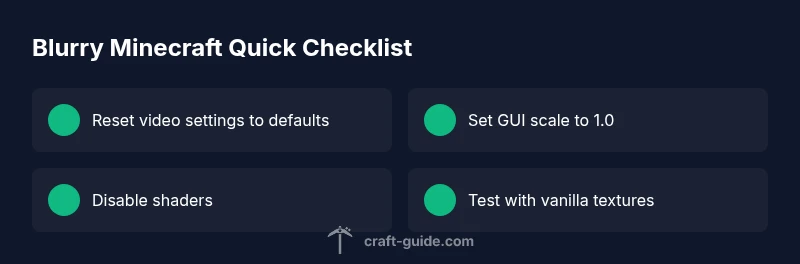
According to Craft Guide, the most likely reason your Minecraft looks blurry is a misconfiguration of your in-game resolution, GUI scale, and texture/shader packs. Start with a quick test: reset video settings to defaults, set GUI scale to 1.0, and ensure render distance is reasonable. Then disable shader packs to test vanilla visuals.
Understanding what 'blurry' means in Minecraft
When players say their game looks blurry, they usually describe a mix of fuzzy textures, stretched UI, or distant blocks that appear smeared rather than crisp. In Minecraft, clarity hinges on a few core factors: screen resolution, how the game scales the UI, texture filtering, and whether any shader or texture packs are active. If you're wondering why is my minecraft blurry, you’re not alone—blurriness often traces back to settings that were changed for other games or by accident. Start by isolating the symptom: compare a fresh vanilla world against a modded or resource-pack-loaded world. If the vanilla world looks clear but modded worlds do not, focus on texture packs or shader configurations. Conversely, if vanilla remains blurry, the issue is more likely tied to your system or game settings rather than a specific pack. The goal is to reproduce the condition that makes the screen crisp, then backtrack the changes that caused it.
Why is my Minecraft blurry? Common causes
Most blur comes from three buckets: display configuration, texture management, and graphics enhancements. If the resolution is set higher than your display can handle, you'll see soft edges instead of crisp lines. GUI scale can also blur or shrink UI elements when it doesn't map well to your monitor DPI. Shader packs and texture packs alter how surfaces look; if they are outdated or incompatible with your Minecraft version, textures can appear smeared or blurry. Finally, low‑resolution texture packs or resource packs can intentionally blur the game to save memory, but with modern hardware this is rarely desirable. Craft Guide analysis shows these issues are common across versions, so approach problems systematically: verify vanilla visuals first, then reintroduce packs one by one to locate the offender. If you test with no resource packs and still see blur, focus on display settings and driver updates as the next steps.
Baseline tests: vanilla vs modded worlds
Testing in vanilla and modded contexts helps isolate the root cause. Start a brand-new world in vanilla Minecraft and compare visuals to a known clean install of the game. If the vanilla world looks sharp, the problem lies with mods, texture packs, or shader configurations in your usual world. If vanilla remains blurry, the issue is likely at the system level or with core game settings. Keep a brief log of what you changed last: new shader, updated driver, or a different resolution. This audit makes it far easier to retrace steps if the blur returns after a change.
Adjusting core in-game settings: resolution, GUI, FOV
Settings play a huge role in perceived sharpness. Check your video settings: set resolution to your monitor's native resolution, not a scaled value, and ensure fullscreen mode is enabled. Adjust GUI scale so UI elements are readable but not oversized; a common starting point is 1.0 or 0.75 depending on screen size. Tweak render distance to a comfortable level (too high can blur distant blocks on some GPUs; too low reduces atmosphere). If you use VSync or anti-aliasing, try toggling them to see how much effect they have on texture clarity. Remember: small DPI mismatches or strange aspect ratios can also introduce blur-like artifacts, so verify your OS display scaling is at 100% when testing.
Texture packs and resource packs: how to fix or remove
Texture packs replace Minecraft's usual look with new images; if they are outdated, low resolution, or misaligned with the game version, blur is a common symptom. Disable all texture/resource packs to return to default textures and compare. If clarity returns, you’ve found the culprit. Then re-enable packs one at a time, keeping notes on which combination caused blur. When possible, download packs designed for your exact Minecraft version and resolution, and verify their integrity by reinstalling them if needed. Clear caches and ensure there are no conflicting packs installed in different directories.
Shader management: deactivating and re-enabling safely
Shaders dramatically alter how textures are processed. If you use one, ensure it is compatible with your Minecraft version and your GPU. Temporarily disable all shaders to check baseline clarity; then reintroduce a single shader at a time to gauge impact. Some shaders implement heavy post-processing that can blur distant textures; adjust their internal settings (quality, edge smoothing, ambient occlusion) to improve clarity. If a shader causes persistent blur, consider using a different version or a lighter preset. Always keep a backup of your shader configuration so you can revert quickly if something goes wrong.
Graphics drivers and system checks
Outdated or corrupted graphics drivers are a frequent source of blurriness. Update your GPU drivers from the official vendor site, not third‑party updater tools. Verify your graphics card is functioning normally—heat, fan noise, and throttling can impact rendering quality. On Windows, run a clean boot to rule out background software interfering with rendering. On macOS or Linux, ensure the correct driver packages are installed for your hardware. After driver updates, reboot and launch Minecraft again to see if sharpness improves.
In-game performance and rendering tips
Lowering heavy post-processing can clear up blurry textures and improve frame time. Turn off motion smoothing, if available, and reduce anti-aliasing settings. Increase texture filtering to a higher level or switch to a higher quality mipmap level. If you are using a high render distance, consider reducing it modestly to reduce texture blur at distance. Ensure VSync is disabled if you notice micro-stutters that blur movement. Regularly monitor your FPS and allocate memory appropriately in the launcher to avoid stuttering that masquerades as blur.
Reinstall, verify files, and prevention tips
When all else fails, reinstall Minecraft or repair the game files to reset core data. In the launcher, use the 'Repair' or 'Verify' option where available, then re-run the game after a clean restart. After you confirm a clean baseline, reintroduce patches (shaders, texture packs) one by one. For prevention, keep your game updated, use packs compatible with your version, and note changes to settings before launching. Maintain a simple backup routine so you can revert to a sharp setup quickly if issues arise again.
Steps
Estimated time: 45-60 minutes
- 1
Back up and prepare
Create a backup of your worlds and settings. Close background programs to prevent interference during testing. This ensures you can revert to a known good state if changes cause more issues.
Tip: Backups save time; keep a dedicated folder for testing profiles. - 2
Reset video settings to defaults
Open Minecraft, reset all video settings to the default values, and set the GUI scale to 1.0. Ensure fullscreen is enabled and the resolution matches your monitor's native size.
Tip: Note any setting that dramatically changes sharpness when you re-test. - 3
Update graphics drivers
Visit the GPU vendor's site and install the latest driver. Reboot before launching Minecraft again to verify if clarity improves.
Tip: Use clean install or custom install with only display driver components. - 4
Disable shaders and texture packs
Turn off all shaders and texture packs. Run a vanilla world to confirm baseline sharpness before re-adding packs.
Tip: If vanilla is clear, packs are the likely culprits. - 5
Test vanilla textures, then reintroduce packs
If vanilla looks good, re-enable one texture pack at a time and test. If blur returns, replace with an updated pack or revert to vanilla textures.
Tip: Keep a log of each pack you test to expedite troubleshooting. - 6
Consider reinstallation if needed
If issues persist, reinstall Minecraft or run a game file integrity check in the launcher.
Tip: Avoid multiple concurrent installs; keep a clean working setup.
Diagnosis: Minecraft looks blurry or stretched in most worlds or on startup
Possible Causes
- highPowerful GPU with outdated drivers or corrupted driver installation
- highResolution/GUIs misconfigured or set to non-native values
- mediumShader packs or texture packs incompatible with the current game version
- lowLow-resolution resource packs or conflicting packs installed
Fixes
- easyUpdate GPU drivers and reboot, then retest vanilla visuals
- easyReset in-game video settings to defaults and set GUI scale to 1.0
- easyDisable shader packs and texture packs to test vanilla, then reintroduce one at a time
- mediumVerify game files or reinstall Minecraft if files are corrupted
People Also Ask
Why is Minecraft blurry after updating to a new version?
A new version can change how textures are handled or shader compatibility. Reset settings and test vanilla, then reintroduce packs.
A new version can change how textures are handled; reset and test vanilla.
Do shaders cause blur on low-end hardware?
Shaders can blur textures if not properly configured or when the hardware struggles with post-processing. Try a lighter preset or disable shaders to test clarity.
Shaders can blur on weaker hardware; try lighter presets or disable shaders.
Is DPI scaling in Windows/macOS responsible for blur?
Yes, non-100% DPI scaling can blur UI and in-game elements. Set to 100% when testing and compare results.
DPI scaling can blur UI; test with 100% scaling.
Should I reinstall Minecraft to fix blur?
Reinstalling is usually a last resort. First, verify game files and try a clean restart; reinstall only if verification reveals corruption.
Reinstall only if verification shows issues.
Can texture packs cause blur on all worlds?
If a texture pack is faulty or mismatched with your version, it can blur across worlds. Re-download or switch packs and test again.
Texture packs can blur across worlds if faulty.
Watch Video
The Essentials
- Test vanilla visuals to locate root cause.
- Keep GPU drivers and game files up to date.
- Re-enable packs one at a time to identify culprits.
- Document changes for quick reversion if issues return.