How to Download Minecraft Without Paying: Safe Options
Learn safe, official ways to try Minecraft for free, including browser-based classics, demos, and education/licensing alternatives. This guide shows legal steps, safety tips, and what to expect before you buy.


This guide explains how to access Minecraft legally without paying for the full game by using official free options, trials, and browser-based versions. It also covers what you can and cannot do, so you don't violate the game's terms. You'll learn safe steps to try Minecraft before buying.
The Legal Landscape: Why Free Options Exist
Minecraft offers official, freely accessible routes that let new players explore the game world without an immediate purchase. These options include browser-based versions and time-limited demos provided by Mojang/Microsoft, designed to introduce newcomers to gameplay mechanics and creative possibilities. While the full game remains a paid product, understanding what is legally available helps you avoid scams and malware from untrusted sites. The Craft Guide team emphasizes choosing only official channels to protect your device and your account, and to ensure you’re respecting the developer’s terms of use. This section lays out why official free options exist and how they fit into the broader Minecraft ecosystem.
Browser-Based Minecraft Classic and Free Demos
Minecraft Classic and browser-based demos provide an immediate, zero-cost way to explore core building mechanics and basic world interaction. Classic runs entirely in your web browser, requiring no downloads or installations. Demos offered via the official launcher provide a short, guided taste of the full game’s features. These options are ideal for beginners, students, or players who want to decide if Minecraft fits their style before committing to a purchase. Always verify you’re on the official Minecraft site and not on a third-party mirror that could expose you to security risks.
- Browser access requires no account setup for Classic, but your choices and available blocks are limited compared to the full game.
- Official demos may require a Microsoft account to track progress or unlock features during the trial period.
- For long-term play, consider the full game after evaluating the demo experience.
Tip: Use a trusted device and a secure connection when trying any online game.
The Minecraft Demo via Official Launcher: What You Get
The official Minecraft Launcher sometimes offers a demo mode that lets you run the Java or Bedrock Edition with reduced functionality for a limited time. This is designed for players who want to test performance on their hardware, learn the interface, and get a feel for the controls before purchasing. The demo typically includes access to basic world-building and survival mechanics, but may impose time limits or restrictions on multiplayer access. While the demo does not replace the full game, it provides a legitimate, risk-free option to explore core features. Ensure you download the launcher from the official site and avoid unauthorized launchers that could inject malware or steal credentials.
Note: The availability of demos can vary by edition and platform, so check the official Minecraft site for current offerings.
Education Edition and Licensing Alternatives
Minecraft Education Edition offers a different licensing model aimed at classrooms and institutions. If you’re a student or educator, you may have access through your school or library, which can provide a legal way to explore Minecraft concepts without buying a personal license. Additionally, some community programs and trial licenses may give temporary access to the game’s features for educational purposes. While not a free-for-all option, education licensing represents a legitimate route to experience Minecraft for free or at a reduced cost, especially for learners who want to experiment with creative design, coding, or world-building projects. Always confirm eligibility and usage terms through official channels to avoid unintended charges or policy violations.
How Free Options Compare to the Full Game
Official free options are excellent for learning the basics, testing performance, and deciding whether to invest in the full title. The browser-based Classic version trades some advanced features and modern updates for accessibility and speed. Demos via the launcher offer a closer feel to the full game but usually come with constraints on duration and features. The full game, available through official stores, includes the latest updates, cross-platform compatibility, and multiplayer servers. If you’re new to Minecraft or playing with limited budgets, start with official free pathways to build familiarity, then transition to a paid edition when ready.
Safety and Legality: Do's and Don'ts
To protect yourself and your device, always use official channels when downloading or launching Minecraft. Avoid third-party download sites, cracks, or patches that claim to bypass payment. These sources often bundle malware, spyware, or adware with the software, risking data theft and account compromise. Use strong, unique passwords for your Microsoft/Mojang account and enable two-factor authentication if available. Keep your system and security software up to date, and review permissions requested by any launcher or mod manager. If you encounter a suspicious site offering
Where to Find Official Free Access Points
Begin at the official Minecraft website or its associated launcher pages. Look for clearly labeled free options such as browser-based classics or demo modes, and read the terms of use before proceeding. Keep bookmarks to official pages to avoid accidental redirection to counterfeit portals. If you’re a student, explore Education Edition through your school’s licensed program, which can provide authorized access with proper credentials. If you’re unsure about a link or download, pause and verify through the official Mojang/Microsoft support resources.
What to Do When You’re Ready to Buy
When you’re ready to commit, visit the official store page for the edition that best fits your device (Java Edition for PC/Mac or Bedrock for Windows, consoles, and mobile). Review the current price range and any bundles or discounts, then follow the purchase flow. After purchase, install the official launcher or client, log in with your account, and synchronize your progress across devices if cross‑play is supported. Remember: keep your account credentials safe and avoid sharing them with others.
Common Misconceptions Debunked
A common misconception is that the full Minecraft game can be downloaded for free from non-official sites. In reality, doing so risks malware and account theft. Another misconception is that a short free trial equates to permanent access; trials are time-bound and meant for evaluation. Finally, some players believe that Labor Day or holiday promotions guarantee free access; promotions vary and are time-limited. Rely on official sources for accurate information about current offers and eligibility.
Next Steps: Practical Paths Forward
If you’re unsure about whether Minecraft is right for you, begin with the Classic browser version or the launcher demo to gauge interest. Use official resources to understand the differences between Java and Bedrock editions and decide which platform aligns with your devices and playing style. When you’re ready to invest, budget for the edition that supports your favorite features (mods, cross‑play, and server access) and look for official bundles or seasonal discounts. Keep educating yourself through official guides and the Craft Guide community for tips on getting the most value from your purchase.
Tools & Materials
- Device with internet access(PC, Mac, Chromebook, or compatible tablet/phone)
- Official Minecraft launcher(Download from the official site; avoid third-party installers)
- Microsoft account / Mojang account(Needed to access demos or purchase full game; enable 2FA if possible)
- Secure web browser(Use up-to-date browser for Classic and launcher web pages)
- Antivirus/antimalware software(Recommended if you’re downloading anything from the internet)
- Payment method (for future purchases)(Useful to have on hand when you’re ready to buy)
Steps
Estimated time: 15-30 minutes
- 1
Choose legitimate free option
Decide whether you want browser-based Minecraft Classic or the official launcher demo. This choice ensures you stay within the terms of service and avoid malware from unverified sites.
Tip: Always start from the official Minecraft domain to authenticate the source. - 2
Open the official Minecraft Classic page
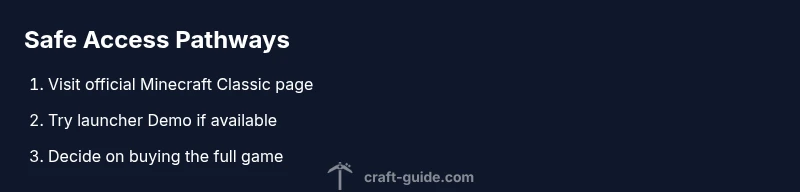
Navigate to the official Minecraft Classic page on the publisher’s site. No download is required for Classic, and you can start playing directly in your browser.
Tip: Check the URL to confirm you’re on the official site; look for the padlock icon in the address bar. - 3
Click Play and confirm browser compatibility
If you’re using Classic, click the play button and allow any required permissions. For browser play, ensure your browser is updated and supports the game’s browser-based features.
Tip: Disable any browser extensions that may block game assets or scripts. - 4
Try the launcher demo if available
If you prefer a more PC-like experience, download the official launcher and select the Demo option to test drive the game without purchasing.
Tip: Keep your login details secure; use a unique password and enable two-factor authentication. - 5
Decide if you want to buy the full game
Assess performance, features, and your long-term interest. If you buy, choose the edition that best matches your platforms and play style.
Tip: Look for official bundles or seasonal discounts to maximize value. - 6
Set up and start a basic profile
After purchasing or testing, set up your profile in the launcher, connect your account, and ensure cross‑play if supported by your edition.
Tip: Enable cloud save if available to protect progress across devices.
People Also Ask
Is there a legitimate way to play Minecraft for free?
Yes. You can access browser-based Minecraft Classic or official demos, which allow limited play without payment. These options are designed for new players to explore the game safely before purchasing.
Yes, you can play Minecraft for free through official browser Classic or demos to try the game before buying.
What is Minecraft Classic, and is it still available for free?
Minecraft Classic is a browser-based version that offers a subset of features and blocks. It remains a free entry point for new players to experiment with building and world creation without downloading the game.
Minecraft Classic is a free browser version with limited features, great for trying Minecraft before purchasing.
Can I use Minecraft for free on any platform?
Free access typically varies by platform. Browser Classic is platform-independent, while demos may be limited to the official launcher on supported devices. Full cross-platform access comes with the paid editions.
Free options exist, but full access across platforms requires purchasing the game.
Is Education Edition a free option for everyone?
Education Edition is not universally free; it’s provided through eligible schools or licenses. Check with your institution for access terms and conditions.
Education Edition is typically available through schools or official licenses, not as a universal free option.
Do I need a Microsoft account to use demos or free options?
Yes. A Microsoft account is usually required to access official demos and to purchase or integrate saved progress across devices.
A Microsoft account is generally needed for official demos and to manage your game across devices.
What should I do if I want the full game later?
If you decide to buy later, go to the official store page for the edition that matches your device. Follow the purchase steps and install the launcher, then log in with your account.
If you decide to buy later, visit the official store, complete the purchase, and install the launcher.
Watch Video
The Essentials
- Explore official free options first to assess interest.
- Always verify you’re on Mojang/Microsoft channels.
- Demos and browser Classic are safe starting points before buying.