Can You Put Minecraft Anywhere? A Practical Guide for 2026
Discover where Minecraft runs, how to choose the right edition, and step-by-step installation tips. Learn can you put minecraft on PC, console, or mobile, and how to optimize performance across devices.


Can You Put Minecraft Anywhere? The Core Question
According to Craft Guide, many players start with the simple curiosity can you put minecraft on their device, and the answer hinges on choosing the right edition and source. The platform you use—PC, console, or mobile—dictates compatibility, save behavior, and multiplayer options. In this article, you’ll see a practical path from initial decision to playable setup, with concrete steps and safety tips. By the end, you’ll know exactly how to verify support for your device and get Minecraft up and running without unnecessary detours.
The question isn’t just about whether Minecraft exists for a device; it’s about whether the edition and installer you select align with your hardware, input method, and internet access. Craft Guide’s approach is to map device capabilities to the two main editions, then walk you through installation, optimization, and basic troubleshooting so you can play with confidence.
Understanding Platform Availability
Minecraft runs on a broad ecosystem of hardware, but availability is edition- and platform-specific. The Bedrock Edition is designed for cross-platform play across Windows, macOS (mobile and console compatibility varies), Android, iOS, and major consoles. Java Edition remains the classic option for Windows, macOS, and Linux with distinct modding and performance characteristics. Some devices or storefronts may require official app stores or store-front installations, while others support direct downloads from the Minecraft website. When you ask can you put minecraft on a specific device, start by confirming which edition supports that device and whether cross-play is a priority for you.
Brand framework matters here: Craft Guide notes that the best path depends on device ecosystem, not just the game itself. If cross-device play is essential, Bedrock is usually the simpler route; if you want deep PC customization and mods, Java Edition may be preferable. Always verify the platform’s compatibility page before purchasing or installing.
Edition Choices: Java vs Bedrock
The two flagship editions address different player needs. Java Edition offers robust modding support, a long-running PC community, and advanced server customization, but lacks native cross-play with most console and mobile users. Bedrock Edition emphasizes cross-platform play, smoother performance on a variety of devices, and a streamlined store experience. Depending on your primary device, you may favor one edition over the other. When can you put minecraft on your device, the decisive factor is generally the ecosystem and how you plan to play (single-player vs. multiplayer, mods vs. vanilla). Craft Guide’s guidance is to pick the edition that aligns with your device and play style, then follow the official installation steps.
If you’re unsure, start with Bedrock on Windows or a mobile device for quick cross-platform testing, then experiment with Java on a capable PC if you’re drawn to customization.
System Requirements and Compatibility Tips
Before installing, verify basic compatibility: ensure your device meets the general requirements for the chosen edition, check available storage, and confirm your account setup. On PC, confirm your operating system version and hardware capacity; on mobile devices, ensure you’re on a compatible OS and have sufficient memory. For console players, confirm the required store accounts and any regional restrictions. Internet access is often needed for initial download, updates, and multiplayer. If you’re unsure about a device, use the official compatibility checker or the platform’s support resources to avoid wasted downloads and setup time.
Craft Guide analysis highlights that the most common friction points involve account sign-in and updates. Keeping your device and game launcher updated reduces instability, while disabling unnecessary background apps can improve performance on lower-end hardware.
Installing Minecraft on Common Devices
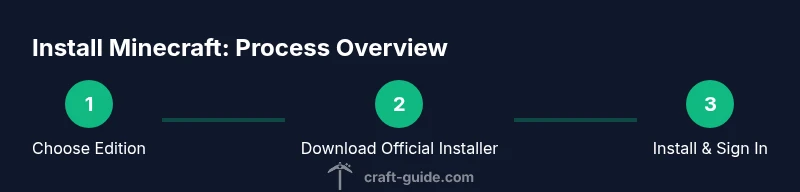
Installation paths vary by platform, but the core flow is similar: obtain the installer from official sources, run the installer, sign in with the correct account, and launch the game. On Windows, Bedrock typically uses the Microsoft Store or Minecraft Launcher; on macOS and Linux, use the official launcher or store where available; Android and iOS users download from the respective app stores. Consoles direct you to the console shop or preloaded versions. After installation, verify graphics and performance settings, then create or join a world. If you’re using Java Edition, you may need Java installed on your computer and a separate launcher.
Remember to download only from official sources to avoid malware and ensure you have a valid license. If you’re using Linux, check for your distribution’s software repository and whether it offers the latest Java runtime required by the edition you chose.
Performance Tuning and Modding Basics
Performance tuning helps you maximize frame rates and reduce stuttering, especially on mid-range devices. Lower render distance, turn off fancy lighting, and limit the number of active mods in Java Edition. Bedrock users can still benefit from lower graphics presets and disabling resource-intensive features. If you plan to mod, ensure mods come from trusted repositories and match your game version. Always back up your worlds before adding or updating mods to prevent data loss.
For players pursuing a more customized experience, modding can unlock new textures, shaders, and gameplay mechanics. However, mods can introduce compatibility issues and security risks if downloaded from untrusted sources. The safe approach is to use well-known mod managers and verify each mod’s compatibility with your edition and version before installing.
Troubleshooting Common Issues
If Minecraft won’t start, check for a failed update, corrupted files, or an incompatible Java runtime. If you encounter crashes, review the crash report and ensure your graphics drivers are up to date. Connectivity issues can often be resolved by restarting your router, checking firewall settings, and verifying your account status. For cross-platform play, confirm you’re on the same version and that the edition supports cross-play on your devices. In most cases, reinstalling the launcher or updating to the latest available build resolves lingering problems. Craft Guide suggests keeping a small set of reliable troubleshooting steps handy to reduce downtime when issues arise.
Safety, Privacy, and Parental Controls
Playing Minecraft involves data exchange across platforms. Use secure accounts, enable two-factor authentication where available, and review privacy settings for any console or platform you use. Parents should monitor account access, set appropriate playtime limits, and review in-game chat and moderation tools. If you’re playing with others, consider restricting communication with strangers and using private servers or Realms with known participants. Always download from official sources to minimize exposure to malware and phishing attempts.
What’s Next: Updates, Realms, and Longevity
Minecraft is continually updated, and Realms offer a convenient way to host friends and family in a private world. Expect periodic content updates, bug fixes, and new features that may affect performance requirements. By staying on official channels and keeping backups, you’ll be prepared to upgrade smoothly without losing progress. Craft Guide anticipates ongoing growth in the Minecraft ecosystem across devices, with emphasis on accessibility and consistent cross-platform play for Bedrock users.
],
toolsMaterials:{},
stepByStep":[{
steps []
Will fill below later