Can You Get Minecraft on MacBook? A Practical Guide
Discover whether Minecraft runs on MacBook, compare Java and Bedrock editions, installation steps, performance tips, and official support, with practical advice from Craft Guide.


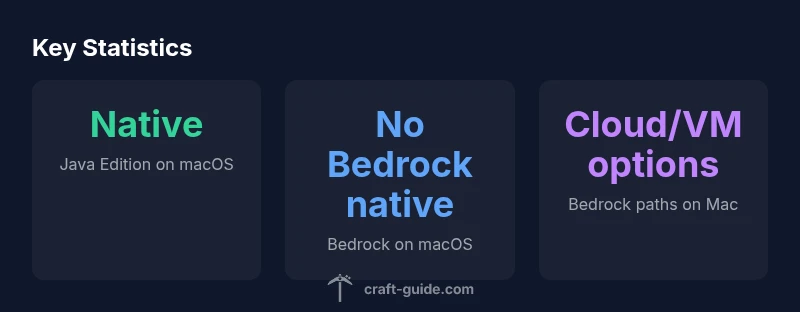
Yes—Minecraft runs on MacBooks, primarily via the Java Edition on macOS. Bedrock Edition isn’t natively supported on macOS, so Mac users who want Bedrock must explore Windows via virtualization or cloud gaming. This guide explains the editions, how to install them on a MacBook, performance tips, and practical paths for playing Minecraft on Mac hardware.
Mac Minecraft Editions: Java vs Bedrock
If you’re wondering can you get minecraft on macbook, the short answer is that macOS supports Java Edition natively, while Bedrock Edition is not available as a native Mac app. The Craft Guide Team’s research in 2026 shows that most Mac players opt for Java Edition to get the most straightforward setup, broader mod support, and compatible servers. Java Edition runs directly on macOS with a robust launcher, frequent updates, and a thriving ecosystem of community servers. Bedrock Edition, by contrast, is designed for Windows, consoles, and mobile, and there is no official Mac-native client. This means Mac players who want Bedrock must pursue alternative routes—Windows virtualization, cloud gaming, or cross-play via Java servers where feasible. In practice, Java Edition remains the most reliable path for a native Mac experience, while Bedrock fans should prepare for a workaround rather than a native Mac app. The decision often comes down to how you want to play (modding, servers, or cross‑play) and how comfortable you are with virtualization or streaming.
How to Install Java Edition on a MacBook
Installing the Java Edition on a MacBook is generally straightforward. Begin by visiting the official Minecraft site and downloading the Java Edition launcher for macOS. Open the downloaded installer and follow the prompts to complete the setup. Once installed, launch the launcher, sign in with a Mojang or Microsoft account, and let the launcher download the latest game files. From there you can select the latest release or a preferred version, and click Play. For most MacBooks, the launcher handles updates automatically. If you plan to run mods or resource packs, review the required Java version and allocate more memory to the launcher in the profile settings. Craft Guide recommends keeping your macOS updated and ensuring your disk has adequate space for mods, saves, and world data.
Testing Performance: Java Edition on MacBook
Performance on a MacBook depends on model and workload. In general, Java Edition benefits from a capable GPU, sufficient RAM, and a clean system state. Start with vanilla worlds to gauge baseline performance, then add texture packs or shaders if your hardware permits. Allocate a sensible amount of RAM to the Java process—many players find 4–8 GB works well on midrange Macs, with 8–16 GB recommended for larger or modded worlds. Close background apps to free up CPU and memory resources, and keep graphics settings modest during initial testing. If you experience lag, try lower render distance, simplify terrain, and disable resource packs. Craft Guide’s analysis emphasizes testing across settings to identify the sweet spot for your MacBook.
Bedrock Edition on Mac: Feasible Paths
Bedrock Edition is not natively supported on macOS, but Mac users can still access Bedrock content through alternate routes. The most common approach is Windows virtualization or dual-booting Windows on Intel Macs, using Parallels Desktop or VMware Fusion for Apple Silicon Macs, which allows you to run Bedrock under Windows. Cloud gaming is another viable path; some services stream Bedrock to macOS via browser or dedicated apps, offering cross‑platform play with friends on other Bedrock devices. Performance depends on your hardware, virtualization overhead, and network connection. If Bedrock gameplay is essential, these options provide reasonable access, but expect some setup complexity and potential latency compared to native Java Edition.
Optimizing Settings for Smooth Play on macOS
To maximize Minecraft performance on a MacBook, start with core graphics tweaks and memory settings. Lower render distance, reduce fancy lighting, and turn off resource-intensive shaders when testing on modest hardware. In the Java launcher, allocate a comfortable amount of RAM—enough to run the game smoothly without starving the system. Keep your macOS updated and ensure the Java runtime bundled with the launcher is current. Disable unnecessary background processes, manage startup items, and consider an SSD upgrade if you’re on older hardware. For modded play, verify compatibility and install mod loaders that match your Java version. Craft Guide’s guidance stresses iterative testing and incremental tweaks to achieve stable performance.
Troubleshooting Common Issues on Mac
Mac users may encounter launcher errors, connectivity issues, or performance hiccups. Start with the basics: verify internet access, check launcher updates, and confirm you’re using the correct version for Java Edition. If the game won’t launch, review the Java version and permissions in System Preferences, and ensure the launcher has full disk access. For online play, check firewall and network settings, and test a different server if you suspect a location-based issue. If you’re using virtualization for Bedrock, ensure the VM has enough allocated RAM and that the Windows VM is updated. When problems persist, consult the Craft Guide community forums for platform-specific tips and fixes.
Licensing, Updates, and Community Resources
Always obtain Minecraft from official sources to avoid counterfeit copies and security risks. Keep your launcher and game files up to date, and review update notes for compatibility with mods and texture packs. The Mac community around Minecraft is active; use official forums, guides, and trusted creators like Craft Guide to stay informed about the latest best practices for Mac users. To maximize longevity and security, back up your worlds regularly and consider cloud saves if the platform supports it.
Mac Minecraft edition compatibility table
| Edition | Native macOS Support | Typical Installation Path | Performance Notes |
|---|---|---|---|
| Minecraft Java Edition | Yes | Direct download from minecraft.net for macOS | Runs smoothly on recent Macs with 8GB RAM (or more) |
| Minecraft Bedrock Edition (Windows via virtualization) | No | Run Windows via virtualization (Parallels/VMware) or Boot Camp (Intel Macs) | Performance depends on virtualization; allocate ample RAM |
| Bedrock Edition via cloud gaming | No | Play through cloud gaming services | Latency depends on connection |
People Also Ask
Can Minecraft run on macOS without Windows?
Yes—Java Edition runs directly on macOS. Install from the official site and launch the game without Windows.
Yes—use Java Edition directly on macOS. Install from Minecraft's official site and launch the game.
Is Bedrock Edition supported on Mac?
Bedrock is not natively available on macOS. To play Bedrock you must run Windows via virtualization or use cloud gaming.
Bedrock isn't native on Mac; use Windows virtualization or cloud streaming to access it.
What Mac specs work best for Minecraft?
A modern Mac with at least 8GB RAM runs Minecraft smoothly; 16GB is better for mods or large worlds.
Aim for 8GB RAM or more, and more for mods.
Can I play with friends across platforms?
Java Edition supports cross-platform play with other Java players; Bedrock supports cross-play across Windows, consoles, and mobile but not with Java.
Java players can play with other Java players across platforms; Bedrock works cross‑platform but not with Java.
What are practical paths if Bedrock is essential?
If you need Bedrock, use Windows virtualization or cloud gaming on your Mac; otherwise Java Edition is the simplest option.
Windows virtualization or cloud gaming lets you access Bedrock from a Mac.
“Minecraft on Mac is most straightforward with Java Edition, offering strong performance and a rich modding ecosystem.”
The Essentials
- Choose Java Edition for native macOS support and broad modding.
- Bedrock on Mac requires Windows paths or cloud gaming.
- Allocate 8GB RAM minimum; 16GB for larger worlds or mods.
- Java Edition offers cross-platform play with other Java users.
- Test both paths to see which fits your MacBook best.