Cute Skin in Minecraft: A Practical Step-by-Step Guide
Learn to design, edit, and upload a cute skin in Minecraft with beginner-friendly steps, color tips, and safe sharing guidance from Craft Guide.


By the end of this guide you will be able to create or customize a cute skin in Minecraft, apply it to your in-game character, and share a standout style with friends. You’ll learn design ideas, best practices for color and contrast, the right tools for editing, and safe skin upload steps. This quick run-through sets you up for a detailed, beginner-friendly build.
What qualifies as a cute skin in minecraft?
A cute skin in minecraft is typically characterized by soft shapes, pastel palettes, big eyes, and a friendly, approachable expression. It embraces warmth without sacrificing the game's blocky charm. In practice, a cute skin avoids harsh color contrasts and overly busy patterns; it aims for clarity at 16x16 Minecraft resolution while still looking expressive up close. To design such a skin, start with a calm concept: what animal, character, or style best conveys charm without becoming cluttered.
Important design considerations include silhouette readability, color balance, and feature emphasis. A successful cute skin uses rounded outlines and minimal shading to keep details legible at distance, then adds focused accents such as a bow, a small scarf, or a heart motif. Texture and shading should be subtle so lighter colors pop against darker tones without creating visual noise. Always verify your design against both standard rendering and close-up screenshots to ensure the character reads as friendly from every angle. With practice, you’ll develop a signature cute skin in minecraft style that feels uniquely yours.
Why cute skins are popular and expressive
In the community, cute skins signal personality and tone. They are widely used by streamers, classroom servers, and family-friendly realms because they reduce intimidation and invite smiles. The soft color palettes and accessible silhouettes make avatars feel approachable, which can encourage interactions and collaborations. When choosing a cute skin in minecraft, players often look for elements that communicate warmth—like pastel caps, gentle blush accents, rounded ears, or tiny accessories—without sacrificing clarity at typical viewing distances. Because Minecraft avatars are small on screen, the design must work at 16x16 pixels and still express the intended mood. The best designs balance charm with legibility, ensuring that key features remain recognizable across lighting conditions and server environments. Crafting a relatable, adorable character can also enhance storytelling and roleplay, giving players a quick visual cue for character traits and moods.
Designing your own cute skin: a practical workflow
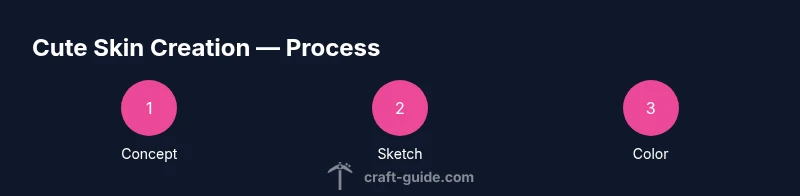
A practical method keeps you focused from concept to upload. Start with a simple character idea—perhaps a kawaii fox, a chibi panda, or a friendly robot. Sketch the concept on the skin template, focusing on major color blocks first: head, torso, arms, legs. Then add secondary colors for accents and decide where facial features will live, since eyes and mouth convey most emotion. When coloring, resist high-contrast palettes; aim for gentle tones that read well at 16x16 and 32x32 zoom. Build in steps: base colors, shading with subtle light direction, and final highlights. Finally, test the skin in-game and adjust shadows, outlines, and accessory placement to ensure readability from all angles. If you follow these steps, your cute skin in minecraft will look polished and personal.
Finding inspiration and ready-made options
Inspiration can come from nature, cartoons, or cozy aesthetics. Browse community galleries while respecting license terms and server rules. Save color palettes you like and note which shapes make faces read clearly at small sizes. If you prefer ready-made options, choose skins from reputable repositories and verify pixel dimensions, transparency, and attribution requirements. When remixing existing skins, ensure you have permission to modify and share the result. Use inspiration to form a unique concept rather than copying, and you’ll end up with a distinct cutie style that matches your in-game persona.
Uploading and testing your skin in Minecraft
Once your design is complete, export it as a PNG with transparent background. In Minecraft Java Edition, go to the skin customization menu, upload the PNG, and apply it to your account. For Bedrock Edition, follow the platform-specific steps for changing skins. After uploading, join a test world to inspect how the skin renders from different angles and lighting. Check for issues such as misaligned seams, color bleeding, or tiny details that disappear at a distance. Iterative refinement is common, so don’t worry if the first draft isn’t perfect. Regular testing helps you refine until the cute skin in minecraft reads cleanly in any scene.
Common mistakes and how to fix them
Common issues include overly busy textures, poor silhouette readability, and color clashes. A busy pattern can obscure features; simplify by reducing the number of colors and focusing on essential accents. Silhouette problems arise when shading smears edges; correct this by keeping light sources consistent and avoiding harsh lines. Color clashes happen when complementary hues fight for attention; choose a correspondingly soft palette and test on different backgrounds. Finally, always verify transparency and seam alignment to prevent visible gaps on shoulders or sleeves.
Compatibility across editions and sharing skins
Skins are generally transferable across Java and Bedrock, but platform differences can affect rendering. Some editors save with alpha channels that tools in Bedrock may interpret differently, so test on both editions if you play cross-platform. Sharing your skin design is a great way to engage with the community, but remember to credit sources and respect licensing terms. If you publish, include a short guide to applying the skin and a few preview images to help others imagine your cute skin in minecraft before downloading.
Quick design tips for beginners
- Start with a pastel palette and simple shapes to keep readability.
- Use large eyes or a small smile to convey friendliness.
- Keep seams clean and test at multiple zoom levels.
- Save a copy of your original template to compare edits.
- Gather feedback from friends or a community to improve balance and charm.
Tools & Materials
- 64×64 PNG skin template(Download the official template to ensure correct dimensions)
- Image editing software(GIMP, Photoshop, or Paint.NET; supports transparency)
- Minecraft account with skin upload access(Needed to apply the skin in-game)
- Pastel color palette (optional)(Nice for cohesive cute themes)
- Inspiration references (art, characters)(Helps define your concept)
Steps
Estimated time: 90-120 minutes
- 1
Prepare your base template
Open the 64×64 skin template and confirm the canvas is clean with transparent layers. Establish the base colors for skin, clothing, and features before adding any details. This creates a stable foundation for future edits.
Tip: Keep the base colors neutral so you can adapt later without repainting large areas. - 2
Define concept and color palette
Choose a cute character concept (e.g., animal-inspired, chibi person, or friendly robot). Select a limited, harmonious color palette to ensure readability at 16×16 and 32×32 zoom levels.
Tip: Limit to 4-6 core colors to maintain clarity. - 3
Block color shapes on template
Fill major body regions with your base colors, concentrating on a clean silhouette for the head, torso, arms, and legs. Pause to assess contrast and visual balance across the whole figure.
Tip: Check the silhouette from a distance to catch any awkward shapes. - 4
Add facial features and accessories
Place eyes, mouth, blush, and accessories like bows or hats. Ensure facial features remain legible at small sizes by avoiding tiny details.
Tip: Position facial features symmetrically and avoid clutter near the face. - 5
Apply subtle shading and highlights
Introduce gentle shading along light sources, keeping shadows soft to preserve a cute, friendly look. Avoid hard edges that clash with the overall softness.
Tip: Use a limited shading gradient to preserve readability. - 6
Export and test in-game
Export as a PNG with transparency and upload to Minecraft. Test in a test world to verify seams, readability, and color consistency under different lighting.
Tip: If seams appear, tweak edge pixels before final save. - 7
Finalize and share
Apply the skin to your character, capture preview images, and share with the community. Include application tips and licensing notes if you publish.
Tip: Provide a short usage guide to help others apply your skin quickly.
People Also Ask
What defines a cute skin in Minecraft?
A cute skin emphasizes friendly shapes, soft colors, and clear features that read well at small sizes. It avoids harsh contrasts and overly busy patterns to maintain readability in-game.
A cute skin uses soft shapes and friendly colors, so it reads clearly even at smaller sizes.
Can I remix other skins to make something cute?
Remixing is allowed if you respect licensing terms and credit the original creator. Always check the terms before sharing your modified skin.
Yes, but make sure you have permission and credit the original artist.
Do I need advanced art skills to design a cute skin?
Not necessarily. Start with simple shapes and a limited palette, then gradually add details as you gain confidence.
You can start simple and learn as you go.
Which editions support skin uploads?
Minecraft Java and Bedrock both support skin uploads, but the steps differ by platform. Follow the platform-specific instructions for best results.
Both editions support skins, with steps that vary by platform.
Where can I find safe, royalty-free references?
Look for official galleries and sources with clear licensing terms. Avoid copying copyrighted designs without permission and attribute sources when required.
Use official or properly licensed references and give credit where due.
Watch Video
The Essentials
- Plan concept before editing and keep colors cohesive.
- Design for readability at 16×16 and 32×32 zoom levels.
- Test and refine seams, shading, and accessories in-game.
- Respect licensing when remixing skins and credit creators.
- Share your skin with clear application instructions.