How to Create a Custom Skin in Minecraft: A Step-by-Step Guide
Learn how to design, edit, and apply a custom skin in Minecraft across Java and Bedrock editions. This comprehensive, beginner-friendly guide covers tools, best practices, troubleshooting, and sharing tips to help you stand out online.


In this guide you’ll learn how to create a custom skin in minecraft from idea to in-game use. You’ll need a Minecraft account, a skin editor, and a PNG skin file ready to upload. By following this step-by-step approach, you’ll design a distinctive avatar that works across Java and Bedrock editions. According to Craft Guide, a well-planned skin saves time and yields better results.
What counts as a custom skin in Minecraft?
A custom skin in minecraft is a player texture that replaces the default look of your avatar. It determines how your character appears in the world, in menus, and in multiplayer. Skins are essentially pixel maps that wrap around the model, so your design should consider symmetry, color contrast, and visibility in varied lighting. The Craft Guide team emphasizes that a good custom skin balances personality with readability, ensuring features like eyes, hair, and clothing patterns stay recognizable from a distance. According to Craft Guide, planning a cohesive concept before you start saves revision time and helps you maintain consistency across outfits and worlds. When you design, keep accessibility in mind: high-contrast colors improve visibility for teammates and spectators alike. The goal is a skin that looks intentional rather than generic, while remaining comfortable to wear in long gameplay sessions.
Tools & Materials
- Minecraft account(Any edition supports skins; ensure you can sign in and access profile settings)
- Skin editor tool(Web-based editors (e.g., Nova Skin) or desktop apps that export PNGs)
- Image editor(Use PNG with transparent background; avoid lossy formats)
- Reference skins(Inspiration for style, shading, and pattern alignment)
- Backup skin file(Keep an archive of versions to revert changes)
- Cross-edition testing device(Test on Java and Bedrock where possible to verify compatibility)
Steps
Estimated time: 60-120 minutes
- 1
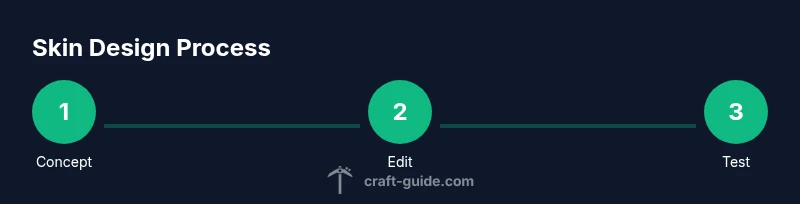
Define your design concept
Outline the vibe, color palette, and key features of your skin before touching pixels. Having a clear concept reduces back-and-forth edits and makes the process smoother.
Tip: Sketch ideas on paper or a mood board to lock in your direction before digital work. - 2
Set up your workspace
Open your skin editor and load a blank template. Prepare your color swatches and reference images to guide palette choices and shading.
Tip: Organize layers by clothing, skin, and accessories so you can adjust without disturbing other areas. - 3
Draft the base colors
Block in the core colors for the head, torso, arms, and legs. Prioritize high contrast between primary elements so your skin reads well in-game.
Tip: Zoom out occasionally to see how the skin reads at normal player distance. - 4
Add details and shading
Introduce highlights and shadows to convey depth, texture, and fabric folds. Keep details consistent across limbs to avoid a patchy look.
Tip: Avoid extremely tiny features that blur when viewed in smaller in-game scales. - 5
Export and save your skin
Export a PNG at the required dimensions and preserve transparency in non-visible areas. Double-check file integrity and metadata.
Tip: Name versions clearly (e.g., skin_v1.png) for easy rollback. - 6
Apply the skin in Minecraft
Upload the PNG via your profile on the Minecraft launcher or website, then select the skin in your account settings and reload the game.
Tip: If the skin doesn’t appear, sign out and sign back in to refresh your profile data. - 7
Test across editions
If you can, test the skin in both Java and Bedrock to confirm the look and detect any platform-specific rendering issues.
Tip: Some patterns may shift slightly between editions; adjust spacing or color balance as needed. - 8
Iterate and refine
Collect feedback from friends or community forums and refine your design. Keeping versioned skins helps you compare progress.
Tip: Maintain a changelog to track what you changed and why.
People Also Ask
Can I use any image as a Minecraft skin?
No. Skin uploads require a properly formatted texture that aligns with the Minecraft skin layout and the game’s transparency rules. You should edit an existing template or start from a standard blank so the engine reads the skin correctly.
Not any image will work; use a proper skin template and edit within the game’s texture rules.
Do I need separate skins for Java and Bedrock editions?
In most cases, a single PNG can work on both editions, but some rendering differences may exist. If you see clipping or misalignment, adjust the skin and re-upload.
A single skin often works, but check for edition-specific tweaks and update as needed.
How can I test my skin quickly?
Use a local test world or a private server to preview changes. Sign out and back in after uploading to ensure changes propagate.
Test in a local world or private server and re-log after changes.
What are common issues when sharing skins?
Common issues include incorrect file formats, oversized file sizes, or violating community guidelines. Always save backups and respect licensing if using someone else’s textures as base.
Watch for file format and size issues, and respect licenses.
Are there safety considerations when downloading skin editors?
Download editors only from reputable sources to avoid malware. Check reviews and community feedback before installing any software.
Stick with trusted editors and read reviews before installing.
Can I revert to the default skin easily?
Yes. You can switch back to the default skin in your profile settings, or simply re-upload the default PNG and apply it again.
Switch back in your profile or re-upload the default texture.
Watch Video
The Essentials
- Plan your design before pixel work
- Test the skin across platforms for consistency
- Use versioned files to track changes
- Prioritize readability over tiny details
- Share feedback with community for improvement