How to Make Minecraft Brighter: Practical Lighting Tips
Learn practical, beginner-friendly ways to brighten Minecraft with in-game settings, shaders, texture packs, and smart lighting design. Craft Guide shows safe, effective methods for clearer scenes and better visibility during adventures and builds.


By the end of this guide you will know how to brighten Minecraft effectively using in-game brightness, lighting strategies, shader packs, and texture resources. You'll need a device that supports shaders, access to game settings, and permission to install lightweight mods if you choose. This quick answer previews practical steps you can implement immediately to see clearer skies and better visibility during adventures and builds.
Understanding why brightness matters in Minecraft
Bright lighting is not just for aesthetics—it's a practical tool for visibility, navigation, and safety in all biomes and at all times of day. Clear illumination helps you spot hostile mobs, useful resources, and hidden paths that could be missed in shadows. The Craft Guide team emphasizes that brighter environments reduce eye strain during long sessions and improve build accuracy when you’re placing blocks or planning redstone layouts. In addition to gameplay benefits, thoughtful lighting can dramatically affect the mood and perceived realism of your world. Whether you’re exploring caves, building a cozy house, or designing a sprawling town, the way you light a scene shapes how players experience it.
Baseline brightness and gamma in Minecraft
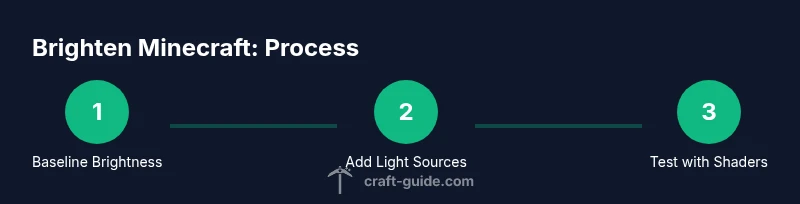
A solid brightness baseline gives you a consistent starting point. Start by adjusting the in-game brightness setting (often labeled as gamma or Brightness) to a level that makes nighttime and dim corners legible without washing out colors. This isn’t a one-size-fits-all step—different worlds, shader choices, and resource packs will change how brightness feels. The goal is to maximize clarity while preserving the game’s atmosphere. If you notice color loss or washed-out textures, dial brightness back slightly and compensate with additional light sources instead of pushing brightness to the maximum. According to Craft Guide, establishing this baseline helps you judge the impact of subsequent lighting upgrades more accurately.
Quick in-game lighting improvements you can apply today
If you’re playing vanilla, start with a few quick shifts: place more light sources around high-traffic areas, spawn-proof dark spaces, and leverage glow-in-the-dark textures where appropriate. Use torches, lanterns, and glowstone to create a balanced light grid that reduces shadowy pockets without overexposing everything. Avoid over-reliance on a single light type; mix sources to create depth and avoid flat lighting. For new builds, plan a lighting plan in your blueprint: label rooms with the brightest zones near entrances and allow softer illumination in hallways to guide exploration. Craft Guide notes that even small tweaks—like adding under-slab lighting or recessed lanterns—can noticeably improve visibility during night quests.
Shader-based brightness enhancements
Shaders dramatically influence how light behaves, adding dynamic shadows, bloom, and realistic reflections. If your device can handle it, install a shader pack (with a compatible mod like OptiFine or a shader mod) and enable it in the video settings. Choose a shader that emphasizes ambient light rather than overwhelming glare, and test several presets to find a balance between brightness, color accuracy, and performance. Shaders can dramatically brighten interiors and outdoor scenes alike, but they may require adjustments in other settings (render distance, shadows, and anti-aliasing) to maintain smooth gameplay. Craft Guide highlights that custom shader configurations often yield the most natural, vibrant results without sacrificing frame rate.
Texture packs and resource packs for brighter visuals
Texture packs can affect brightness perception by changing color saturation and contrast. Install high-contrast resource packs or those designed to enhance lighting cues without increasing performance demands. When choosing textures, look for options that improve legibility for blocks with subtle detail (like purpur, prismarine, or concrete tones). Remember: texture packs can interact with shaders, so test them together to ensure colors remain true and shadows don’t obscure critical features. Craft Guide’s approach encourages trying a few combinations to identify which pack-set delivers the clearest visuals for your favorite builds.
Lighting design for builds: practical patterns
Effective lighting design combines methodical placement with aesthetic goals. For interiors, plan a grid-based light layout that distributes light evenly across floors and walls, reducing harsh shadows. In outdoor builds, position lights along walkways and entry points to guide exploration at night while avoiding glare on windows or decorative surfaces. For large projects, implement a layered lighting approach: bright primary sources near activity zones, softer ambient light in corridors, and accent lighting for focal points. The key is consistency: maintain a predictable lighting rhythm so players feel safe and oriented, even during late-game exploration.
Layering light sources for consistency
Layering involves combining multiple light sources at varying heights and intensities to create depth and avoid flat brightness. Place overhead light like chandeliers or ceiling-mounted lanterns to bathe rooms in broad light, then add accent sources at lower levels to highlight textures and patterns. Mobile light sources (torches on sticks or hand-held lanterns) can help when you’re building on-site, while glow blocks provide a steady glow in fixed installations. By coordinating light sources across a space, you ensure consistent visibility as players move, mine, or fight mobs, reducing the chance of surprising dark corners.
Performance and compatibility considerations
Brightness enhancements through shaders and resource packs can impact performance. If you notice stuttering or FPS drops, adjust shader quality, lower render distance, or switch to a lighter resource pack. Ensure your GPU drivers and Java/MC launcher are up to date, and disable any conflicting mods that could cause texture flickering or lighting glitches. Craft Guide recommends testing changes in a controlled area before applying them to your whole world, which helps identify performance bottlenecks without risking your entire project. Always back up your worlds before making substantial lighting changes.
Safe modding and community resources
When exploring brightness mod options, use well-known, reputable sources and verify compatibility with your Minecraft version. Start with lightweight, non-intrusive mods that add lighting enhancements rather than altering core game mechanics. Read user reviews and check for recently updated files to minimize compatibility issues. If you’re unsure, stick to vanilla methods first, then layer in shader packs or texture packs once you’re confident in how brightness changes affect your world. The Minecraft community, including Craft Guide readers, often shares pack recommendations that balance clarity and performance.
Real-world examples: small builds and large builds brightened
For a small cabin, a single well-placed lantern near the doorway can illuminate the entire interior with a warm glow, while an exterior glowstone cluster around the porch can create inviting lighting for photos or streams. In larger builds, a combination of recessed ceiling lights, wall sconces, and pathway lanterns yields even illumination without boring flat lighting. Successful brightness projects use a mix of light sources, thoughtful placement, and shader-resource pack pairings that suit the build’s style. Consistency across rooms keeps the level of detail legible and enhances the overall mood of the world.
Troubleshooting brightness issues
If you still struggle with brightness, revisit the baseline settings, verify shader and texture compatibility, and check for conflicting resource packs. Ensure that your world isn’t covered by biome lighting rules that conflict with your chosen setup, and consider adjusting anti-aliasing and shadow distance to reduce blur. When brightness feels uneven, audit each room individually: remove or relocate problematic light sources, then reintroduce a more balanced mix. Craft Guide suggests keeping a notebook of configurations that work well for each area, so you can replicate success across builds.
Tools & Materials
- Minecraft game with shader support(Ensure your device can run shaders (Java Edition recommended).)
- Shader pack (e.g., OptiFine-compatible)(Check version compatibility with your Minecraft build.)
- Texture/resource pack (optional for brightness)(Higher contrast textures can aid visibility.)
- Variety of light sources (torches, lanterns, glowstone, sea lanterns)(Use a mix to avoid flat lighting.)
- Glow blocks or bias lighting elements(Good for edges, shelves, and subtle accents.)
- Backup world save(Always back up before major lighting changes.)
Steps
Estimated time: 45-60 minutes
- 1
Open video/graphics settings and set baseline brightness
Launch Minecraft and navigate to Options > Video Settings. Adjust the Brightness (gamma) slider to a comfortable level that improves visibility without washing out colors. This establishes a clear starting point for further enhancements.
Tip: Test lighting in both day and night to ensure the baseline works across times. - 2
Enable shader support if available
If your device supports shaders, enable a compatible shader pack in the video settings. Choose a preset that emphasizes ambient light and color accuracy rather than extreme bloom.
Tip: Start with a low shader preset and increase gradually to balance quality and performance. - 3
Adjust build lighting with mixed light sources
Place a mix of torches, lanterns, glowstone, and sea lanterns to create a layered lighting effect. Ensure pathways and entrances are clearly lit and that interior spaces avoid dark corners.
Tip: Aim for a consistent light level across rooms to reduce harsh shadows. - 4
Experiment with resource packs for brightness cues
Install a high-contrast texture pack to enhance visibility of blocks and textures. Test with and without shader packs to see how textures interact with lighting.
Tip: Choose textures with clear edge definition for better readability. - 5
Plan lighting for interiors and exteriors
Create a lighting plan for each area: bright activity zones, moderate ambient lighting, and accent lighting for focal points. Draw a simple map or blueprint to guide placement.
Tip: Label zones on your map so you can replicate the layout in future builds. - 6
Test performance and adjust accordingly
Run a short play session and monitor frame rate. If FPS drops, reduce shader quality or render distance, and try a lighter texture pack.
Tip: Keep a changelog of settings that work well for future projects. - 7
Fine-tune color and brightness balance
If colors look washed, dial back brightness slightly and use warmer light sources for a cozy feel. If scenes feel dull, increase ambient lighting gradually with additional sources.
Tip: Small adjustments can dramatically improve perception of space. - 8
Validate lighting across at least two builds
Apply your lighting approach to both a small cabin and a larger hall. Compare visibility and mood, then carry the best methods into other projects.
Tip: Consistency across builds improves player experience. - 9
Document your setup for future use
Create a quick guide of settings, packs, and light layouts that work well. This helps you replicate brightness improvements in new worlds.
Tip: Share your documented setup with friends to help them replicate success. - 10
Iterate based on feedback
Solicit feedback from friends or viewers and adjust lighting to address common concerns like glare, color balance, or texture readability.
Tip: Continuous iteration leads to the best, enduring brightness strategy. - 11
Backup and preserve your bright-world template
Once you’re satisfied, back up the bright-world template (settings, packs, and map). This makes it easier to reapply brightness improvements in new projects.
Tip: Maintain a versioned backup to revert if needed. - 12
Review and refine before launch
Before sharing your world or uploading a video, review lighting under different times of day and weather conditions to ensure consistency.
Tip: A final pass saves time in post-production and gameplay.
People Also Ask
What is the quickest way to brighten a dark area in Minecraft?
Place a mix of light sources along walls and pathways and adjust the in-game brightness baseline. If possible, enable shaders that emphasize ambient lighting without excessive glare.
To brighten a dark area quickly, add multiple light sources along walls and paths and adjust the brightness baseline. If available, use shaders that emphasize ambient lighting without glare.
Do shaders make the game significantly brighter?
Shaders can dramatically improve lighting quality and depth, making scenes appear brighter and more natural. Compatibility and performance vary by device, so start with a conservative preset.
Shaders can significantly improve lighting, but start with a conservative preset to avoid performance issues.
Can brightness settings affect performance?
Yes. Higher shader quality and render distances can reduce frame rate. Balance brightness improvements with performance by testing incremental changes.
Higher brightness and shader quality can hurt performance, so test changes step by step to keep gameplay smooth.
Are texture packs the best way to brighten visuals?
Texture packs can influence perceived brightness by contrast and color. Pair them with shaders for the best results, but ensure compatibility with your version.
Texture packs can help brightness, especially when used with shaders. Check compatibility first.
Is it safe to modify brightness with mods?
Stick to reputable, updated mods and back up worlds before installing. Use lightweight mods that don’t alter core gameplay mechanics.
Mods can help brightness, but always back up your worlds and choose trusted sources.
Watch Video
The Essentials
- Increase baseline brightness for a clear starting point.
- Mix light sources to avoid flat lighting and shadows.
- Test shader and texture packs together for optimal results.
- Document your lighting setup to reproduce success.