Why Minecraft Goes Offline in 2026: A Practical Troubleshooting Guide
Urgent, practical steps to diagnose why Minecraft goes offline and how to fix connectivity, server outages, and launcher issues in 2026. Follow a clear, actionable plan with checks, fixes, and prevention tips.


Most likely, Minecraft is offline due to a network issue or a server outage. Start by checking your internet connection, Minecraft server status, and launcher version. If the problem persists, review firewall/antivirus settings, DNS configuration, and time synchronization, then test on a different network or device. If nothing helps, consider reinstalling the launcher or contacting support.
What offline means in Minecraft and why it happens
When Minecraft shows an offline status, it usually signals a disruption between your device and Mojang's authentication servers or the game servers you are trying to reach. This can be caused by a local network hiccup, a misconfigured DNS, or a temporary outage on the server side. Craft Guide’s analysis in 2026 highlights that most offline symptoms stem from connectivity or authentication failures rather than a flaw in the game itself. Understanding the distinction helps you triage quickly and avoid unnecessary fixes.
- Local network issues: unstable Wi‑Fi, flaky Ethernet, or router problems.
- Authentication blockers: login tokens that expired or failed verification with Minecraft services.
- Server-side problems: Mojang or third‑party servers undergoing maintenance or outages.
- Client-side blockers: outdated launcher, VPN/proxy interference, or firewall blocks.
By recognizing where the fault lies, you can apply targeted fixes and reduce downtime for your builds and worlds.
Quick checks you can run right now
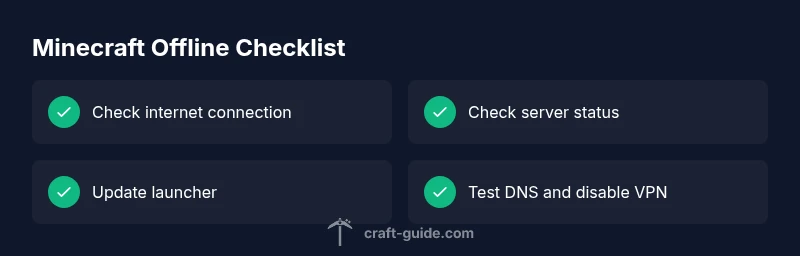
If you’re in a rush, run through these checks in order. They cover the most common causes and require minimal time.
- Confirm internet access: open a web page or stream a video to verify general connectivity.
- Check Minecraft server status: visit the official status page or a reputable community source to see if authentication or game servers are reported down.
- Update the launcher: ensure you are running the latest Minecraft launcher version; older versions can fail to authenticate.
- Pause VPNs/proxies: VPN or proxy services can interfere with authentication or routing to Mojang servers.
- Review firewall/antivirus: ensure Minecraft is allowed through firewall rules and not blocked by security software.
- Synchronize time: incorrect system time can cause authentication failures; enable automatic time settings.
If these checks pass but you still see offline, move to network-level diagnostics.
Deep dive: network and DNS fundamentals for Minecraft offline issues
Networking for Minecraft relies on stable DNS resolution, proper routing, and low latency. A misbehaving DNS or blocked port can prevent authentication or server connection, especially when accessing Mojang services. Here’s how to investigate:
- DNS health: run nslookup or dig to confirm your DNS resolves mojang.com and minecraft.net correctly. If not, switch to a known-good DNS like 8.8.8.8 or 1.1.1.1.
- IPv4 vs IPv6: some networks route poorly over IPv6; forcing IPv4 can restore connections. Disable IPv6 temporarily if you suspect it’s the issue.
- Port checks: Minecraft uses TCP 25565 for servers; ensure your router isn’t blocking or applying strict NAT. If using a school or work network, ports may be filtered.
- Ping and traceroute: run ping to mojang servers and traceroute to identify where latency or blocking occurs.
These steps don’t replace the need for a working internet connection, but they reveal where the bottleneck lies and guide you toward the right fix.
Common culprits and practical fixes you can apply
Most offline scenarios fall into a few repeatable buckets. Here are the top culprits and how to address them without diving into permanent changes.
- Internet connection instability: reboot your modem/router; try a wired connection if possible to rule out Wi‑Fi issues.
- Outdated launcher or game files: update or reinstall the launcher; clear launcher cache if available to fix corrupted files.
- DNS or network misconfigurations: flush DNS, switch to a reputable DNS provider, and verify you can resolve Mojang domains.
- Firewall and antivirus interference: add Minecraft as an exception or temporarily disable security software to test, then re-enable with rules in place.
- VPN or proxy interference: disconnect VPNs; some networks route through proxies that block authentication endpoints.
- Time synchronization problems: enable automatic time updates so login tokens validate correctly.
If you’ve tried these fixes and still face issues, the next step is to run through the diagnostic flow and consider a clean reinstall as a last resort.
How to interpret server status pages and logs
Server status pages show whether authentication, game, or services are operational. Learn to read the key indicators:
- All systems operational: the issue is likely client-side or network-related.
- Authentication services down: expect login errors or offline prompts; you’ll need to wait or work with support.
- Game servers down: you can still access single-player or offline modes if you’re not required to authenticate. -Partial outages: some regions may have issues; connecting from another region or using a different network might help.
Check logs for error codes if you have access. Common codes often indicate DNS failures, timeouts, or token invalidation. Documenting the exact error messages helps when seeking help.
When to seek professional help and what to provide
If the problem persists after you’ve exhausted common fixes, it’s time to contact support. Before you reach out, collect:
- Your operating system and launcher version.
- Exact error messages and any codes displayed.
- Screenshots or screen recordings of the issue.
- A brief description of steps you’ve already tried.
- Result of basic network tests (ping, DNS lookup, traceroute).
Craft Guide recommends starting with the official Minecraft support channels and Mojang status pages. Providing precise information speeds up diagnosis and reduces back-and-forth.
- Important safety note: never share sensitive login data or tokens. Only provide non-sensitive diagnostics when contacting support.
Steps
Estimated time: 60-90 minutes
- 1
Verify internet connection
Open a web browser and load a few pages to confirm basic connectivity. If pages fail to load, restart your router and try a wired connection if available.
Tip: Use a different device on the same network to distinguish network-wide issues from device-specific problems. - 2
Check launcher and account status
Launch the Minecraft launcher, ensure you are signed in, and verify you’re on the latest version. If you can’t sign in, reset credentials or reauthenticate the account.
Tip: Avoid using multiple launcher profiles that could cause token conflicts. - 3
Test server status and DNS
Visit the Mojang status page and perform a DNS lookup for mojang.com to confirm resolution. If DNS fails, switch to a public resolver like Google DNS.
Tip: Clearing local DNS caches can resolve stale records. - 4
Review firewall/antivirus rules
Temporarily disable security software to test Minecraft connections, then configure exceptions if the game works.
Tip: Always re-enable security after testing and add precise rules, not broad allowances. - 5
Inspect network routing
If possible, run a traceroute to a Mojang endpoint to identify where traffic is blocked or delayed.
Tip: Note any hops that show high latency or timeouts. - 6
Consider VPN/proxy status and time sync
Disconnect VPNs or proxies and ensure your system clock matches real time. Mismatches can break authentication tokens.
Tip: If you must use a VPN, choose a service with known Minecraft compatibility. - 7
Reinstall as a last resort
If all else fails, reinstall the launcher and test a fresh profile. This resolves corrupted files or misconfigurations that block login.
Tip: Back up your worlds before reinstalling to avoid data loss.
Diagnosis: Minecraft launcher or in-game shows offline status or cannot connect to servers
Possible Causes
- highInternet connection is down or unstable
- mediumDNS misconfiguration or DNS-over-HTTPS blocking
- lowMinecraft servers (authentication or game) are down
- highOutdated launcher or login issues
- mediumFirewall/antivirus blocking connections
- mediumVPN/proxy interference
- lowIncorrect system date/time
Fixes
- easyTest general internet access with a browser
- easyCheck Mojang/Minecraft server status pages
- easyUpdate or reinstall the Minecraft launcher
- easyFlush DNS and switch to a reliable DNS (e.g., 8.8.8.8)
- easyTemporarily disable firewall/antivirus or add exceptions for Minecraft
- easyDisable VPN/proxy for Minecraft connection
- easySynchronize system time and date
- easyIf unresolved, reinstall Minecraft or contact support
People Also Ask
Why does Minecraft show offline even when my internet is working?
Offline messages usually point to authentication, server outages, or blocked ports rather than a general internet failure. Start by checking launcher status and server pages, then test DNS and firewall rules.
Offline messages often come from authentication or server issues. Start with launcher status and DNS checks, then review firewall settings.
How can I tell if the problem is on my end or a Mojang server outage?
Check official Mojang/Minecraft status pages and third-party outage trackers. If multiple players report the same outage, the issue is server-side. If only you experience it, focus on your network or device.
Look at official status pages and report patterns. If others are affected too, it’s likely on the server side.
Should I reinstall Minecraft to fix offline issues?
Reinstalling can fix corrupted files or misconfigurations, but it’s usually a last resort after checking network, DNS, and launcher updates. Always back up worlds before reinstalling.
Reinstall as a last step after trying other fixes.
Can VPNs or proxies cause Minecraft to appear offline?
Yes. VPNs or proxies can block authentication endpoints or change routing, causing offline errors. Disable them temporarily to test connectivity, then reconfigure if needed.
VPNs can interfere with login and routing. Disable to test first.
Is time synchronization important for online authentication?
Yes. Incorrect system time can invalidate tokens and block login. Enable automatic time updates to ensure tokens stay valid.
Time accuracy matters for authentication—enable automatic time sync.
When should I contact support?
If you’ve exhausted common fixes and still see offline, contact official support with exact error messages, your system specs, and steps you’ve tried.
If fixes don’t work, reach out with details for faster help.
Watch Video
The Essentials
- Check your network first—most offline issues are connectivity-related
- Update launcher and verify server status before deep-diagnostics
- Disable VPNs/proxies temporarily to rule out routing blocks
- Use safe DNS and time sync fixes to restore authentication
- Back up data before reinstalling or changing system settings